
Overview
You will learn
- How to connect to SAP HANA from a client machine using HDBSQL
- How to create a user, schema, tables and import data


Prerequisites
- You have completed the first 2 tutorials in this mission.
Steps
Intro
HDBSQL is used in this tutorial as it is part of the SAP HANA client install. HDBSQL is a basic tool for executing SQL scripts and providing an interface for interactive queries. Another option to execute SQL operations is the SQL Console that is part of SAP HANA Cloud Central or the SAP HANA database explorer which is part of an on-premise install of the SAP HANA Cockpit.
This step demonstrates how to connect to a SAP HANA instance using HDBSQL from the SAP HANA client installation.
Copy and paste the following command to see the command line options and press the space bar to advance though the information.
Shellhdbsql -h | moreConnect to either SAP HANA Cloud or SAP HANA on-premise instance using host, port, and credentials. Details on where to find these values are covered in the third and fifth steps of the first tutorial in this mission.
To connect to SAP HANA Cloud, see the following general command.
Shellhdbsql -n <host name>:<port> -u <user> -p <password>The following is a connection example for the SAP HANA Cloud. Notice that if the -p is not provided then you will be prompted to enter your password.
Shellhdbsql -n 3b2gf55e-4214-4bd9-adfc-f547d8e2d384.hana.trial-us10.hanacloud.ondemand.com:443 -u DBADMIN
Connect with hdbsql For SAP HANA on-premise, there are two options shown below to connect.
Shellhdbsql -n <ip address>:39015 -u <user> -p <password> or hdbsql -n <ip address> -d <database name> -i <instance number> -u <user> -p <password>Below are two connection examples for an on-premise SAP HANA instance.
Shellhdbsql -n <ip address>:39015 -u SYSTEM -p your_password or hdbsql -n <ip address> -d HXE -i 90 -u SYSTEM -p your_passwordNotice that either the host and port combination or the host, database name and instance number can be used to connect.
If your connection succeeded, proceed to sub-step 4. If not, the following information may be helpful in diagnosing a failed connection.
The HANA Cloud instance can be configured to enable applications running from outside the SAP BTP to connect. The current setting is shown in SAP HANA Cloud Central in the screenshot below.

Allowlist in SAP HANA Cloud An example of configuring this setting is shown in Allow connections to SAP HANA Cloud instance from selected IP addresses — using the command line.
The SAP HANA Cloud, HANA database free tier instance will be automatically stopped overnight. That means you need to restart your instance before working with it each new day.
Connections to a HANA Cloud instance must use encryption. The default encryption library on Windows is mscrypto and on Linux and macOS it is OpenSSL. The following example demonstrates how one could use the SAP provided conmmoncrypto library instead of the default encryption library. Note, the following steps require that the SAP HANA Client be downloaded from the SAP Software Downloads as the download includes the SAP Common Crypto library (libsapcrypto). Note that the environment variables can also be set by running source hdbclienv.sh or hdbclienv.bat.
For additional details see [Server Certificate Authentication](https://help.sap.com/docs/SAP_HANA_CLIENT/f1b440ded6144a54ada97ff95dac7adf/a95754380f4c4c05b728524f9cd652e3.html).
If you are on a Linux or Mac machine and the hdbsql connection fails with the error message below, it indicates that the OpenSSL library could not locate a trust store in the default location.
_Cannot create SSL context: SSL trust store cannot be found:
$HOME/.ssl/trust.pemA public root certificate to validate the server’s certificate is needed. More information about the required DigiCert root certificate can be found at Secure Communication Between SAP HANA Cloud and JDBC/ODBC Clients and 3397584 - HANA Cloud Connections will switch from “DigiCert Global Root CA” to “DigiCert TLS RSA4096 Root G5”.
It can be downloaded from Download PEM, renamed to
trust.pemand saved to the specified location. For further details, see Secure connection from HDBSQL to SAP HANA Cloud.
Type
\sfor status informationShell\sNotice that for the SAP HANA Cloud instance, the version number is 4.x.

Connect to HANA Cloud Notice that for the on-premise instance, the version number is 2.x.

Connect to an on-premise SAP HANA
This step creates two users and a schema. USER1 will be the owner of the tables that will be created in a subsequent step and will be used to connect to the database.
Create
USER1. Select the command below based on the version of SAP HANA being used. Note that the message ‘0 rows affected’ means that query was successful.SQLCREATE USER USER1 PASSWORD Password1 no force_first_password_change; CREATE USER USER2 PASSWORD Password2 no force_first_password_change; --Used in the Node.js connection pool example and the entity framework tutorial.The end of this tutorial contains SQL statements to delete the user, schema and objects created. This may be helpful if you wish to recreate the sample dataset used in this tutorial.
To verify that the user was created, enter the following command.
SQLSELECT USER_NAME FROM USERS;Also notice that a schema with the same name is created for this user.
SQLSELECT SCHEMA_NAME FROM SCHEMAS;Enable
USER1the ability to create schema, connect asUSER1, create a schema, and set it as the current schema.SQLSELECT CURRENT_USER, CURRENT_SCHEMA FROM DUMMY; GRANT CREATE SCHEMA TO USER1; CONNECT USER1 PASSWORD Password1; CREATE SCHEMA HOTELS; SET SCHEMA HOTELS; GRANT SELECT ON SCHEMA HOTELS TO USER2; GRANT SELECT ON SCHEMA HOTELS TO DBADMIN; SELECT CURRENT_USER, CURRENT_SCHEMA FROM DUMMY;Notice that the current user and schema have also changed from
DBADMINorSYSTEMtoUSER1and that the schema is now HOTELS.
For further information on SQL to create a user or schema, see CREATE USER Statement, CREATE SCHEMA Statement, Grant Statement(Access Control), and Privileges.
Remembering and entering IP addresses, ports, user IDs and passwords can be difficult. SAP HANA User Store offers a convenient means of storing this information and making it available to the SAP HANA client interfaces.
Exit out of
hdbsqland typehdbuserstoreto see a list of available commands such as Set, List and Delete.Shell\q hdbuserstorehdbuserstoreis included with the install of the SAP HANA client.Using
hdbuserstore, specify a key namedUSER1UserKeythat has the host, port and credentials. Details on where to find these values are covered in the third and fifth steps of the first tutorial in this mission.Shellhdbuserstore Set USER1UserKey <host name>:<port> USER1 Password1 hdbuserstore ListConnect with
USER1as the username.Shellhdbsql -U USER1UserKeyUppercase
-Uis for specifying a key from the user store, lower case-uis for user.
Using Stored Connection Information contains details on how an application can use a hdbuserstore key.
Exit HDBSQL by entering \q.
Create a folder for the exercises in this tutorial, enter that directory, and begin editing a file named
hotel.sql.
Copy the following SQL into the file
hotel.sql.SQL--CONNECT USER1 PASSWORD Password1; SET SCHEMA HOTELS; CREATE COLUMN TABLE HOTEL( hno INTEGER PRIMARY KEY, name NVARCHAR(50) NOT NULL, address NVARCHAR(40) NOT NULL, city NVARCHAR(30) NOT NULL, state NVARCHAR(2) NOT NULL, zip NVARCHAR(6) ); CREATE COLUMN TABLE ROOM( hno INTEGER, type NVARCHAR(6), free NUMERIC(3), price NUMERIC(6, 2), PRIMARY KEY (hno, type), FOREIGN KEY (hno) REFERENCES HOTEL ); CREATE COLUMN TABLE CUSTOMER( cno INTEGER PRIMARY KEY, title NVARCHAR(7), firstname NVARCHAR(20), name NVARCHAR(40) NOT NULL, address NVARCHAR(40) NOT NULL, zip NVARCHAR(6) ); CREATE COLUMN TABLE RESERVATION( resno INTEGER NOT NULL GENERATED BY DEFAULT AS IDENTITY, rno INTEGER NOT NULL, cno INTEGER, hno INTEGER, type NVARCHAR(6), arrival DATE NOT NULL, departure DATE NOT NULL, PRIMARY KEY ( "RESNO", "ARRIVAL" ), FOREIGN KEY(hno) REFERENCES HOTEL, FOREIGN KEY(cno) REFERENCES CUSTOMER ); CREATE COLUMN TABLE MAINTENANCE( mno INTEGER PRIMARY KEY, hno INTEGER, description NVARCHAR(100), date_performed DATE, performed_by NVARCHAR(40) ); CREATE OR REPLACE PROCEDURE SHOW_RESERVATIONS( IN IN_HNO INTEGER, IN IN_ARRIVAL DATE) SQL SECURITY INVOKER READS SQL DATA AS BEGIN SELECT R.RESNO, R.ARRIVAL, DAYS_BETWEEN (R.ARRIVAL, R.DEPARTURE) as "Nights", H.NAME, CUS.TITLE, CUS.FIRSTNAME AS "FIRST NAME", CUS.NAME AS "LAST NAME" FROM RESERVATION AS R LEFT OUTER JOIN HOTEL AS H ON H.HNO = R.HNO LEFT OUTER JOIN CUSTOMER AS CUS ON CUS.CNO = R.CNO WHERE R.ARRIVAL = :IN_ARRIVAL AND H.HNO = :IN_HNO ORDER BY H.NAME ASC, R.ARRIVAL DESC; END; INSERT INTO HOTEL VALUES(10, 'Congress', '155 Beechwood St.', 'Seattle', 'WA', '20005'); INSERT INTO HOTEL VALUES(11, 'Regency', '477 17th Avenue', 'Seattle', 'WA', '20037'); INSERT INTO HOTEL VALUES(12, 'Long Island', '1499 Grove Street', 'Long Island', 'NY', '11788'); INSERT INTO HOTEL VALUES(13, 'Empire State', '65 Yellowstone Dr.', 'Albany', 'NY', '12203'); INSERT INTO HOTEL VALUES(14, 'Midtown', '12 Barnard St.', 'New York', 'NY', '10019'); INSERT INTO HOTEL VALUES(15, 'Eighth Avenue', '112 8th Avenue', 'New York', 'NY', '10019'); INSERT INTO HOTEL VALUES(16, 'Lake Michigan', '354 OAK Terrace', 'Chicago', 'IL', '60601'); INSERT INTO HOTEL VALUES(17, 'Airport', '650 C Parkway', 'Rosemont', 'IL', '60018'); INSERT INTO HOTEL VALUES(18, 'Sunshine', '200 Yellowstone Dr.', 'Clearwater', 'FL', '33575'); INSERT INTO HOTEL VALUES(19, 'Beach', '1980 34th St.', 'Daytona Beach', 'FL', '32018'); INSERT INTO HOTEL VALUES(20, 'Atlantic', '111 78th St.', 'Deerfield Beach', 'FL', '33441'); INSERT INTO HOTEL VALUES(21, 'Long Beach', '35 Broadway', 'Long Beach', 'CA', '90804'); INSERT INTO HOTEL VALUES(22, 'Indian Horse', '16 MAIN STREET', 'Palm Springs', 'CA', '92262'); INSERT INTO HOTEL VALUES(23, 'Star', '13 Beechwood Place', 'Hollywood', 'CA', '90029'); INSERT INTO HOTEL VALUES(24, 'River Boat', '788 MAIN STREET', 'New Orleans', 'LA', '70112'); INSERT INTO HOTEL VALUES(25, 'Ocean Star', '45 Pacific Avenue', 'Atlantic City', 'NJ', '08401'); INSERT INTO HOTEL VALUES(26, 'Bella Ciente', '1407 Marshall Ave', 'Longview', 'TX', '75601'); INSERT INTO ROOM VALUES(10, 'single', 20, 135.00); INSERT INTO ROOM VALUES(10, 'double', 45, 200.00); INSERT INTO ROOM VALUES(12, 'single', 10, 70.00); INSERT INTO ROOM VALUES(12, 'double', 13, 100.00); INSERT INTO ROOM VALUES(13, 'single', 12, 45.00); INSERT INTO ROOM VALUES(13, 'double', 15, 80.00); INSERT INTO ROOM VALUES(14, 'single', 20, 85.00); INSERT INTO ROOM VALUES(14, 'double', 35, 140.00); INSERT INTO ROOM VALUES(15, 'single', 50, 105.00); INSERT INTO ROOM VALUES(15, 'double', 230, 180.00); INSERT INTO ROOM VALUES(15, 'suite', 12, 500.00); INSERT INTO ROOM VALUES(16, 'single', 10, 120.00); INSERT INTO ROOM VALUES(16, 'double', 39, 200.00); INSERT INTO ROOM VALUES(16, 'suite', 20, 500.00); INSERT INTO ROOM VALUES(17, 'single', 4, 115.00); INSERT INTO ROOM VALUES(17, 'double', 11, 180.00); INSERT INTO ROOM VALUES(18, 'single', 15, 90.00); INSERT INTO ROOM VALUES(18, 'double', 19, 150.00); INSERT INTO ROOM VALUES(18, 'suite', 5, 400.00); INSERT INTO ROOM VALUES(19, 'single', 45, 90.00); INSERT INTO ROOM VALUES(19, 'double', 145, 150.00); INSERT INTO ROOM VALUES(19, 'suite', 60, 300.00); INSERT INTO ROOM VALUES(20, 'single', 11, 60.00); INSERT INTO ROOM VALUES(20, 'double', 24, 100.00); INSERT INTO ROOM VALUES(21, 'single', 2, 70.00); INSERT INTO ROOM VALUES(21, 'double', 10, 130.00); INSERT INTO ROOM VALUES(22, 'single', 34, 80.00); INSERT INTO ROOM VALUES(22, 'double', 78, 140.00); INSERT INTO ROOM VALUES(22, 'suite', 55, 350.00); INSERT INTO ROOM VALUES(23, 'single', 89, 160.00); INSERT INTO ROOM VALUES(23, 'double', 300, 270.00); INSERT INTO ROOM VALUES(23, 'suite', 100, 700.00); INSERT INTO ROOM VALUES(24, 'single', 10, 125.00); INSERT INTO ROOM VALUES(24, 'double', 9, 200.00); INSERT INTO ROOM VALUES(24, 'suite', 78, 600.00); INSERT INTO ROOM VALUES(25, 'single', 44, 100.00); INSERT INTO ROOM VALUES(25, 'double', 115, 190.00); INSERT INTO ROOM VALUES(25, 'suite', 6, 450.00); INSERT INTO CUSTOMER VALUES(1000, 'Mrs', 'Jenny', 'Porter', '1340 N. Ash Street, #3', '10580'); INSERT INTO CUSTOMER VALUES(1001, 'Mr', 'Peter', 'Brown', '1001 34th St., APT.3', '48226'); INSERT INTO CUSTOMER VALUES(1002, 'Company', NULL, 'Datasoft', '486 Maple St.', '90018'); INSERT INTO CUSTOMER VALUES(1003, 'Mrs', 'Rose', 'Brian', '500 Yellowstone Drive, #2', '75243'); INSERT INTO CUSTOMER VALUES(1004, 'Mrs', 'Mary', 'Griffith', '3401 Elder Lane', '20005'); INSERT INTO CUSTOMER VALUES(1005, 'Mr', 'Martin', 'Randolph', '340 MAIN STREET, #7', '60615'); INSERT INTO CUSTOMER VALUES(1006, 'Mrs', 'Sally', 'Smith', '250 Curtis Street', '75243'); INSERT INTO CUSTOMER VALUES(1007, 'Mr', 'Mike', 'Jackson', '133 BROADWAY APT. 1', '45211'); INSERT INTO CUSTOMER VALUES(1008, 'Mrs', 'Rita', 'Doe', '2000 Humboldt St., #6', '97213'); INSERT INTO CUSTOMER VALUES(1009, 'Mr', 'George', 'Howe', '111 B Parkway, #23', '75243'); INSERT INTO CUSTOMER VALUES(1010, 'Mr', 'Frank', 'Miller', '27 5th St., 76', '95054'); INSERT INTO CUSTOMER VALUES(1011, 'Mrs', 'Susan', 'Baker', '200 MAIN STREET, #94', '90018'); INSERT INTO CUSTOMER VALUES(1012, 'Mr', 'Joseph', 'Peters', '700 S. Ash St., APT.12', '92714'); INSERT INTO CUSTOMER VALUES(1013, 'Company', NULL, 'TOOLware', '410 Mariposa St., #10', '20019'); INSERT INTO CUSTOMER VALUES(1014, 'Mr', 'Antony', 'Jenkins', '55 A Parkway, #15', '20903'); INSERT INTO RESERVATION VALUES(1, 100, 1000, 11, 'single', '2020-12-24', '2020-12-27'); INSERT INTO RESERVATION VALUES(2, 110, 1001, 11, 'double', '2020-12-24', '2021-01-03'); INSERT INTO RESERVATION VALUES(3, 120, 1002, 15, 'suite', '2020-11-14', '2020-11-18'); INSERT INTO RESERVATION VALUES(4, 130, 1009, 21, 'single', '2019-02-01', '2019-02-03'); INSERT INTO RESERVATION VALUES(5, 150, 1006, 17, 'double', '2019-03-14', '2019-03-24'); INSERT INTO RESERVATION VALUES(6, 140, 1013, 20, 'double', '2020-04-12', '2020-04-30'); INSERT INTO RESERVATION VALUES(7, 160, 1011, 17, 'single', '2020-04-12', '2020-04-15'); INSERT INTO RESERVATION VALUES(8, 170, 1014, 25, 'suite', '2020-09-01', '2020-09-03'); INSERT INTO RESERVATION VALUES(9, 180, 1001, 22, 'double', '2020-12-23', '2021-01-08'); INSERT INTO RESERVATION VALUES(10, 190, 1013, 24, 'double', '2020-11-14', '2020-11-17'); INSERT INTO MAINTENANCE VALUES(10, 24, 'Replace pool liner and pump', '2019-03-21', 'Discount Pool Supplies'); INSERT INTO MAINTENANCE VALUES(11, 25, 'Renovate the bar area. Replace TV and speakers', '2020-11-29', 'TV and Audio Superstore'); INSERT INTO MAINTENANCE VALUES(12, 26, 'Roof repair due to storm', null, null); SELECT SCHEMA_NAME, OBJECT_NAME, OBJECT_TYPE, OWNER_NAME FROM "PUBLIC"."OWNERSHIP" WHERE OWNER_NAME = 'USER1';Execute the SQL with the command below. This is an example of running commands in non-interactive mode.
Shellhdbsql -U USER1UserKey -I hotel.sqlConfirm that 15 records have been inserted.
Shellhdbsql -U USER1UserKey "SELECT COUNT(*) FROM HOTELS.CUSTOMER";
hdbsql query result View the list of created objects.
SQLhdbsql -U USER1UserKey \dt HOTELS. \dp HOTELS.
View the list of tables and procedures If the output is not aligned, aligned output mode can be toggled with
\alin hdbsql.For further information, see CREATE TABLE Statement and INSERT Statement.
Identifiers such as table names are automatically upper cased unless they are within “”.
SQLSELECT * FROM HoTeLs.RoOm; --succeeds SELECT * FROM "HoTeLs"."RoOm"; --fails SELECT * FROM "HOTELS"."ROOM"; --succeedsFor further details, consult Identifiers and case sensitivity.
Should you wish to remove the contents of a table, the table itself, a schema or a user, the following statements can be executed.
Do not execute the following statements unless you are finished with the tutorial. They permanently remove the schema, users, and sample dataset.
SQLDROP SCHEMA HOTELS CASCADE; DROP USER USER1 CASCADE; DROP USER USER2 CASCADE;
HDBSQL can run commands interactively, or non-interactively. A few examples are shown below.
SQLSELECT * FROM HOTELS.CUSTOMER; -- interactive hdbsql -U USER1UserKey "SELECT * FROM HOTELS.CUSTOMER"; -- non-interactive hdbsql -U USER1UserKey -I hotel.sql -- batch fileSubstitution variables can be used to pass parameters.
Create a file named
findCustomers.sql.
Given the following SQL statement:
SELECT * FROM HOTELS.CUSTOMER WHERE FIRSTNAME LIKE '&nameParam'We can call the query by executing the following command:
hdbsql -A -U USER1UserKey -V nameParam=J% -I findCustomers.sqlThe -V option specifies a named variable that can be used within the SQL specified after the -I option.

It is also possible to define new variables and list the defined variables as shown below.
hdbsql -A -U USER1UserKey -V nameParam=J%
\vd titleParam Mr
\vl
SELECT * FROM HOTELS.CUSTOMER WHERE TITLE = '&titleParam' AND FIRSTNAME LIKE '&nameParam'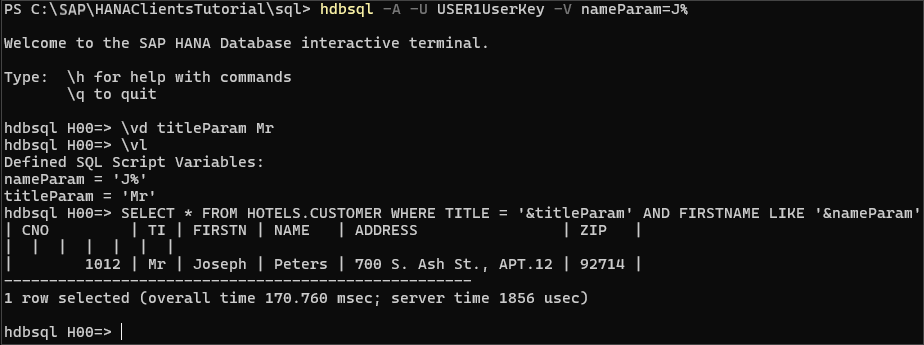
See SAP HANA HDBSQL Options for details on the options to list and define substitution variables.
HDBSQL will prompt for required parameters. A few examples follow.
SQLSELECT * FROM HOTELS.CUSTOMER WHERE FIRSTNAME LIKE ?;SQLCALL HOTELS.SHOW_RESERVATIONS(?, ?);
Prompting for parameters In the above examples, the statements are prepared first, then the parameters are sent afterwards during the execute phase. In the previous step which used substitution variables, however, there is no separate prepare step. If a statement is going to be executed repeatedly, but with different parameters, in general, prepared statements can execute quicker.
Congratulations! You have now created a user and some tables using HDBSQL. This user will be used to connect and query the data in the following tutorials.
Resources
Discussion
Share feedback on this tutorial or join the conversation in SAP Community.