
Overview
You will learn
- How to onboard a repository using API.


Prerequisites
- You’ve copied the
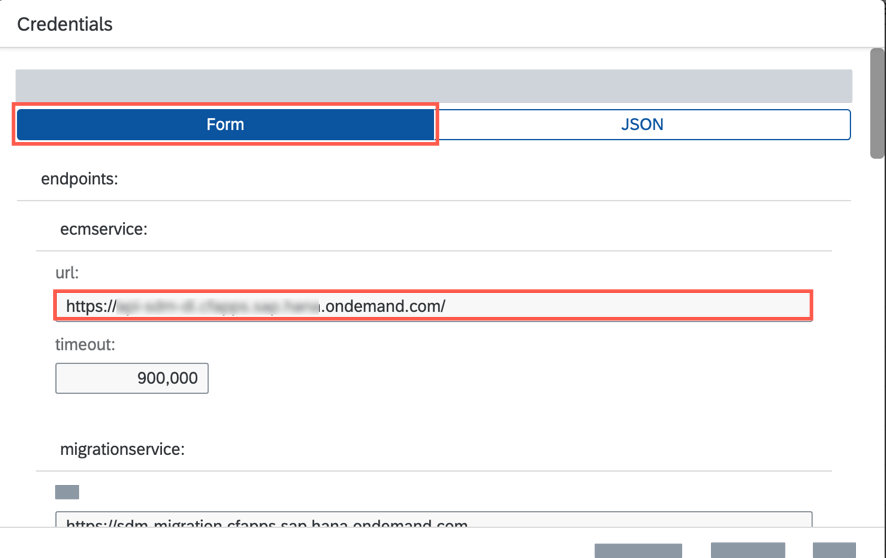
ecmservice:urlvalue from the service key of Document Management Service, Integration Option. For more information, see the tutorial Create a Service Instance and then a Service Key of SAP Document Management Service, Integration Option. - You’ve copied the
repositoryIdand saved it. For more information, see Find the Repository IDs and Steps to Find the ID of a Shared Drive or a Folder - You’ve generated a JSON Web Token (JWT) that serves as your authorization for making API calls. For more information, see the tutorial Generating the JSON Web Token (JWT).
- You’ve the admin permission for Document Management Service, Integration Option via the
SDM_Adminscope. - You’ve installed the Postman app.
Steps
You will learn
- How to onboard a repository using API.
Copy the url: parameter from the generated service key.
!
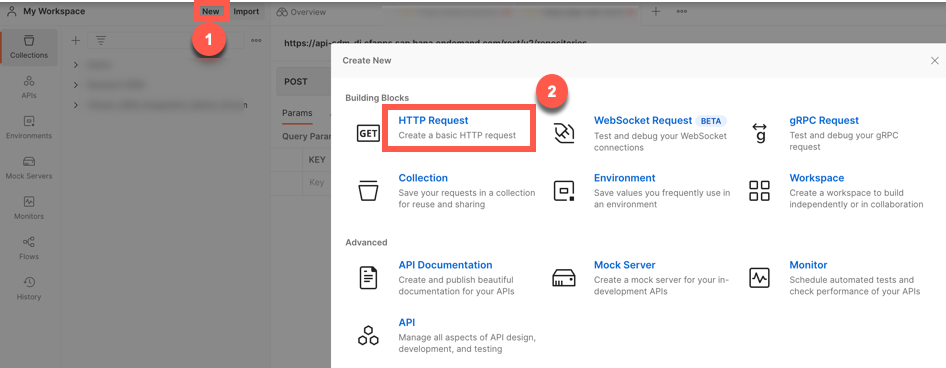
Open the Postman. Click on New and then select HTTP Request to open a new tab on Postman to work on.
!
Postman Select the POST method and enter the request URL as like this:
"url">/rest/v2/repositories.Example: You must ensure that you are adding the parameter
/rest/v2/repositoriesas suffix to the request URL. So that the final sample request URL looks like this:https://api-abc-de.cfapps.sap.hana.ondemand.com/rest/v2/repositories!

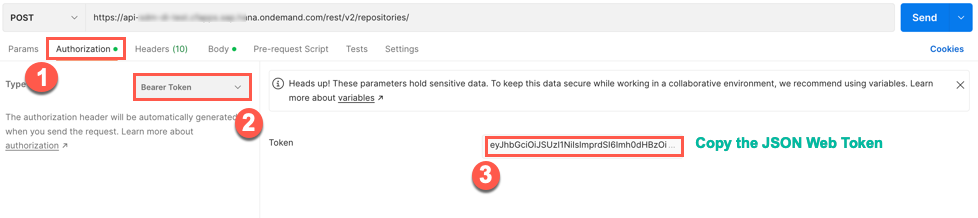
req Navigate to Authorization tab and select the type Bearer Token. Enter the JSON web token that you generate in this tutorial Generating the JSON Web Token (JWT).
!
Navigate to the Body tab and copy paste the following code snippet.
JSON{ "repository": { "displayName": "MytestReposiory", "description": "Onboarding as part of the tutorial", "repositoryType": "external", "externalId": "MyTutONBRepo", "repositoryCategory": "GoogleWorkspace", "repositoryId": "GoogleConnectorEntry" }, "connection": { "destinationName": "MyTest" } }Note Please modify the details according to your needs. It is not necessary to follow the same code snippet. A few details, such as display name, and destination names, may change. It is important that you read the Prerequisites again.
!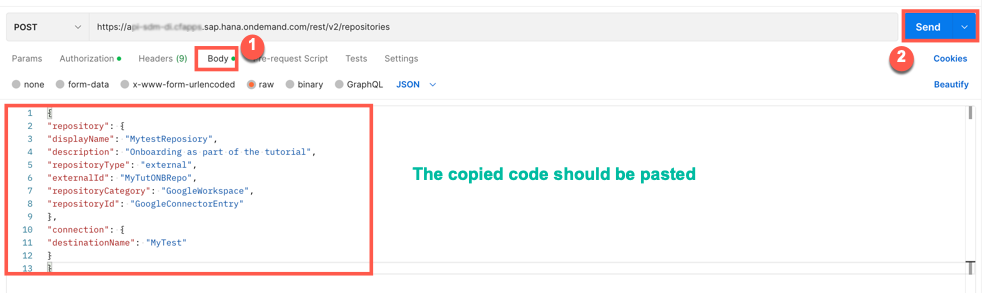
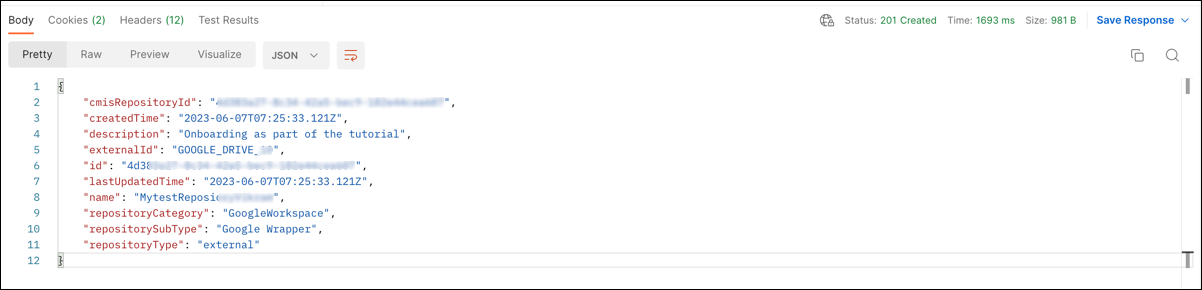
Click Send.
When a successful response is received, the status is
200 OK.Results
!
Resources
Discussion
Share feedback on this tutorial or join the conversation in SAP Community.