
Overview
You will learn
- How to build and deploy an application to SAP BTP, Cloud Foundry environment
- How to configure Cloud Foundry settings in SAP Business Application Studio
- How to run the deployed app from your space on SAP BTP, Cloud Foundry environment


Prerequisites
- The SAP Fiori dev space is in status
RUNNINGand you opened it. - You completed Create an SAP Fiori App Using SAP Business Application Studio.
- Make sure you have completed all steps listed in Set Up SAP Business Application Studio for Development. Especially adding all required entitlements is important.
Steps
Intro
After a period of idle time the dev space is automatically stopped. In order to re-start the dev space open the dev space manager of SAP Business Application Studio and click the Play icon. When the dev space is in state RUNNING, click on the dev space name.
The period for idle time for Factory accounts is different than for trial accounts.
In the Explorer pane, right-click the
mta.yamlfile and select Build MTA Project.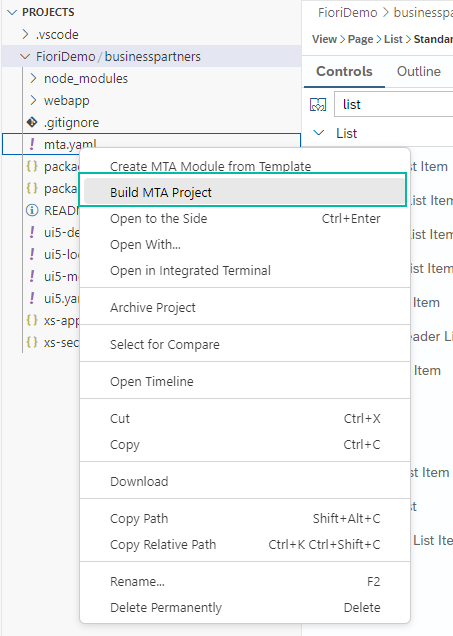
build mta The build process creates a multi-target archive (
MTAR) file in your project that packages all the project modules for deployment. You can find theMTARfile in theFioriDemo/mta_archivesfolder.
terminal mbt build results
If you are not logged in to a Cloud Foundry space, before you can deploy your new application, set your Cloud Foundry preferences.
In the left side bar, select the Hamburger icon | View | Command Palette… to open the command palette.
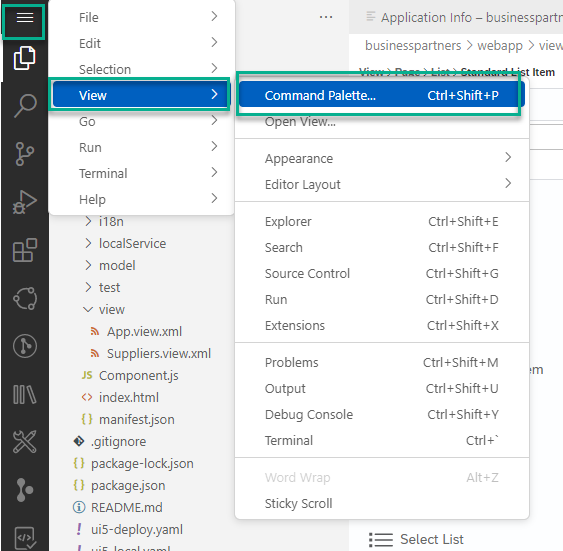
Command Palette-Login to CF Select the command CF: Login to cloud foundry.
Type
cfto filter commands.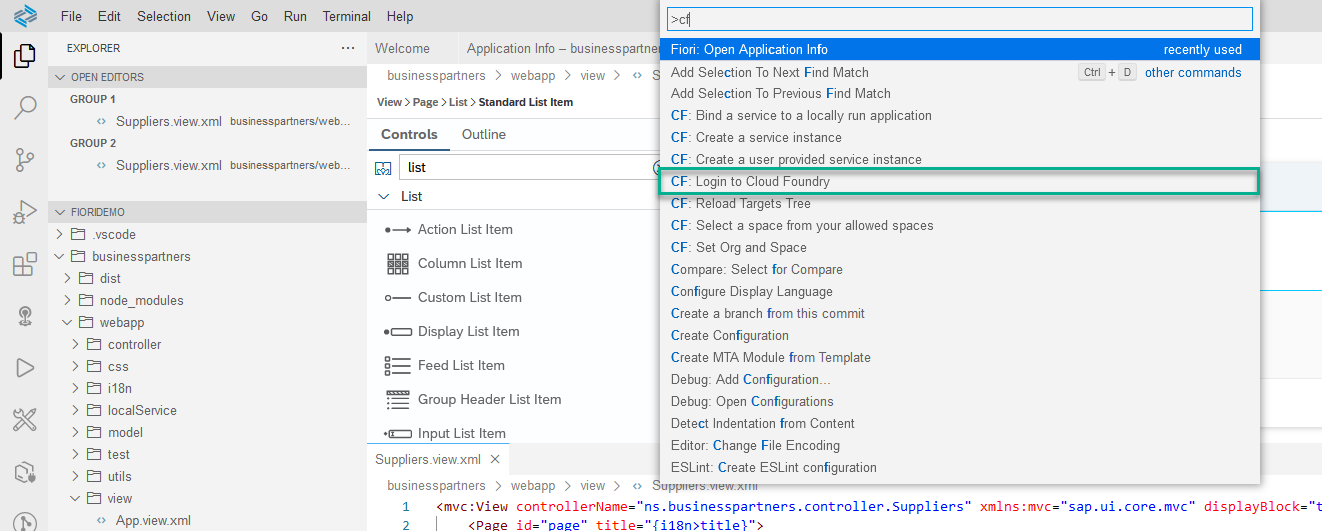
Command Palette-Login to CF A Cloud Foundry Sign In tab opens in SAP Business Application Studio. Select your API endpoint.
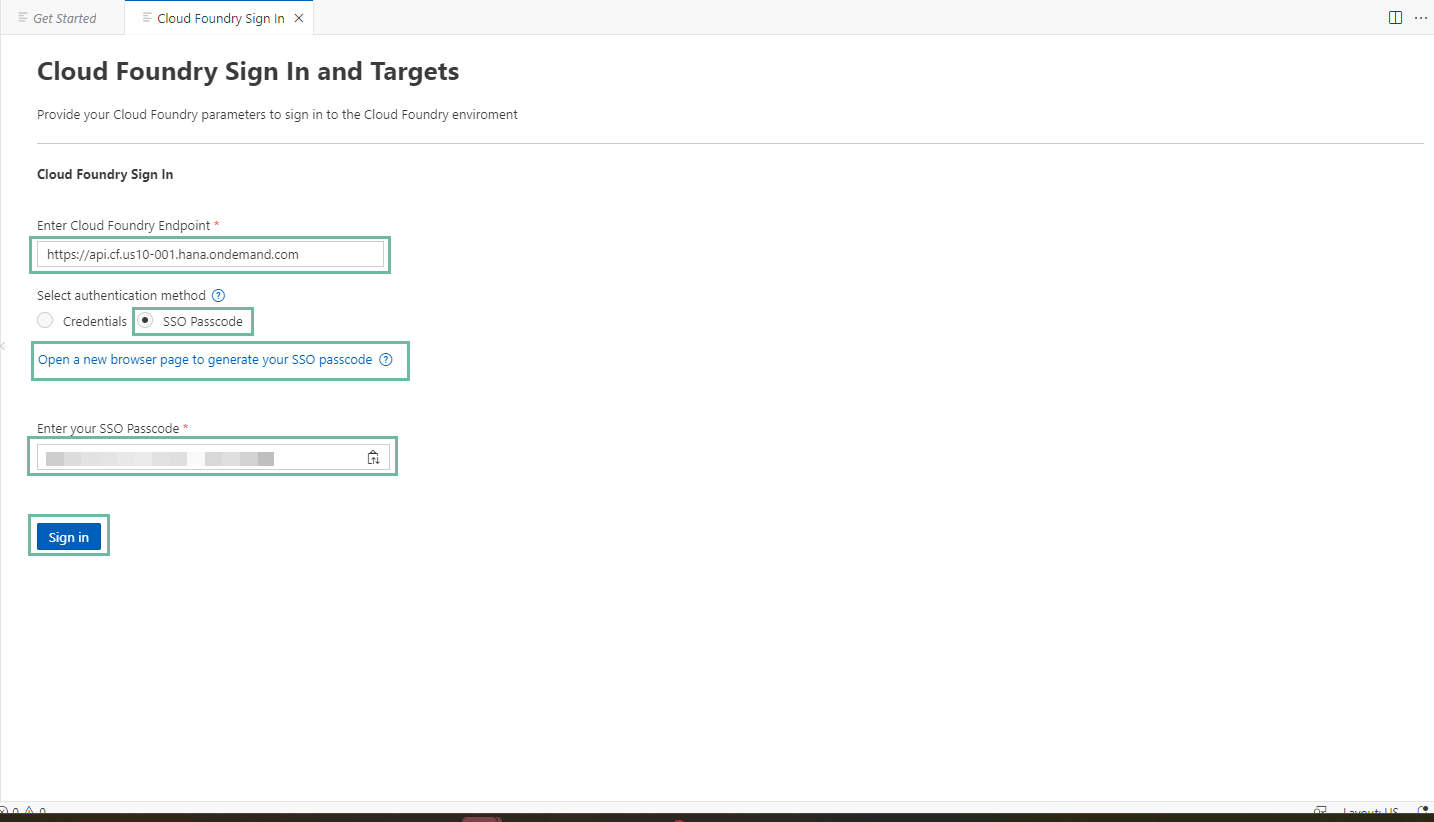
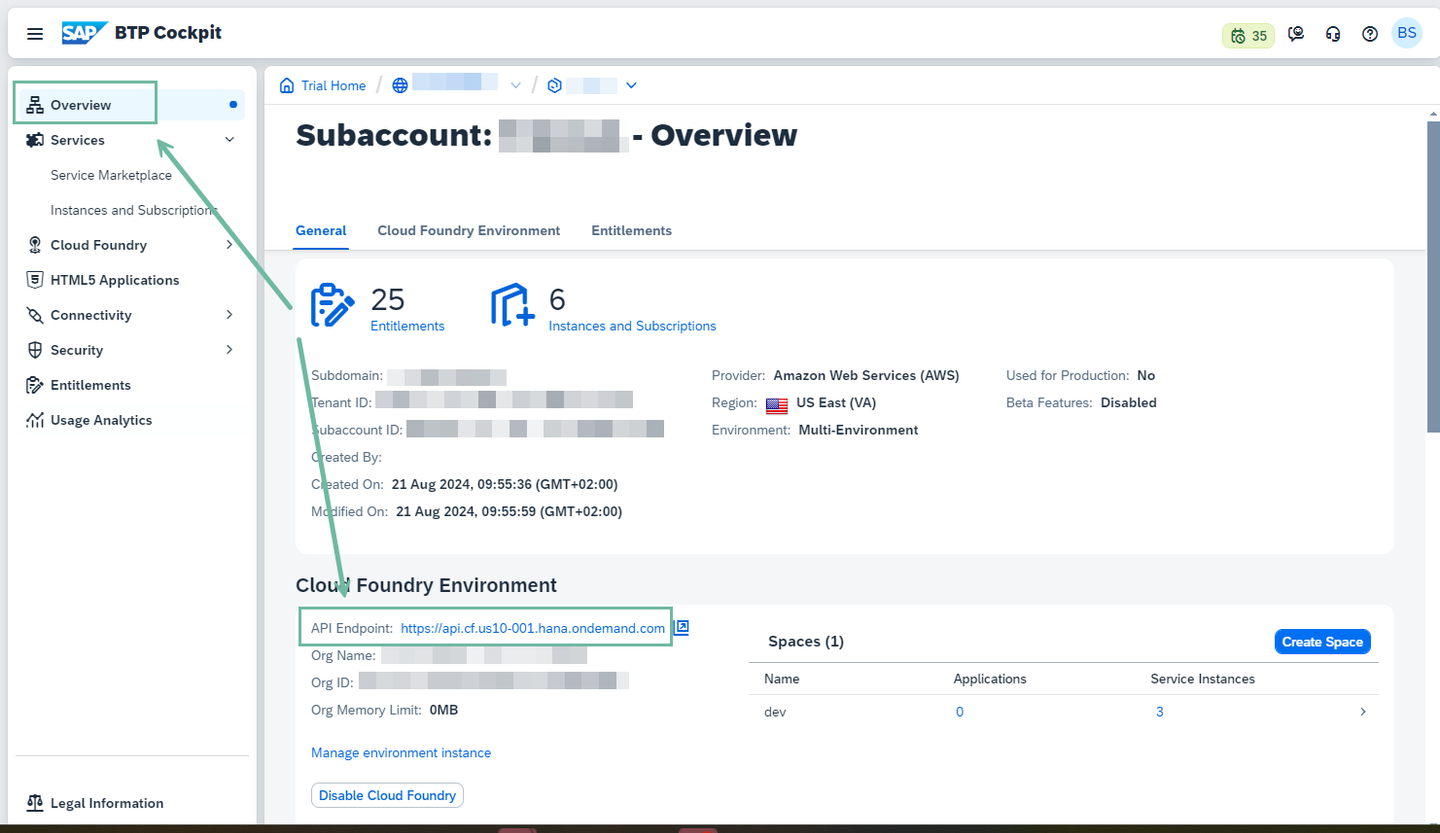
Cloud Foundry Login dialog If you don’t know your API endpoint open the SAP Business Technology Platform Cockpit and navigate to your subaccount. Click on Overview on the left and you can see the URL of the API endpoint under Cloud Foundry Environment.
Cloud Foundry Login dialog Select authentication method as SSO Passcode.
Choose the link Open a new browser page to generate your SSO passcode.
Sign in with the appropriate identity provider, and copy the Temporary Authentication Code.
Enter the Temporary Authentication Code as SSO Passcode.
Choose Sign in.
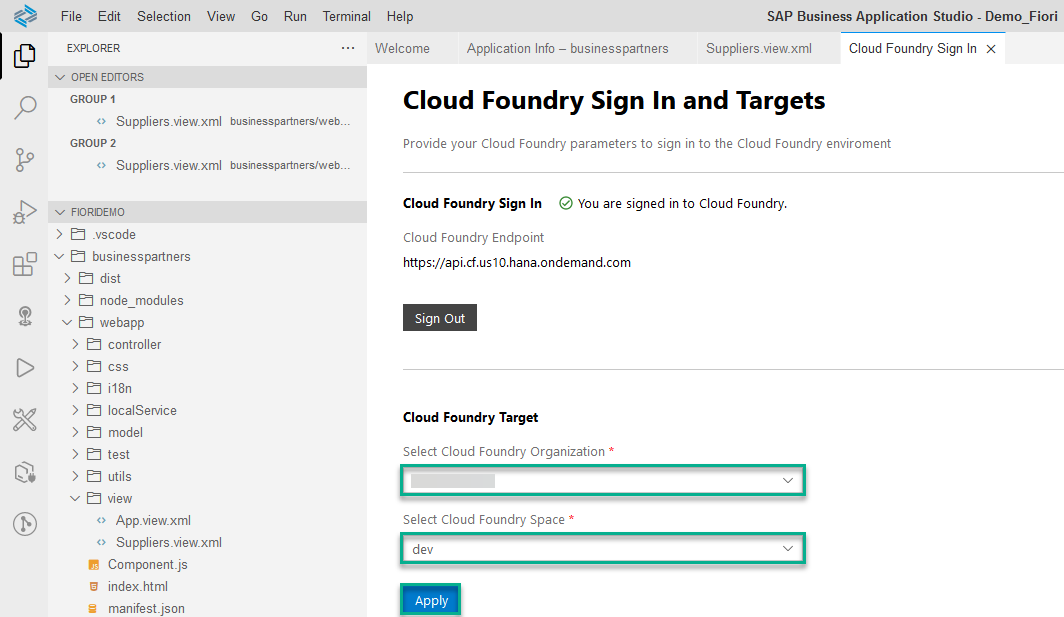
Cloud Foundry Login dialog Select the Cloud Foundry organization, Cloud Foundry Space, and click Apply.
If the Cloud Foundry Target dropdowns are empty you need to change the default Cloud Foundry Endpoint to the one of your subaccount (see previous step). To obtain your subaccount’s Cloud Foundry Endpoint open the SAP Business Technology Platform Cockpit and navigate to your subaccount. Click on Overview on the left and you can see the URL of the API endpoint under Cloud Foundry Environment.
If the dropdown for Select Cloud Foundry Space is empty, check if you have created the needed Cloud Foundry Space as described in the section Create your Trial Space in Setting Up Your Trial Account.
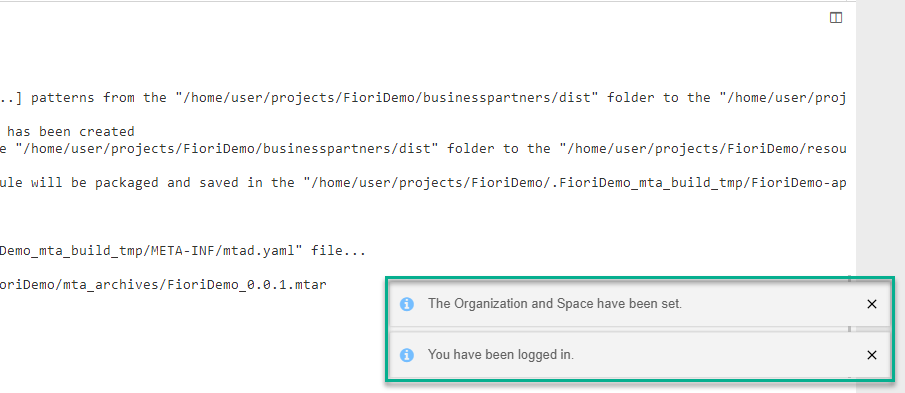
Cloud Foundry Login dialog A notification You have been logged in. appears at the bottom-right of your screen.
Logged in to CF
Deploy your application to SAP BTP, Cloud Foundry environment.
In the Explorer pane under the folder
mta_archives, right-click themtarfile and select Deploy MTA Archive.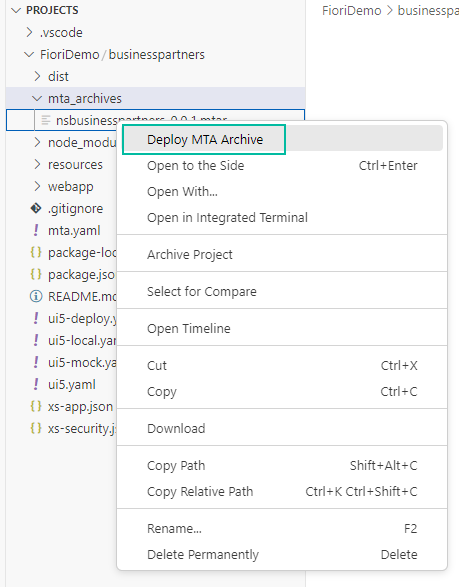
deploy mtar The application deployment to the space you are connected to starts and a notification appears. You can follow the deployment progress in the Task: Deploy console at the bottom of your screen.
Wait for the deployment to complete.
The deployment process takes a few minutes. When the deployment process is complete, the notifications Process finished. and Terminal will be reused by tasks. will appear at the bottom of the Task: Deploy console.
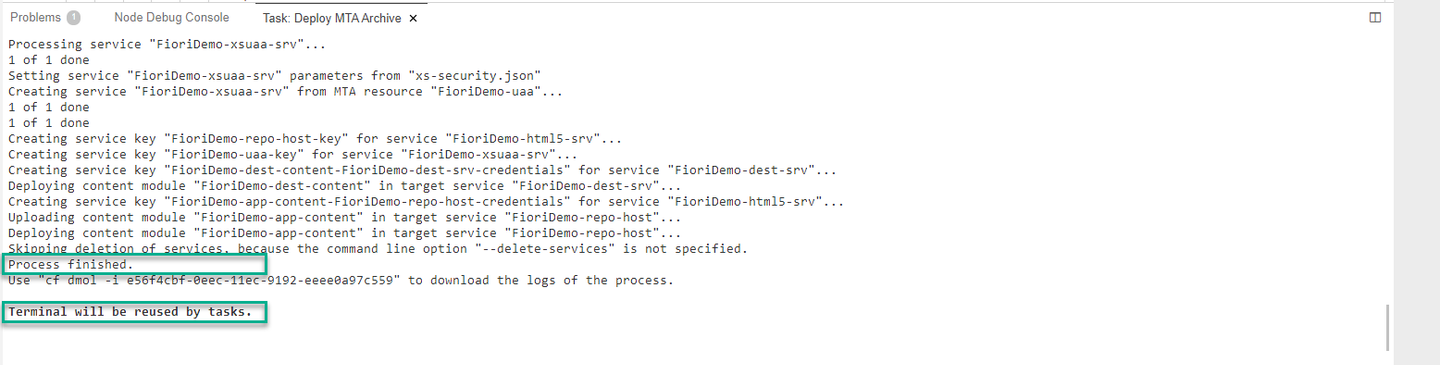
deploy success If you have issues with the deployment, check out the SAP Business Application Guided Answers for troubleshooting.
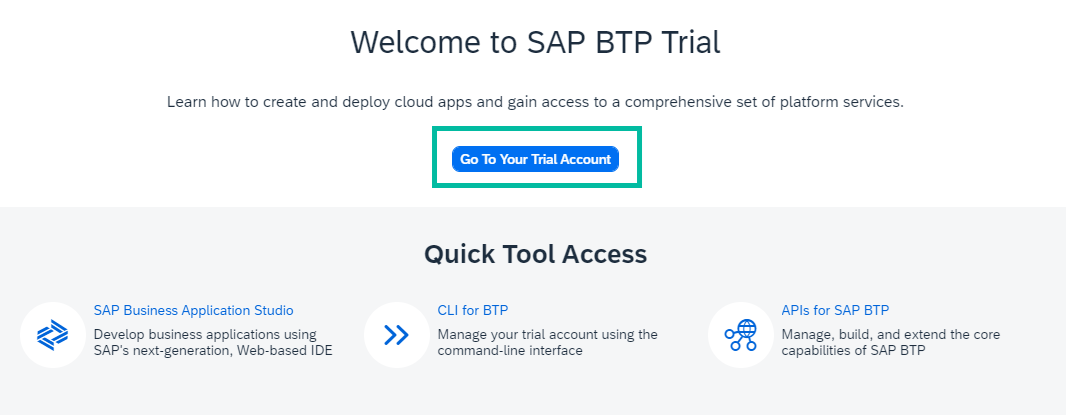
- Go back to your SAP BTP Trial account and click the button Go To Your Trial Account.
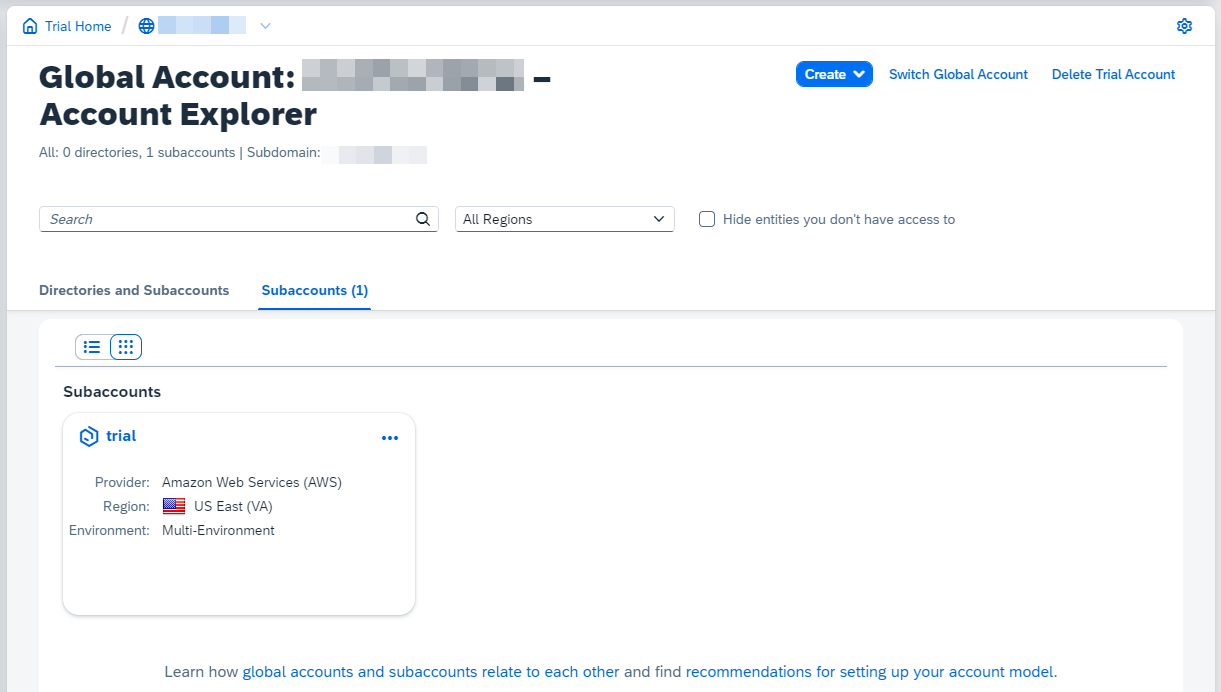
- Click the trial tile to navigate to your trial subaccount in the SAP BTP cockpit.
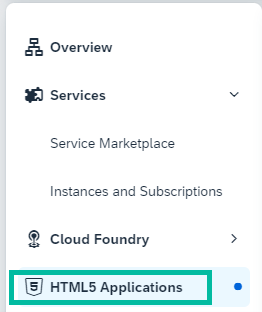
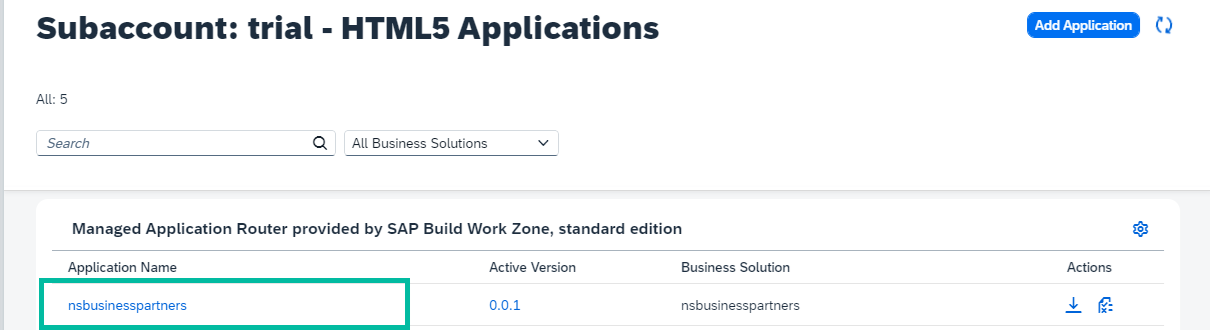
- Select HTML5 Applications in the left navigation panel.
- You will see a list of all HTML5 Application you deployed up to now. Select the one you deployed in the previous step.
Congratulations!
With this, you have successfully completed the deployment of your SAP Fiori app to SAP BTP using SAP Business Application Studio.
In this tutorial, you used high productivity tools that are available out-of-the-box in SAP Business Applications Studio that make it easy to build and deploy applications as well as work in the Cloud Foundry environment.
Resources
Discussion
Share feedback on this tutorial or join the conversation in SAP Community.