
Overview
You will learn
- How to translate the properties file of a Java app using the file upload scenario in SAP Translation Hub


Prerequisites
Prerequisites
- IMPORTANT: This tutorial cannot be completed on a trial account.
- Install and configure Eclipse environment Complete the 1. Quick start guide section.
Steps
In your Eclipse window, locate the i18n.properties file that contains your app texts.

Before you get started with the translation process, open the i18n.properties file to look at the texts that you’re going to translate.

In the SAP BTP cockpit, choose the tile for your account in the SAP BTP Neo environment.

Choose Services in the navigation area on the left. Search for the SAP Translation Hub service by entering trans and then choose the SAP Translation Hub tile.
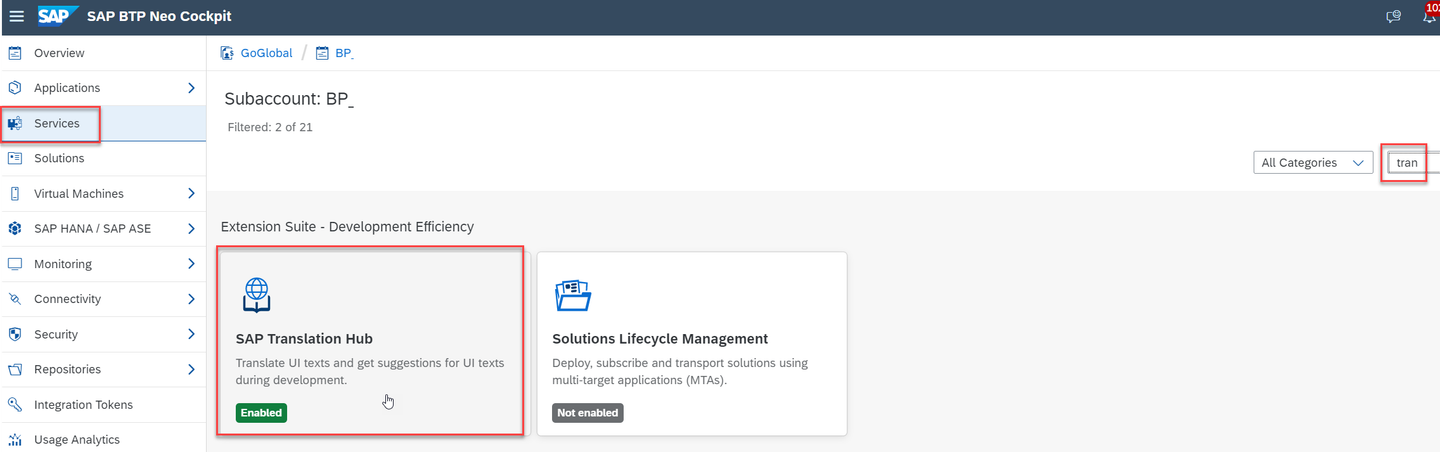
To access the SAP Translation Hub, UI, choose Go to UI for Translation Workflow.

Create a File Project for the .properties file that you’re going to upload.

Enter the following details about your file translation project:
| Field Name | Value |
|---|---|
| Project Name | espmcloud |
| File Type | Java Properties File |
| Domain | Sales |
| Source Language | English |
| Target Languages | Enter the languages of your choice, such as French and Italian |
Choose Proceed to upload file(s).

You can upload the properties file in two ways: there’s the drag & drop option, which automatically starts the translation process, and there’s the more traditional file selection option, which requires you to select the file and start the translation process. The end result is the same, it’s just a matter of how you prefer to work.
Drag & Drop Option
Simply drag the file from your Eclipse project to the translation project screen. SAP Translation Hub uploads your properties file to the translation project.
File Selection Option
- On the translation project screen, choose **Upload File**:
Regardless of the option you choose, you need to start the translation step by selecting Translate without Download or Translate and Download:

To review the translated texts, choose the Translations tab. On this screen, you can switch between target languages and view information about the translation provider and quality rating:

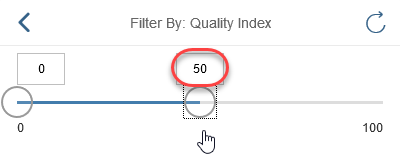
To better plan the language review process, you can filter translations by the quality rating. For example, this enables you to see only those translations that have a quality rating below a certain threshold, such as 50.
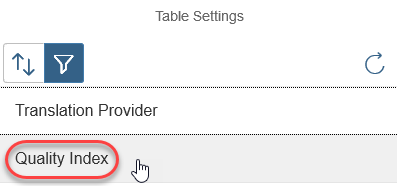
Choose the filter icon above the Quality Index column:

Choose Quality Index:
Enter 50 as the upper limit or move the right slider bubble to the center of the scale:
The following success message confirms your filter setting:

If you want to update any translations, make the changes in the Translated Text column and choose Save Changes:

Now it’s time to download your translations so that you see your Java app in other languages. Choose Download Translations:

SAP Translation Hub prepares a zip file that contains properties files for each of the target languages in your translation project; save the zip file on your local PC and make a note of its location. You’ll need to navigate to this file later in the tutorial.

Now it’s time to head back to your Eclipse window and import the translations into the project for your Java app.
Ensure that you’re looking at the Java perspective:

In the Package Explorer, navigate to your i18n folder, by choosing espm-cloud-web > src > main > webapp > webshop.
Right-click the i18n folder and choose Import….

Choose Archive File:

At the top of the Import window, browse to the zip file that you downloaded from the SAP Translation Hub UI and choose Finish:

The properties files per target language appear in the i18n folder:

To see the translations in your Java app, you need to restart the Java server. In Eclipse, switch to the Git perspective:

Choose the Servers tab:

Right-click Java Web Server and choose Clean…:
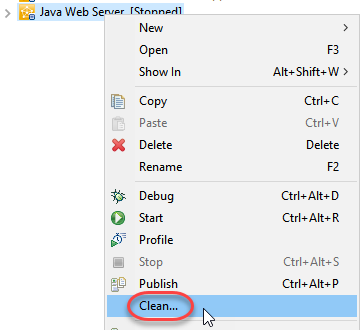
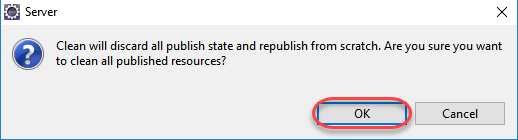
Confirm the clean process by choosing OK:
Depending on system performance, it can take several minutes for the Java server to be cleaned and restarted. When the process is complete, the status of the Java Web server changes to Started, Synchronized:

To see your app in the translated languages, enter the following address in a browser; the last two letters denote the language of your app: http://localhost:8080/espm-cloud-web/webshop/?sap-language=fr

The French version of the app appears:

Resources
Discussion
Share feedback on this tutorial or join the conversation in SAP Community.