
Overview
You will learn
- to release and deploy the project
- to filter data in a dropdown
- to retrieve sample project from the Store


Prerequisites
- Complete the tutorial Connect Action Project to Dropdown in Form
Steps
Intro
In this tutorial, you will release and deploy the project created in the previous tutorial and test the dropdown filtering in the form.
In the project overview tab, select the Release option.

Action Project In the Release Project popup, select Release.

Action Project Select the Deploy option in the top-right corner.

Action Project Choose an Environment and select Deploy.

Action Project In the Define Variables section, select the destination variable
S4_Business_Partnerand select Deploy.
Action Project Your project is deployed.

Action Project
Select the Order Processing process.
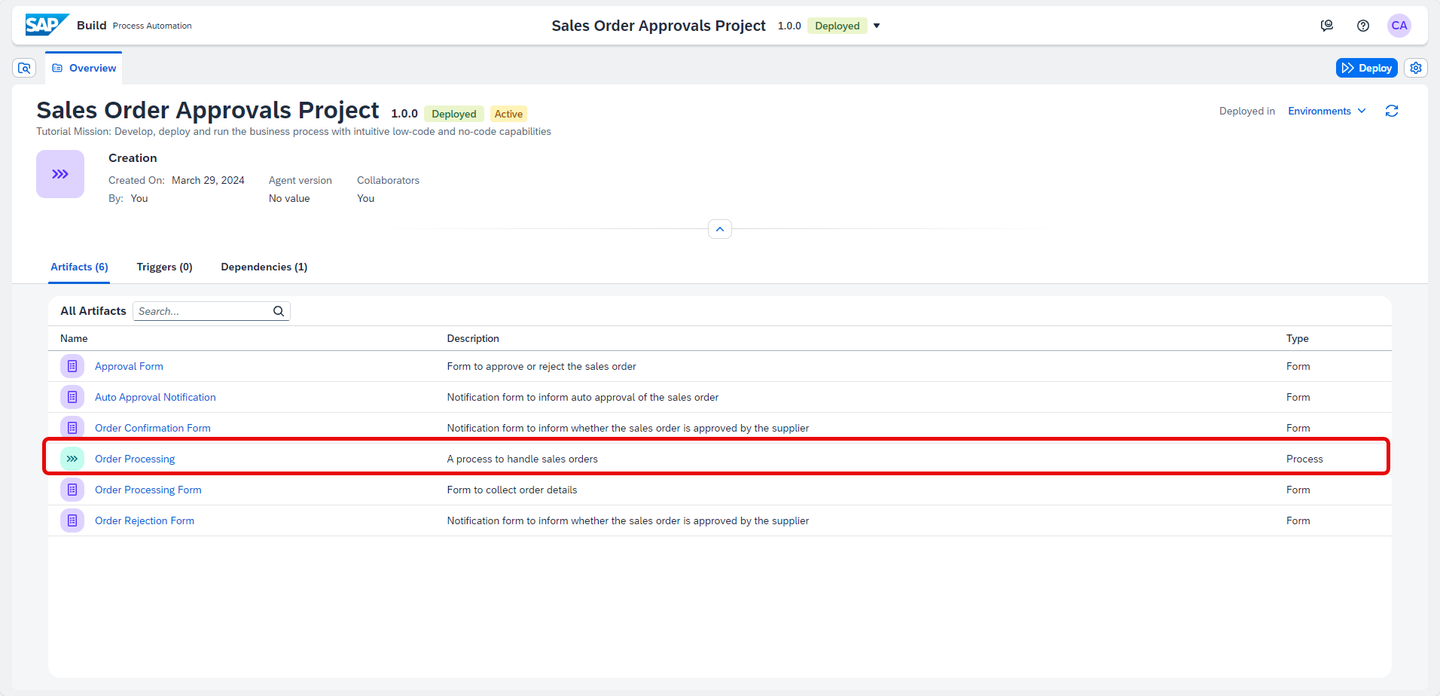
Action Project Select the Order Processing Form artifact and copy the deployed form link.

Action Project Paste the link into a new browser tab/window to open it.
Select the dropdown button for the Customer Name field. You can see all the customer names fetched by the action project from the S4/HANA database.

Action Project In the Customer Name field, if you enter anything, the records will get filtered accordingly.

Action Project The filtering is implemented only on the number of records mentioned in $top parameter of action project, since only those records are fetched and shown.
You have successfully completed releasing and deploying your project and tested the dropdown filtering in the Order Processing Form.
The entire project is available in the SAP Build Store as a sample and you can follow the below steps to retrieve the project and use it for reference.
This sample project can be downloaded from the SAP Build Store.
To retrieve this sample, please follow these steps:
From the SAP Build Lobby, navigate to Store.
Search for the sample project: Sales Order Management (MI07).
Choose Create from Template to retrieve the sample and save it as a new project in your lobby.

Store Choose Create.

Create Your project gets created in editable version. You may release and deploy it and run the project.
Navigate back to the lobby by clicking on the SAP logo.

Project You can see your project is available in the lobby.

Lobby
Resources
Discussion
Share feedback on this tutorial or join the conversation in SAP Community.