Install and set up the Desktop Agent 3 to run the automation
Basic understanding of how to record applications in SAP Build Process Automation
Steps
Intro
The Recorder allows you to record desktop applications. It enables users to speed up the bot design process. Using the Recorder, actions on the provider application can be recorded, metadata of the screen can be captured and the artifacts can be exported to SAP Build Process Automation. In this tutorial, you will learn the difference between Manual Capture and Capture on Hover mode.
Step 1Open the application
—
Open the calculator application on your desktop.
Calculator_1
Step 2Create your project
+
You will create a new project in SAP Build Process Automation application.
Navigate to SAP Build application and create a project by choosing Create.
Create a project
Select Build an Automated Process.
Build an Automated Process
Select Task Automation.
Task Automation
In the Create a Task Automation project window, please give the project the name: Create Computations and the description: Automate computation creation in the desktop calculator and choose Create.
Create Task Automation
Once the project is created, a new tab will open. You will need to configure your agent version. Select the version of the agent installed on your machine and choose Confirm.
Select desktop version
A pop-up window asking you to create an automation will appear, please choose Cancel.
Cancel automation
Step 3> ### What is going on?
+
As you will be using the recorder feature, you do not need to create an automation but an application.
The next step would be to create your application within your project.
Step 4Create and capture your application
+
In the Overview tab of your Create Computations project, choose Create, then choose Application.
Create an application
In the Create Application window, name your application: Create Computations and choose Create.
Create application
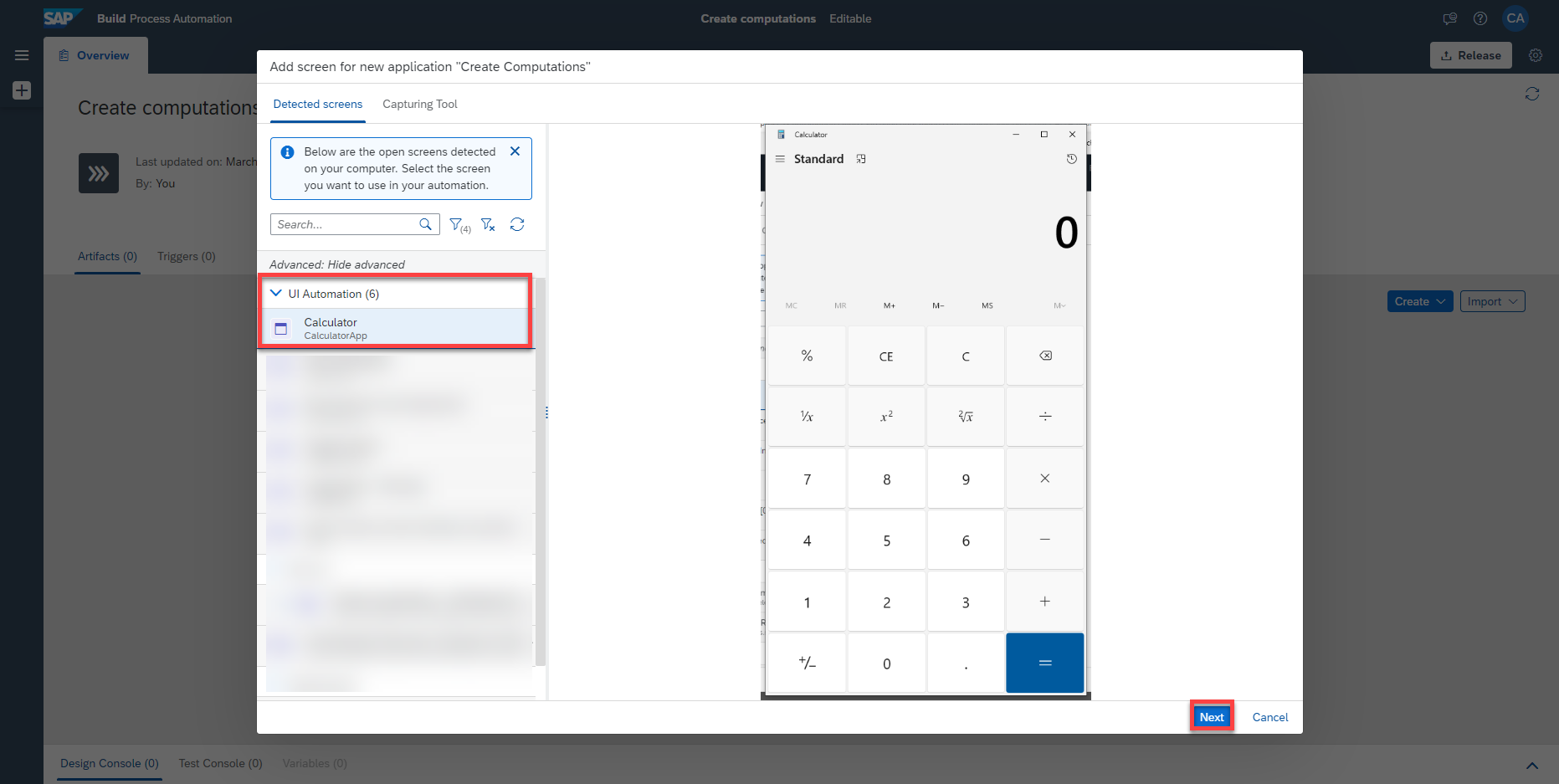
From the list of open applications, select Calculator application and choose Next.
Step 5> ### What is going on?
+
SAP Build Process Automation starts detecting the applications and their screens currently running on your local machine. When it’s done, you’ll see a list of screens in the picker panel on the left.
> You have the option to select either **Recorder** type or **Manual Capture** type. This tutorial will show you how to use the **Recorder**.
Select Recorder as type and choose Record.
Recorder
Please note that the technology that you will be recording is UI Automation.
You will notice 2 pop-ups for recording in progress and SAP Intelligent RPA Recorder.
recording_popup_1recording_popup_2
Step 6Record your application - Part 1
+
The Recorder records the steps you perform across the screens of an application.
Click the Recordrecordbutton to start recording in the recorder widget.
Perform a simple calculation by adding 10 and 5 to get result 15. Click 10, +, 5 and =. You will notice that the steps are getting recorded in the recorder.
Click the result 15 in the Calculator so that it gets recorded too. You will later use this result in the automation.
recorder calculation simple
Step 7Record your application - Part 2
+
You will now convert the time and record the results. To do so you need to select the panel toggle menu on the left. You need to change the capture mode from automatic to Capture on Hover.
Step 8> ### What is going on?
+
The Manual Capture mode takes a screenshot and captures meta-data of the application being recorded. However, this is not possible for some UI components such as sub-menus in a windows application or web-applications, which become visible only when they are clicked because these UI elements will be hidden when user clicks on manual capture button. In such cases, you can still capture the items such as menu, submenu or any hover control using the Capture on Hover mode. This mode enables the capture on hover + Ctrl key press.
Select Capture on Hover mode.
Capture on hover
In the Calculator application, select the Open Navigation iconOpen Navigation
To capture on hover, you need to hover the mouse over the screen which needs to be captured and then hold the Ctrl key till the capture begins.
The application screen being captured will be highlighted when the capture begins, then you may release the Ctrl key to avoid duplicate captures.
The recorder will record the change in DOM and a new screen appears in the recorder widget.
Select Time.
Capture on hover
You need to capture the new screen. To do so you will need to switch to manual capture mode.
Select Manual Capture Mode.
Manual capture
To record the new screen, click the New Capture buttoncapture icon
Wait until the recorder has recorded all the elements of the screen.
calculator hour
You need to convert Hours to Seconds. To do so you will have to select the Hours dropdown and select Seconds. Since you will be capturing a dropdown you need to change the capture mode to Capture on Hover.
Select Capture on Hover mode.
calculator hour
Click the Hours dropdown.
Hover the mouse over the screen and hold Ctrl key till the capture begins.
The hovered area is highlighted with a red border and then starts capturing the highlighted area.
The recorder will record the new screen with the dropdown elements and a new screen appears in the recorder widget.
Select Seconds.
calculator seconds
The Calculator shows Seconds and Minutes. You need to capture the new screen. To do so you will need to switch to Manual Capture mode.
Select Manual Capture Mode.
Manual capture
Now click the New Capturecapture iconbutton to record the new screen.
Wait until the recorder has recorded all the elements of the screen.
Capture icon
Select 0 value for Minutes and then, type 10.
Select the resultant value 600 in Seconds. You will use this value later in automation. You will see the following steps added to the recorder widget.
recorder complete
Step 9Export your recording
+
Choosestopbutton to stop the recording.
Click Export to move the recording to SAP Build Process Automation.
recorder export
Reset and close the Calculator application.
Step 10Review your automation
+
Once all the artifacts are moved to SAP Build Process Automation, the automation can be executed to replay the recorded steps. It can also be modified and then executed.
You can see that a Create Computations Automation was created.
Automation
As well as a Create Computations application.
Application
Open the Create Computations Automation.
Get Calculator Results
Double click on the Calculator screen.
On Capture 1, click on the Calculator Results element.
Search for a Get Element activity and drag and drop the activity on the element.
Close the Calculator screen.
Choose Save.
Get element
The activity will be added at the bottom of the automation and you will need to position it accordingly.
Now drag the Get Element Calculator Results activity and drop it below step 9 in the automation.
Select the activity and make the following change to the activity properties:
Output Parameters : addition
Get element
Search for a Log Message activity and drag and drop it below the Get Element Calculator Results activity to display the result.
Set the Input Parameter message as addition.
Choose Save.
automation add result
Get Conversion Result
Double click on the Calculator screen.
On Capture 5, click on the Value 1 element.
Search for a Get Element activity and drag and drop the activity on the element to fetch the converted hours to seconds.
Close the Calculator screen.
Choose Save.
Get element
The activity will be added at the bottom of the automation and you will need to position it accordingly.
Now drag the Get Element Value 1 activity and drop it below step 27 in the automation.
Select the activity and make the following changes to the activity properties:
Step Name : Get Element Conversion Results
Output Parameters : seconds
Get element
Search for a Log Message activity and drag and drop it below the Get Element Conversion Results activity to display the result.
Set the Input Parameter message as seconds.
Choose Save.
automation get seconds
Your automation looks like the following one:
automation complete
Step 11Test your automation
+
Before testing the automation, please make sure you reset the Time screen from 0 Hours to 0 Minutes as well as the the Standard screen. Set your Calculator to the Standard screen before closing it.
Share feedback on this tutorial or join the conversation in SAP Community.
Submit detailed feedbackDiscuss in Community
Steps
Step 1 of 11
1. Open the application2. Create your project3. > ### What is going on?4. Create and capture your application5. > ### What is going on?6. Record your application - Part 17. Record your application - Part 28. > ### What is going on?9. Export your recording10. Review your automation11. Test your automation
Joule is an AI assistant. Generative AI may produce inaccurate, incomplete, or biased information. Always verify important details before acting on them.
Conversations are sent to SAP-hosted large language models for processing. Do not include personal data, credentials, or confidential information in your messages.
Joule's responses are based on the SAP tutorial catalog and may not reflect the latest product changes. For authoritative guidance, consult the linked tutorials and official SAP documentation.


