
Overview
You will learn
- How to configure a OAuth Client ID in Google Cloud Platform


Prerequisites
- a Google Cloud account
Steps
Intro
IMPORTANT: Please refer to sample How to use Google Workspace in the SAP Build Store if you face any issues while following the tutorials. To retrieve the sample refer to step 4 of Use Google Workspace to create Google Slides.
OAuth 2.0 is an industry standard, token-based user authorization mechanism. The client must be registered through Google cloud console and the JSON credential file which contains Client ID and Client secret should be downloaded to a safe location.
In this tutorial, you will configure OAuth Client ID credentials in Google Cloud Platform and enable the Google APIs to automate all the Google Applications in SAP Build Process Automation.
Google Cloud projects form the basis for creating, enabling and using all Google Cloud services including managing APIs, enabling billing, adding, and removing collaborators, and managing permissions for Google Cloud resources.
Go to the Manage resources page in Google Cloud console.
On the Select organization drop-down list at the top of the page, select the organization resource in which you want to create a project. If you are a free trial user, skip this step, as this list does not appear.
Click Create Project.

Create Project In the New Project window that appears, enter a project name and select a billing account as applicable. A project name can contain only letters, numbers, single quotes, hyphens, spaces, or exclamation points, and must be between 4 and 30 characters.
Select an Organisation. If No organization is an option, you can select it to create your new project as the top level of its own resource hierarchy.
Enter the parent organization or folder resource in the Location box. That resource will be the hierarchical parent of the new project.
When you’re finished entering new project details, click Create.

Create
In Google Cloud Platform (GCP), it is mandatory to enable the Google services which will be automated by SBPA. Services such as Google Drive, Gmail, and Google Sheets must be enabled in GCP.
Go to the Google Cloud console API Library page.
Select the Cloud project where you want to enable an API by performing one of the following:
- Click on the Cloud project under Select a recent project.

Select Project Use the Cloud project browser by performing the following steps:
- Click Select a project to open the Cloud project browser.
- Find your project and then click on the Cloud project name.
- Click Open to open the project.

Select Project Click the API you want to enable. If you need help finding the API, use the Search for APIs & Services box near the top of the page. A page describing the API appears.
For the purpose of this tutorial, you will enable Google Drive API, Gmail API and Google Calendar API.
Search for Google Drive API and hit enter.

Search Google Drive API Select Google Drive API.
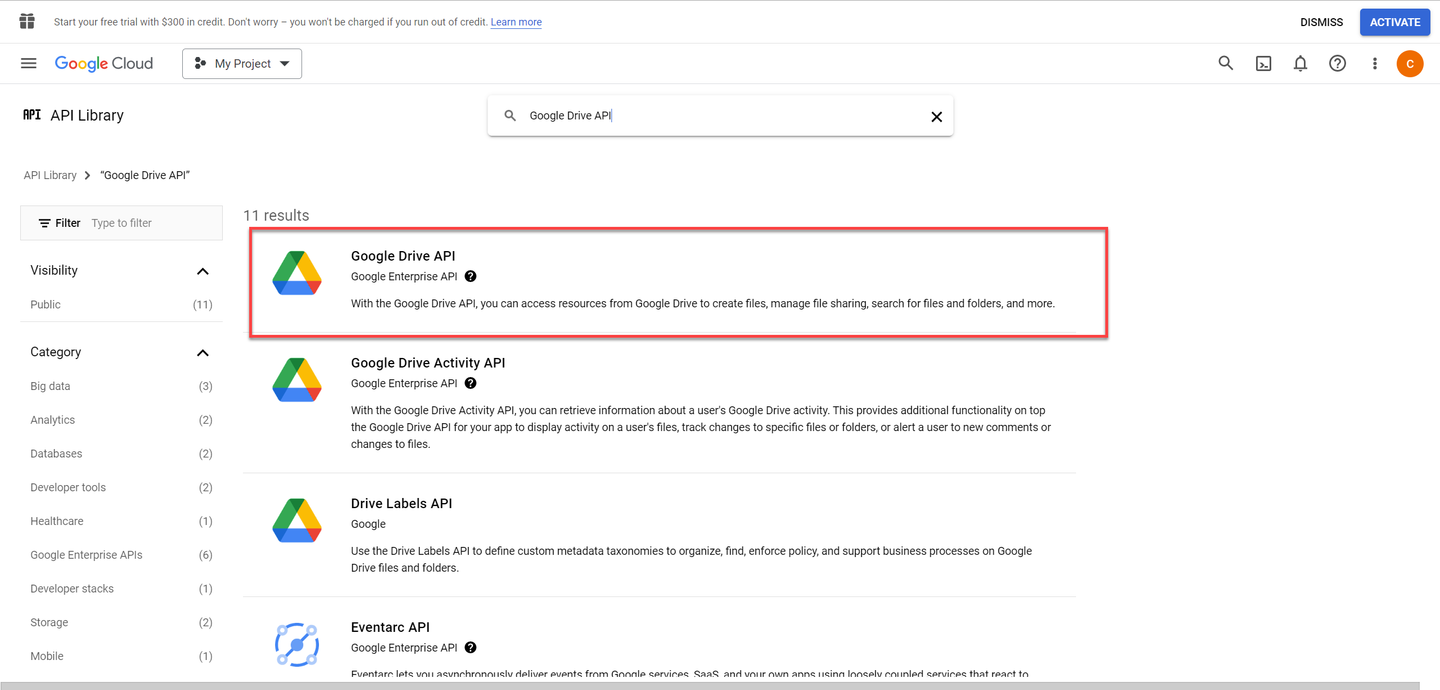
Google Drive API Click the Enable button.

Enbable Google Drive API Once the API is enabled, you may add other APIs as required.
Choose Library.

Library Repeat the above steps to enable Gmail API and Google Calendar API. You may also enable Google Sheets API, Google Slides API, Google Docs API depending on your use case.
To configure the OAuth consent screen, refer to the following steps:
Select OAuth consent screen.
Choose the User Type as Internal if your app is to be used by only the users within your organization.
In this mode, it will be limited to Google Workspace users within your organization. You will not need to submit your app for verification.
Choose Create.

Create User Type CAUTION: On the other hand, if you are a free trial user, please select External as User Type.
In this mode, the app will be available to any user with a Google Account. Your app will start in testing mode and will only be available to users you add to the list of test users. Once your app is ready to push to production, you may need to verify your app.

Create User Type Setup OAuth consent screen with information like app name, user support email, app logo, app domain, and developer contact info.

OAuth consent screen Once you are done, choose Save and Continue.
You may specify the Gmail scopes here.
Choose Save and Continue.

Scopes If you are an External User, please add here the list of test users that will be able to access your app.
Once you are done adding the test users, click on Save and Continue.

Test Users
To create OAuth client ID credentials, refer to the following steps:
Select Credentials.
Choose + Create Credentials and select OAuth client ID.

Credentials Select Application type as Desktop app as SBPA Desktop Agent is the client here.

Application type Provide the desired name.
Choose Create.

Application name Download the JSON file. For SBPA, the path to the JSON file with the OAuth client ID details should be provided as input to Authorize Google (OAuth Client ID) activity.

Application name With this you have completed setting up OAuth Client ID and you may use the Authorize Google (OAuth Client ID) activity in SAP Build Process Automation.
Resources
Discussion
Share feedback on this tutorial or join the conversation in SAP Community.