
Overview
You will learn
- How to configure the connectivity between SAP S/4HANA Cloud and SAP Integration Suite, advanced event mesh.


Prerequisites
- You have access to an SAP S/4HANA Cloud system and an SAP Integration Suite, advanced event mesh tenant.
- You’ve completed the previous tutorial: Set up SAP Integration Suite, advanced event mesh.
Steps
Intro
Now that you are familiar with the SAP Integration Suite, advanced event mesh, you can proceed to configure the connectivity between SAP S/4HANA Cloud and AEM. For this, you will be interacting with both systems. In AEM you will import certificates and set up a client username for our SAP S/4HANA Cloud system, which needs to match the common name (CN) of the client certificate imported in AEM. In SAP S/4HANA Cloud, you will configure a couple of communication arrangements which will set up the communication channel used to send and receive events from AEM.
Go to the Maintain Client Certificates app in your SAP S/4HANA Cloud system. In the app, download the Client Default certificate. Select the X.509 Certificate (.pem) format and choose the Export button.

Export Client Certificate Download the SAP S/4HANA Cloud server root certificate from the website. The process will vary depending on the browser. In Firefox, you can do this by clicking on the lock icon in the address bar and clicking Connection Secure > More Information. In the Security tab, choose View Certificate. In the Certificate Viewer, go to the DigiCert Global Root G2 tab and choose Download - PEM (Cert) in the Miscellaneous section.
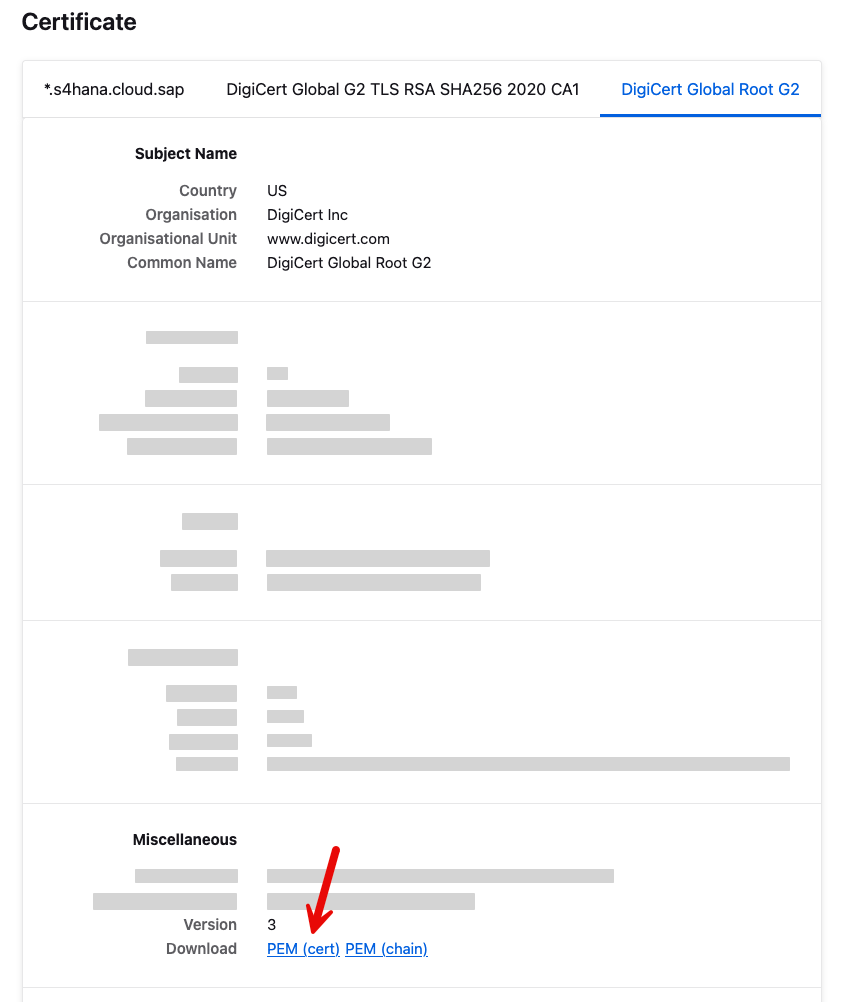
Export Server Root Certificate
In AEM, you will import the client certificate you downloaded from SAP S/4HANA Cloud. This will allow SAP S/4HANA Cloud to authenticate with AEM.
Check Client Certificate Authentication in the event broker service: Go to Cluster Manager and select the event broker service where you will configure the connection. Choose the Manage tab and choose on the Service Authentication tile under Authentication and Security. In the Client Authentication section, choose the Edit Client Authentication button. Check the Client Certifciate Authentication checkbox if it has not been checked before. Choose the Save button.

Enable Client Certificate Import SAP S/4HANA Cloud website root certificate: In Authentication and Security, choose Client Authorities. Choose the Add Client Certificate Authority button. In the pop-up, enter a name and choose the Import From File link to select the previously downloaded certificate. Choose the Save button.

Import Client Certificate Repeat the process for the SAP S/4HANA Cloud default client certificate. This is the certificate downloaded from the Maintain Client Certificates app in SAP S/4HANA Cloud.
You now need to create a client username in AEM which will be used by SAP S/4HANA Cloud to authenticate with AEM.
Create a new client username: In the broker manager of the event broker service that you are configuring, navigate to the Access Control section. Select the Client Usernames tab and choose the + Client Username button. A pop-up will open. Enter a name for the client username, for example
my123456.s4hana.ondemand.comand choose the Create button. The client username needs to match the common name (CN) of the client certificate imported in AEM.
Add Client Username Enable the newly created client username: In the Edit Client Username settings, ensure to toggle the Enable switch and choose the Apply button.

Enable new client username
You need the AMQP host name and port when configuring the AEM integration scenario communication arrangement in SAP S/4HANA Cloud. Let’s get this information from the AEM event broker service.
Go to the event broker service that you are configuring and navigate to the Connect tab. View the list by
Protocoland expand the AMQP section. Select any AMQP item and copy theAMQP HostandAMQP Portvalues.
Copy AMQP connection details
In SAP S/4HANA Cloud, you need to create a communication system which will be used to configure the AEM integration scenario communication arrangement in the next step.
Go to the Communication Systems app in your SAP S/4HANA Cloud system. Choose the New button and set a value for the System ID/System Name, for example
AEM-USEAST-BROKER.In the Technical > General Data section, enter the
AMQP Hostin the Host Name field and theAMQP Portin the Port fieldIn the Users for Inbound Communication section, choose the + (plus) button. In the pop-up dialog select
User Name and Passwordas Authentication Method and select an existing user or create a new user.In the Users for Outbound Communication section, choose the + (plus) button. In the pop-up dialog select
SSL Client Certificateas Authentication Method and select the Client Default certificate. This will need to be the same certificate that you downloaded previously from the Maintain Client Certificates app in SAP S/4HANA Cloud.Finalise the creation of the Communication system by clicking the Save button.

Create Communication System
You are now ready to create the first communication arrangement needed to establish the communication between SAP S/4HANA Cloud and AEM.
Go to the Communication Arrangements app in the SAP S/4HANA Cloud system. Choose the New link and select the
SAP Integration Suite, Advanced Event Mesh integration (SAP_COM_0492)communication scenario, set a name in the Arrangement Name field and then choose the Create button.
Create Communication Arrangement In the Common Data section, select the Communication System that you have created in the previous step.
In the Additional Properties section, set the values for the following properties:
- Channel: For example
AEM-USEAST-BROKER - Topic Space: For example
default/sap.s4hc/[SID]. The topic space will be the prefix for the topics where SAP S/4HANA Cloud will publish messages.
- Channel: For example
When you have selected the Communication System in item 2, the Inbound and Outbound Communication users will be automatically populated.
Scroll down to the Outbound Services section and you’ll see the
AMQP Hostandportdetails that you specified when defining the communication system. The Application Protocol field states that this uses the HTTP Service, but you can safely ignore this as the communication will be done over AMQP.
You need to create an instance of the AEM validation service in the SAP BTP Cockpit. This instance will provide a service key, which will be used to configure the SAP_COM_0493 communication arrangement that you will create in the next step.
Log in to your SAP BTP account and navigate to
Services>Instances and Subscription. Choose theCreatebutton.
Create instance In the popup, select the service
SAP Integration Suite, advanced event meshand select the planaem-validation-service-planandOtheras the runtime environment.
Create AEM validations instance Once the instance is created, you can choose the instance name to access the AEM validation instance and create a service binding by clicking the Create button in the Service Binding section, enter a name and choose the Create button.

Create AEM validations service binding Once the service binding is created, you can choose the service binding name to access the service key. Copy the service key details as you will need it to configure the
SAP_COM_0493communication arrangement in the next step.
Now, you are just missing to create the second communication arrangement. To create it, you will use the service key you have copied in the previous step.
In the Communication Arrangements app, choose the New link and select the
SAP Integration Suite, Advanced Event Mesh validation assessment (SAP_COM_0493)communication scenarioSet a name in the Arrangement Name field.
Paste the service key you have copied in the previous step in the Service Key field.
Specify the Channel name, for example
AEM-USEAST-BROKER, by clicking the Additional Properties link. This will open a new pop-up where you can enter the channel name. This is the same channel name you used in the previous communication arrangement (SAP_COM_0492).
Create Communication Arrangement Finalise the creation by clicking the Create button.
With this final step, you have configured the connectivity between SAP S/4HANA Cloud and AEM. You can now start sending and receiving messages from SAP S/4HANA Cloud to AEM.
To test the connectivity, you can send a test event from SAP S/4HANA Cloud to AEM. For this, you will leverage the functionality available in the Enterprise Event Enablement - Event Monitor app.
In SAP S/4HANA Cloud, go to the Enterprise Event Enablement - Event Monitor app.
In the app, select the channel you specified in the steps above, for example
AEM-USEAST-BROKERand choose the Produce Test Event button.
Produce Test Event Now, navigate to the channel itself. In it, there will be an event available in the Outbound Events section and the status will be
Acknowledged. This means that the event was successfully sent to AEM.
Test Event
You can check out the following resources to learn more about the SAP S/4HANA Cloud and SAP Integration Suite, advanced event mesh integration:
- Integration Architecture Guide - Event-driven architecture: https://help.sap.com/docs/sap-btp-guidance-framework/integration-architecture-guide/event-driven-architecture?locale=en-US.
- SAP S/4HANA Cloud Integration with Advanced Mesh Service Plan: https://help.sap.com/docs/SAP_S4HANA_CLOUD/0f69f8fb28ac4bf48d2b57b9637e81fa/9b34c841dfba4f82af0825a2f3196ecf.html?locale=en-US.
- Manage Client Certificate authorities in AEM: https://help.pubsub.em.services.cloud.sap/Cloud/server_certs.htm.
- Configuring an Event Broker Service to use Client Certificate Authentication: https://help.pubsub.em.services.cloud.sap/Cloud/ght_client_certs.htm.
- Create an instance of the AEM validation service: https://help.sap.com/docs/sap-integration-suite/advanced-event-mesh/validation-of-vmr-provisioning.
Resources
Discussion
Share feedback on this tutorial or join the conversation in SAP Community.