
Overview
You will learn
- Add Custom Domains to your iOS Application
- Create an Apple App Site Associate File using SAP Mobile Services


Prerequisites
- Set Up SAP BTP SDK for iOS
- Created Your First App using SAP BTP SDK Assistant for iOS
- Apple Developer Account: A paid Apple developer account is required
Steps

As a Vendor Manager, you oversee a web and mobile application that enables you to view, manage, and order products from vendors. When a vendor adds a new product using the web app, they notify you via email, providing a web app link to the newly added product for your approval.
As you primarily use the mobile application, you want to click on the link to open the product detail page on your application and perform the necessary action.
This tutorial, will help you configure Universal Links on iOS, thereby eliminating the need for the user to manually navigate to the product page. Click here to learn more about universal links on SAP BTP SDK iOS.
Select the
.xcodeprojfile of the project in Xcode.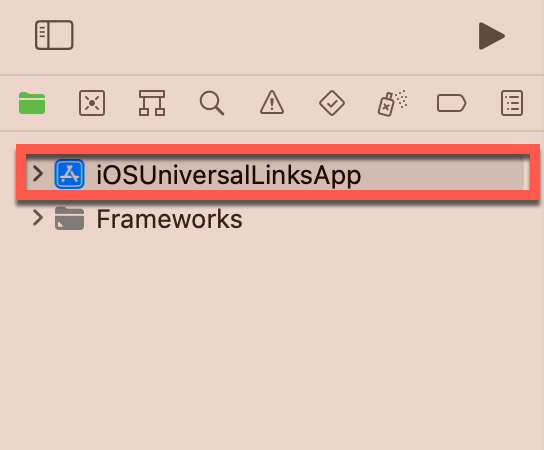
Xcode Project Bar Ensure the app’s signing is configured properly. The signing certificate details will be required in a later step.
Click + Capability to add a new capability to your app.
Select Associated Domains to add the capability to the project.
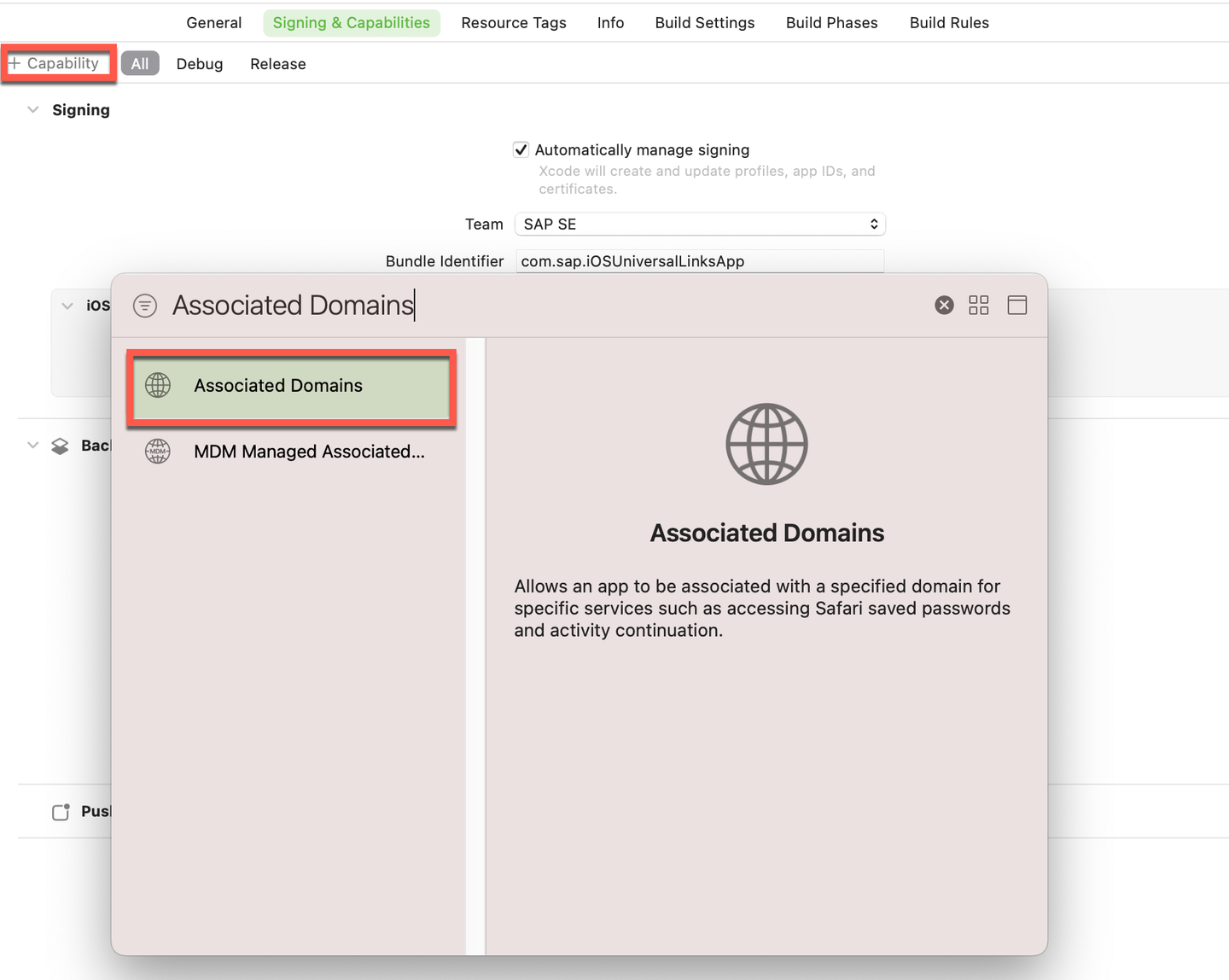
Xcode Project Bar Xcode will now connect to the specified Apple Developer profile and register or update the App ID to use the Associated Domains capability.
Open SAP Mobile Services admin UI.
Click Mobile Applications → Native/MDK in the sidebar.
Click on your app (For example
com.native.links).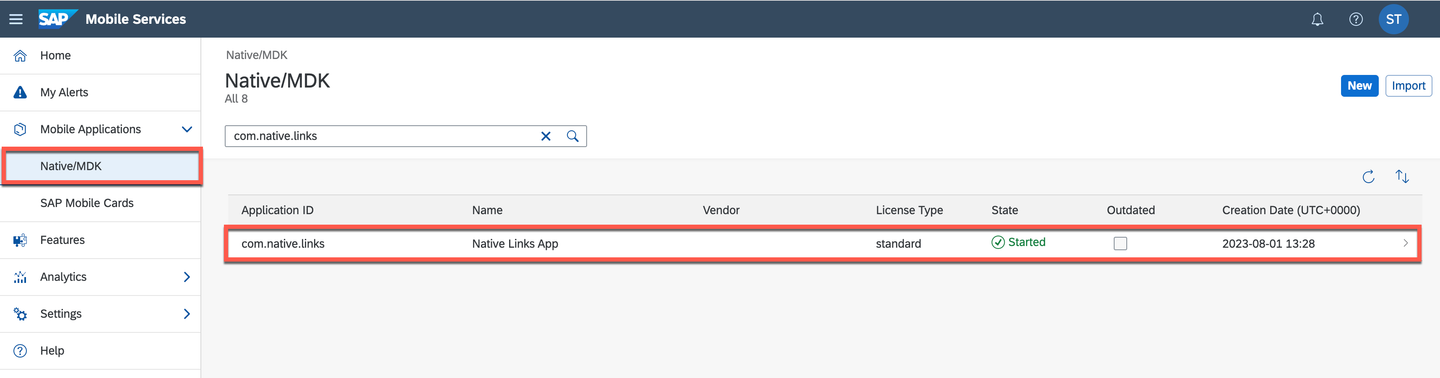
App List on Mobile Services Click Application Links tab.
Click on the pencil next to the Apple Universal Links section.
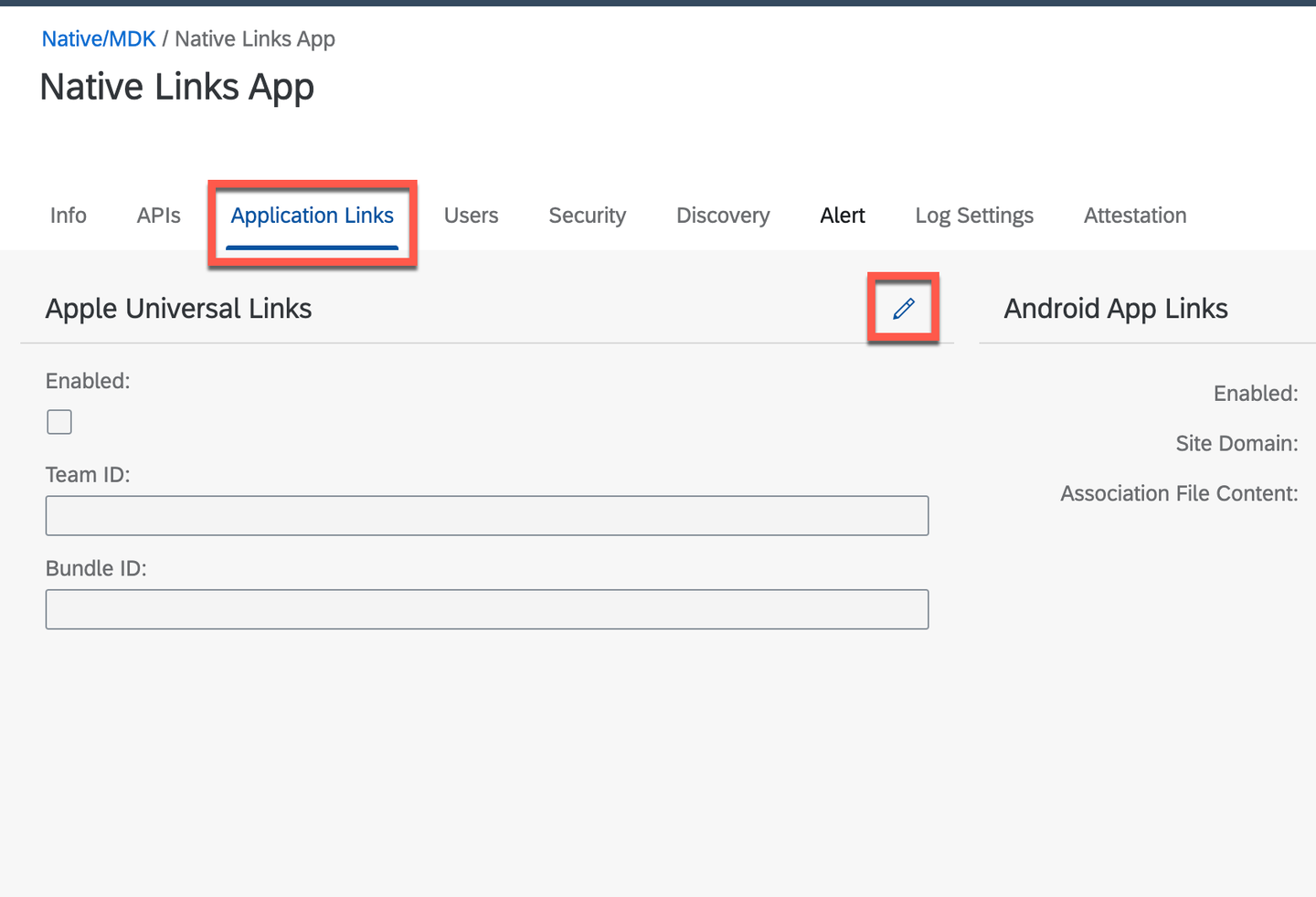
App Links Tab Use the following table to fill the details requested in the Edit Apple Universal Links form, and click OK.
Field Name Value Details Enabled Checked Team ID <your_team_id>You can find this information on the Apple Developer website. 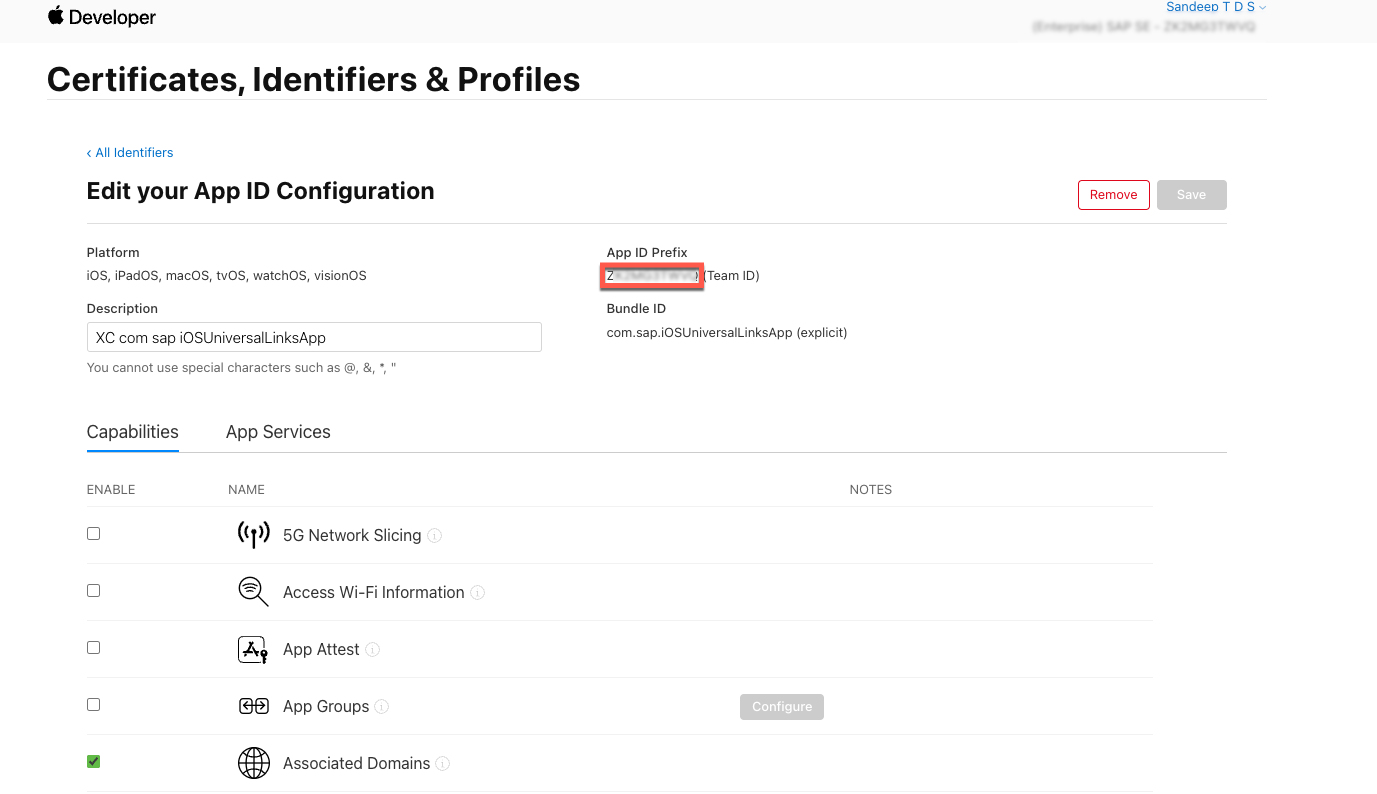
Team ID Bundle ID com.sap.iOSUniversalLinksAppYou can find this information in the Signing Section of the .xcodeprojfile.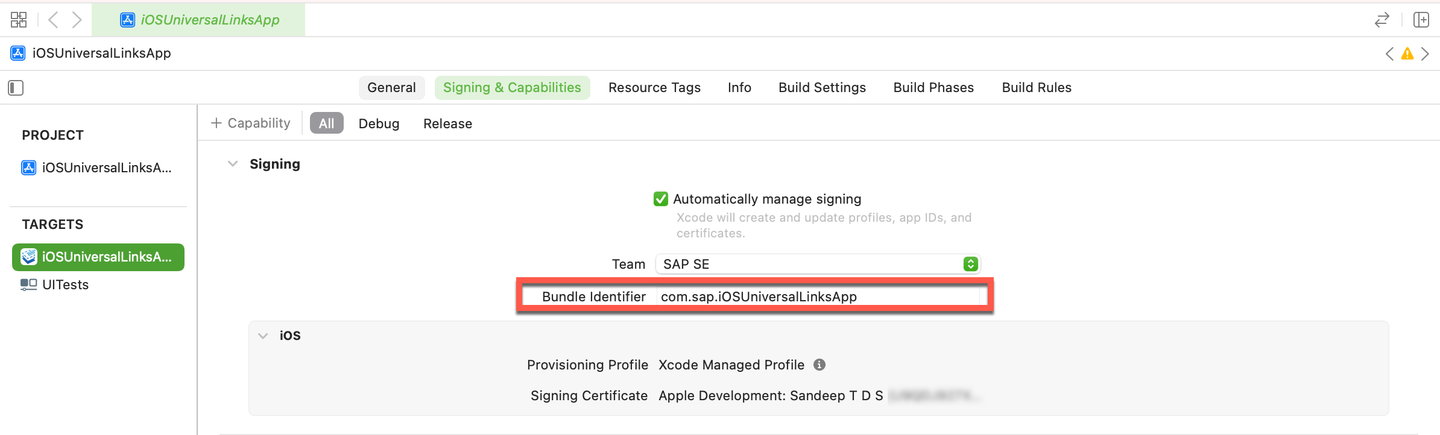
Bundle Identifier
Select the
.xcodeprojfile of the project in Xcode.Click + icon located under the Associated Domains section of the Signing & Capabilities tab.
Use the following table to fill the details requested in the Add Associated Domains step.
Field Name Value Details Domain applinks:<Server link from the APIs tab of your application on SAP Mobile Services>Don’t include the https:// prefix. 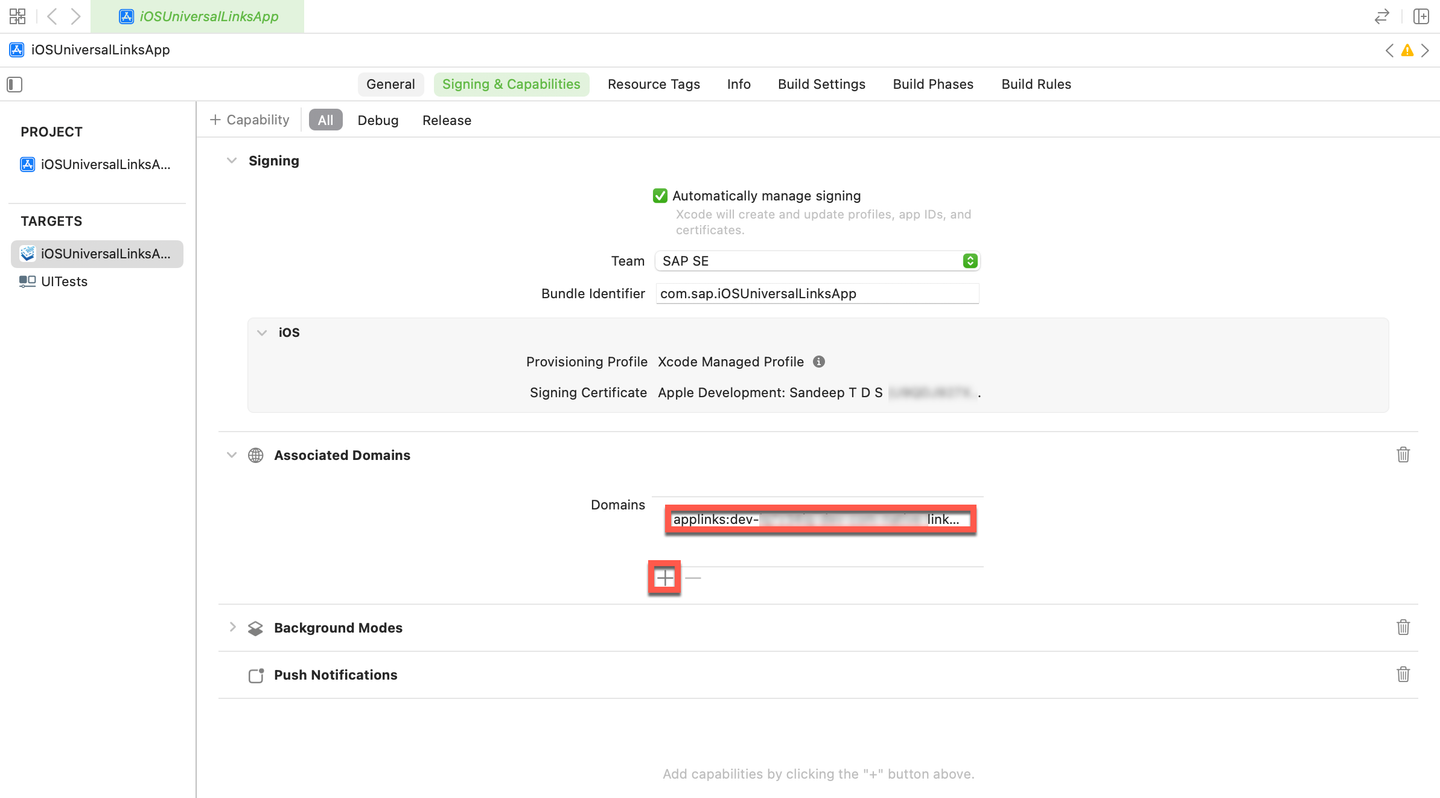
Custom Associaated Domain Verify that the associated domain is added to the
<app_name>.entitlementsfile located in you app folder.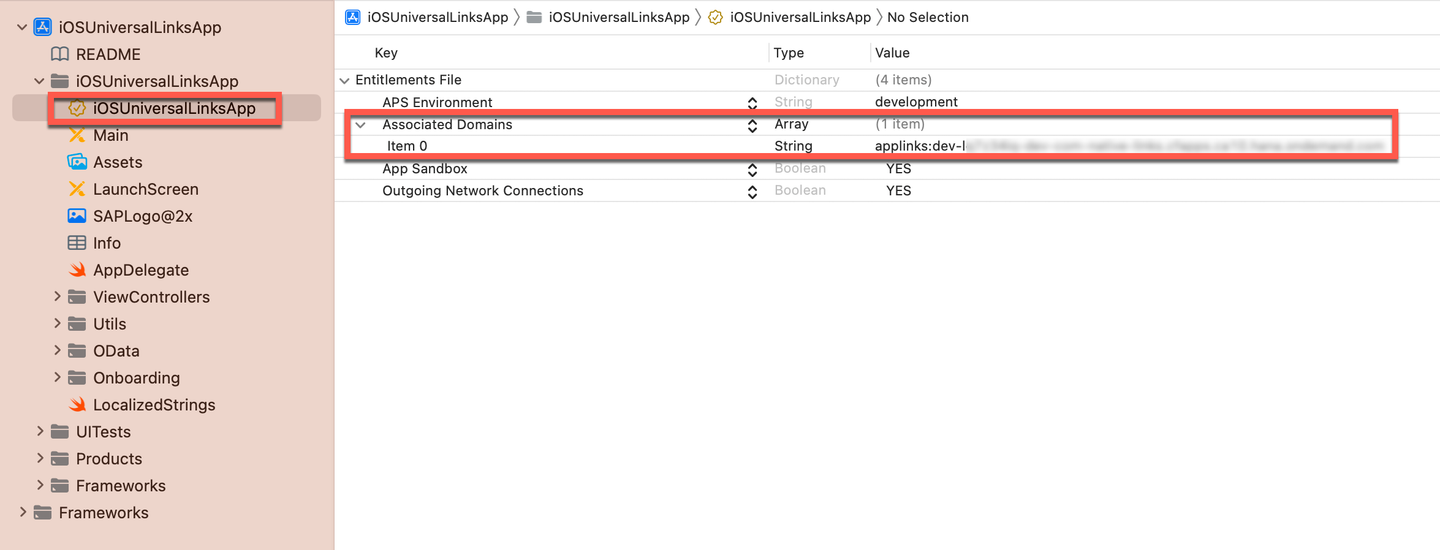
Entitelements Associaated Domain
Go to your SAP Mobile Services Admin UI.
Click on your app (For example
com.native.links).Click APIs tab.
Copy the Server URL.
Open a new browser window.
Paste the Server URL and add the suffix
/.The URL should look like
https://<YourUser-CFSpace-App>-com-example-tutorialapp.cfapps.eu10.hana.ondemand.com/.well-known/apple-app-site-associationGo the above constructed URL.

AASA File The AASA file is a JSON file on the web server of the associated domain. When a user clicks a Universal Link (web page link), iOS checks for the AASA file. If found and configured correctly, iOS opens the native app instead of the web page in the browser. The asterisk at the end denotes a dynamic suffix.The app developer can write custom logic based on the suffix provided, for e.g. - product ID.
Open
AppDelegate.swifton Xcode.Add the following function to the
AppDelegateclass:Swiftfunc application(_ application: UIApplication, continue userActivity: NSUserActivity, restorationHandler: @escaping ([UIUserActivityRestoring]?) -> Void) -> Bool { if userActivity.activityType == NSUserActivityTypeBrowsingWeb { let url = userActivity.webpageURL let host = url?.host let relativePath = url?.relativePath let lastPathComponent = url?.lastPathComponent // Handle the URL as per your app's logic if let lastPathComponent = lastPathComponent { switch lastPathComponent { case "product": let alert = UIAlertController(title: "Product", message: "Product universal link.", preferredStyle: .alert) alert.addAction(UIAlertAction(title: "OK", style: .default, handler: nil)) window?.rootViewController?.present(alert, animated: true, completion: nil) case "vendors": let alert = UIAlertController(title: "Vendors", message: "Vendor universal link.", preferredStyle: .alert) alert.addAction(UIAlertAction(title: "OK", style: .default, handler: nil)) window?.rootViewController?.present(alert, animated: true, completion: nil) default: break } } return true } return false }Click
▶(Start the active scheme) in Xcode to run the application.Complete the onboarding steps.
Please refer to the pre-requisite for a step by step guide for the onboarding flow.
Go to your SAP Mobile Services Admin UI.
Click on your app (For example
com.native.links).Click APIs tab.
Copy the URL under the Apple Launch App Code with Universal Link section.
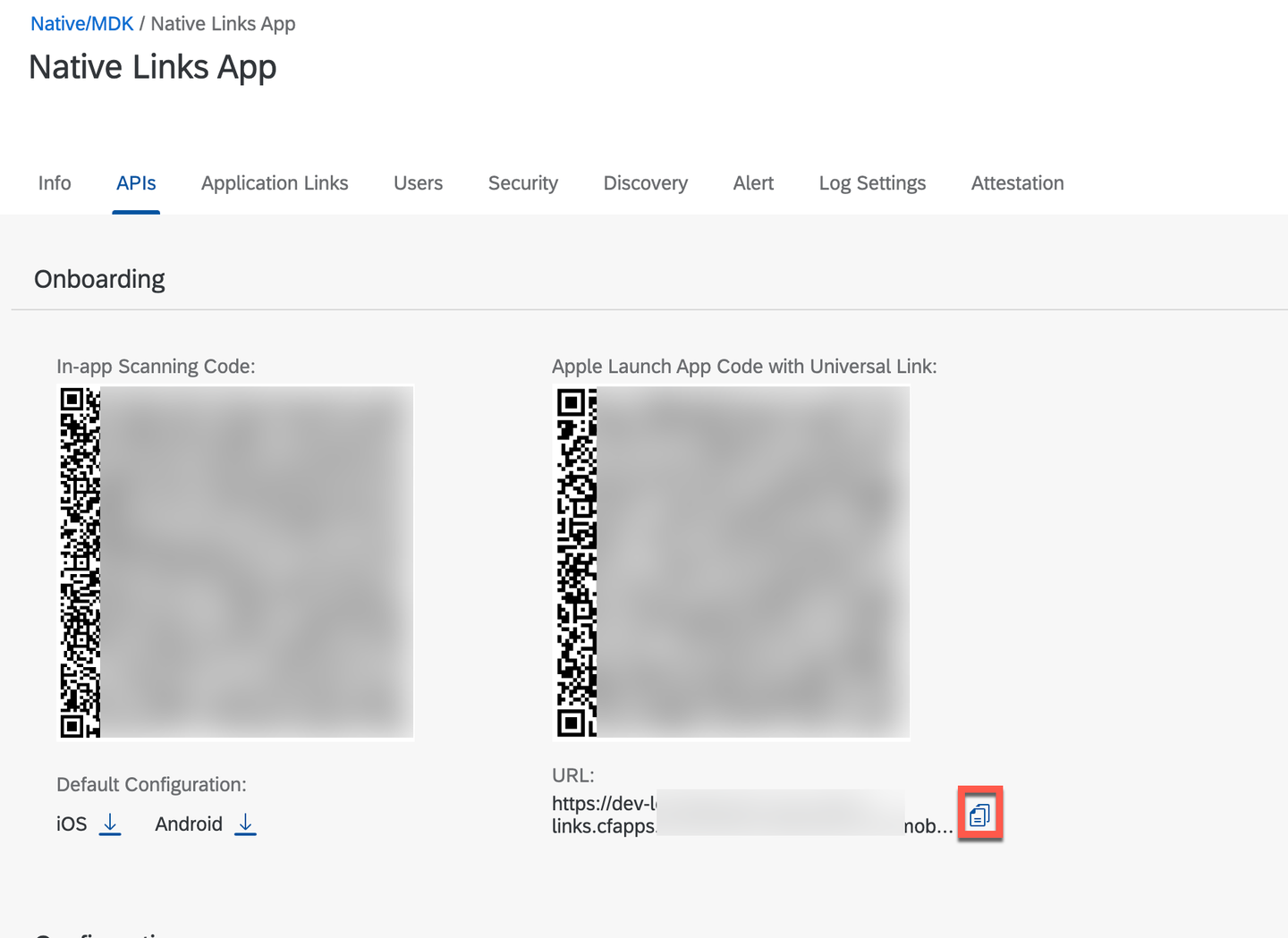
App Launch URL Open the Reminders App provided by iOS on your Simulator/Device.
If the app is running on a real device, choose any option that hyperlinks the URL text, for example, Mail, Notes, Reminders, etc.
Add the App Launch URL copied in the earlier step.
To ensure the URL is added as a hyperlink, please add the text in the main section of the reminder.
Click on the link.
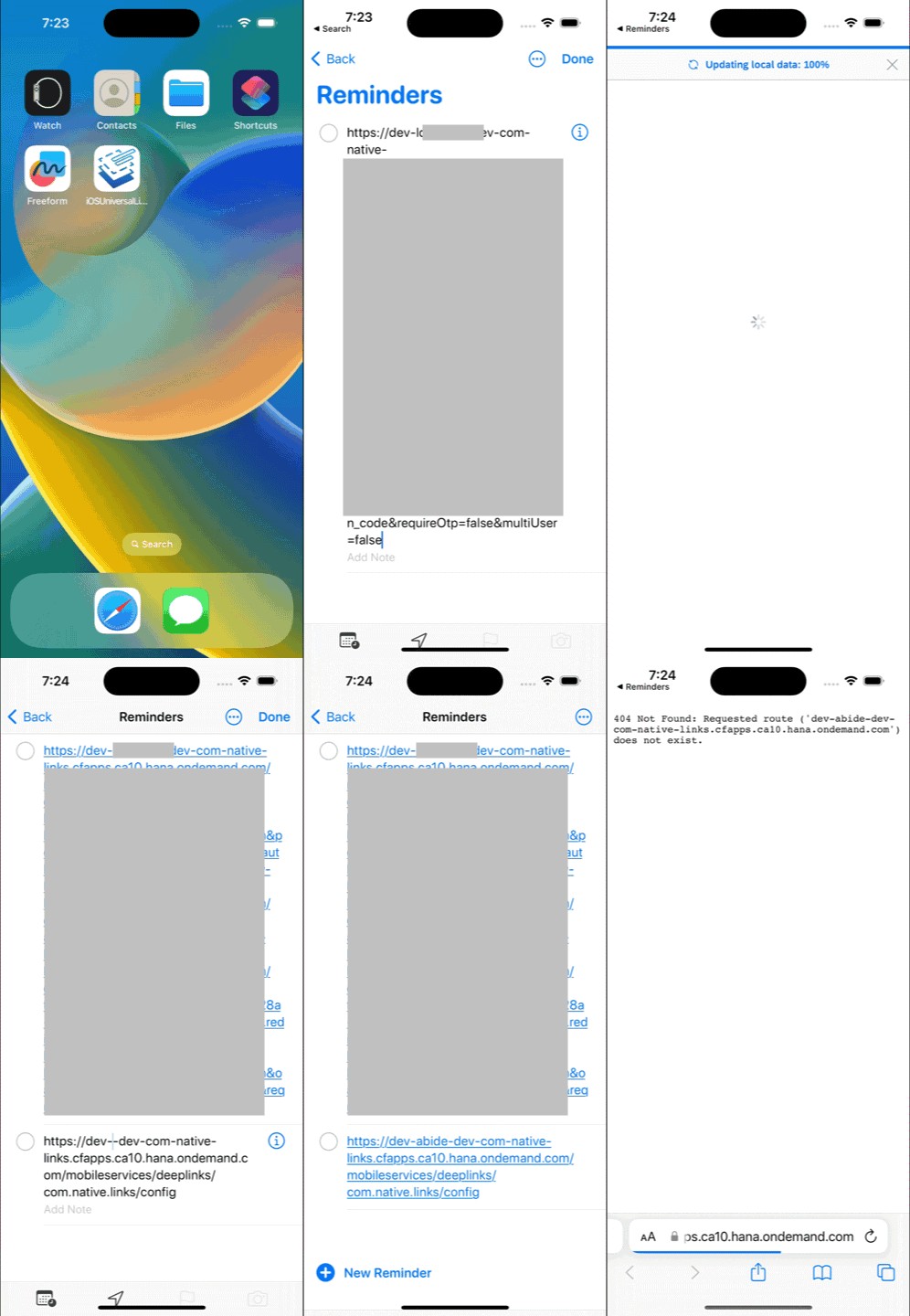
Main URL Sample Add two more links to the Reminders app to test the deep-linking.
.../com.native.links/config/product.../com.native.links/config/vendors
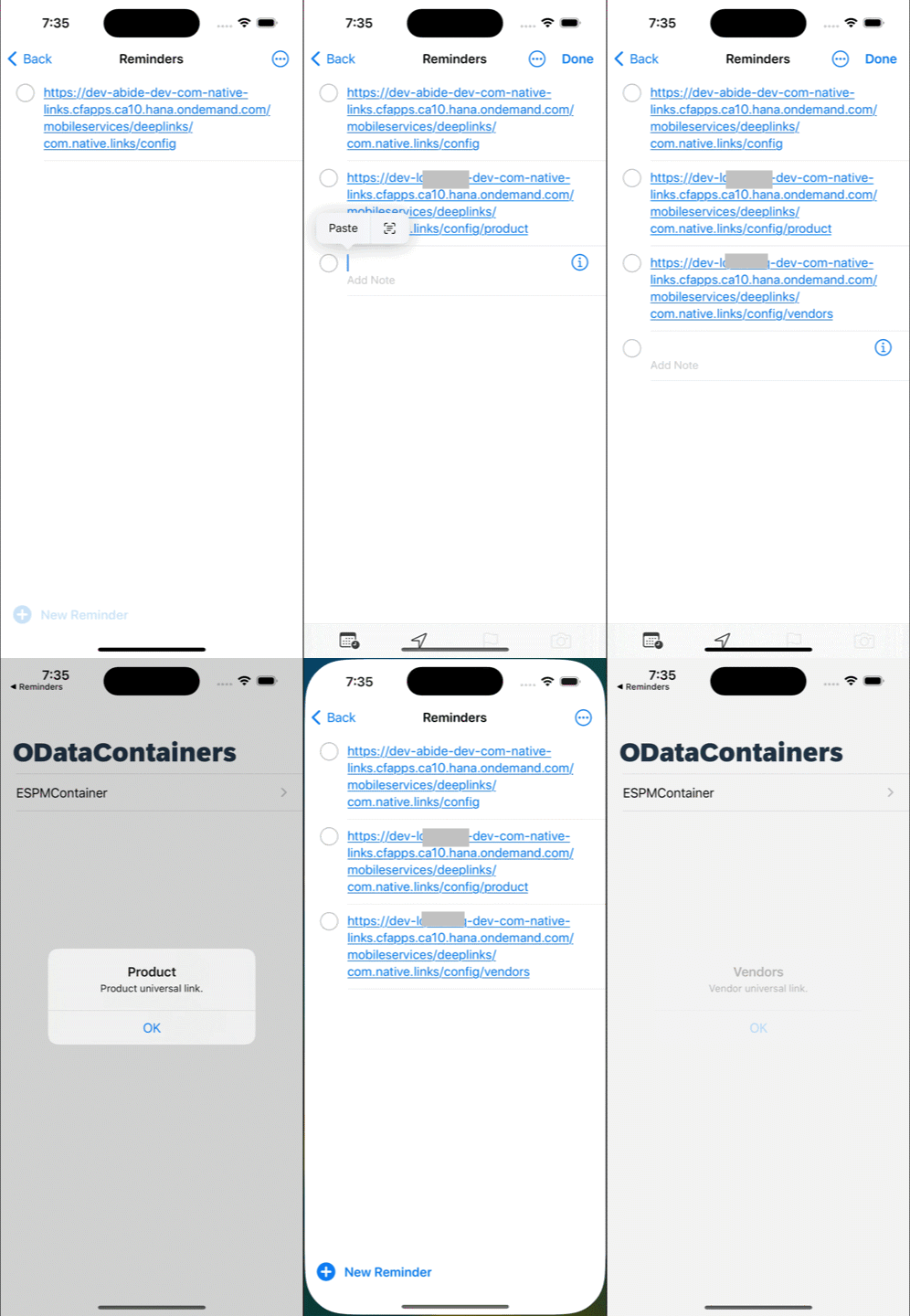
Deeplink URL Sample
Congratulations on successfully completing the tutorial. You can now configure universal links for your native applications built using SAP BTP SDK for iOS.
Resources
Discussion
Share feedback on this tutorial or join the conversation in SAP Community.