
Overview
You will learn
- How to create an app configuration on SAP Mobile Services Admin cockpit.
- Capabilities of Sample OData service provided by SAP Mobile Services.
- How to create an native iOS application using the SAP BTP SDK for iOS Assistant.
- Using the Online & Offline in the generated app.


Prerequisites
Steps
Go to your SAP Mobile Services account.
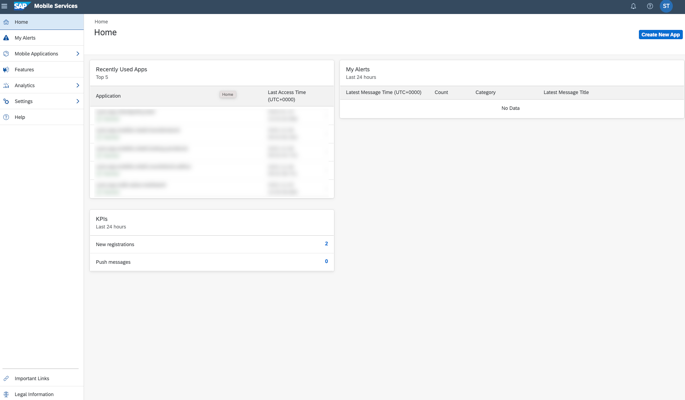
SAP Mobile Services Home If stuck, please review the pre-requisites of this tutorial.
Click Mobile Applications → Native/MDK in the sidebar.
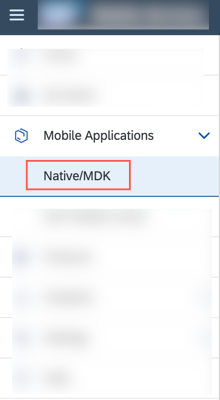
Native Apps Sidebar Menu Item Click New located at the top right corner.
Use the following table to fill the details requested in the New Application Wizard.
Key Value ID sdk.ios.assistant.appName iOS Assistant AppDescription Reusable server-side app configuration for creating an app using iOS Assistant.Vendor No Change License Type No Change Domain of Application Route No Change Click Next.
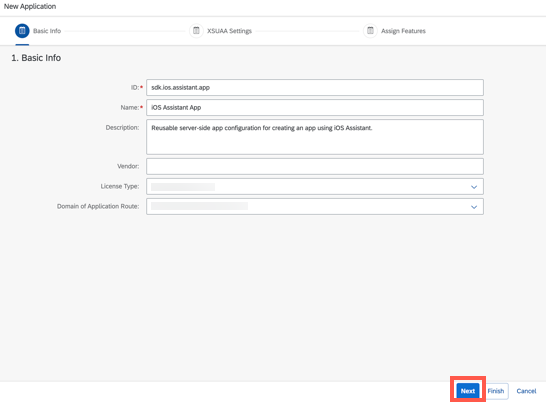
New App Wizard First Screen Click Next on the XSUAA Settings step of the Wizard without making any changes.
Select Native Application in the Assign Features for drop down menu.
Enable Mobile Sample OData ESPM by selecting the check box in the features table.
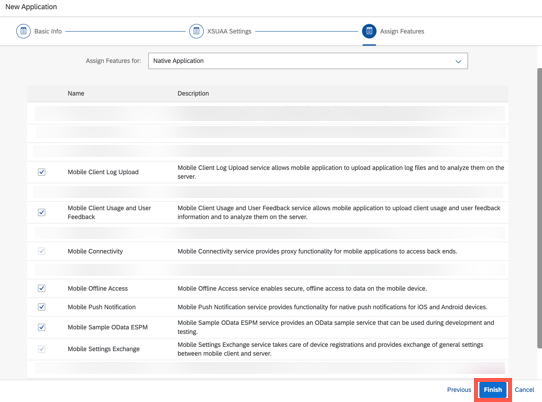
New App Wizard Third Screen Click here to learn more about the sample service.
Click Finish.
The app creation may take up to five minutes. Please wait for the app creation to complete successfully before moving to the next step.
Launch SAP BTP SDK Assistant for iOS.
Click Create New located near the bottom left corner.
Click Reuse Existing Application in the project template step.
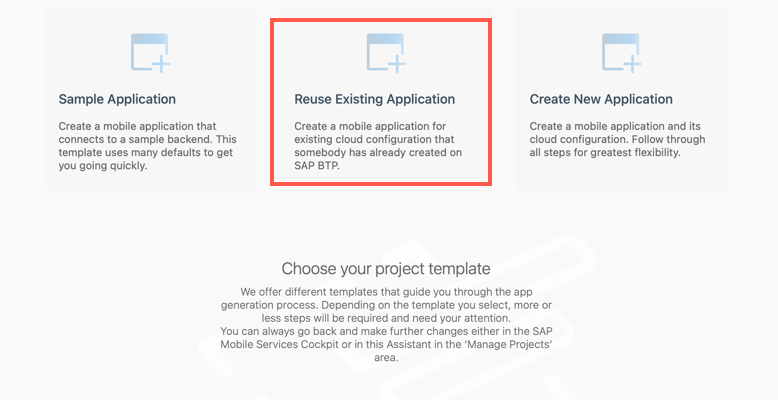
Assistant Project Template Screen Click here to learn more about the different types of project templates.
Select the SAP Mobile Services account in which you created the server side configuration and click Next.
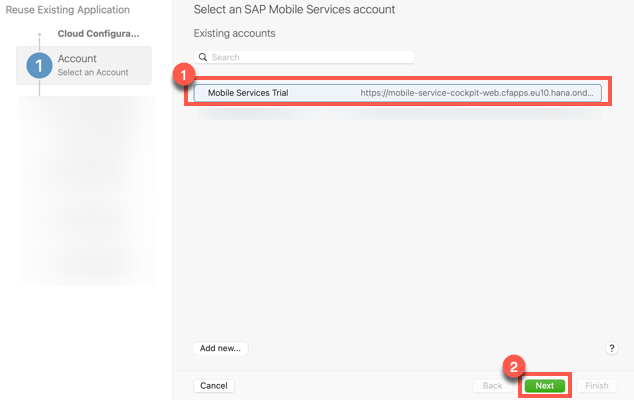
Assistant Account Screen If stuck, please review the pre-requisites of this tutorial.
Use your SAP BTP credentials to complete the SSO login.
This task is only relevant if you chose SSO login during account set up. Click here to learn more about the authentication type for SAP Mobile Services accounts.
Select the app you created in the first step and click Next.
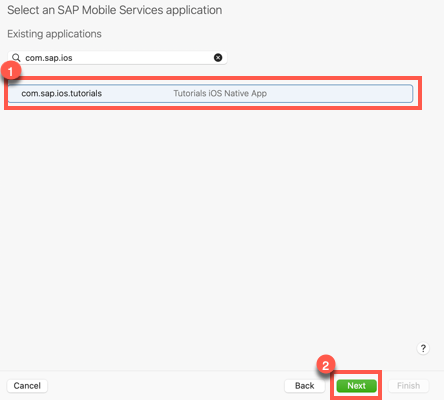
Server App Screen If you can’t see your app, please check if the application has been created through the SAP Mobile Services admin cockpit.
Use your SAP BTP credentials to complete the SSO login.
This task is only relevant if you chose SSO login during account set up.
Use the following table to fill the project details requested in the Provide the Xcode project configuration step of the assistant, and click Next.
Key Value Product Name my-first-appOrganisation Name iOS Assistant AppOrganisation Identifier com.sap.iosBundle Identifier Auto generated Path No Change Mac Catalyst No Change Ensure
com.sap.edm.sampleservice.v2is present in the Configure the Proxy class generation process step of the assistant, and click Next.Keep the default settings in the Configure the UI generation for the mobile application step of the assistant, and click Finish.
After the project generation process is completed, the Xcode project will open. If prompted, click Trust and Open in the warning pop-up.
Open
my-first-app→my-first-app→Onboarding→OnboardingFlowProvider.You can use Command
⌘+ Shift⇧+ Ooand type the name of the file to open it quickly.Search for
onboardingStepsto view the function responsible for providing onboarding steps (e.g. Log In, User Consent, Passcode etc.) required by most enterprise mobile applications.Open
my-first-app→my-first-app→ViewControllers→ESPMContainer→Product.You will have a storyboard file and two controller files configured to show a list detail view in the app. The assistant automatically creates these files for all the entities present in the Mobile Sample OData ESPM configured.
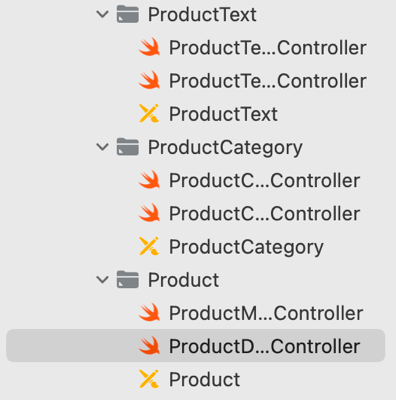
File Structure
SAP BTP SDK Assistant for iOS has generated Proxy Classes for each entity of the specified OData service, generated Views and View Controllers and tied them together in the Main.storyboard file as well as dedicated <Entity>.storyboard files.
Click
▶(Start the active scheme) in Xcode to run the application.
Xcode Start Button Configure the scheme to run the application on either a simulator or a device of your choice.
Click
Startto start the onboarding process.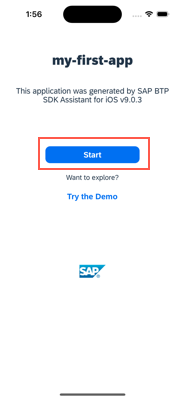
App Start Button Wait for Xcode to deploy, install and run your application on the device before starting this task.
Enter your username and password.
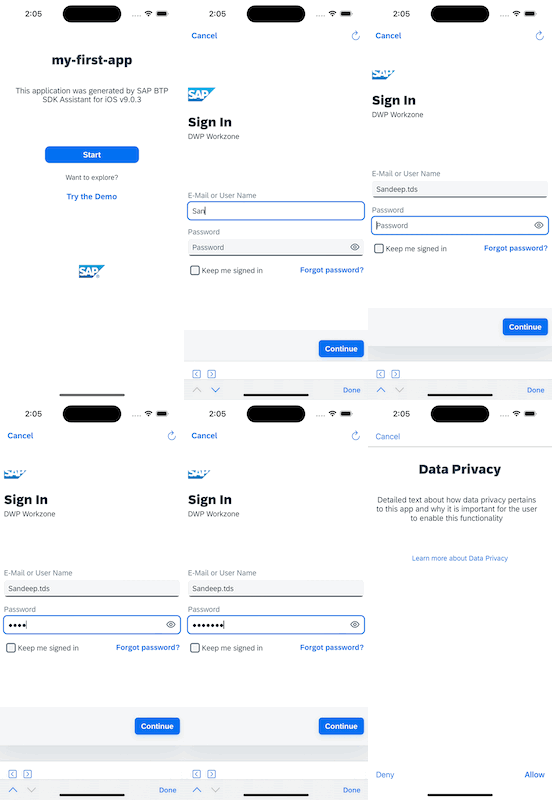
User Log In Accept user consent requests.
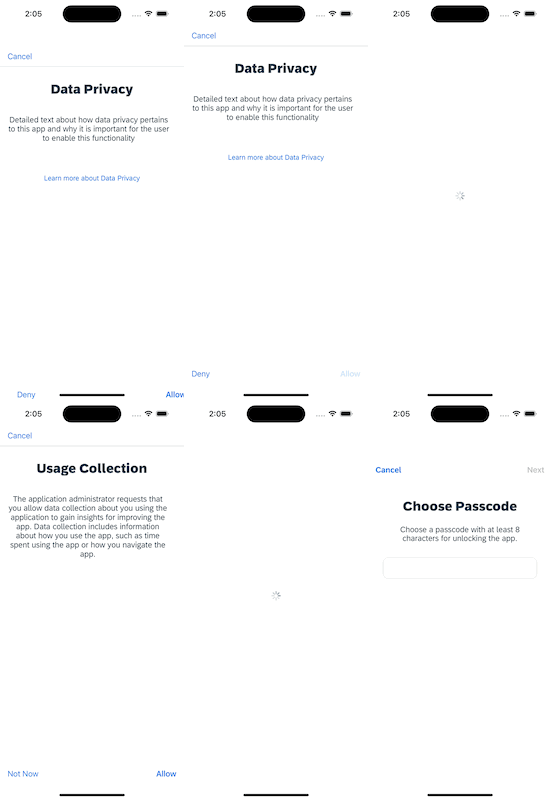
User Consent Configure a passcode.
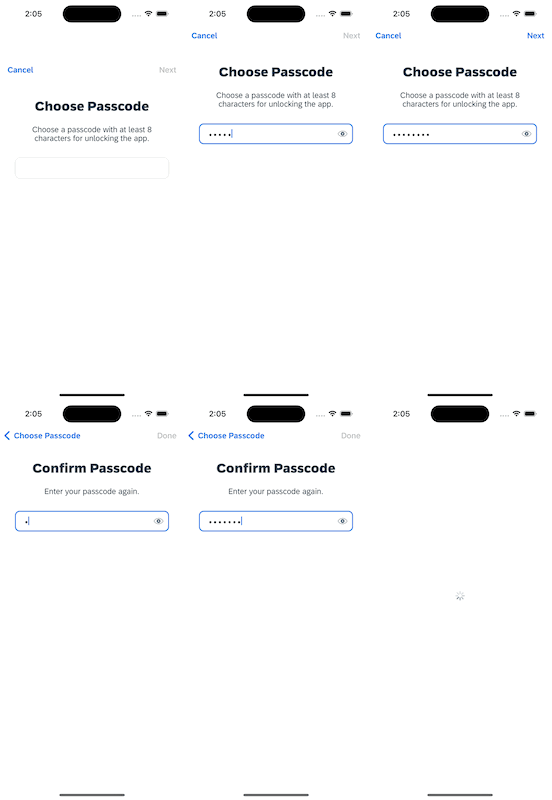
Set Passcode You may be prompted to set up Biometric authentication as we.. These policies can be defined on the SAP Mobile Services admin cockpit.
Allow the app to send push notifications.
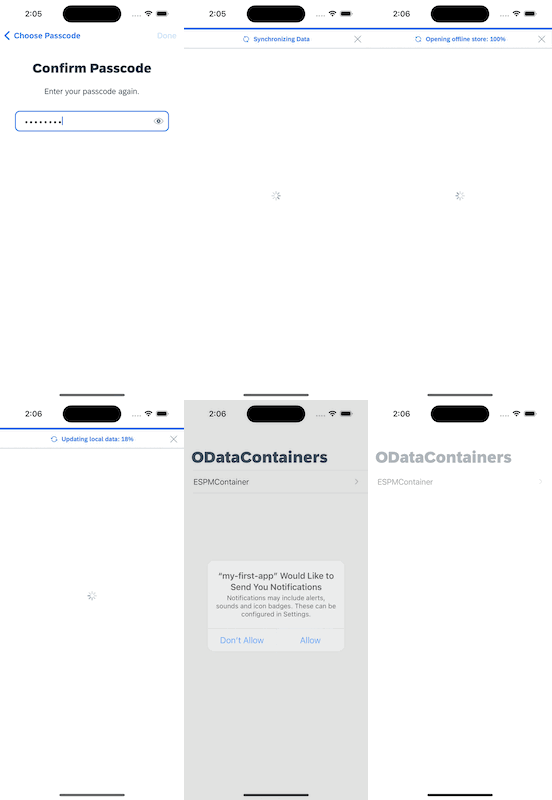
Allow Push
Click
ESPMContainer.Click
Customers.Click any customer id.
This data is generated by the sample OData service and may differ from the tutorial.
Click
Editlocated on the top right corner.Update the
FirstNameandLastName.Click
Donelocated on the top right corner.
The record gets updated and a confirmation toast message appears.
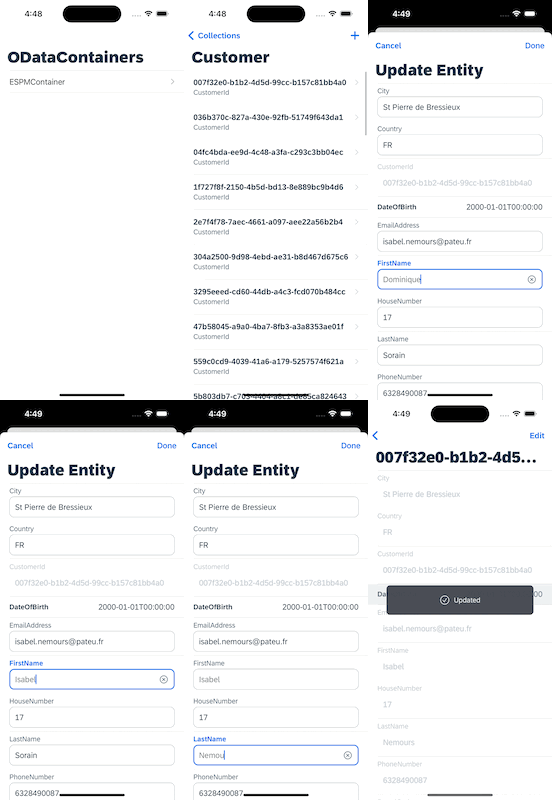
You can verify the update by going to your SAP Mobile Services Cockpit → Mobile Applications → Native/MDK Application →
com.sap.ios.tutorials→ Assigned Features → Mobile Sample OData ESPM →v2.
Turn off network connection on your device.
If the app is running on a device, turn on the Airplane mode. If the app is running on a simulator, turn off the WiFi/Network of your computer.
Click
ESPMContainer.Click
Suppliers.Click
➕located on the top right corner.Add the requested details.
Key Value City WalldorfCountry DEEmail Address supplier.email@sap.comHouse Number 15Phone Number 123456789Postal Code 111000Street Old StreetSupplier Id Custom-new-supplierid123Supplier Name New Custom SupplierUpdated Timestamp No Change Products No Change Purchase Orders No Change The
SupplierIdmay be replaced with GUID after sync.Click
Donelocated on the top right corner.Notice that the toast message says Created in offline mode.
Turn the on the network connection on your device.
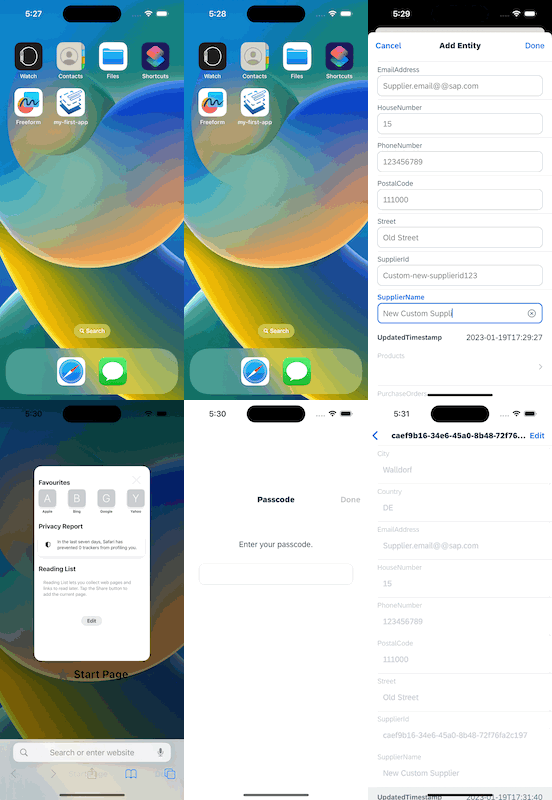
After sync, you can verify the update by going to your SAP Mobile Services Cockpit.
Congratulations on successfully building an iOS application using the SAP BTP SDK Assistant for iOS that seamlessly connects to SAP Mobile Services.
Resources
Discussion
Share feedback on this tutorial or join the conversation in SAP Community.