
Overview
You will learn
- How to configure entitlements.
- How to enable the SAP BTP Kyma runtime in your subaccount in SAP BTP.
- How to create an SAP HANA Cloud service instance in the SAP BTP cockpit.


Prerequisites
- You’ve set up the Incident Management sample application. You can choose from two alternative options:
- Follow the Develop a Full-Stack CAP Application Following the SAP BTP Developer’s Guide mission in the SAP Discovery Center to develop the application from the start.
- Go to the Incident Management application GitHub repository directly and clone the application without going through the application development steps. See Incident Management.
- You have an enterprise global account in SAP BTP. To use services for free, you can sign up for an SAP BTPEA (SAP BTP Enterprise Agreement) or a Pay-As-You-Go for SAP BTP global account and use the free tier services only. See Using Free Service Plans.
- You have a platform user. See User and Member Management.
- You’re an administrator of the global account in SAP BTP.
- You have a subaccount in SAP BTP to deploy the services and applications.
- You have a tenant of SAP Cloud Identity Services. See Get Your Tenant for details how to get a tenant of SAP Cloud Identity Services if you don’t have one yet.
- You’ve established trust between your tenant of SAP Cloud Identity Services and your SAP BTP account. This established trust allows you to use your SAP Cloud Identity Services tenant as an identity provider or a proxy to your own identity provider hosting your business users. See Establish Trust and Federation Between SAP Authorization and Trust Management Service and SAP Cloud Identity Services.
- You have one of the following browsers that are supported for working in SAP Business Application Studio:
- Mozilla Firefox
- Google Chrome
- Microsoft Edge
This tutorial follows the guidance provided in the SAP BTP Developer’s Guide.
Steps
In this section, you set up the SAP BTP Kyma runtime for deploying CAP applications.
To deploy the Incident Management application, you need the following entitlements:
| Service | Plan | Quota required |
|---|---|---|
| Kyma runtime | free (Environment) | 1 |
| SAP Build Work Zone, standard edition | free (Application) | 1 |
| SAP HANA Cloud | hana-free | 1 |
| SAP HANA Cloud | tools (Application) | 1 |
| SAP HANA Schemas & HDI Containers | hdi-shared | 1 |
| SAP Continuous Integration and Delivery | free (Application) | 1 |
Do the following steps to add the entitlements.
Log in to the SAP BTP cockpit.
Navigate to your subaccount and choose Entitlements → Edit.

Configure entitlements Choose Add Service Plans.

Add service plans Search for Kyma Runtime and select the free (Environment) plan.

Add the Kyma runtime entitlements Search for SAP Build Work Zone, standard edition and select the free (Application) plan.

Add Work Zone Search for SAP HANA Cloud and select the tools (Application) service plan and hana-free service plan.

Add HANA Search for SAP HANA Schemas & HDI containers and select the hdi-shared service plan.

Add HANA HDI Search for Continuous Integration & Delivery, select the free (Application) plan, and choose Add 6 Service Plans.

Add CI/CD Choose Save.
Let’s enable your subaccount to use the SAP BTP, Kyma runtime.
Navigate to your subaccount and choose Enable Kyma under the Kyma Environment tab.

Enable Kyma In the Enable Kyma popup, change the values for Instance Name and Cluster Name as needed and choose Create.
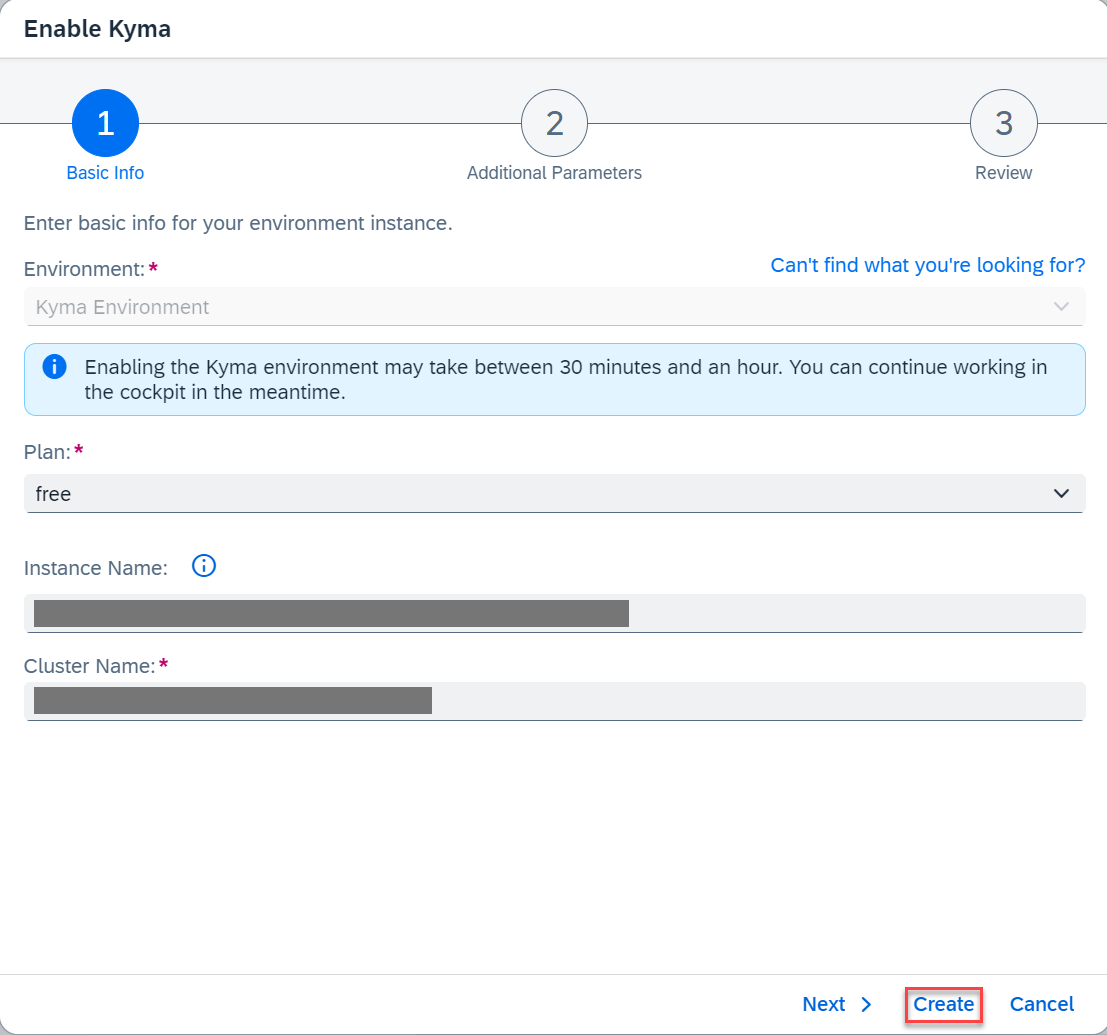
Enable Kyma popup Make sure that the instance name is CLI-friendly. CLI-friendly names make it easier to manage your instances with the SAP BTP command-line interface as well.
A CLI-friendly name is a short string (up to 32 characters) that contains only alphanumeric characters (A-Z, a-z, 0-9), periods, underscores, and hyphens. It can’t contain white spaces.
When enabling the runtime, you notice that the instance name is generated automatically for you. You can use that name or replace it with the name of your choice.
Navigate to your subaccount and choose Services → Service Marketplace on the left.
Type SAP HANA Cloud in the search box and choose Create.

Create an SAP HANA Cloud tools instance In the New Instance or Subscription popup, select tools from the dropdown in the Plan field and choose Create.

SAP HANA Cloud tools instance creation popup Choose View Subscription and wait until the status changes to Subscribed.

View subscription 
Status subscribed In your SAP BTP subaccount, choose Security → Role Collections in the left-hand pane.
Choose role collection SAP HANA Cloud Administrator.
Choose Edit.

Edit role In the Users section, enter your user and select the icon to add the user.

Add user Keep the setting
Default Identity Providerunless you have a custom identity provider configured.Choose Save.
You’ve assigned the SAP HANA Cloud Administrator role collection to your user.
Log out and log back in to make sure your new role collection is considered.
SAP HANA Cloud is used as a persistence layer.
Follow these steps to create an SAP HANA Cloud service instance in the SAP BTP cockpit:
In your SAP BTP subaccount, navigate to Services → Instances and Subscriptions in the left-hand pane.
Choose SAP HANA Cloud. You’re redirected to SAP HANA Cloud multi-environment administration tools. Sign in with your SAP BTP cockpit username/e-mail if necessary.

SAP HANA Cloud Go to application In SAP HANA Cloud Central, choose Create Instance.

SAP HANA Cloud create instance Choose SAP HANA Cloud, SAP HANA Database, and then choose Next Step.

Create SAP HANA DB Step 1 In the Instance Name field, enter incident-management.
In the Administrator Password and Confirm Administrator Password fields, enter a password for DBADMIN. Choose Next Step.

Create SAP HANA DB Step 2 The default settings are sufficient for the Incident Management application. Choose Next Step.
At SAP HANA Database Availability Zone and Replicas, choose again Next Step.
Select the Allow all IP addresses radio button, and choose Review and Create to review your SAP HANA Cloud instance configuration.

Create SAP HANA DB Step 3 Choose Create Instance.
The creation of the database instance can take some minutes to complete.
Your SAP HANA Cloud service instance is automatically stopped overnight, according to the time zone of the region where the server is located. That means you need to restart your instance every day before you start working with it.
You need the SAP BTP Operator module to map your SAP HANA Cloud service instance to the Kyma cluster. The module is added by default when you enable the SAP BTP, Kyma runtime. Follow these steps to make sure it’s enabled:
Navigate to your subaccount and choose Dashboard URL under the Kyma Environment tab.

Open Kyma dashboard Choose Modify Modules.
Make sure that btp-operator is on the list. If not, choose Add. In the new window, check btp-operator, and choose Add.
You can find more info in Add and Delete a Kyma Module.
Go to SAP HANA Cloud Central. If you’ve closed it, open it again by following these steps:
- In your SAP BTP subaccount, navigate to Services → Instances and Subscriptions.
- Choose SAP HANA Cloud. You’re redirected to SAP HANA Cloud multi-environment administration tools. Sign in with your SAP BTP cockpit username/e-mail if necessary.
For the incident-management instance, choose Manage Configuration.

Manage instance configuration Select the Instance Mapping tab and choose Add Mapping.

Add instance mapping Choose Kyma from the dropdown under Environment Type.
Under Environment Instance ID, paste the GUID of your Kyma cluster. Here’s how to find it:
- Open your Kyma dashboard.
- Choose Namespaces on the left and choose kyma-system.
- Navigate to Configuration → Config Maps and choose sap-btp-operator-config.
- You can see the GUID of your Kyma cluster in the CLUSTER_ID section.

Add environment instance ID If no namespace is provided, the instance is mapped to all namespaces in the cluster.
Choose Review and Save. In the popup, mark Apply changes with a restart, and choose Save Changes.

Save changes You’ve mapped your SAP HANA Cloud service instance to your Kyma cluster.
For more information, see Map an SAP HANA Database to another Environment Context to add a new Cloud foundry or Kyma mapping.
Resources
Discussion
Share feedback on this tutorial or join the conversation in SAP Community.