---
parser: v2
auto_validation: true
time: 10
tags: [tutorial>advanced, topic>cloud, products>sap-business-technology-platform, software-product>sap-btp--cloud-foundry-runtime-and-environment]
primary_tag: products>sap-business-technology-platform
slug: opps-advanced-scenario-transactional
canonical_url: https://developers.sap.com/tutorials/opps-advanced-scenario-transactional
---
# Apply a Transactional Promotion with SAP Omnichannel Promotion Pricing
Use SAP Omnichannel Promotion Pricing to calculate the effective sales price by applying a transactional promotion rule on top of the regular sales price.
## Prerequisites
- You have completed the tutorials [Apply a Simple Promotion with SAP Omnichannel Promotion Pricing](opps-basic-scenario) and [Apply a Mix-and-Match Promotion with SAP Omnichannel Promotion Pricing](opps-advanced-scenario-mixandmatch).
- You have registered for a trial account on [SAP BTP](hcp-create-trial-account) in the Singapore - Azure region.
- You should be familiar with the SAP BTP trial landscape and terminology (see [Take a Tour of SAP BTP Trial](cp-trial-quick-onboarding)).
- You have a subaccount in the Cloud Foundry environment, with Microsoft Azure as provider and the Singapore region (AP21).
- You have set up SAP Omnichannel Promotion Pricing as described in [Set Up SAP Omnichannel Promotion Pricing](opps-manual-setup).
## You will learn
- How to use the SAP Omnichannel Promotion Pricing trial on SAP BTP
- How to upload a **promotional rule with a discount on transaction level** with the help of the SAP Business Accelerator Hub
- How to execute a calculation request to determine the effective sales price that includes the discount on transaction level
---
### Get to know the business scenario
* Business goal: You are a household equipment vendor and you want to celebrate the 25th anniversary of your **Heidelberg** store (business unit ID: `FC01`). For this, you have created the following promotion: **Spend 800 Euro and get 25% off.**
* Your promotion is valid from **May 1st, 2021 until May 7th, 2021**.
* The **regular sales price** for the **coffee machine** (material number: `COFFEE_MACHINE`) is **500 Euro**.
* A customer put two **coffee machines** in the shopping cart.
* You call the Calculation service with the shopping cart information (store, products, date, time).
* The Calculation service calculates the effective sales price by applying the transactional promotional rule
### Create environments in SAP Business Accelerator Hub
In order to continue with the next steps, you need to have already set up your trial environments for the Data Upload service, Data Access service, and Calculation service in the SAP Business Accelerator Hub. If you need guidance, have a look at step 2 of the tutorial [Apply a Simple Promotion with SAP Omnichannel Promotion Pricing](opps-basic-scenario).
### Upload promotional rule
You can now upload the promotional rule for the transactional discount with the Data Upload service.
Navigate to the [Data Upload service of SAP Omnichannel Promotion Pricing on the SAP Business Accelerator Hub](https://api.sap.com/api/DataUpload/resource). Log on with the same login information that you use for your SAP BTP account.
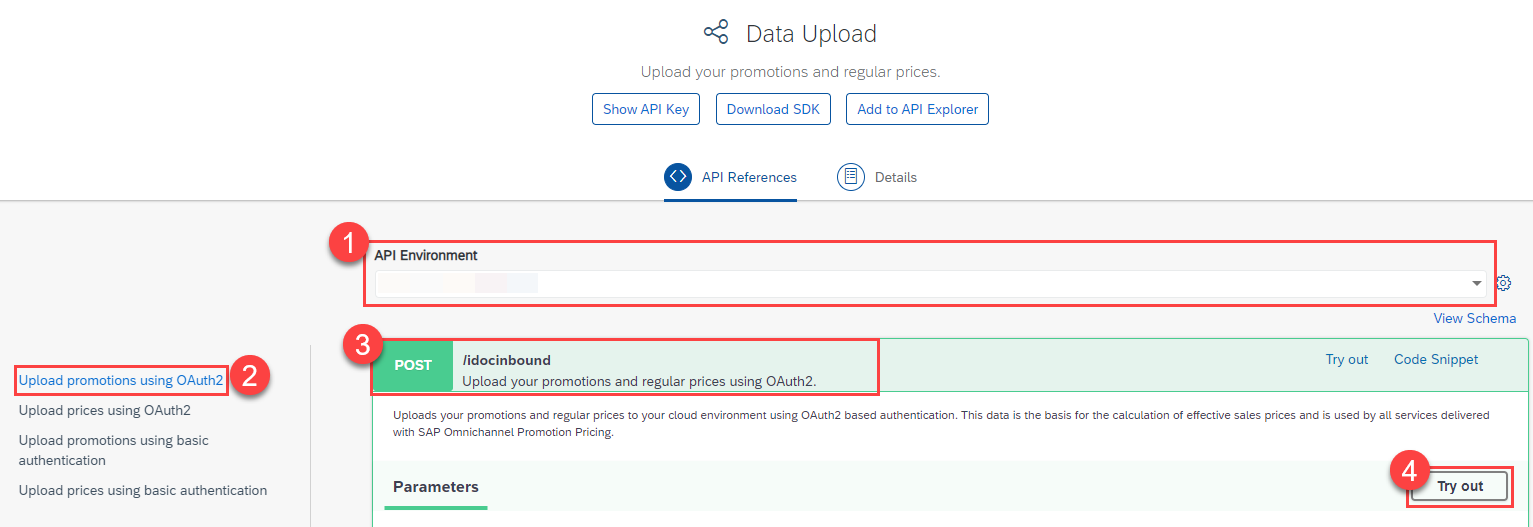
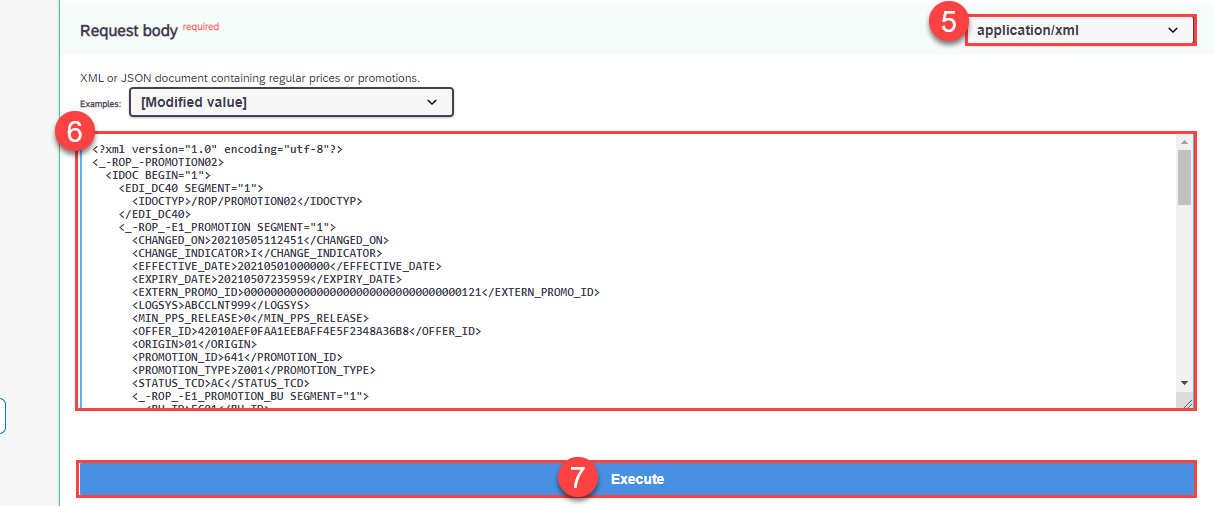
1. For **API Environment**, select the trial environment you have created for the Data Upload service.
2. On the left-hand side, choose **Upload promotions using OAuth2**.
3. Open the **POST** request `/idocinbound`.
4. Choose **Try Out**.
5. For the **Request body**, choose `application/xml`.
6. Copy the following raw data and paste it into the body:
```XML
<_-ROP_-PROMOTION02>
/ROP/PROMOTION02
<_-ROP_-E1_PROMOTION SEGMENT="1">
20210505112451
I
20210501000000
20210507235959
000000000000000000000000000000000121
ABCCLNT999
0
42010AEF0FAA1EEBAFF4E5F2348A36B8
01
641
Z001
AC
<_-ROP_-E1_PROMOTION_BU SEGMENT="1">
FC01
1040
<_-ROP_-E1_PROMOTION_RULE SEGMENT="1">
642
X
642
642
0
00
642
<_-ROP_-E1_ELIGIBILITY SEGMENT="1">
EUR
20210501000000
642
20210507235959
0.00000
0.000
0.00000
0.000
0
642
642
642
AC
0.00000
0.000
800.00000
TOTL
<_-ROP_-E1_PRICE_RULE SEGMENT="1">
00
1-
X
0
EUR
00
0000000000000000000
00
0.000
0.00000
0.00000
0.00000
TP
25.000
642
00
2
1
SU
AC
0.00000
0.00000
0.000
RB
<_-ROP_-E1_PROMOTION_TEXT SEGMENT="1">
Spend 800 Euro and get 25% off.
Spend 800 Euro and get 25% off.
EN
```
7. Choose **Execute**.
8. Make sure you get the HTTP response **200**.
With this, you uploaded the promotional rule "Spend 800 Euro and get 25% off" (promotion ID: `641`) for the **Heidelberg** store (business unit ID: `FC01`) and the validity period **May 1st, 2021 to May 7th, 2021**.
>In this tutorial, you only upload the promotional rule for the transactional discount. You have already uploaded the regular sales price of **500 Euro** for the product **coffee machine** (material number: `COFFEE_MACHINE`, unit of measure: `PCE`) with the validity period **May 1st, 2021 to December 31st, 2021** in step 3 of the previous tutorial [Apply a Mix-and-Match Promotion with SAP Omnichannel Promotion Pricing](opps-advanced-scenario-mixandmatch).
### Check uploaded master data
You can use the **Data Access** service for checking your uploaded data. If you need guidance, have a look at step 4 of the tutorial [Apply a Simple Promotion with SAP Omnichannel Promotion Pricing](opps-basic-scenario).
### Calculate the effective sales price
You can now calculate the effective sales price based on the data you have uploaded.
**Scenario**: A customer has two **coffee machines** (material number: `COFFEE_MACHINE`) in the shopping cart with a regular sales price of **500 Euro** per piece. The customer wants to purchase them on **May 5th, 2021** in the **Heidelberg** store (business unit ID: `FC01`).
**Desired Result**: The customer should get a 25% discount on the shopping cart total of 1.000 Euro, as more than 800 Euro are spent.
Let's see if this is the case:
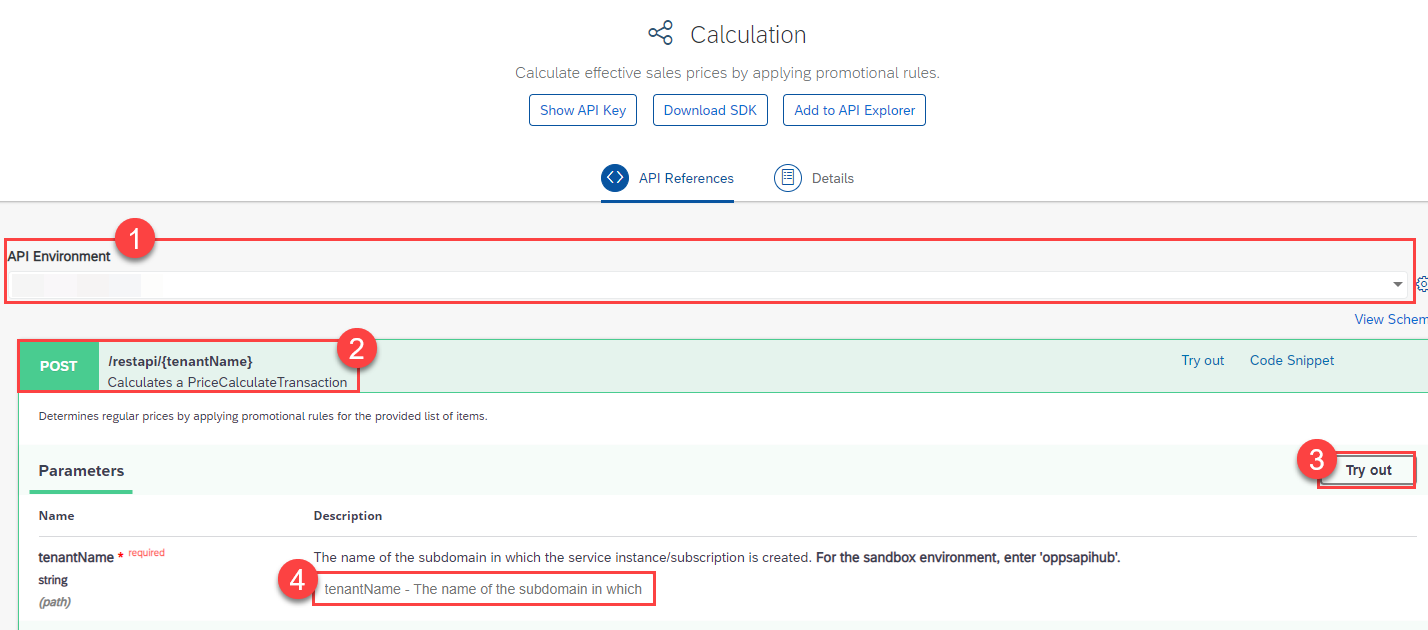
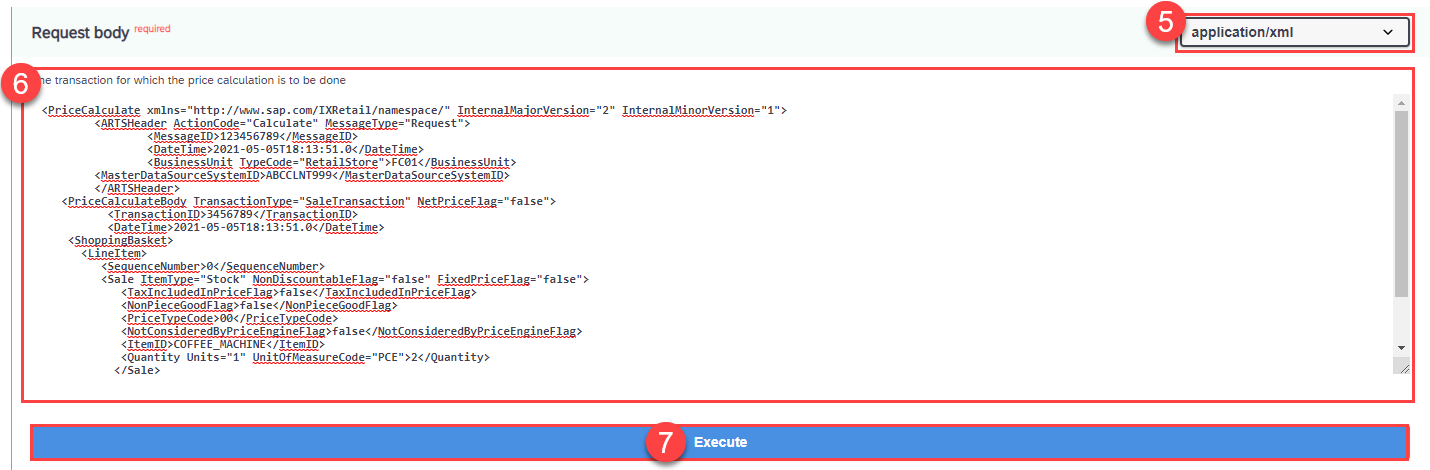
1. Navigate to the [Calculation service on the SAP Business Accelerator Hub](https://api.sap.com/api/PriceCalculation/resource).
2. For **API Environment**, select your trial environment for the Calculation service.
3. Open the **POST** request `/restapi/{tenantName}` and choose **Try Out**.
4. In the field `tenantName` enter the `identityzone` from the service key you have created for the Calculation service in your SAP BTP account.
>If you need more information about service keys, go to step 4 in the tutorial [Set Up SAP Omnichannel Promotion Pricing](opps-manual-setup).
5. For the **Request body**, choose `application/xml`.
6. Copy the following raw data and paste it into the body:
```XML
123456789
2021-05-05T18:13:51.0
FC01
ABCCLNT999
3456789
2021-05-05T18:13:51.0
0
false
false
00
false
COFFEE_MACHINE
2
```
Make sure you get the HTTP response **200**.
### Additional information
* [Official Product Documentation](https://help.sap.com/docs/OPP)
* [Trial Documentation](https://help.sap.com/docs/OPP/0c145d124b784b548b618cda8a5b2aba/31b8aedc8ce14fcd9f6021ad4f6323c9.html)
* [SAP Omnichannel Promotion Pricing on the SAP Business Accelerator Hub](https://help.sap.com/docs/OPP/7c87270e23c64c2aa922ce297a6df23d/67a9da084cf84e058cb3a3911971bdd0.html?version=Cloud)
---