
Overview
You will learn
- How to create and update a SAP Service and Asset Manager Mobile Services App with Metrics using transaction
/MERP/CPMS_APPCREATE. - How to review the SAP Service and Asset Manager Mobile Services App with Metrics
- Optional Features: 1. Use a RFC Destination (Middleware Server) to create the Mobile Services App. 2. Use a RFC Destination to send Metrics to Cloud Reporting. 3. Set up Satellite Systems. 4. Enable Multiple Threads in Offline Configuration.
- Troubleshoot: 1. Missing Offline Configuration. 2. Usage Metering Middleware Server Missing and/or Properties Missing. 3. Usage Metering Background Job Missing.


Prerequisites
- Access to your SAP BTP Subaccount and Space.
- Access to the SAP Mobile Services service in your SAP BTP subaccount.
- Latest App Create and Metrics Updates. Please review SAP Note 3703174 for the latest updates.
Steps
Intro
In this mission you will learn to create and update a SAP Service and Asset Manager Mobile Services App with Metrics using transaction /MERP/CPMS_APPCREATE from the SAP GUI. The Mobile Services App created by the transaction may be used to onboard your SAP Service and Asset Manager mobile app.
The Admin API link can be found in the Important Links section of the SAP BTP Mobile Services service in your SAP BTP subaccount.

AdminAPI The SAP Cloud Connector Location Id and Virtual Host can be found in the Cloud Connector section of the SAP BTP Cockpit in your subaccount.

CCInfo
Execute the transaction
/MERP/CPMS_APPCREATEfrom the SAP GUI, then select your required variant (i.e.,SAP&SAM_<version>).Fill in the Admin API, SCC Location Id and Virtual Host. Please ensure the Background Job User will maintain authorization to run the Usage Metering background job (parameter info below). To use a RFC Destination to create the app instead of the Admin API please see Step 4 (optional). The app is created as the Metrics Host by default, to set up the app as the Metrics Satellite please see Step 6. Then execute the transaction.

SelScreen Parameter What’s the use? MS Admin API or MW Server GUID Used to establish a connection from the SAP Backend to the SAP Mobile Services service. OData Service Mobile App Used to generate the mobile app’s offline configuration sent to the SAP Mobile Services Mobile Offline Access feature. OData Service Technical Name Used to generate the mobile app’s offline configuration sent to the SAP Mobile Services Mobile Offline Access feature. OData Service Group Version Used to generate the mobile app’s offline configuration sent to the SAP Mobile Services Mobile Offline Access feature. MS Application ID The unique application identifier given to the SAP Mobile Services App. MS Application Name The application name given to the SAP Mobile Services App. MS Application Description The application description given to the SAP Mobile Services App. MS Vendor Name The vendor name given to the SAP Mobile Services App. MS Application Timeout The maximum time in milliseconds before a client connection times out in your environment. After that timeout period, the connection is closed. MS App License Type The Service Plan used by Mobile Services. The plan basic-plus-appis recommended for SAP mobile applications.SCC X.509 Virtual Host Used to generate the URL for the Mobile Services Mobile Destinations. Cloud Connector Location ID Used to set Cloud Connector Location Id for the Mobile Services Mobile Destinations. Client Used to set sap-clientheader for Mobile Services Mobile Destinations. Defaulted to current System Client.Background Job User Used to schedule the Usage Metering background job with a daily frequency. If no user is provided, then the user executing the transaction is used. Please ensure the Background Job User will maintain authorization to run the background job. Client Role Used by the Metrics report to determine user counts (i.e., 0 user counts sent for non-productive systems). Defaulted to System Client Role defined in transaction SCC4. Stored in MAIF Product Table. Satellite System Satellite Systems can be setup to avoid duplicate User Counts when multiple Production Systems are in use. Metrics from a Satellite Sytem will be retrieved via the Metrics Report executed in the Host System ensuring duplicate SAP Users are only counted once. See Step 6 to set up Satellite Systems. WARNING: Any change that may affect the offline configuration (e.g., a new entity type is added to your mobile app configuration, or the Defer Batch Response setting is changed for the OData Service Technical Name provided when generating the offline configuration) will require you to update the offline configuration in Mobile Services and reset your mobile app. See Step 2.5 to update.
If you are not using a Middleware Server with a RFC Destination with Basic Authentication enabled, then you should receive a sign-in prompt after executing the transaction. Please use your SAP BTP username and password to sign in.
Please allow ~5 minutes to complete processing.
Your app should now be available in the Native/MDK section of the SAP Mobile Services service in your SAP BTP subaccount. Please take note of the Mobile Services App ID, Middleware Server and Background Job name in the output.

Output The Mobile Services App can be updated by re-executing the transaction and selecting the features to update when prompted. See additional info for each option below.
Feature What is Updated? Update Mobile Offline Access Updates the offline configuration of your app. Update Usage Metering Creates Usage Metering Middleware Server and Background Job. Existing Middleware Server and Background Job are deleted. Updates Client Role in Product Table. Updates MS_UNIFIED_SERVER system component. Compare Offline Configuration Compare offline configuration properties, request groups and request download phases between the backend and the Mobile Services App. Update Mobile Connectivity Updates the offline and online destination settings of your app. Add Mobile App Update Assigns the feature to your app if not already assigned. Update Mobile Push Notification Updates the Predefined Global Push Configuration to SAP ASSET MANAGER. Add Mobile App Catalog Assigns the feature to your app if not already assigned. Add Mobile Cloud Build Assigns the feature to your app if not already assigned. Add Mobile Client Log Upload Assigns the feature to your app if not already assigned.
In the Native/MDK section of the SAP Mobile Services service in your SAP BTP subaccount you should see your app in a Started State with the MS Application ID you provided in Step 2.2.

MSApp Select your app to see the Assigned Features. The following features should be assigned to your app:
- Connectivity
- App Catalog
- App Update
- Client Log Upload
- Cloud Build
- Offline Access
- Push Notification
From your app’s overview screen, select the Connectivity feature. You should see two Mobile Destinations created with the properties below. The
sap-clientheader should be automatically added to the destinations Custom Headers section. Under the Actions column, selecting the Launch in Browser icon should return the metadata.
Destinations Destination Name Destination URL DEST_SAM<version>_PPROPhttp://<host>:<port>/sap/opu/odata/MERP/SAP_SRV_ASSET_MANAGER_<version>DEST_SAM<version>_ONLINE_PPROPhttp://<host>:<port>/sap/opu/odata/MERP/SAP_ONLINE_LOOKUP_EXT_<version>Custom Headers
Header Name Header Value sap-clientYour client (i.e., 800)From your app’s Mobile Connectivity feature, select the Service Keys tab. You should see a Service Key with the properties below. The Key should be automatically maintained as the
X-API-Keyproperty in the Additional Properties of the Usage Metering Middleware Server which we will review in Step 3.8.Field Name Value Alias <system><client>(i.e.,PRD001)Roles sap_application_meteringType API KeyFrom your app’s overview screen, if you select the Offline Access feature you should be able to display and edit the offline configuration. If the offline configuration is missing, then please see Step 8.
From your app’s overview screen, select the APIs tab to view the onboarding QR code which you can scan from the SAP Service and Asset Manager mobile app.
We will now check the Usage Metering Middleware Server. Execute transaction /SYCLO/ADMIN from the SAP GUI to open up the MAIF Admin Panel. Navigate to Administration > Server Management. Select the Middleware Server with the name noted in Step 2.4. If the Usage Metering Middleware Server is missing then please see Step 8.

MDW Verify that the Middleware Server has the following Basic Info and Additional Properties. If the Middleware Server’s Basic Info or Additional Properties are not as expected then please see Step 9.
Basic Info
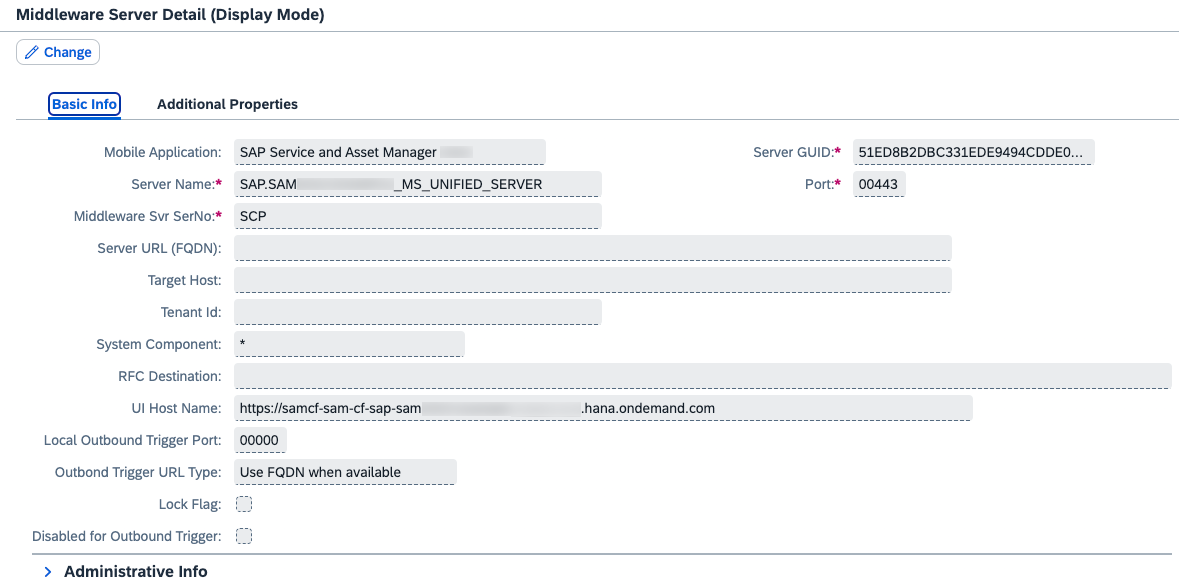
MDWBasicInfo Field Name Value Mobile Application <mobile_app>Server Name <ms_app_id>_MS_UNIFIED_SERVERMiddleware Svr SerNoSCPServer GUID <autogenerated_guid>Port 00443UI Host Name https://example.cfapps.sap.hana.ondemand.comAdditional Properties

MDWAdditionalProperties Property Group Property Name Property Value METERINGHostXMETERINGX-API-Key<autogenerated_key>METERINGservice_path/mobileservices/service-key/meteringTo verify that the Usage Metering Background Job is scheduled, please execute transaction SM37 from the SAP GUI and search for the job name noted in Step 2.4. If the background job is missing, then please see Step 10.

SM37 Execute transaction /SYCLO/CONFIGPANEL from the SAP GUI to open up the MAIF Configuration Panel. Navigate to Mobile Application Configuration > System Components. You should see a system component with the properties below.

SystemComponent Field Name Value System Component MS_UNIFIED_SERVERSystem Role HostActive Flag Selected To ensure the Metrics Requests are sent successfully execute transaction SE38 and execute program
/MFND/CORE_CLOUD_METRICS_PROG. ProvideSAP_SERVICE_ASSET_MANAGERinProduct Technical Nameand execute.Selection Screen

MetricsSelScreen Successful Output

MetricsOutput Output Explanation Authorized Users Total of Professional and Standard Users. Professional Users Users having authorization for a Persona with Usage Type Advanced User. Standard Users Users having authorization for a Persona with Usage Type Standard User. External Users Users having authorization for a Persona with Usage Type External User. Active Users Unique users who have completed a sync in the previous day. Month to Date Active Users Unique users who have completed a sync in the previous 30 days. Persona Users having authorization for the Persona. Mobile Application Sync Info for the previous day. Persona Authorization configuration can be found in the MAIF Configuration Panel. Execute transaction /SYCLO/CONFIGPANEL from the SAP GUI to open up the MAIF Configuration Panel and navigate to Mobile Application Configuration > Application Persona.
Execute transaction SM59 from the SAP GUI. Then click the create icon.
Provide the destination name
Z_MS_ADMIN_APIand set Connection Type toG HTTP Connection to External Server.Provide the Target System Settings. The Target Host and Path Prefix are derived from the Admin API retrieved in Step 1.1. Please ensure you append
/appto the Path Prefix as in the example below.
RFCTechSet Admin API:
https://mobile-service-cockpit-example.sap.hana.ondemand.com/cockpit/v1/org/ExampleOrg/space/ExampleSpaceField Name Value Target Host mobile-service-cockpit-example.sap.hana.ondemand.comService No.(Port) 443Path Prefix /cockpit/v1/org/ExampleOrg/space/ExampleSpace/appHTTP Proxy Options are available in the RFC Destination Technical Settings if required.
In the Logon & Security tab, within the Security Options > Status of Secure Protocol section, of your RFC destination please set the SSL radio button to Active.

RFCSecSet Enabling Basic Authentication is optional. Using Basic Authentication will skip the sign-in prompt in Step 2.3. If you choose to enable Basic Authentication, then please provide your SAP BTP credentials as the User and Password.
Save the RFC Destination.
We will now create the Middleware Server with the RFC Destination created. To create the Middleware Server, execute transaction /SYCLO/ADMIN from the SAP GUI to open up the MAIF Admin Panel.
Navigate to the Administration > Server Management section.
Click Create to create a new Middleware Server.
Please fill out the Basic Info below and click Save.
Basic Info

MDWCreate Field Name Value Mobile Application <mobile_app>Server Name Z_MS_ADMIN_APIServer GUID <autogenerated_guid>Port 07003Middleware Svr SerNoSCPRFC Destination Z_MS_ADMIN_APIYou may now use the generated Server GUID instead of the Admin API in Step 2.2 . You may use F4 Help on the Admin API or Middleware Server GUID field to search for the created Middleware Server.

ServerGUID
Copy the URL of the Server API. from the APIs tab of your Mobile Services App.

UIHost Execute transaction SM59 from the SAP GUI. Then click the create icon.
Provide the destination name
Z_SAM<version>_METERINGand set Connection Type toG HTTP Connection to External Server(substituting<version>with your app version).Provide the copied URL without
https://in Host field of the Target System Settings. Use the Port and Path Prefix as in the example below.
RFCTechSetMeter Field Name Value Target Host samcf-sam-cf-sam.example.hana.ondemand.comService No.(Port) 443Path Prefix /mobileservices/service-key/meteringIn the Logon & Security tab, within the Security Options > Status of Secure Protocol section, of your RFC destination please set the SSL radio button to Active.

RFCSecSetMetering Save the RFC Destination.
We will now update the Usage Metering Middleware Server with the RFC Destination created. To update the Middleware Server, execute transaction /SYCLO/ADMIN from the SAP GUI to open up the MAIF Admin Panel.
Navigate to the Administration > Server Management section.
Select the Middleware Server with the name noted in Step 2.4. If the Usage Metering Middleware Server is missing then please see Step 9.
Update the RFC Destination and click Save.

MDWMetering
Please ensure app has been created and reviewed (Steps 2 and 3) in the Host System.
Follow Steps 1 to 2.2 then return to this Step before executing. Check the
Satellite Systemcheckbox. Provide theHost RFC Destination(recommended) to create the Satellite Middleware Server in the Host System that will be used to retrieve the Metrics from the Satellite System. If you do not provide theHost RFC Destinationplease ensure you manually create the Satellite Middleware Server in the Host System (see Step 6.5). Execute the transaction. If you are updating an existing app please select Update Usage Metering feature when prompted.
SatelliteSettings Please take note of the Middleware Server created on the Host System via RFC.

SatelliteOutput In the Host System execute transaction /SYCLO/ADMIN from the SAP GUI to open up the MAIF Admin Panel. Navigate to the Administration > Server Management section.
Select Middleware Server noted above. Create Satellite Middleware Server if not created automatically via RFC in the previous step. Edit the Middleware Server and provide a RFC Destination to the Satellite System. Ensure the RFC authentication is automatic.
Basic Info

SatServerBasic Field Name Value Mobile Application <mobile_app>Server Name <ms_app_id>_MS_UNIFIED_SERVER_<sat_sys_id>CLNT<sat_client>System Component MS_UNIFIED_SERVERMiddleware Svr SerNoSCPServer GUID <autogenerated_guid>Port 00443UI Host Name No Value Required RFC Destination Provide a RFC Destination to the Satellite System Additional Properties (case sensitive)

SatServerProps Property Group Property Name Property Value METERINGHostNo Value METERINGX-API-KeyNo Value Required METERINGservice_pathNo Value Required Ensure all properties exist even with no values.
To ensure the Satellite Metrics are retrieved successfully execute transaction SE38 and execute program
/MFND/CORE_CLOUD_METRICS_PROGin the Host System. ProvideSAP_SERVICE_ASSET_MANAGERinProduct Technical Nameand execute.Successful Output

SatMetricOutput
Follow Step 2.1 and 2.2 then return to this Step before executing. Then click Advanced Mode.
Under the Mobile Services Offline OData Settings section, check the
Calculate oMDO Download PhasesandEnable Multiple Threadsoptions. Then, setNumber of Threadsto3.If your app already exists and you are updating your app, select the option Update Mobile Offline Access when prompted.
Alternately, you may generate the offline configuration using the offline configuration program
/MERP/CORE_OFFLINE_CONFIG_PROG. The generated file can then be uploaded in the SAP Mobile Services Mobile Offline Access feature of your app.Execute the program
/MERP/CORE_OFFLINE_CONFIG_PROGin transaction SE38 from the SAP GUI, then select your required variant.Select the
Advanced Offline Configurationradio button. Check theCalculate oMDO Download PhasesandEnable Multiple Threadsoptions. Then, setNumber of Threadsto3. Execute the transaction.
OfflineProgMT Please ensure to save the generated file with a
.inifile extension.Import the file in the Mobile Offline Access feature of your app.

ImportOffline
Follow Step 2.5 and select the option Update Mobile Offline Access when prompted. The offline configuration will be regenerated and sent to SAP Mobile Services.
Alternately, you may generate the offline configuration using the offline configuration program
/MERP/CORE_OFFLINE_CONFIG_PROG. The generated file can then be uploaded in the SAP Mobile Services Mobile Offline Access feature of your app.Execute the program
/MERP/CORE_OFFLINE_CONFIG_PROGin transaction SE38 from the SAP GUI, then select your required variant. Then execute the transaction.
OfflineProg Please ensure to save the generated file with a
.inifile extension.Import the file in the Mobile Offline Access feature of your app.
ImportOffline
Follow Step 2.5 and select Update Usage Metering feature when prompted.
Alternately, you may create the Usage Metering Middleware Server manually. Execute transaction /SYCLO/ADMIN from the SAP GUI to open up the MAIF Admin Panel.
Navigate to the Administration > Server Management section.
Click Create to create a new Middleware Server.
Please fill out the Basic Info and Additional Properties below and click Save.
Basic Info

MDWCreateMeter Field Name Value Mobile Application <mobile_app>Server Name <ms_app_id>_MS_UNIFIED_SERVERMiddleware Svr SerNoSCPServer GUID <autogenerated_guid>Port 00443UI Host Name https://example.cfapps.sap.hana.ondemand.comThe UI Host Name can be found in the APIs tab of your Mobile Services App. Copy the URL of the Server API.
UIHost Additional Properties (case sensitive)

MDWMeterAddProp Property Group Property Name Property Value METERINGHostXMETERINGX-API-Key<autogenerated_key>METERINGservice_path/mobileservices/service-key/meteringTo generate X-API-Key go to the Mobile Connectivity feature of your Mobile Services App and select the Service Keys tab. Click the add icon “+” to add a Service Key with the following values and copy the generated key.

AddServiceKey 
APIKey Service Key Values
Field Name Value Alias Any Alias is okay (i.e., PR1001)Roles sap_application_meteringType API Key
Follow Step 2.5 and select Update Usage Metering feature when prompted. If the background job is still missing, you may try the next steps.
Execute the program
/MFND/CORE_CLOUD_METRICS_PROGin transaction SE38 from the SAP GUI.In the selection screen provide the Mobile Application.
Press F9 or select menu option Program > Execute in Background.
Click Date/Time.
Provide the Schedule Start Date and Time.
Set the Period Values to Daily, then click Save.

Schedule
Resources
Discussion
Share feedback on this tutorial or join the conversation in SAP Community.