
Overview
You will learn
- How to create an automated process
- How to publish the process to the library
- How to use the process in a Joule skill


Prerequisites
- Access to an SAP BTP tenant configured for Joule and Joule Studio, classic edition. See Set Up Joule Studio, classic edition or the Discovery Center mission.
- Email has been configured for Process Automation
Steps
Details
You will create an automated process but existing content for SAP Build Process Automation can also be used within Joule skills. In the current release, you can pass values to the input parameters of a process triggered from a Joule skill but you cannot use the output parameters of the process to return values to the Joule skill - it is “fire and forget”.
In order for a process to be visible in Joule Studio classic, the process must have been published to the library - you need to remember to release, deploy, and then publish. You publish from within the Lobby.
In this tutorial, you will create a simple automated process for sending an email. The example extends the badge scenario used in the previous tutorials but the Joule skill is not dependent on the other skills.
Open the SAP Build Lobby.
The lobby is a central page for creating, accessing, and managing your projects in SAP Build.
Choose Create.

Lobby Choose Automated Process then choose Next.

Create automated process Choose Process, then choose Next.

Create process Enter
InitiateSecurityChecksViaEmailfor the Name, andWhen a badge is reported as lost or stolen, contact security via emailfor the Description. Choose Review.
Name and description Choose Create.

Create project
In the Process Automation editor, choose Create.

Process Automation create process Enter
SendEmailToSecurityandReport stolen or lost badge to security via email. Then choose Create.
Process Automation open side panel Choose « to open the side panel.

Process Automation variables Choose the Variables tab and then choose Configure beside Process Inputs.
Choose Add Input four times and then enter:
Name Description Required EmployeeIDEmployee IDselect BadgeStatusBadge statusselect FirstNameFirst nameselect LastNameLast nameselect 
Configure Process Inputs Choose Apply.

Process Automation save Close the side panel and choose Save.
Choose the + before the End element.

Select Email Choose Email.
Enter an email address in the To field and
Lost Badgein the Subject field.
Configure Email Choose Open Mail Body Editor.
Expand the Process Inputs in Value Binding. Use these to construct an email text.

Email Editor Choose Apply.

Process Automation finished Close the side panel and choose Save.
Choose Release.
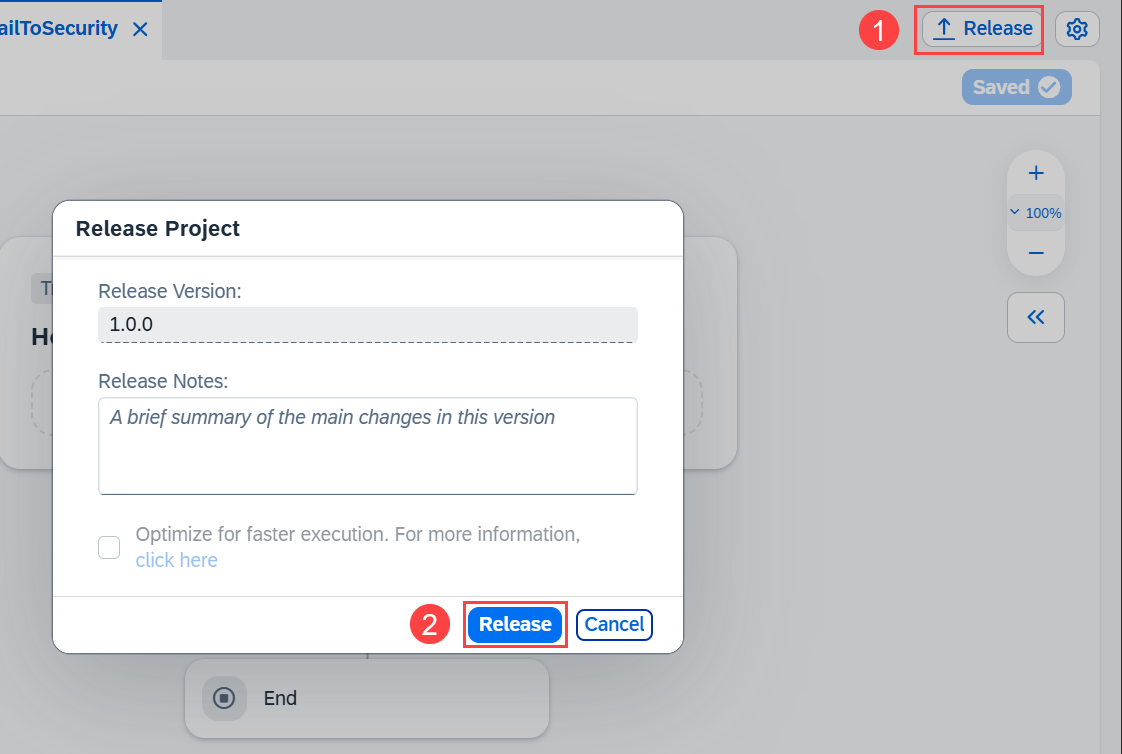
Process Automation release Choose Release.
Choose Show project version to change to the released version.

Process Automation deploy Choose Deploy. Then select your environment and choose Deploy.

Process Automation deployed Go to the Lobby and choose the Versions tab for the project.

Lobby publish to library Choose … beside Deployed, then choose Publish to Library.
In the popup, choose Publish.

Lobby published
Open the SAP Build Lobby.

Lobby Choose Create.

Create Project joule skill Choose Joule Skill then choose Next.

Create Project name and description Enter name
BadgeSecurityand descriptionContact security when a badge is reported lost or stolen.Choose Review.

Create Project review Choose Create.
In Joule Studio, choose Create > Joule Skill.

Joule Studio create joule skill 
Joule Studio create joule skill popup Enter name
BadgeSecurityand descriptionContact security when a badge is lost or stolen, then choose Create.
Joule Studio parameters Choose the Trigger element to open the side panel and there disable Allow Joule to generate a response.
Choose Parameters, then choose Configure beside Skill Inputs.

Joule Studio parameters Choose Add Input four times and enter the following parameters:
Name Description Required Employee IDEmployee IDselect BadgeStatusBadge statusselect First NameFirst nameselect Last NameLast name
Joule Studio configure skill inputs Choose Apply.

Joule Studio skill inputs Expand Skill Outputs to see that there are no outputs configured.

Joule Studio skill outputs Close the side panel and choose Save.
Choose the + between Trigger and End.

Joule Studio select process Choose Run Process.

Joule Studio browse processes Choose Browse All Processes.

Joule Studio add process Select your SendEmailToSecurity process and choose Add.

Joule Studio inputs Choose the Inputs tab and choose the BadgeStatus field to open the Skill Content panel.
Select BadgeStatus in the Skill Content panel to map to the input parameter.
Similarly map the rest of the fields with the corresponding inputs.

Joule Studio map inputs Close the side panel and choose Save.
Choose the + before End.

Joule Studio send message Choose Send Message.

Joule Studio open message editor Choose Open Message Editor.

Joule Studio message configuration Enter:
Security has been Informedfor the Title.Badge status ${parameter} for employee ${parameter} has been reported to securityfor the Text. Replace parameter with the relevant parameter - use data mapping, <>, for entering the parameters.

Joule Studio message configured Choose Save.
Close the side panel and choose Save.
Choose End element and see that you have not defined any skill outputs.
Choose Release.

Joule Studio release In the Release Project popup, choose Release.

Joule Studio show project version Choose Show project version to change to the Released version.

Joule Studio deploy Choose Deploy.
Select your environment and then choose Deploy.
Open the SAP Build Lobby
Choose Control Tower, then choose the Environments tile.
Choose your environment.
Choose the Joule tab.

Environment Choose Launch.
Choose New Conversation.

Joule new conversation Enter
Please report to security that the old badge of John Doe 1003764 has the status LOSTChoose Send.

Joule conversation You can check if the process has been called by going to Monitoring > Process and Workflow Instances.

Monitoring
Resources
Discussion
Share feedback on this tutorial or join the conversation in SAP Community.