
Overview
You will learn
- How to create a test environment
- How to create destinations in SAP BTP Cockpit to connect to backend systems
- How to configure destinations to be used with actions


Prerequisites
- Access to an SAP BTP tenant configured for Joule and Joule Studio, classic edition. See Set Up Joule Studio, classic edition or the Discovery Center mission.
Steps
Open the SAP Build Lobby.
The lobby is a central page for creating, accessing, and managing your projects in SAP Build.
Choose Control Tower, then choose Environments.

Control tower Choose Create. In the popup, enter a name and description, then choose Create.

Create environment Choose your environment, then choose the Joule tab.

Joule tab in environment
Since this is a new environment and you have not yet deployed a Joule skill, there is no data and you cannot launch the standalone Joule Digital Assistant.
Open SAP Cloud Platform Cockpit and go to Connectivity > Destinations.
Choose Create.
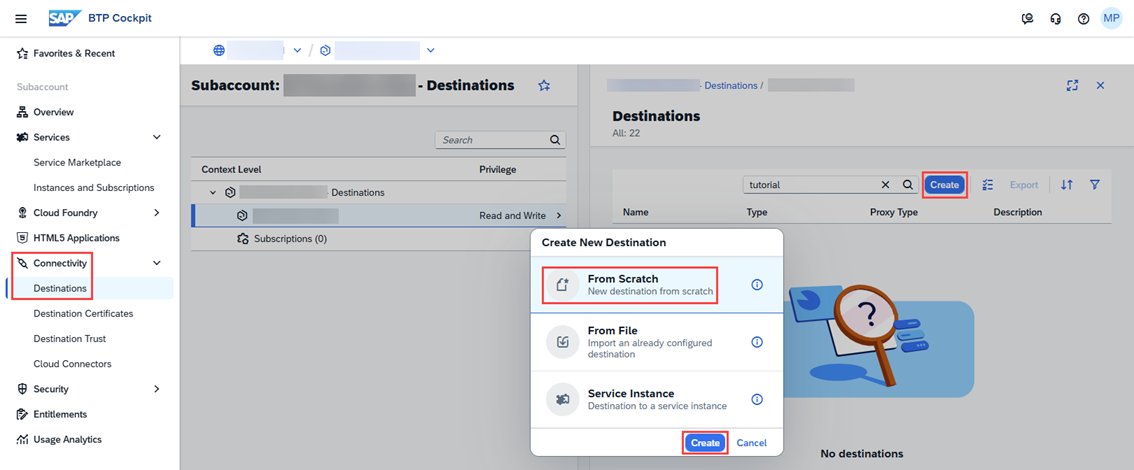
Create destination from scratch Choose From Scratch and then Create.
Enter:
Field Name Value Name S4HANA_MOCKURL https://s4hana-mock.cfapps.eu10.hana.ondemand.com/sap/opu/odata/sap/API_BUSINESS_PARTNERChoose Add Property three times.
Enter the following parameters:
Key Value sap.processautomation.enabledtruesap.applicationdevelopment.actions.enabledtruesap.build.usageodata_gen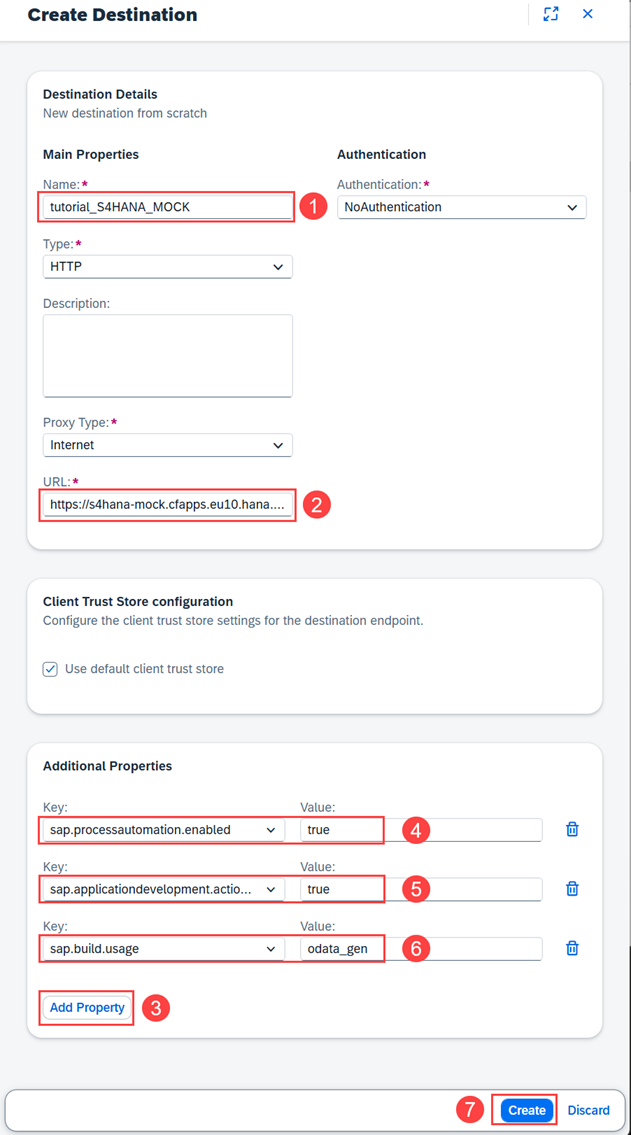
Create destination Choose Create.
Choose Check Connection.

Check connection success Choose Close.
Choose Duplicate.
Enter:
Field Name Value Name Badge_ServiceURL https://badges.cfapps.eu10.hana.ondemand.com/service/BadgeRequests
Badge service destination Choose Create.
Choose Check Connection.

Check connection success Choose Close.
Open the SAP Build Lobby.
Choose Control Tower, then choose Destinations.

Control tower destinations Choose Add.
Select your Badge_Service destination and choose Next.

Select destination Select Specific Environments and search for the environment you created earlier.

Associate environments Select your environment.
Search for the Public environment and select that as well.
Choose Add Destination.

Add destinations Repeat the above steps to add your S4HANA_MOCK destination.
Check that both destinations have been configured for both the Public and your own environments.

Lobby
Resources
Discussion
Share feedback on this tutorial or join the conversation in SAP Community.