
Overview
You will learn
- How to configure Joule Studio, classic edition to connect to SAP AI Core and an S3 Object Store
- How to use the document grounding tool in an agent


Prerequisites
- Joule Studio, classic edition in SAP Build. See Discovery Center mission.
- You understand the tutorial group Build Your First Joule Skill in Joule Studio, Classic Edition.
- You have successfully completed the tutorial Use Joule Studio, Classic Edition to Create an Agent.
- SAP AI Core and an S3 Object Store for document grounding. See the tutorial Orchestration with Grounding Capabilities in SAP AI Core.
- You do not need to create any resource groups or pipelines. This will be done for you when you configure document grounding in this tutorial. If you want to understand what is going on behind the scenes, see Joule Studio: How to Create Document Grounding
- Documents for grounding uploaded to the object store. Use files guidelines1.docx and guidelines2.docx
Steps
Intro
If your Joule Studio classic is not already configured to use SAP AI Core and your object store, you will need to add destinations to each.
Download the destination spba-aicore-destination.json
The json file contains placeholders that you will need to replace.
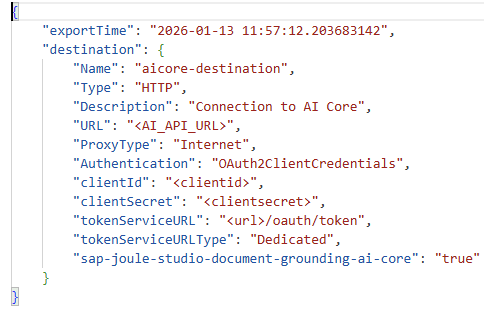
Destination json Edit the destination using the key of your SAP AI Core instance.

AI Core key In the BTP Cockpit of your Joule Studio classic subaccount, go to Connectivity > Destinations.
Choose Create and import your edited json file.

AI Core destination Choose Check Connection.

Check connection In the BTP Cockpit of your Joule subaccount, go to Connectivity > Destinations.
Choose Create and import your edited json file.
Choose Check Connection.
Your instructor will have already set up the destinations.
Download the destination spba-s3-object-store-destination.json
The json file contains placeholders that you will need to replace.

Destination json Edit the destination using the key of your Object Store instance.

S3 Object Store key In the BTP Cockpit of your Joule Studio classic subaccount, go to Connectivity > Destinations.
Choose Create and import your edited json file.

S3 Object Store destination Choose Check Connection.
Check connection
Your instructor will have already set up the destination.
The object stores that document grounding tools will have access to are maintained here. The entity called resource group here is not the same as a resource group in SAP AI Core, though one will be created there among other things.
In the Lobby of Joule Studio classic, choose Control Tower > Document Grounding.

Document Grounding tile 
Add Document Grounding Choose Add.
Enter a name and choose Next.

Add Document Grounding Select your AI Core destination and choose Next.

Add Document Grounding Select the S3 Object Store destination and choose Add.

Add Document Grounding Wait until the Status changes from Pending to Completed. This can take some time. Refresh the browser to check.
You might see the status starting with Error and perhaps later before Completed is reached. Don’t panic - give it time.

Add Document Grounding
You will extend the project that you completed in the previous tutorial.
In the Lobby of Joule Studio classic, navigate to Versions of your project and choose Save as New Project.

Lobby Give it a name and then open the new project.
Choose Create -> Joule Agent.
You could enhance your existing validation agent with document grounding later, but here we intentionally keep them distinct — to show how grounding works for learning purposes.

Create Joule Agent Enter the name
Maintenance Compliance Agentand descriptionHelps users understand, assess, and troubleshoot maintenance policies to ensure correct execution, then choose Create.
Create Joule Agent Add the following text to Expertise:
CodeHelp users understand, assess, and troubleshoot the executability of maintenance orders.Add the following text to Instructions:
CodeThis agent is trained to support, validate, and guide users through maintenance orders based on the following two internal documents: Component Management Guidelines in Maintenance Orders Business Guidelines for Validating Maintenance Order Executability It behaves like a skilled maintenance planner, applying domain logic and SAP system rules (PM module) to assess: Order status, Operation structure, Component availability, Common data issues, Edge cases requiring human review
Create Joule Agent Choose the Add Tool dropdown in the top right corner of the Tools section. From the menu, select Documents.

Create Joule Agent Enter the name
Order Validation Documentsand descriptionInternal guidelines required by the agent to validate and guide users through maintenance orders. It covers component assignment rules, stock validation logic, operational status checks, and exception handling — based on SAP PM best practices.Select the resource group name that you configured earlier, then choose Add.

Create Joule Agent Choose Save.

Create Joule Agent
Choose Test in the agent editor.
Configure the test parameters by selecting your private environment and your destination from the previous tutorial. Then choose Continue.
Enter the prompt: Can you give me a short summary of our Maintenance Order Compliance policy, highlighting the main dos and don’ts? and choose Send.

Testing Joule should respond with something similar to the following.

Testing The results can vary from run to run. You might need additional prompts if the LLM does not understand or requires further clarification.
Enter the prompt: Is it a policy violation to execute or release a maintenance order that is only partially confirmed? Please explain the conditions when this is allowed or not, referencing the policy. and choose Send.

Testing Under Timeline, expand the nodes and see how Joule processed your request.

Testing Choose Stop Testing.
Resources
Discussion
Share feedback on this tutorial or join the conversation in SAP Community.