
Overview
You will learn
- How to use intent-based development to extend existing agents
- How to design and extend the existing agents using instructions, MCP Servers and Hooks


Prerequisites
- Access to Joule Work and Joule Studio in the Agent Lab at SAPPHIRE
- You have been provided with the logon information
Steps
Intro
IMPORTANT
Welcome to the Agent lab SAPPHIRE 2026!
You are working with a pre-release version of the Joule Studio. This gives you an early look at our upcoming capabilities. Please keep the following in mind:
- Features are subject to change: The user interface (UI), terminology, and functionalities you see in this lab may differ from the final generally available product (GA).
- For Educational use only: This environment is designed for learning and experimentation, not for production use.
- Potential instability: As a preview version, you may encounter occasional instability or minor bugs. The exercises are designed to work with the current state of the platform. If you get stuck, please notify a session instructor.
Problem Statement : AP Invoice Agent AP Invoice agent supports AP Invoice Automation receiving Invoices from EDI channel.
Go to Joule Work.
If you do not see the tiles, choose <> Develop.

Joule Work On the Agent Extension tile, choose Create.
On the Create Extension dialog, choose Agent Extension.

Joule Work Leave the selected New Solution unchanged, and fill in the agent details:
Agent Name:
COPYAP NotificationIntent statement:
COPYCreate an extension to the AP Invoice Agent. Add a post-hook n8n workflow. For any invoice that cannot be matched: Create a SAP Task Center task. Send a notification to the responsible AP team member via SAP Task Center.
Joule Work Choose OK.
In the panel on the right, you can see that your intent statement has been taken as the starting prompt. It automatically finds the AP Invoice agent and starts creating the extension.

Joule Work
This is where the tool tries to understand your intentions. The tool will attempt to understand your prompt and will likely ask you clarifying questions. Once it decides it understands enough, it will map the challenge to SAP’s Reference Business Architecture and performs a fit-gap analysis. It has access to SAP Knowledge Graph, SAP LeanIX, and SAP Domain Models to help it create the intent document. Intent fit indicates how closely the proposed solution corresponds to your requirement.
If required, answer the questions set by the tool.
The questions that the tool asks cannot be predicted, so you have to use your judgement. Bear in mind that the landscape has S/4HANA as a backend so tailor your responses accordingly. The more complex you make your scenario, the longer it will take to generate and test the solution. The screenshot below is just an indication of what you might see. Joule might provide a selection of answers that you can choose from.

Joule Work
Once the intent document is created, proceed to the next phase, which is requirement generation. This might happen automatically if you have selected quick-create at the start.
If processesing is waiting for your input to proceed, enter Create Requirement or similar.
While the requirements are being generated, you can explore the intent on the Idea Board.

Idea Board
When the requirement is ready, you have the opprortunity to review and refine it. For this tutorial, you will accept suggested product requirement document without changes. To progress to the next phase, you need to transform the PRD into a technical specification. Depending on your role in your company, you might be finished at this point and make the PRD available to a different team to take further. However, in this tutorial, you are taking the project forward with the generation of a technical specification.
Similar to the previous step, this might happen automatically if you have selected quick-create at the start. At this stage, you can see the your PRD similar to the one below in markdown format. If you need to update it manually, you can just proceed clicking on the text in the view or by editing the files in the dedicated code tab.

Requirement
Wait until the implementation is finished successfully. You can see in the Solution tab, the agent extension is created as a Post Hook using n8n workflows.

Requirement You can then explore the n8n code if you need to.
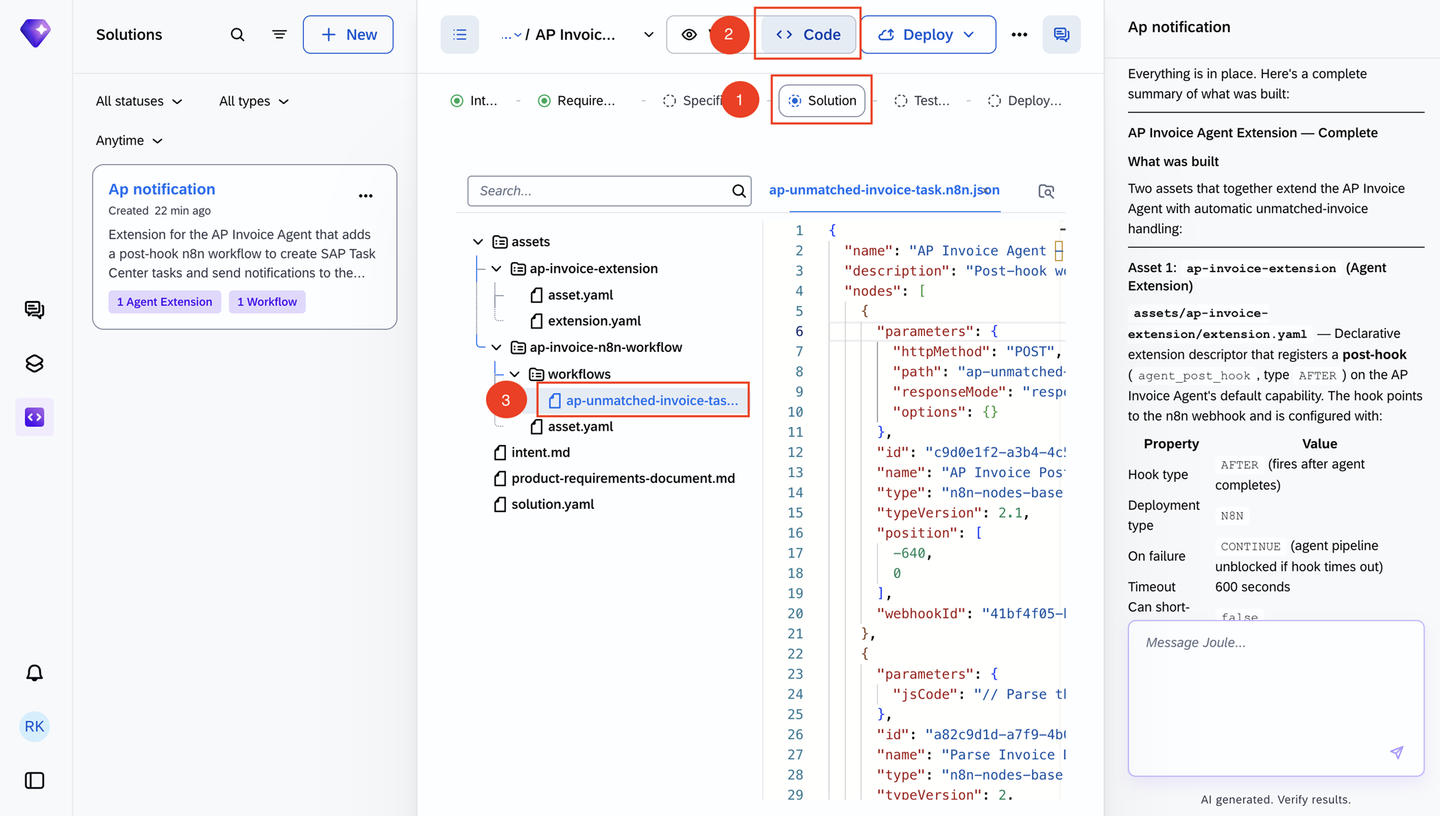
Requirement You have successfully extended the AP Invoice agent with a post hook.
You can also extend the agent by providing additional instructions and context.
In the Design tab, click on Edit button under Instructions and Context.

Requirement This allows you to inject domain-specific context, rules, and behavioural guidance into the agent’s prompt.
Add the following instruction:
Tax Validation Policy: ALWAYS validate tax on pending invoices using the validate-tax tool before recommending approval. Response Handling:
- ERROR/BLOCK: Flag as non-approvable
- WARNING: Note discrepancy, allow with warning
- OK: Safe to approve
Note: Watch for International vendors charging domestic tax rates on cross-border shipments. 
You can also extend the agent by connecting to agent to additional MCP servers and tools that the agent can invoke at.
In the Design tab, click on Add Server button under Extensions -> MCP Servers.

Requirement You can see the available MCP servers.
Click on View Details.

Requirement You will see the available tools in the MCP server with their descriptions.
Click Add MCP Server.

Requirement You have successfully extended the AP Invoice agent with instructions, MCP Servers and Hooks.

Requirement
For the Agent Lab at SAPPHIRE, you will not be deploying your agent. However, the code that has been generated follows SAP best practices and would be deployable to the runtime by choosing Deploy.
Resources
Discussion
Share feedback on this tutorial or join the conversation in SAP Community.