
Overview
You will learn
- How to create and configure a data lake Files instance
- How to upload and view files on a data lake Files instance
- How to create a remote source that connects an SAP HANA Cloud database to a data lake Files instance
- How to create and query virtual tables that are based on CSV or PARQUET files stored on a data lake Files instance
- How to create a snapshot replica table
- How to export data to data lake Files
- How to create a partitioned virtual table


Prerequisites
- An SAP HANA Cloud, SAP HANA database (2024 QRC3 or higher)
- A data lake Files instance (unavailable in trial/free tier)
Steps
A data lake Relational Engine is a column oriented, disk based, relational store that can be used to economically store data that is not updated frequently.
A data lake Files instance provides storage for non-structured files such as images or PDF documents. It can also store structured files such as CSV or Parquet files, and with the use of SQL on Files, queries can be performed on the data contained in those files, without ingestion, and at a reduced cost, providing access to diverse datasets.
With this new feature, SAP HANA Database SQL on Files, virtual tables can be created in SAP HANA Cloud, SAP HANA database that retrieve their data from a CSV, Parquet, or Delta table stored on a data lake Files instance. Details can be found in SAP HANA Cloud, SAP HANA Database SQL on Files Guide and Unlocking the True Potential of Data in Files with SAP HANA Database SQL on Files in SAP HANA Cloud.
SAP HANA Cloud Central can be used to view and manage your SAP HANA Cloud instances running in a subaccount.
A SAP HANA database and a Data lake Files instance are required to complete this tutorial.
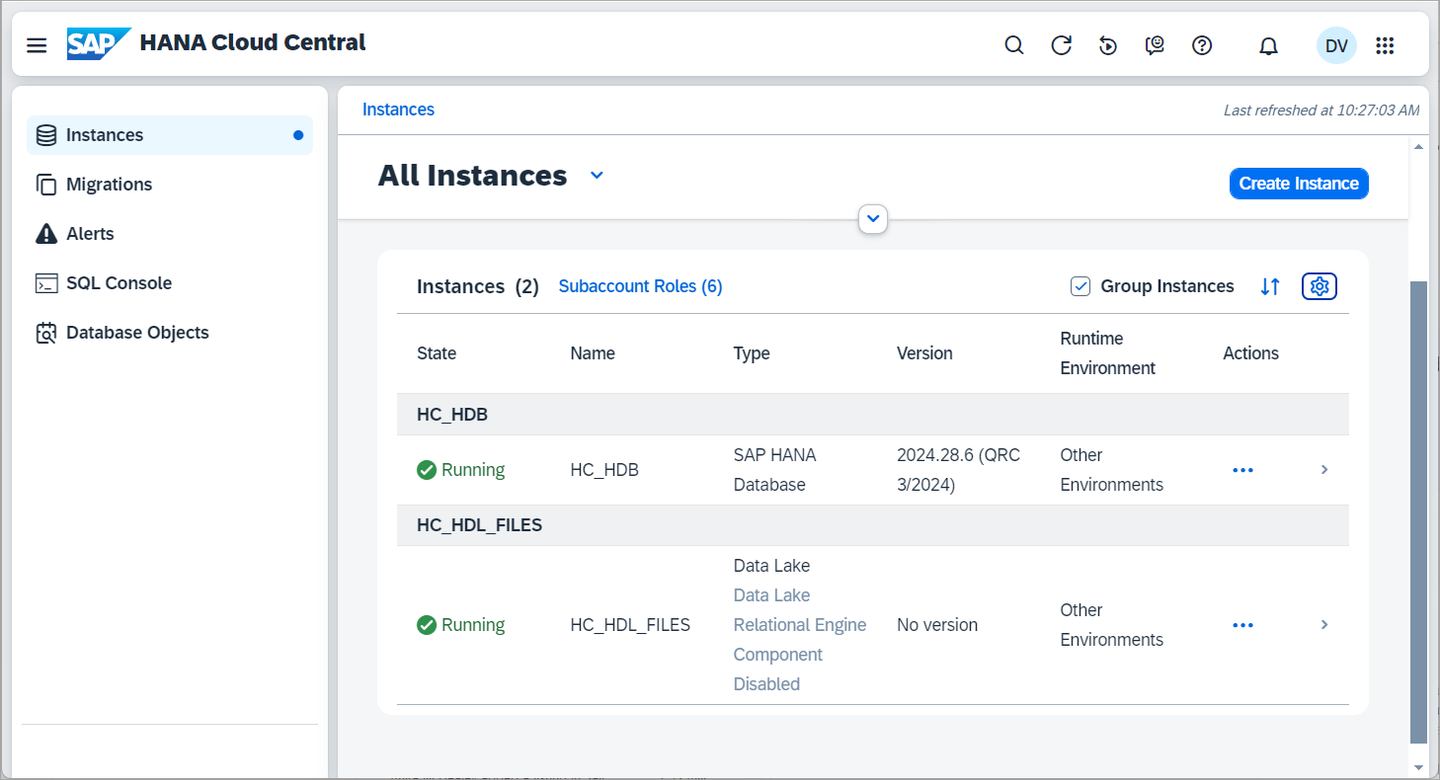
If you have not already done so, use the Create Instance button to create the required instances. Note that the version must be 2024 QRC 3 or higher.
Create an SAP HANA Cloud, SAP HANA database instance.

Create SAP HANA database Create an SAP HANA Cloud, data lake Files instance.
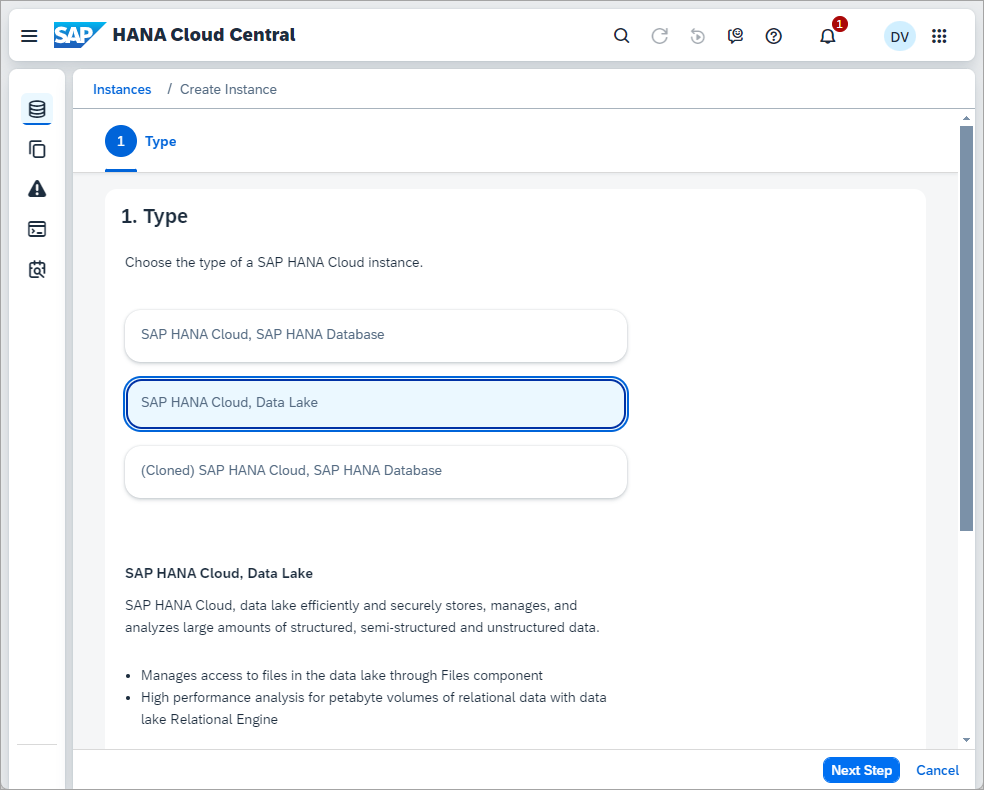
SAP HANA Cloud, Data Lake For this tutorial, a data lake Relational Engine is not required so it can be optionally disabled.

disable the data lake relational engine Notice that the estimate is 0 CU or consumption units per month as initially the data lake Files instance will be empty.
The data lake Files instance uses X.509 certificates for authentication and authorization.

Details on how to create the certificates and configure the data lake Files instance can be found at steps 3 and 4 of Getting Started with Data Lake Files HDLFSCLI.

The authorization pattern indicates that client certificates that are trusted by the CA specified in the trusts section that match the provided pattern (SAP employees in Waterloo) will have the privileges assigned to the role.
See also Setting Up Initial Access to HANA Cloud data lake Files and Configuring Data Lake Files.
Follow the steps below to connect to the database using the SQL Console.
In SAP HANA Cloud Central, click on the SAP HANA database HC_HDB to view its details pane. Continue to log in with the DBADMIN user.

open the SAP HANA cloud instance Open the SQL Console and if required select an Instance so that it is connected to HC_HDB.
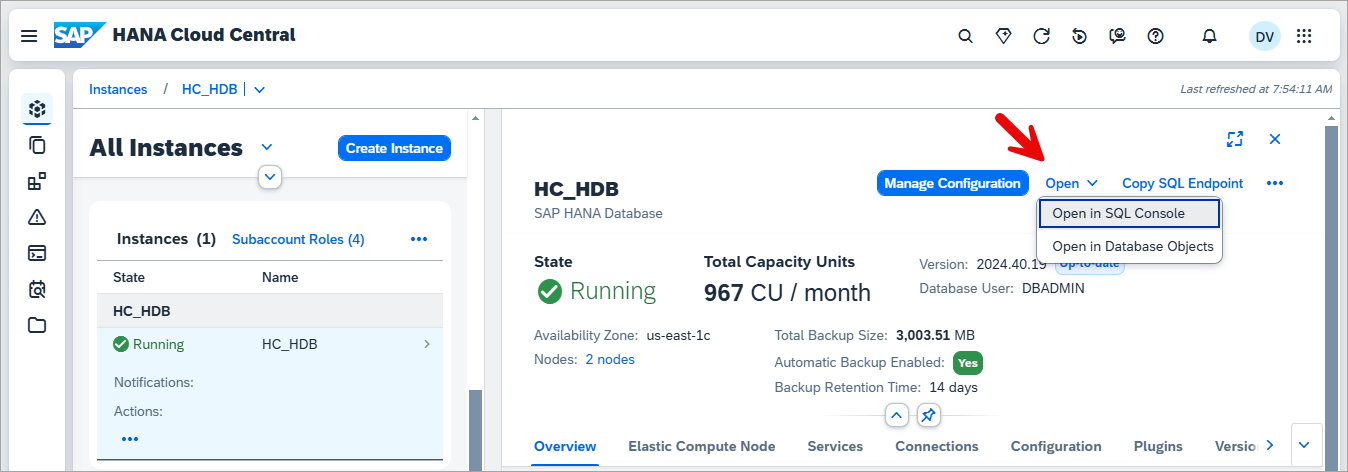
open the SAP HANA SQL console If you do not wish to use the DBADMIN user or schema, run the following query to create a database user and schema that can be used for the steps in this tutorial. Set the schema name as your own.
SQLCREATE SCHEMA "YOUR_NAME"; SET SCHEMA YOUR_NAME;SQLCREATE USERGROUP HC_UG SET PARAMETER 'minimal_password_length' = '8', 'force_first_password_change' = 'FALSE'; CREATE USER USER3 PASSWORD Password3 no force_first_password_change SET USERGROUP HC_UG; CREATE ROLE HC_DLFILES_ROLE; GRANT TRUST ADMIN TO HC_DLFILES_ROLE; -- required to create a PSE GRANT CERTIFICATE ADMIN TO HC_DLFILES_ROLE; --required to create a certificate GRANT CREDENTIAL ADMIN TO HC_DLFILES_ROLE; --required to create a credential GRANT EXPORT TO HC_DLFILES_ROLE; --required to enable export of data GRANT IMPORT TO HC_DLFILES_ROLE; --required to enable import of data GRANT CREATE REMOTE SOURCE TO HC_DLFILES_ROLE; --allow setting the PSE purpose to REMOTE SOURCE and to create REMOTE SOURCES GRANT SELECT ON SCHEMA _SYS_STATISTICS TO HC_DLFILES_ROLE; --Required for the Elastic Compute Node tab GRANT REFERENCES ON PSE _SAP_DB_ACCESS_PSE_CLIENT_IDENTITY TO HC_DLFILES_ROLE; --Required for the Elastic Compute Node tab GRANT CATALOG READ TO HC_DLFILES_ROLE; --allow access to system views GRANT HC_DLFILES_ROLE TO USER3; CONNECT USER3 PASSWORD Password3;Then create a new connection using the specified user using the Connect Different User option.

Add a database with a different user
Once the data lake Files instance has been created and configured, it can be accessed using the data lake Files app in SAP HANA Cloud Central, REST API, or hdlfscli.
From SAP HANA Cloud Central, select the Data Lake Files app.

Open in the SAP Data Lake Files app After clicking on the instance HC_DL_FILES, a sign in dialog will appear. Specify the Client Certificate, Client Key, and Display Name.

adding a data lake files instance A new connection will appear.

data lake files connection added
Files can now be uploaded to the data lake Files instance.
Download a data set on the passengers of the Titanic in both csv and parquet.

Titanic download 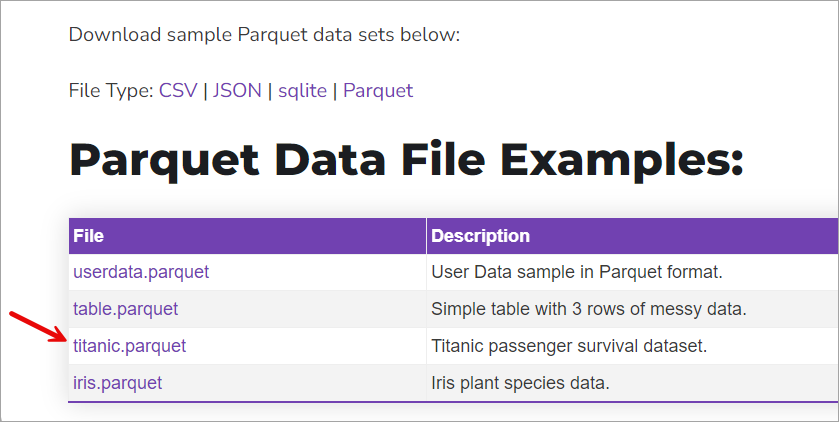
Titanic download Open the previously downloaded CSV file titanic.csv in Microsoft Excel or an editor such as Notepad. Note that the titanic.csv file contains a header row as shown below.
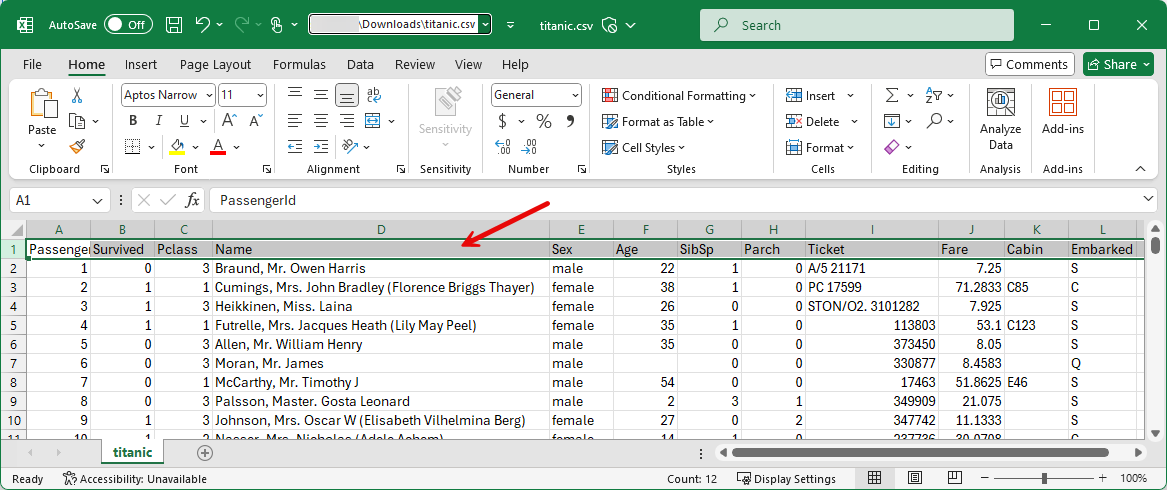
header row When using SQL on Files with a CSV file, the source file may or may not have a header row. The option COLUMN LIST IN FIRST ROW can be specified in the CREATE VIRTUAL TABLE statement. Since the header names must match the column names in the virtual table using case sensitivity, we will simply remove the header.
Remove the header row or the first row which contains the names of the columns.
Save the file as titanic_nh.csv.
Upload these files into a folder of your choosing such as your first name.

upload files 
Upload titanic Examine the uploaded csv file and Parquet files.
Select the File Content tab to see the contents of the Parquet or CSV file.

files uploaded Select the File Info tab to see meta data information.
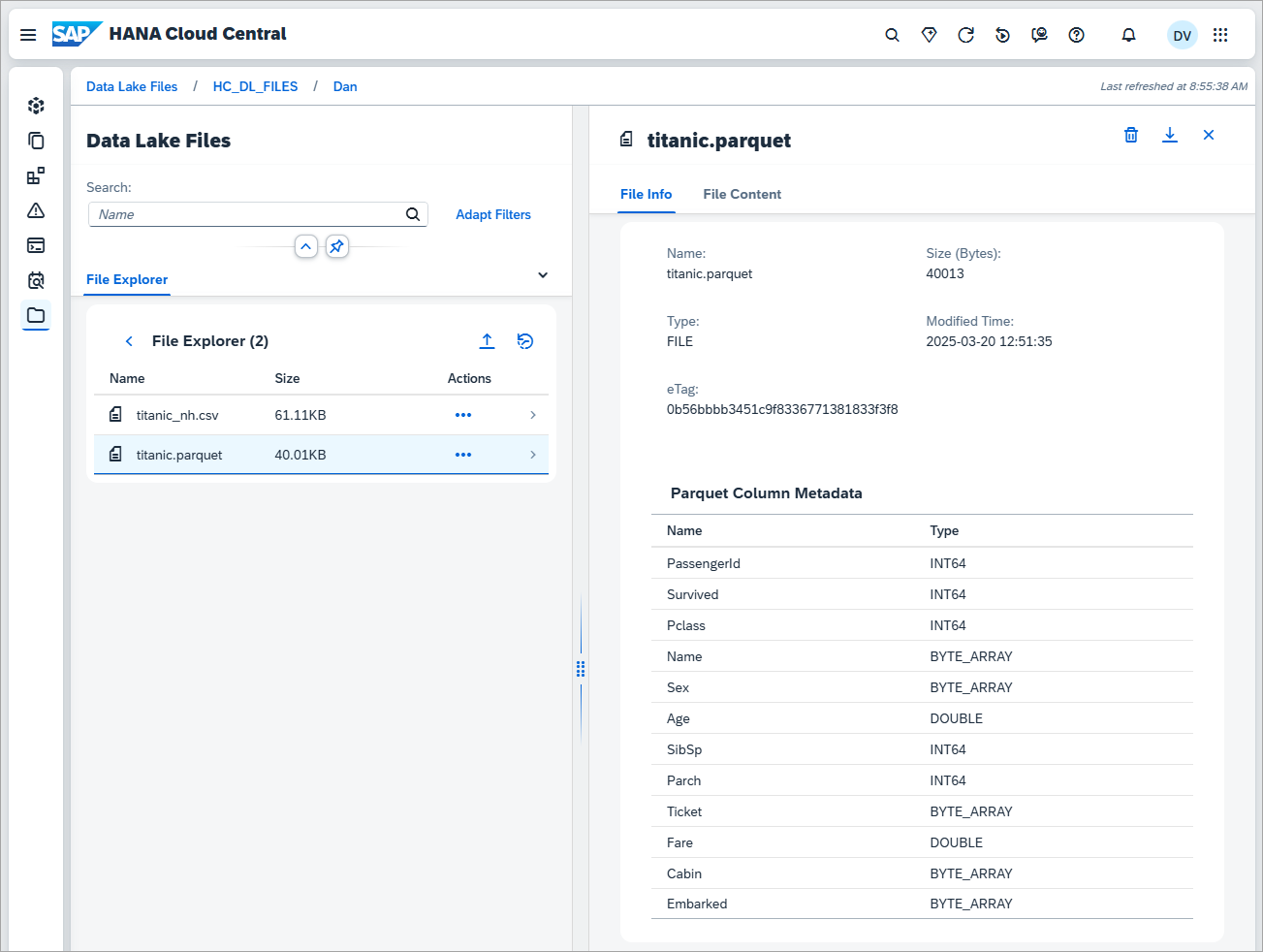
meta data information Different operations can be performed on a folder or individual files such as move, delete, restore and a more detailed view of the files can be seen as shown below enabling multiple files to be selected.

file operations Notice above that the Parquet file while containing the same data is smaller as it stores the data in a compressed format.
A remote source provides a connection from an SAP HANA database to the data lake Files instance.
Execute the below SQL to view a list of existing remote sources, PSEs, and certificates. In order for a remote source to be created, a personal security environment (PSE) store is required that contains the appropriate certificates to enable the connection from the database to the data lake Files instance.
SQLSELECT * FROM REMOTE_SOURCES; SELECT * FROM PSES; SELECT * FROM CERTIFICATES; SELECT * FROM PSE_CERTIFICATES;Use the Link option in SAP HANA Cloud Central to create a remote source, PSE, and certificates.
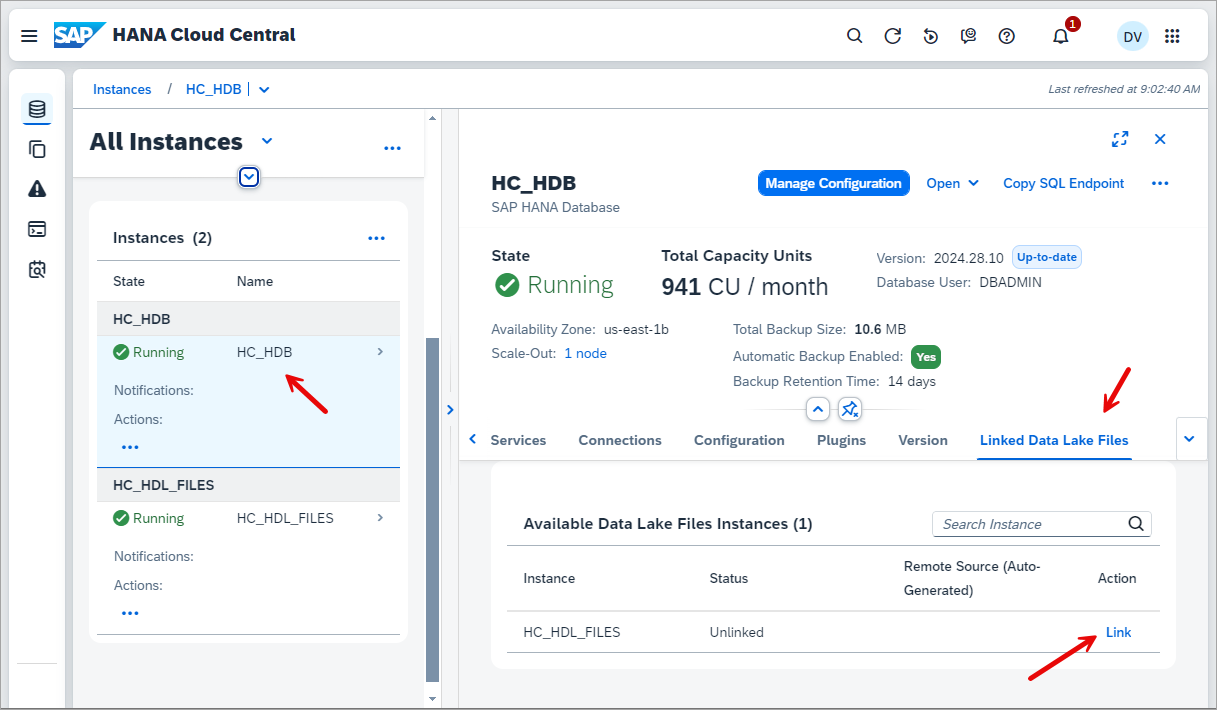
Linked data lake Files SQLSELECT * FROM REMOTE_SOURCES; SELECT * FROM PSES; SELECT * FROM CERTIFICATES; SELECT * FROM PSE_CERTIFICATES;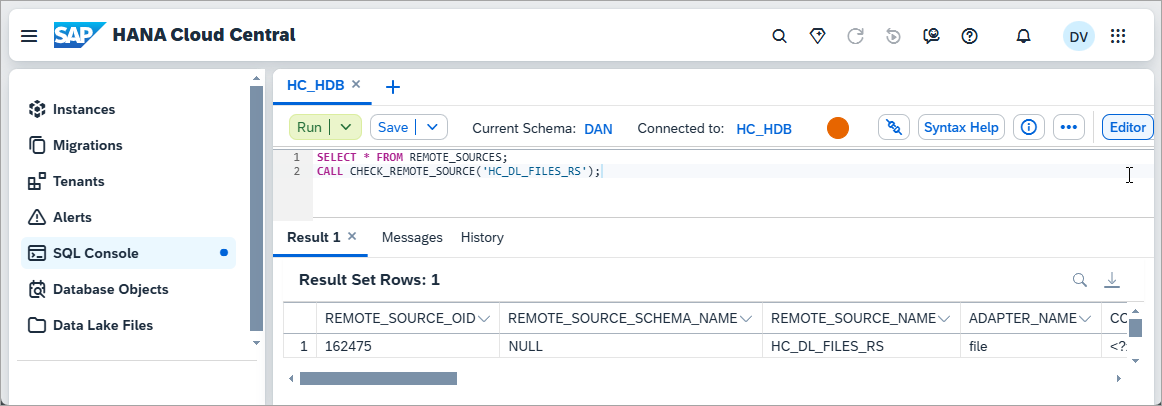
created remote source Notice that there is now a remote source to the linked data lake Files instance.
It should be noted that the client certificate created does not have an option to export the client.key so it is not available to be used for connections do not originate from within the SAP HANA Cloud, SAP HANA database such as those from the SAP HANA database explorer or hdlfscli tool.
Users can be granted privileges to access the PSE and remote source. Further details can be found at GRANT Statement (Access Control).
SQLCONNECT DBADMIN PASSWORD YOUR_PASSWORD; GRANT REFERENCES ON PSE _SAP_DB_ACCESS_PSE_CLIENT_IDENTITY TO HC_DLFILES_ROLE; GRANT CREATE VIRTUAL TABLE ON REMOTE SOURCE "HC_DL_FILES_rs" TO HC_DLFILES_ROLE; --Authorizes the creation of tables on a remote source object GRANT REMOTE TABLE ADMIN ON REMOTE SOURCE "HC_DL_FILES_rs" TO HC_DLFILES_ROLE; CONNECT USER3 PASSWORD Password3;Should you wish to create the remote source, PSE, and certificates without using the UI, the following SQL can be used.
SQLSELECT * FROM PSES; CREATE PSE HC_DL_FILES_PSE; SELECT SUBJECT_COMMON_NAME, CERTIFICATE_ID, COMMENT, CERTIFICATE FROM CERTIFICATES; --See also https://help.sap.com/docs/hana-cloud-database/sap-hana-cloud-sap-hana-database-security-guide/secure-communication-between-sap-hana-and-sap-hana-clients --Certificate may already be installed in newer instances as DigiCert Global Root CA CREATE CERTIFICATE FROM '-----BEGIN CERTIFICATE-----MIIDrzCCApegAwIBAgIQCDvgVpBCRrGhdWrJWZHHSjANBgkqhkiG9w0BAQUFADBh MQswCQYDVQQGEwJVUzEVMBMGA1UEChMMRGlnaUNlcnQgSW5jMRkwFwYDVQQLExB3 d3cuZGlnaWNlcnQuY29tMSAwHgYDVQQDExdEaWdpQ2VydCBHbG9iYWwgUm9vdCBD QTAeFw0wNjExMTAwMDAwMDBaFw0zMTExMTAwMDAwMDBaMGExCzAJBgNVBAYTAlVT MRUwEwYDVQQKEwxEaWdpQ2VydCBJbmMxGTAXBgNVBAsTEHd3dy5kaWdpY2VydC5j b20xIDAeBgNVBAMTF0RpZ2lDZXJ0IEdsb2JhbCBSb290IENBMIIBIjANBgkqhkiG 9w0BAQEFAAOCAQ8AMIIBCgKCAQEA4jvhEXLeqKTTo1eqUKKPC3eQyaKl7hLOllsB CSDMAZOnTjC3U/dDxGkAV53ijSLdhwZAAIEJzs4bg7/fzTtxRuLWZscFs3YnFo97 nh6Vfe63SKMI2tavegw5BmV/Sl0fvBf4q77uKNd0f3p4mVmFaG5cIzJLv07A6Fpt 43C/dxC//AH2hdmoRBBYMql1GNXRor5H4idq9Joz+EkIYIvUX7Q6hL+hqkpMfT7P T19sdl6gSzeRntwi5m3OFBqOasv+zbMUZBfHWymeMr/y7vrTC0LUq7dBMtoM1O/4 gdW7jVg/tRvoSSiicNoxBN33shbyTApOB6jtSj1etX+jkMOvJwIDAQABo2MwYTAO BgNVHQ8BAf8EBAMCAYYwDwYDVR0TAQH/BAUwAwEB/zAdBgNVHQ4EFgQUA95QNVbR TLtm8KPiGxvDl7I90VUwHwYDVR0jBBgwFoAUA95QNVbRTLtm8KPiGxvDl7I90VUw DQYJKoZIhvcNAQEFBQADggEBAMucN6pIExIK+t1EnE9SsPTfrgT1eXkIoyQY/Esr hMAtudXH/vTBH1jLuG2cenTnmCmrEbXjcKChzUyImZOMkXDiqw8cvpOp/2PV5Adg 06O/nVsJ8dWO41P0jmP6P6fbtGbfYmbW0W5BjfIttep3Sp+dWOIrWcBAI+0tKIJF PnlUkiaY4IBIqDfv8NZ5YBberOgOzW6sRBc4L0na4UU+Krk2U886UAb3LujEV0ls YSEY1QSteDwsOoBrp+uvFRTp2InBuThs4pFsiv9kuXclVzDAGySj4dzp30d8tbQk CAUw7C29C79Fv1C5qfPrmAESrciIxpg0X40KPMbp1ZWVbd4=-----END CERTIFICATE-----' COMMENT 'SAP_HC'; --SELECT CERTIFICATE_ID FROM CERTIFICATES WHERE SUBJECT_COMMON_NAME = 'DigiCert Global Root CA'; --CERTIFICATE_ID SELECT CERTIFICATE_ID FROM CERTIFICATES WHERE COMMENT = 'SAP_HC'; --CERTIFICATE_ID ALTER PSE HC_DL_FILES_PSE ADD CERTIFICATE <REPLACE_WITH_CERT_ID>; ALTER PSE HC_DL_FILES_PSE SET OWN CERTIFICATE '<Contents from client.key> <Contents from client.crt> <Contents from ca.crt>'; SELECT * FROM PSE_CERTIFICATES;For further details see Set Up an X.509 Mutual Authentication Environment.
Create a credential for export using the previously created PSE.
SQLCREATE CREDENTIAL FOR COMPONENT 'SAPHANAIMPORTEXPORT' PURPOSE 'DL_FILES' TYPE 'X509' PSE HC_DL_FILES_PSE; SELECT * FROM CREDENTIALS;Replace the endpoint value below by coping the Instance ID from you database.
SQLCREATE REMOTE SOURCE HC_DL_FILES_RS ADAPTER "file" CONFIGURATION ' provider=hdlf; endpoint=b5183d42-9150-4bb2-9f51-80d51b8f5c4b.files.hdl.prod-us10.hanacloud.ondemand.com;' WITH CREDENTIAL TYPE 'X509' PSE HC_DL_FILES_PSE; SELECT * FROM REMOTE_SOURCES;Users can be granted privileges to access the PSE and remote source. Further details can be found at GRANT Statement (Access Control).
SQLGRANT REFERENCES ON PSE HC_DL_FILES_PSE TO HC_DLFILES_ROLE; GRANT CREATE VIRTUAL TABLE ON REMOTE SOURCE "HC_DL_FILES_RS" TO HC_DLFILES_ROLE; --Authorizes the creation of tables on a remote source object GRANT REMOTE TABLE ADMIN ON REMOTE SOURCE "HC_DL_FILES_RS" TO HC_DLFILES_ROLE;
Virtual tables can now be created using the remote source HC_DL_FILES_rs.
Create a virtual table that points to the CSV file. Update
YOUR_NAMEbefore executing and ensure the letter case is correct.SQL--DROP TABLE TITANIC_CSV; CREATE VIRTUAL TABLE TITANIC_CSV ( PASSENGERID INTEGER, SURVIVED INTEGER, PCLASS INTEGER, NAME NVARCHAR(100), SEX NVARCHAR(6), AGE DOUBLE, SIBSP INTEGER, PARCH INTEGER, TICKET NVARCHAR(25), FARE DOUBLE, CABIN NVARCHAR(15), EMBARKED NVARCHAR (1) ) AT "HC_DL_FILES_rs"."/YOUR_NAME/titanic_nh.csv" AS CSV FIELD DELIMITED BY ',' ESCAPE '"'; SELECT * FROM TITANIC_CSV;
query titanic Notice above that the table, TITANIC_CSV in the catalog browser appears with an annotation indicating that it is a virtual table.
The list of virtual tables can be viewed with the below SQL query.
SQLSELECT * FROM VIRTUAL_TABLES;Create a virtual table that points to the Parquet file. Update
YOUR_NAMEbefore executing and ensure the letter case is correct.SQL--DROP TABLE TITANIC_P; CREATE VIRTUAL TABLE TITANIC_P ( PASSENGERID BIGINT, SURVIVED BIGINT, PCLASS BIGINT, NAME NVARCHAR(100), SEX NVARCHAR(6), AGE DOUBLE, SIBSP BIGINT, PARCH BIGINT, TICKET NVARCHAR(25), FARE DOUBLE, CABIN NVARCHAR(15), EMBARKED NVARCHAR (1) ) AT "HC_DL_FILES_rs"."/YOUR_NAME/titanic.parquet" AS PARQUET; SELECT * FROM TITANIC_P;The file structure of a parquet file can be determined by calling the below stored procedure. Update
YOUR_NAMEbefore executing and ensure the letter case is correct.SQLCALL GET_REMOTE_SOURCE_FILE_COLUMNS( REMOTE_SOURCE_NAME => 'HC_DL_FILES_rs', REMOTE_FILE_PATH => '/YOUR_NAME/titanic.parquet', REMOTE_FILE_FORMAT => 'PARQUET', OPTIONS => '' )
remote source file columns A wizard is available from the remote source in the Database Objects app that can help in the generation of a virtual table.
Open the Database Objects app
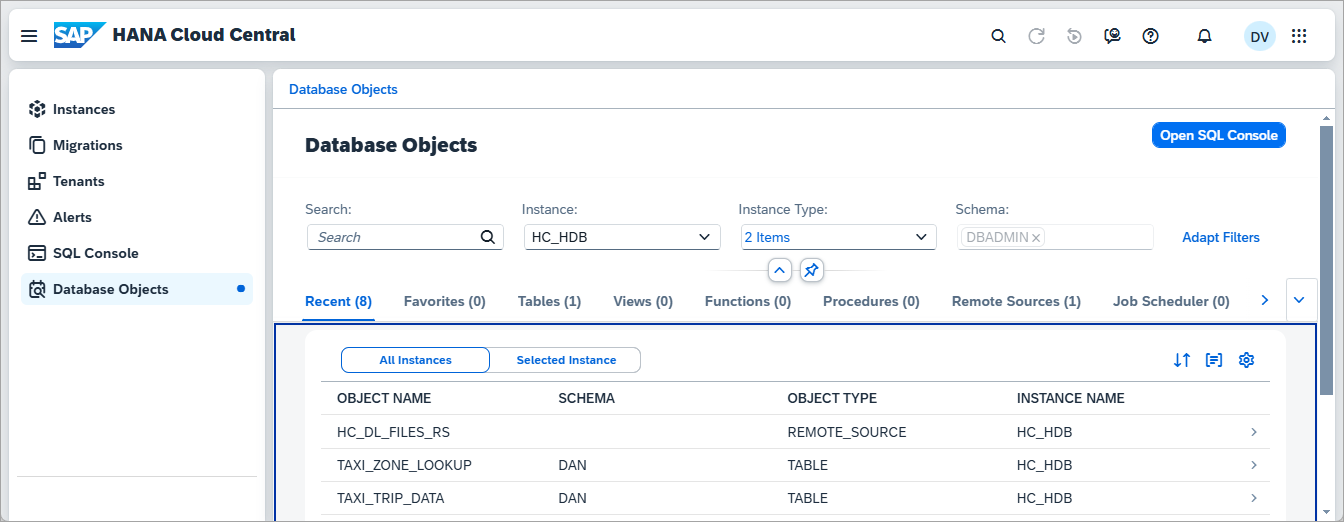
Database Objects App Locate the remote source
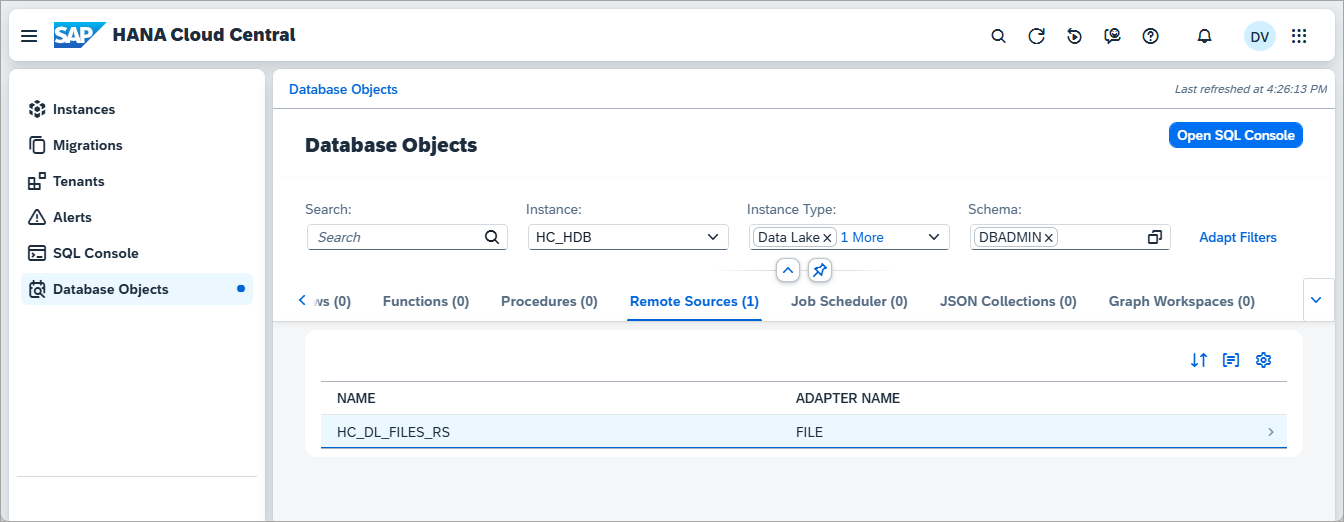
Locate Remote Source From the remote source details page, select Create Virtual Table
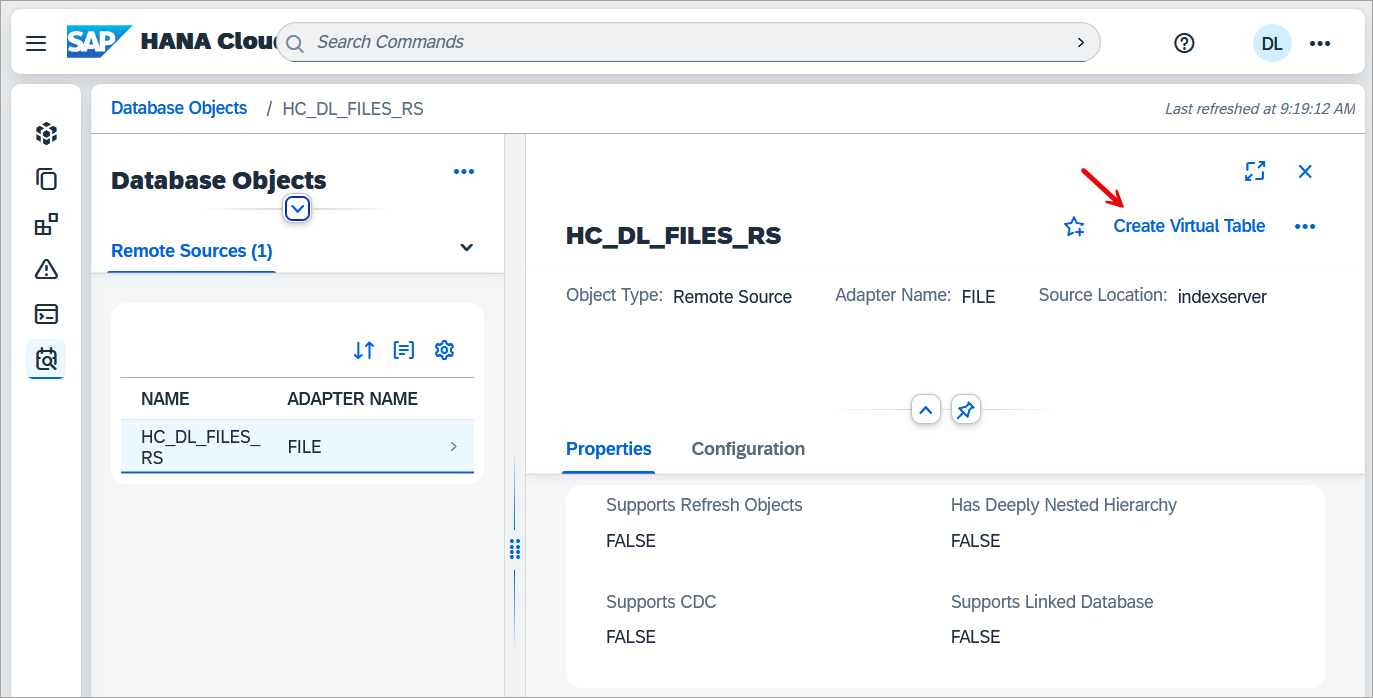
Create Virtual Table Specify the path to the Parquet table and press Next Step
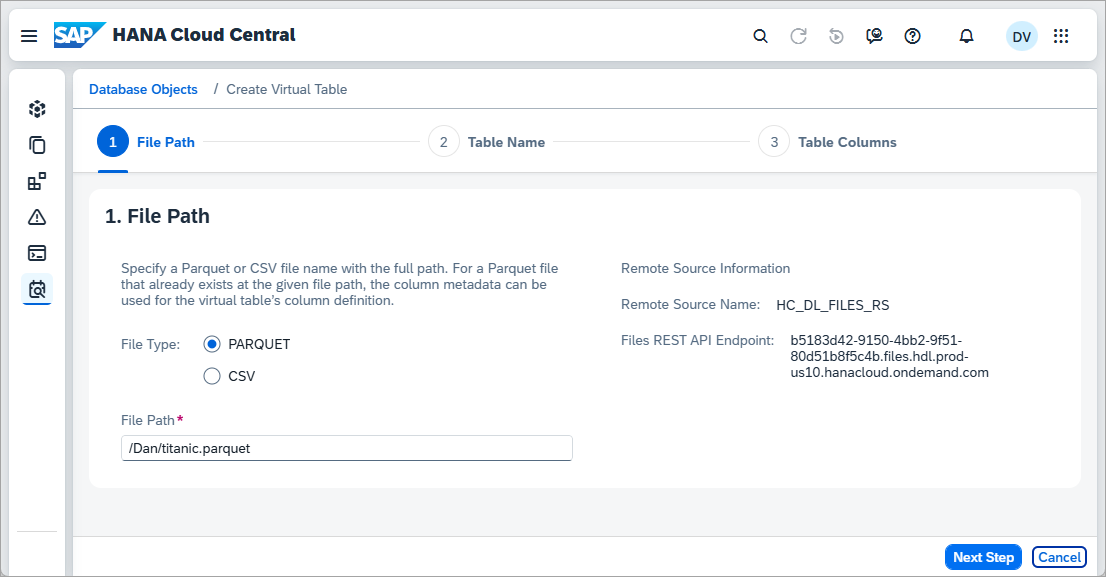
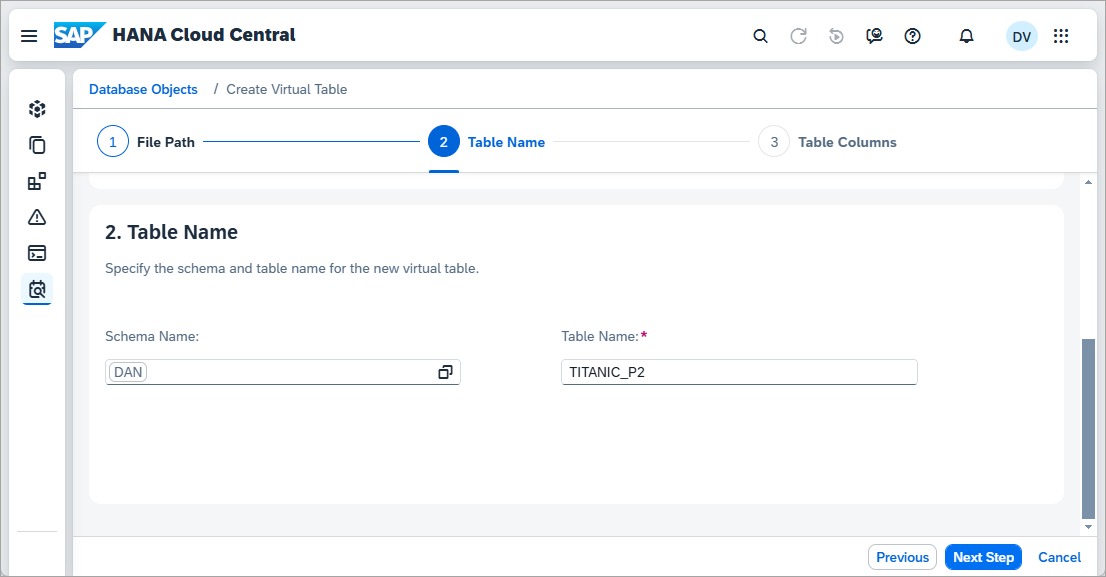
Parquet table Provide the schema and table name TITANIC_P2 and click Next Step
Virtual Table Choose to add all the columns, press Review and Create, and then Create
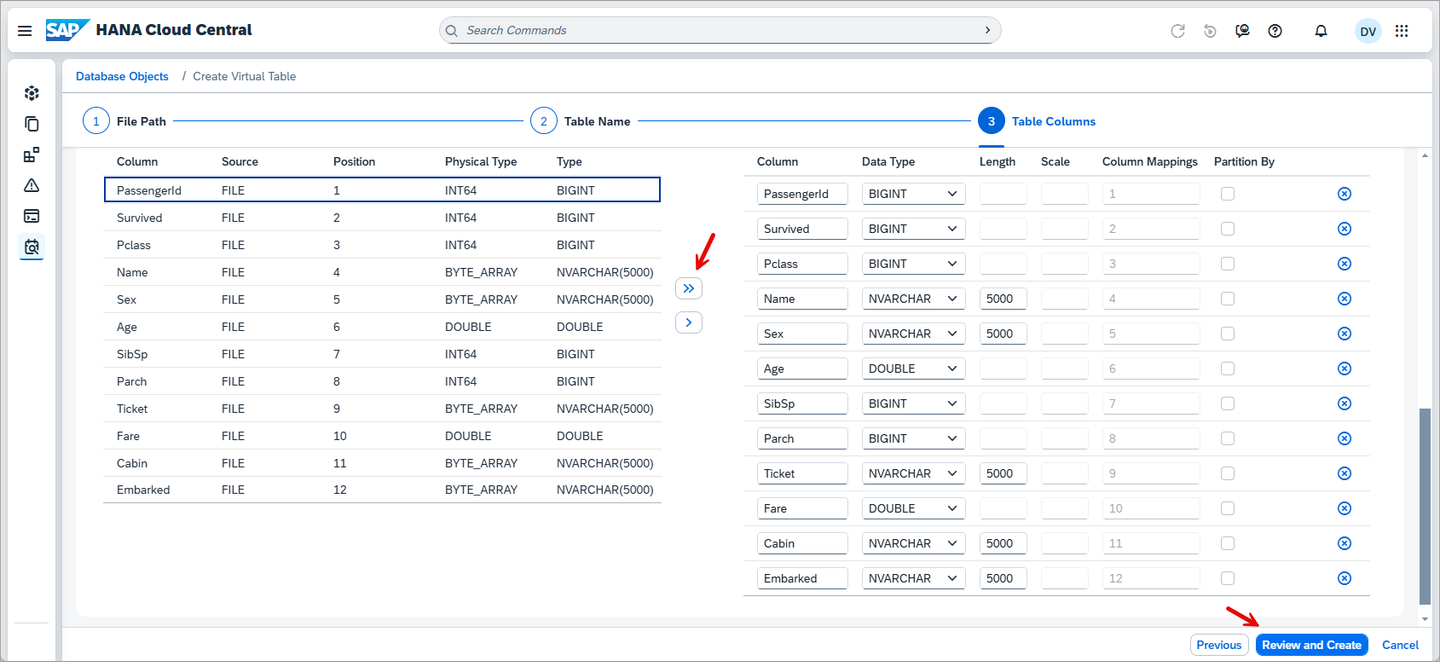
Create Virtual Table
The resultant table can be queried as shown below.
SQLSELECT * FROM TITANIC_P2;
Titanic Query Results
The data being stored on the data lake Files can now be queried using SQL similar to a regular table. Virtual tables can also be joined with regular tables.
The following are some sample queries that can be performed on the previously created virtual tables.
View the number of female and male passengers.
SQLSELECT SEX, COUNT(*) FROM TITANIC_P GROUP BY SEX;Survival rate based on class of ticket
SQLSELECT PCLASS AS PASSENGER_CLASS, CASE WHEN (SURVIVED = 0) THEN 'perished' ELSE 'survived' END AS SURVIVED, COUNT(*) AS COUNT_SURVIVED FROM TITANIC_P GROUP BY PCLASS, SURVIVED ORDER BY PCLASS ASC, SURVIVED ASC;Survival rate based on gender
SQLSELECT SEX AS MALE_OR_FEMALE, CASE WHEN (SURVIVED = 0) THEN 'perished' ELSE 'survived' END AS SURVIVED, COUNT(*) AS COUNT_SURVIVED FROM TITANIC_P GROUP BY SEX, SURVIVED ORDER BY SEX ASC, SURVIVED ASC;Survival rate based on age
SQLSELECT SUM(CASE WHEN AGE < 18 AND SURVIVED = 0 THEN 1 ELSE 0 END) AS "DIED UNDER 18", SUM(CASE WHEN AGE < 18 AND SURVIVED = 1 THEN 1 ELSE 0 END) AS "SURVIVED UNDER 18", SUM(CASE WHEN AGE >= 18 AND AGE <= 50 AND SURVIVED = 0 THEN 1 ELSE 0 END) AS "DIED 18 - 50", SUM(CASE WHEN AGE >= 18 AND AGE <= 50 AND SURVIVED = 1 THEN 1 ELSE 0 END) AS "SURVIVED 18 - 50", SUM(CASE WHEN AGE >= 51 AND SURVIVED = 0 THEN 1 ELSE 0 END) AS "DIED 51+", SUM(CASE WHEN AGE >= 51 AND SURVIVED = 1 THEN 1 ELSE 0 END) AS "SURVIVED 51+", SUM(CASE WHEN AGE IS NULL AND SURVIVED = 0 THEN 1 ELSE 0 END) AS "DIED Unknown", SUM(CASE WHEN AGE IS NULL AND SURVIVED = 1 THEN 1 ELSE 0 END) AS "SURVIVED Unknown" FROM TITANIC_CSV;Virtual SQL on Files tables are not updatable. Try adding yourself to the passenger list.
SQLINSERT INTO TITANIC_CSV VALUES( 892 /*PASSENGERID <INTEGER>*/, 1 /*SURVIVED <INTEGER>*/, 2 /*PCLASS <INTEGER>*/, 'YOUR_NAME' /*NAME <NVARCHAR(100)>*/, 'male' /*SEX <NVARCHAR(6)>*/, 52 /*AGE <DOUBLE>*/, 0 /*SIBSP <INTEGER>*/, 0 /*PARCH <INTEGER>*/, '1234' /*TICKET <NVARCHAR(25)>*/, 75 /*FARE <DOUBLE>*/, 'A50'/*CABIN <NVARCHAR(15)>*/, 'C'/*EMBARKED <NVARCHAR(1)>*/ )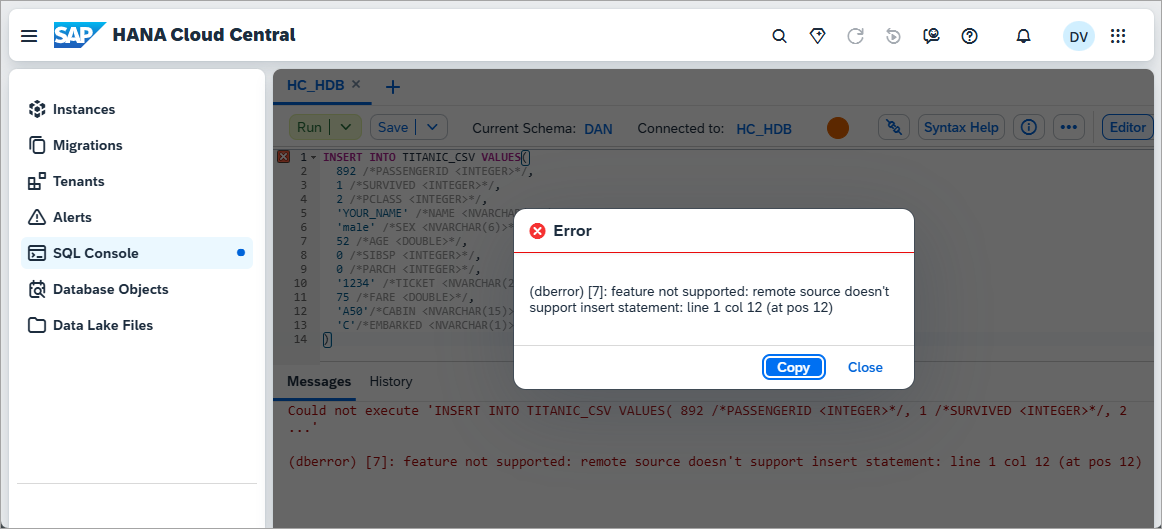
Insert error
A virtual table can be changed so that the data is stored in the SAP HANA Cloud database rather than be retrieved from a file stored on the data lake Files instance. This is called a snapshot replica.
Execute a query and examine the time taken.
SQLSELECT * FROM TITANIC_CSV WHERE NAME LIKE '%Dan%';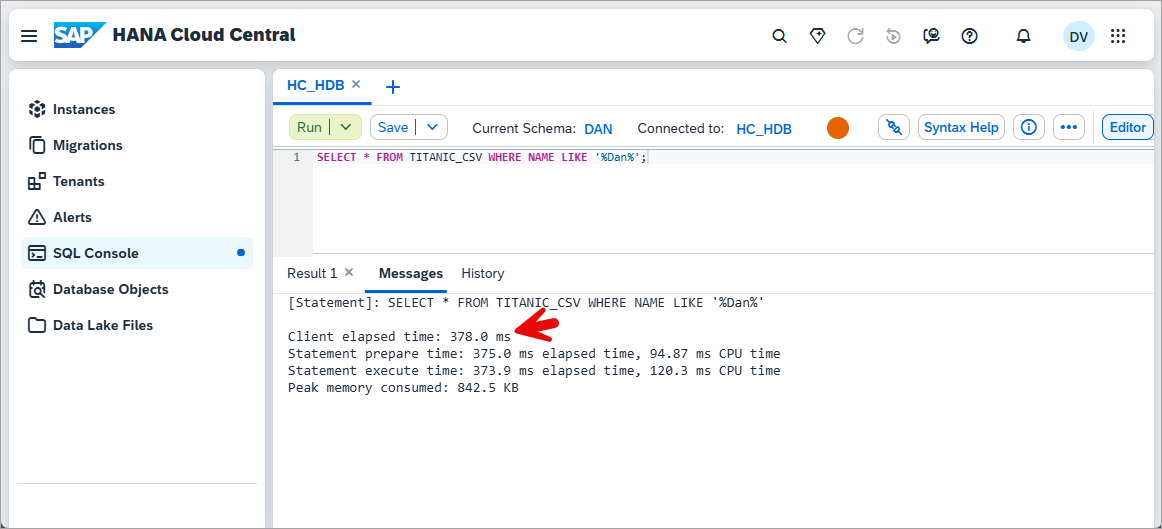
virtual table elapsed time Change the table to be a replica table.
SQLALTER VIRTUAL TABLE TITANIC_CSV ADD SHARED SNAPSHOT REPLICA;Additional details can be found at ALTER VIRTUAL TABLE Statement.
Run the same query on the replica table and examine the time taken.
SQLSELECT * FROM TITANIC_CSV WHERE NAME LIKE '%Dan%';
replica table query Add yourself as a passenger on the Titanic by editing the titanic_nh.csv file you downloaded earlier and including a new row. An example row is shown below.
CSV892,1,2,"van Leeuwen, Mr. Dan",male,52,0,0,1234,75,A50,CEnsure there is a new line character after the added row.
Upload this modified file to your instance, replacing the existing one.
Execute the following SQL (update to reflect your name) and notice that the replica table does not contain the newly inserted row.
SQLSELECT * FROM TITANIC_CSV WHERE NAME LIKE '%Dan%';Refresh the replica table and notice that it now contains the newly added row.
SQLALTER VIRTUAL TABLE TITANIC_CSV REFRESH SNAPSHOT REPLICA; SELECT * FROM TITANIC_CSV WHERE NAME LIKE '%Dan%';
updated replica The replica can be dropped using the SQL below.
SQLALTER VIRTUAL TABLE TITANIC_CSV DROP REPLICA;
An alternative approach that enables you to only include a subset of the data or aggregate data is shown below.
Create a table.
SQLCREATE TABLE TITANIC_SURVIVORS( PASSENGERID BIGINT, SURVIVED BIGINT, PCLASS BIGINT, NAME NVARCHAR(100), SEX NVARCHAR(6), AGE DOUBLE, SIBSP BIGINT, PARCH BIGINT, TICKET NVARCHAR(25), FARE DOUBLE, CABIN NVARCHAR(15), EMBARKED NVARCHAR (1) );Populate and select against the table.
SQLINSERT INTO TITANIC_SURVIVORS SELECT * FROM TITANIC_CSV WHERE SURVIVED = 1; SELECT * FROM TITANIC_SURVIVORS;
Data from an SAP HANA Cloud, SAP HANA table or view can be exported to data lake Files as shown below.
Create a credential for export using the previously created PSE.
SQLCREATE CREDENTIAL FOR COMPONENT 'SAPHANAIMPORTEXPORT' PURPOSE 'DL_FILES' TYPE 'X509' PSE _SAP_DB_ACCESS_PSE_CLIENT_IDENTITY; SELECT * FROM CREDENTIALS;Export using CSV. Update
YOUR_NAMEbefore executing and ensure the letter case is correct. Then replace the endpoint value below by copying your Files REST API Endpoint from your data lake.SQLEXPORT INTO CSV FILE 'hdlfs://b5183d42-9150-4bb2-9f51-80d51b8f5c4b.files.hdl.prod-us10.hanacloud.ondemand.com/YOUR_NAME/titanic_export.csv' FROM TITANIC_SURVIVORS WITH CREDENTIAL 'DL_FILES' COLUMN LIST IN FIRST ROW;Export using Parquet. Update
YOUR_NAMEbefore executing and ensure the letter case is correct. Then replace the endpoint value below by copying your Files REST API Endpoint from your data lake.SQLEXPORT INTO PARQUET FILE 'hdlfs://b5183d42-9150-4bb2-9f51-80d51b8f5c4b.files.hdl.prod-us10.hanacloud.ondemand.com/YOUR_NAME/titanic_export.parquet' FROM TITANIC_SURVIVORS WITH CREDENTIAL 'DL_FILES';It is also possible to use a SELECT statement instead of a table or view in the EXPORT statement. An example is shown below.
SQLEXPORT INTO PARQUET FILE 'hdlfs://b5183d42-9150-4bb2-9f51-80d51b8f5c4b.files.hdl.prod-us10.hanacloud.ondemand.com/YOUR_NAME/titanic_export2.parquet' FROM (SELECT * FROM TITANIC_P WHERE SURVIVED = 0) WITH CREDENTIAL 'DL_FILES';
Further details on the export command can be found at EXPORT INTO Statement (Data Import Export).
For this step we will be using taxi data from New York City from June and July of 2023 and 2024 as well as a taxi zone csv file.
The files shown below were downloaded from NYC Taxi & Limousine Commission.

Upload the files specified above to your data lake Files instance.

Partitioned data Well-organized and maintained directory-based partitioning can improve query performance by allowing unnecessary files to be pruned during query execution.
Create a virtual table for the taxi_zone_lookup.csv.
SQLCREATE VIRTUAL TABLE TAXI_ZONE_LOOKUP ( LOCATIONID INT PRIMARY KEY, BOROUGH NVARCHAR(5000), ZONE NVARCHAR(5000), SERVICE_ZONE NVARCHAR(5000) ) AT "HC_DL_FILES_rs"."/NYC_Taxi_Trip_Data/taxi_zone_lookup.csv" AS CSV; SELECT * FROM TAXI_ZONE_LOOKUP ORDER BY SERVICE_ZONE, BOROUGH, ZONE;View the column information for the file yellow_tripdata_2023-06.parquet.
SQLCALL GET_REMOTE_SOURCE_FILE_COLUMNS( REMOTE_SOURCE_NAME => 'HC_DL_FILES_rs', REMOTE_FILE_PATH => '/NYC_Taxi_Trip_Data/YEAR=2023/MONTH=06/yellow_tripdata_2023-06.parquet', REMOTE_FILE_FORMAT => 'PARQUET', OPTIONS => '' )Create a virtual table for yellow_tripdata_2023-06.parquet. Notice that just a subset of the columns in the Parquet file are included as specified in the column list.
SQLCREATE VIRTUAL TABLE TAXI_TRIP_DATA_2023_JUNE ( VENDORID INT PRIMARY KEY, PASSENGER_COUNT BIGINT, TRIP_DISTANCE DOUBLE, PULOCATIONID INT, FARE_AMOUNT DOUBLE ) AT "HC_DL_FILES_rs"."/NYC_Taxi_Trip_Data/YEAR=2023/MONTH=06/yellow_tripdata_2023-06.parquet" AS PARQUET FILE COLUMN LIST(1, 4, 5, 8, 11);Execute a few queries using the virtual tables.
SQLSELECT * FROM TAXI_TRIP_DATA_2023_JUNE; SELECT COUNT(*) FROM TAXI_TRIP_DATA_2023_JUNE; -- Which zone has the most yellow taxi pickups in NYC in June of 2023? SELECT TZL.BOROUGH, TZL.ZONE, COUNT(*) AS TRIPS FROM TAXI_TRIP_DATA_2023_JUNE YT JOIN TAXI_ZONE_LOOKUP TZL ON YT.PULOCATIONID = TZL.LOCATIONID GROUP BY TZL.BOROUGH,TZL.ZONE ORDER BY TRIPS DESC;Create a virtual table that includes all 4 Parquet files. Notice that the folder names YEAR and MONTH are now part of the table and are at position 1 and 2 in the column list and that the VENDORID has moved to position 3.
SQL--CREATE with a partition CREATE VIRTUAL TABLE TAXI_TRIP_DATA ( YEAR INT, MONTH INT, VENDORID INT PRIMARY KEY, PASSENGER_COUNT BIGINT, TRIP_DISTANCE DOUBLE, PULOCATIONID INT, FARE_AMOUNT DOUBLE ) AT "HC_DL_FILES_rs"."/NYC_Taxi_Trip_Data" AS PARQUET FILE COLUMN LIST(1, 2, 3, 6, 7, 10, 13) PARTITION BY (YEAR, MONTH);Execute the below queries and examine the time taken for each.
SQLSELECT COUNT(*) FROM TAXI_TRIP_DATA; SELECT COUNT(*) FROM TAXI_TRIP_DATA WHERE YEAR=2023 AND MONTH=06;Notice that the second query is faster as three of the four Parquet files did not need to be accessed.
Execute the below SQL and examine the output of each to see some of the available information available in the monitoring views that relate to virtual tables.
SQLSELECT SCHEMA_NAME, TABLE_NAME, REMOTE_SOURCE_NAME, REMOTE_OBJECT_NAME, CREATE_TIME FROM VIRTUAL_TABLES ORDER BY SCHEMA_NAME, TABLE_NAME; SELECT USER_NAME, REMOTE_SOURCE_NAME, VIRTUAL_TABLE_SCHEMA_NAME, VIRTUAL_TABLE_NAME, START_TIME, FETCHED_RECORD_COUNT, FETCHED_SIZE FROM M_VIRTUAL_TABLE_FILE_OPERATIONS; --View details about the files and file size of virtual tables SELECT * FROM M_VIRTUAL_TABLE_FILES; --View details of the virtual table SELECT * FROM VIRTUAL_TABLE_FILES;
Congratulations! You now have used SAP HANA SQL on Files and have seen how data can be moved between SAP HANA and data lake Files which provides access to diverse datasets and an option to reduce costs for less frequently accessed archive data.
Resources
Discussion
Share feedback on this tutorial or join the conversation in SAP Community.