
Overview
You will learn
- How to gain access to FCMS
- How to upload and check-in a file to FCMS
- Which data elements to provide in order to update the page


Prerequisites
- Access to FCMS
- Access to file that is to be uploaded to the file share (FCMS)
- Access to Digital Services Request Tool
Steps
Intro
Check this link to FCMS to confirm you have access. If so, proceed to step 1 below. If not, you can request access to FCMS by sending an email to and . Include in your note that you should be assigned the
SP5 publishing role.
In your browser, navigate to FCMS Cockpit and select
File Check-in.
FCMS Home Page Select the
+to add a file. Select the appropriate file from the file browser.
Add file button As the file is being uploaded, you can check the status of the upload with the progress bar.

Progress bar
After the file is uploaded, you need to check it in.
If you do not see the file in the list after the upload is complete, refresh your browser.
Select the file that you wish to check in. Select the
Check inbutton to begin the check in.
Select file from list Update the
Responsiblefield in the File Check-in dialog box with the appropriate user ID.
Update responsible person Select
Save.A confirmation message will be displayed where you have the option to view the data.
You will need to add the following information to the Digital Services Request Tool in order for the Download page to be updated.

File data elements - File ID
- File name (with
.zipor other extension) - Size
- Checksum (a SHA-256 checksum of the file contents as uploaded: on Mac
shasum -a 256 [file_name]on PowerShellGet-FileHash C:\path\to\your\file.exe)
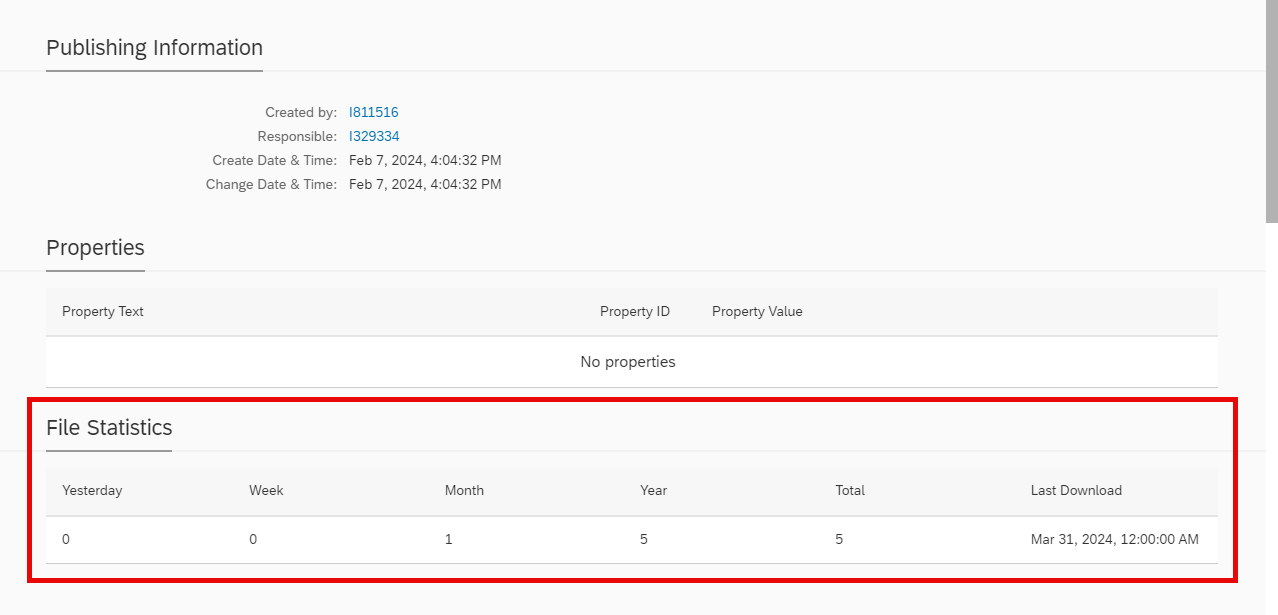
You can always come back to FCMS Cockpit–>Object Information to check the download statistics on the file.
Access the Digital Services Request Tool
Click on
Requestson the top menu and then click on the+to begin a new request.Expand the Web Publishing: developers.sap.com option
Select the DEV - Trials / Download Update option
Complete the data in the following fields:
Request Title
Additional Requests and Notification Recipients as required (optional)
Type
Name of new version (include version number)
Package name
Remove old version (If
Yes, then current version will be removed from page. IfNo, then new version will be added above current version.)New Bundle
Publishing option (set to
Noapproval step if you want this expedited.)Add the following information in the Comments box (available as described in the previous step):
- File ID
- File name
- Size
- Checksum
Change the status to
Openand save the request.
Resources
Discussion
Share feedback on this tutorial or join the conversation in SAP Community.