
Overview
You will learn
- How to create and manage custom domains for SAP Build Work Zone, advanced edition
- How to configure custom domains using SAP Cloud Identity Services - Identity Authentication
- Where to find documentation in order to complete the configuration


Prerequisites
- You have entitled the Custom Domain Manager to your subaccount. For more information, see Manage Entitlements Using the Cockpit.
- You have entitled the SAP Custom Domain service (plan: custom_domains) to your subaccount. Every server certificate requires 1 unit of quota.
- You have subscribed to the Custom Domain Manager in the SAP BTP cockpit. For more information, see Initial Setup.
- You have acquired the domain names to be used by your applications. Have a look at the Prerequisites.
- You have entitled the SAP Build Work Zone, advanced edition application to your subaccount.
- You have a tenant of SAP Cloud Identity Services.
- You have created an OIDC trust between your SAP BTP subaccount and your Cloud Identity Services tenant. For more information, see Establish Trust and Federation Between SAP Authorization and Trust Management Service, and SAP Cloud Identity Services
- You have subscribed to the SAP Build Work Zone, advanced edition application in your subaccount. For more information, see Initial Setup
- You have subscribed to the Custom Domain Manager in the same SAP BTP subaccount in which SAP Build Work Zone, advanced edition application is subscribed.
- You have access to the Domain Name System (DNS) management dashboard.
- If you’re using tunnelled access to access on-premise apps, you have to configure clickjacking protection as follows: - SAP S/4HANA Cloud - Protect Against Clickjacking. - SAP S/4HANA - Using an Allowlist for Clickjacking Framing Protection. - SAP IBP - Protect Against Clickjacking. - SAP BTP ABAP environment - Protect Against Clickjacking.
Steps
Overview
Instead of using the default domain that’s assigned to your subaccount, you can purchase a custom domain with a unique name that’s easily recognizable by your users, making them more secure about accessing your site. For example, if your default domain is subaccount.workzone.cfapps.eu10.hana.ondemand.com, you can purchase the domain mycompany.com, create a custom domain prod.mycompany.com, and securely expose your site under this custom domain. Using the same domain for a site as well as for all the embedded content including Identity Authentication, enables broader integration scenarios, by avoiding third-party cookies with the respective security drawbacks. Note, if you decide to use a custom domain, make sure that you update links and inform end users to update their bookmarks. If users want to still use the default ondemand.com domain, this is possible.
Illustration of the custom domain configuration process
To make sure that your domain is trusted by way of activated server certificates and that all application data is protected, you must set up secure TLS/SSL communication. Then make your application reachable via your custom domain and route traffic to it.

To make your applications reachable and secure under your own domain, use the Custom Domain Manager to create and manage your reserved and custom domains.
Option 1: If you want to use a single reserved domain across all three subaccounts (Dev, QA, and Prod), create the reserved domain in a central subaccount and share the custom domains with the other subaccounts:
Uncheck
Continue with current subaccount's list of subscriptionsand then enter the target subaccount where the custom domain will be created.
Reserved domains Option 2: If you prefer to have a separate reserved domain for each environment, create one reserved domain in each subaccount (Dev, QA, and Prod). In other words, create 3 reserved domains. : For example:
dev. mycompany.com,qa.mycompany.com, andprod.mycompany.com. Continue with custom domain creation in each of the subaccounts.This option is based on creating the reserved domain in each subaccount (Dev, QA, and Prod)

Reserved domains
Now perform the custom domain configuration steps such as creating custom domains, server certificate etc, for all 3 subaccounts.
Open the SAP BTP cockpit, and log on to the Custom Domain Manager.
Choose the Domains tile.

Select domain tile Click Add to add a domain name that you want to reserve for this landscape and associated extension landscapes. For example:
mycompany.com.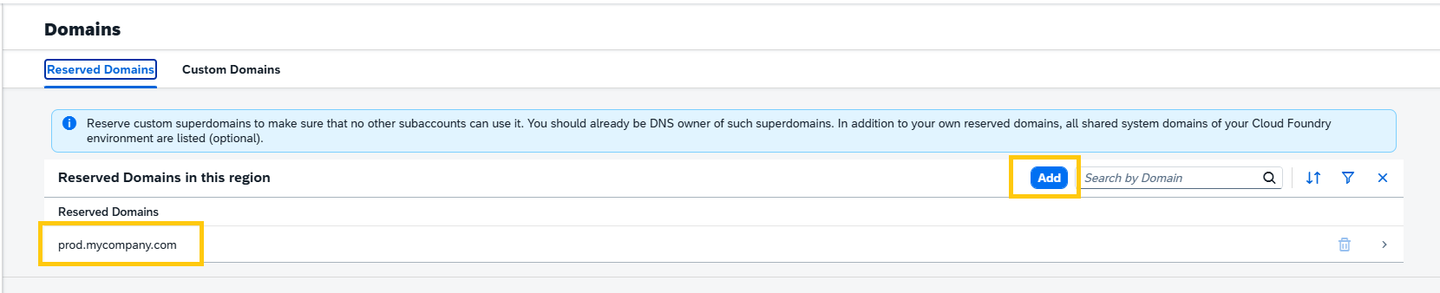
Select reserved domain Note that the domain name is now displayed in the list of Reserved Domains.
Switch to the Custom Domains tab and click Create, and select for your Subaccount’s SaaS Subscriptions.

Select create A wizard opens displaying your subscribed applications, in their corresponding landscapes. Now do the following:
- From the Select Deployment Type step, select
SAP Build Work Zone, advanced editionas the SaaS application and click Next Step.

Select reserved domain - From the Select Reserved Domain step, select the desired domain from the list of Reserved Domains which in our case is
prod.mycompany.com. Now click Next Step.

Select domain - From the Create Subdomain Name step, enter a single subdomain name, for example
prodand click Finish. The result is a new custom domain. For example,workzone.prod.mycompany.com

Select subdomain - From the Select Deployment Type step, select
Create a custom domain for every runtime destination. For example:
xyz200.prod.mycompany.com(xyz200 in this example is the on-premise backend). The custom domain for the runtime destination must be part of this hierarchy, meaning it should be a single subdomain under the reserved domain, otherwise an error will occur. This is because SAP Build Work Zone code suppresses the subdomain (for example,workzone.prod.mycompany.com) used for the SAP Build Work Zone site when performing requests to on-premise backend applications.
Custom domain for runtime destinations If you have content providers in multiple subaccounts (for example, dev/test/prod), make sure that every subaccount has its own custom domain for the SAP Build Work Zone subscription and destination. The destination content could be similar, but the destination’s name should be different.
Example of both options:
- Option 1:
Runtime Destination Domain DNS CNAME SaaS Route SAP Build Work Zone Domain xyz200.prod.mycompany.com CNAME api.cf.eu10.hana.ondemand.com portal-prod-sapdelim-xyz200.workzone.cfapps.eu10.hana.ondemand.com workzone.prod.mycompany.com xyz300.qa.mycompany.com CNAME api.cf.eu10.hana.ondemand.com portal-qa-sapdelim-xyz300.workzone.cfapps.eu10.hana.ondemand.com workzone.qa.mycompany.com xyz400.dev.mycompany.com CNAME api.cf.eu10.hana.ondemand.com portal-dev-sapdelim-xyz400.workzone.cfapps.eu10.hana.ondemand.com workzone.dev.mycompany.com - Option 2:
| Runtime Destination Domain | DNS CNAME | SaaS Route | SAP Build Work Zone Domain |
Runtime Destination Domain DNS CNAME SaaS Route SAP Build Work Zone Domain xyz200.prod.mycompany.com CNAME api.cf.eu10.hana.ondemand.com portal-prod-sapdelim-xyz200.workzone.cfapps.eu10.hana.ondemand.com workzone.prod.mycompany.com xyz300.qa.mycompany.com CNAME api.cf.eu10.hana.ondemand.com portal-qa-sapdelim-xyz300.workzone.cfapps.eu10.hana.ondemand.com workzone.qa.mycompany.com xyz400.dev.mycompany.com CNAME api.cf.eu10.hana.ondemand.com portal-dev-sapdelim-xyz400.workzone.cfapps.eu10.hana.ondemand.com workzone.dev.mycompany.com
It is mandatory to create the destination custom domain at the same hierarchy level as the application custom domain, meaning it must use the same reserved domain.
For example:
- Application custom domain: workzone.prod.mycompany.com
- Destination custom domain: xyz200.prod.mycompany.com In this example, both custom domains are created under the same reserved domain: prod.mycompany.com.
- From the Cloud Identity Services dashboard go to the Applications & Resources tab, and create a custom domain for your SAP Cloud Identity Services tenant. For example,
ias.prod.mycompany.com.
The custom domains are created and displayed in a list, along with their corresponding landscape and status.
The purpose of this step is to configure a custom domain for your Cloud Identity Service tenant. Use the custom domain that you’ve created in step 1 above.
You will use it later when establishing trust to your SAP BTP subaccount and in the Domain Name System (DNS) setup.
This configuration is strongly recommended when your browser is blocking third party cookies to avoid cross-origin domain issues.
For more information, see Use Custom Domain in Identity Authentication
This step is done in the Custom Domain Manager. You’ll create new TLS configurations that can be used for one or mulitple server certificate activations.
Choose the TLS Configurations tile.

Select TLS tile Click Create to open a wizard to create each required configuration.

Create configuration Enter a configuration name, for example
myTLSand click Next Step.
Configuration name From the Client Authentication (mLTS) step, you’ll see that the client authentication is displayed as disabled by default. Therefore a user name and password are required for authentication. Click Next Step.

Client authentication step The Summary information displays the entered configuration name and the status of the mTLS mode again. Click Finish to exit the wizard and manage the created configuration.

Summary step
For more information, see the Custom Domain Manager documentation: Manage TLS Configurations.
This step is done in the Custom Domain Manager. You’ll create a new server certificate for custom domains associated with the SAP Build Work Zone, advanced edition application and runtime destinations. You will also create a certificate for your custom domains from a trusted certificate authority (CA). Make sure that the Cloud Foundry environment is enabled for your subaccount.
Choose the Server Identities tile.

Server certificates tile Choose Create.

Choose create A wildcard certificate secures multiple applications of a domain. So a domain called
prod.mycompany.comcovers any application under the domainprod.mycompany.com, for exampleworkzone.prod.mycompany.com, but not the domainprod.mycompany.comitself. This also works with subdomains, so the subdomain*workzone.prod.mycompany.comcovers any application under the subdomainworkzone.prod.mycompany.com, for example,myapp.workzone.prod.mycompany.com, but not the subdomainworkzone.prod.mycompany.comitself.The wizard opens with the Select Name step in focus. Now do the following:
Enter the desired name, and then click Next Step.

Select name In the Select Target step, keep the landscape with the default value, which should be the main landscape (e.g.
cf-eu10). Then click Next Step.
Selecttarget In the Select Custom Domains step, select the domains which you want to assign to the server certificate.

Select domains In the Certificate Subject step, keep the CommonName (CN) parameter with the default value, then click Finish.
Note that the
CommonNamecan’t be longer than 64 characters.
Set subject In the Key Configuration step, keep the default key type.

Keyconfiguration In the Summary step, click the Finish button.

Summary
Select the server certificate that you created to expand the details section. To order and install your new server certificate, you must first create the certificate signing request and then send this file to a trusted certificate authority of your choice to get it signed.
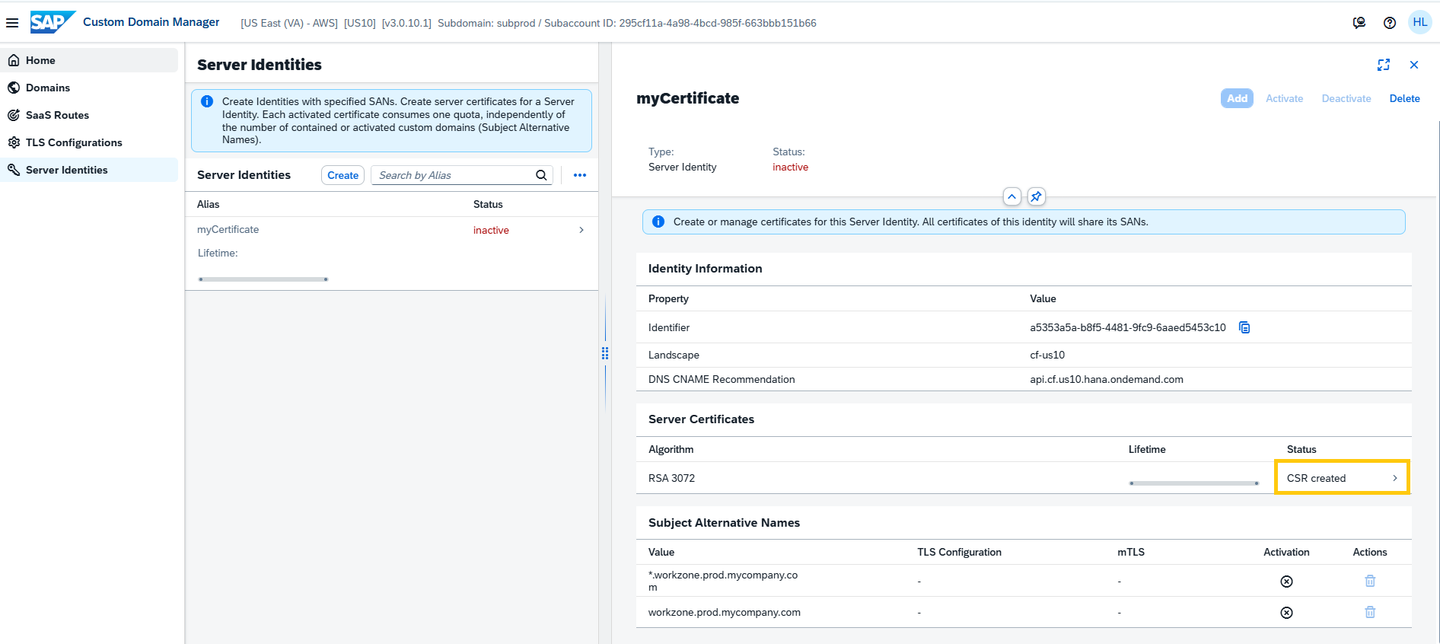
Server certificates details 
Server certificates signature Click Get Certificate Signing Request to copy the content and create the
.pemfile. You can also paste the content into a web page of your CA, if available.On receiving the new server certificate and full certificate chain (including the root CA), choose Upload Full Certificate Chain to upload them.
- In the Add Certificate section, insert the certificate chain into the text field and click Next Step.
- Check the certificate and choose Next Step.
- Confirm that the certificate is correct and click Finish.
In this final step, you must activate your new server certificate.
This activation has to be done for one or more of the certificate’s SANs and the TLS configuration of your choice that you configured in the Manage TLS configurations section. The activation can be modified or removed at any time and will take a few minutes until it’s effective in the landscape load balancer.
- In the Details pane, click Activate.
- Select the SANs you want to activate, and click Next.
- Confirm the TLS configuration and click Next.
- Review the summary and choose Finish.
The list of server certificates created are displayed and as long as they are active, they can’t be deleted. Inactive certificates can be deleted by using the Delete button.
This step is also done in the Custom Domain Manager. You’ll select your existing SaaS subscriptions and create custom routes for them - in addition to their standard routes.
Before you do this step, make sure that you’ve written down the default URL of the SAP Build Work Zone, advanced edition application and make sure that you’ve already set up the TLS server authentication.
Now you can map the application to your custom domain as follows:
Choose the SaaS Routes tile.

Saas Routes tile Click Create to open a wizard where you will map a route to your application.

Create route In the Select Saas Subscription step, select the SAP Build Work Zone, advanced edition subscription and click Next Step.

Select Work Zone subscription In the Edit Route step, don’t change the standard route and click Next Step.
Note: even if your subaccount is in an extension landscape, such as
EU10-004, you should use the main landscape URL, which is part of the subscription to SAP Build Work Zone, advanced edition.
Edit route In the Select Custom Domain step, select the desired custom domain from the list and click Next Step. In this example, select
prod.mycompany.com.
Select custom domain In the Select a Hostname step, click Finish. There’s no need to add a hostname.
The route mapping is created and is displayed as a list.
If you’re using tunnelled access to access on-premise apps, repeat the above steps for every runtime destination, but in the Edit Route step of the Manage SaaS Route procedure (step # 5), use the following format:
For the
ondemand.comdomain:[subdomain of the subaccount]-sapdelim-[Runtime destination name].[service name (workzone or workzonehr)].cfapps.[data center].hana.ondemand.comFor the
workzone.cloud.sapdomain - this is not supported yet but is part of our roadmap:[subdomain of the subaccount]-sapdelim-[Runtime destination name].[data center].workzone.cloud.sap
Example of a runtime destination mapping:
| :————- | :————-
| App Name | SAP Build Work Zone, advanced edition
| Custom route | xyz200.prod.mycompany.com
| Standard route | subprod-sapdelim-xyz200.workzone.cfapps.us10.hana.ondemand.com
In this step, you’ll create a CNAME record in the Domain Name Service (DNS) so that the custom domain points to the SAP BTP data center.
Example:
:————- | :————-
| name | workzone.prod.mycompany.com
| type | CNAME
| data | api.cf.eu10.hana.ondemand.com
| TTL | 14400
You must also configure the Domain Name System (DNS) in order to route traffic to an application on your custom domain. For each custom domain that you use, you must create a CNAME mapping from the custom domain to its Cloud Foundry domain. For example, you must create a separate CNAME mapping for your runtime destination custom domain in case you’re using tunnelled access to access your on-premise apps.
Example:
:————- | :————-
| name | <runtime destination>.prod.mycompany.com | type | CNAME
| data | api.cf.eu10.hana.ondemand.com
| TTL | 14400
For more information, see Configure the DNS for a Custom Domain.
If your Cloud Foundry environment, API endpoint is on an extension landscape such as
eu10-004, you need to map your DNS to the main landscape (e.g.eu10). This is because the SAP BTP service that your subaccount is subscribed to, is located in the main landscape. For more information, see Custom Domains in Extension Landscapes.
In this step, (which is only relevant for subscriptions that were created prior to Sep 4th 2025), you’ll configure an OpenID Connect application in the administration console of SAP Cloud Identity Services for the authorization code flow.
Sign in to the administration console for SAP Cloud Identity Services.
From the Applications and Resources tab, choose the Applications tile.

Applications tile Choose the SAP Build Work Zone, advanced edition <
your subaccount name> application.Note: Type the subaccount GUID in the search field to filter the list items. One of the applications, named
SAP BTP Subaccount <your subaccount name>will refer to the trust between your SAP BTP subaccount and the SAP Cloud Identity Service tenant. The redirect URI for this trust, which is created automatically, will be for example: https://mysubaccount.authentication.eu10.hana.ondemand.com/login/callback/sap.custom. The second application, namedSAP Build Work Zone, advanced edition <your subaccount name>, will refer to the trust between your Cloud Identity Service tenant and the SAP Build Work Zone, advanced edition subscription. You need to add your custom domain to the redirect URI of this trust.Click the Trust tab.
Under Single Sign-On, choose OpenID Connect Configuration.
Manually enter the communication settings negotiated between Identity Authentication and the client as follows:
- Name (mandatory) Provide a name of your choice.
- Redirect URIs (mandatory) The redirection URIs to which the response can be sent. You can add up to 20 redirect URIs. Example:
https://workzone.prod.mycompany.com/**orhttps://*prod.mycompany.com/**
The above URI covers both login and logout flows, so there’s no need to add also a URI to the Front-Channel Logout URIs.

OpenID Connect Configuration Save your selection. Once the application has been changed, the system displays a message that the application <name of application> is updated.
In this step, you’ll select the custom domain for your subaccount in order to support SAP Mobile Start application navigation.
Go to your subaccount in the SAP BTP cockpit.
Click on the SAP Build Work Zone, advanced edition link.
Change the URL to:
https://<Subaccount subdomain>.dt.workzone.cfapps.<Data Center>.hana.ondemand.com/sites#SubAccount-Settingsto access the subaccount settings.Select the preferred custom domain for your subaccount from the list of available domains configured in the Custom Domain Service.
For more information, see Subaccount settings.
Prerequisite: - Configure the identity Authentication service and the Identity Provisioning service. For more information, see Option 1 Step 3 in: Run the Configurator
When you create a custom domain in SAP Build Work Zone, advanced edition, you need to create two custom domains - one for SAP Build Work Zone, advanced edition which you created in Step 1 and another one for the Digital Workplace Service (DWS) component. This custom domain must use the same top-level domain as the custom URL used for SAP Build Work Zone, advanced edition. Example of these two custom domains:
Custom URL for SAP Build Work Zone, advanced edition:
https://prod.mycompany.comCustom URL for Digital Workplace Service (DWS):
https://prod.dws.mycompany.com
This second domain should not be created using the SAP Custom Domain Manager, but externally using a domain provider. In addition, you’ll need an SSL certificate and private key for this domain.
For Existing Customers:
After obtaining the custom domain, you must create a server certificate and re-run the onboarding Configurator and use your custom domain instead of the default domain. Using a non-custom domain such as ondemand.com is not supported once you’ve already configured a custom domain.
Get a Key and a Certificate request by running this command using OpenSSL:
openssl req -new -newkey rsa:2048 -nodes -out CertRequest.csr -keyout CertKey.key -subj "/C=DE/L=Walldorf /O=SAP/OU=BTP/CN= prod-dws.mycompany.com.sapSend the
CertRequest.csrto a trusted certificate authority of your choice to get it signed.Once the certificate is signed by a CA, make sure you have a .crt file that includes these 3 certificates in the following order: a certificate, an intermediate certificate, and a root certificate.
Once this is done, continue with the following steps:
Before running the Configurator, make sure you have the OAuth client details ready. You will have to enter them in the Configurator. In the Administration Console, go to External Integrations –> OAuth Clients, and copy the details of the OAuth client that was created when you ran the Configurator for the first time.

Add OAuth Client If your tenant was upgraded from SAP Jam, use the OAuth Client that was created in SAP Jam. For new tenants, use the OAuth Client that was created for SAP Build Work Zone, advanced edition once you’ve run the Configurator. Don’t use the OAuth Client that was created for SCIM API provisioning - Workzone API Client.
Reset the Configurator to make sure that all previously entered data has been removed. To do this, follow these steps:
Access the Site Manager by either using this URL:
<design time URL of default domain>/sites#Workzone-Configor go to the Administration Console –> External Integrations –> Businesss Content. Click the Content Manager button and then click the Configurator icon in the left navigation panel.You are now in the Configurator wizard. The screen you need is not within the Configurator wizard. So you need to exit the wizard by using the back icon (<).

Configurator icon back button Go back until you get to the screen where you can select the configuration option.

Configurator option Select the respective other option from what you selected in the first run of the Configurator. If you previously selected a new service instance, you should now select a service instance based on an SAP Jam tenant, and vice versa.
Click Next. In the warning message that appears, confirm the loss of input data. This step takes you to step 1 in the Configurator.

Warning loss of input data Navigate back again to the screen with the options and this time, select the previous option that you originally selected.

Original option Confirm loss of data again and re-run the Configurator with the new input.
For New Customers
Get a Key and a Certificate request by running this command using OpenSSL:
openssl req -new -newkey rsa:2048 -nodes -out CertRequest.csr -keyout CertKey.key -subj "/C=DE/L=Walldorf /O=SAP/OU=BTP/CN= prod-dws.mycompany.com.sap"Send the
CertRequest.csrto a trusted certificate authority of your choice to get it signed.Once the certificate is signed by a CA, make sure you have a
.crtfile that includes these 3 certificates in the following order:- Certificate
- Intermediate certificate
- Root certificate
Configure a CNAME record in the DNS system for the DWS custom domain. The custom domain must resolve to
customfollowed by the generic data center domain for the underlying DWS server. Meaning, if the DWS URL iswzprod.eu10-1.dws.workzone.ondemand.com, and the desired custom domain isprod-dws.mycompany.com, thenprod-dws.mycompany.commust have a CNAME record (otherwise known as a DNS alias) referring tocustom-eu10-1.dws.workzone.ondemand.com.Open the SAP Build Work Zone, advanced edition Configurator. In the “Create a Destination to SAP SuccessFactors (Optional)” step that opens, click Skip Step, unless you are using SAP SuccessFactors.

Open Configurator In the Set Up Environment step, select
Custom.In the DWS Custom Domain field insert your domain, for example
prod-dws.mycompany.com.In the Certificate field, upload the signed certificate file from step 3 above.
In the Private Key field, upload the key from step 3 above.

Enter certificates Click the Trigger Setup button.
And you’re done!
Resources
Discussion
Share feedback on this tutorial or join the conversation in SAP Community.