
Overview
You will learn
- How to write a rule to validate an UI field


Steps
Intro
When allowing end-users to make updates to data, it is important to add validation rules to verify that they are entering valid information. If the Update action fails due to the validation rule, the application will display a validation failure message to the end-user.

You will add a rule to the Update action to run the validation before saving any data. If the validation rule is successful, the Update action will save the changes as expected. If the validation rule fails, the end-user receives the validation failure message telling them useful information so they can fix the problem before continuing.
Open
Customers_UpdateEntity.actionby double clicking on the action in the project explorer pane.Expand the Common Action Properties and click the
Create a ruleicon to create a new Validation Rule.
Create Validation Rule Icon In Action Properties Keep the default selection for the Object Type as Rule and Folders path. Click OK.

Object Type And Folders Path Selection In the Base Information step, enter the Rule Name as
EmailValidationand then click Finish.
Rule Name EmailValidation Base Information Step You can find more details about writing a Rule.
Replace the generated snippet with below code.
JavaScript/** * Describe this function... * @param {IClientAPI} context */ export default function EmailValidation(context) { //The following evaluateTargetPath will retrieve the current value of the email control if ((context.evaluateTargetPath('#Control:FCEmail/#Value').indexOf('@')) === -1) { //If email value does not contain @ display a validation failure message to the end-user context.executeAction('/demosampleapp/Actions/ValidationFailure.action'); } else { //If @ is present in the email value, return true to indicate validation is successful return true; } }This rule will handle validation if a @ symbol exists in the email address. In this validation rule, you will grab the data entered by the end-user, validate it and check for the @ symbol then return true if the email address is of a valid format or false if it is not. The returning result of the validation rule can be used in the Update action to determine whether the action succeeds or fails.
The
indexOf()method returns the index within the calling String object of the first occurrence of the specified value and -1, if no occurrence is found.In above code there is a reference to
ValidationFailure.action, which doesn’t yet exist in your metadata project. You will create this action in next step.In the generated
EmailValidation.jsrule, double-click the red line. You will notice a bulb icon suggesting some fixes, click on it, selectMDK: Create action for this reference, and clickMessage.
Create Action From Rule Reference Bulb Icon Provide the below information in the
ValidationFailure.action:Field Value MessageEmail address is not in the correct format recipient @ domain . domaintypeTitleValidate EmailOKCaptionOKOnOK--None--CancelCaptionleave it blank OnCancel--None--
ValidationFailure Action Properties Configuration
You will now deploy the updated project to your MDK client.
Click the Deploy option in the editor’s header area, and then choose the deployment target as Mobile Services .

Make sure you are choosing the right device platform tab above.
Tap Check for Updates in the user menu on the Main page, you will see a New Version Available pop-up, tap Now.

Android New Version Available Pop-Up While update a customer record, enter a Email value with no contain of @, it throws a validation failure message on saving the record.

Android Customer Email Field Without At Symbol 
Android Email Validation Failure Message
Tap Check for Updates in the user menu on the Main page, you will see a New Version Available pop-up, tap Now.

iOS New Version Available Pop-Up While update a customer record, enter a Email value with no contain of @, it throws a validation failure message on saving the record.
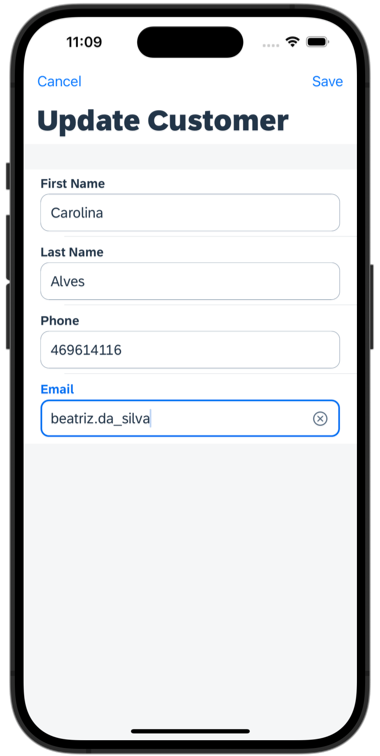
iOS Customer Email Field Without At Symbol 
iOS Email Validation Failure Message
Once you complete this tutorial you can continue with Enhance Your First MDK App with Additional Functionalities mission.
Resources
Discussion
Share feedback on this tutorial or join the conversation in SAP Community.