
Overview
You will learn
- How to prepare project configuration for deployment using
cds addcommands - How to deploy an application to SAP Business Technology Platform Cloud Foundry (SAP BTP) environment


Steps
Intro
In the previous tutorial you added authentication to your application. In this tutorial, you will deploy the application to SAP BTP, Cloud Foundry environment and have it running fully in the cloud.
You first need to provision your SAP HANA Cloud instance, which is a prerequisite to later on create a SAP HANA HDI Container to deploy your database artifacts to.
- Follow the tutorial Provision an Instance of SAP HANA Cloud (Step 1+2). Make sure to allow access to your SAP HANA Cloud from all IPs and that the instance of the SAP HANA you have created is mapped to your subaccount and space (Step 1) where you working with this tutorial.
To prepare the project, execute the following in the root level of your project:
Shell/Bashcds add hana,mta,xsuaa,approuter --for production--for productionadds all configuration added by this command in the.cdsrc.jsonfile into arequires.[production]block.hanaconfigures deployment for SAP HANA, so a data source of typehanais added in therequires.[production].dbblock.mtaadds themta.yamlfile. This file reflects your project configuration.xsuaacreates anxs-security.jsonand also the needed configuration in themta.yamlfile. An authentication of kindxsuaais added in therequires.[production].authblock.approuteradds the configuration and needed files for a standalone AppRouter so that the authentication flow works after deployment.Learn more about those steps in the Deploy to Cloud Foundry guide in the CAP documentation.
(Optional) Following this tutorial strictly, you don’t have an own UI yet in your project. To enable the index page with SAP Fiori preview, add the following configuration in the
application.yamlof yourbookstoreproject in VS Code:YAML--- spring: config.activate.on-profile: cloud cds: index-page.enabled: trueSetting
cds.index-page.enabled: trueturns on the generated index page and the SAP Fiori preview inproductionmode, just like you’ve seen in your local application in previous tutorials. These features are designed to assist you during development and should not be used in productive applications.
When you’ve followed the previous tutorials, you’ve already added this dependency and can skip this step.
Cloud Foundry uses the Open Service Broker API to provide services to applications. When running your application on Cloud Foundry, an environment variable VCAP_SERVICES is available, which contains all required service credentials. CAP Java can automatically read this environment variable and configure your application to use the SAP HANA database. In addition you want to make sure that your application is secure by default, when you deploy it to the cloud. The required dependencies for these aspects are included in the cds-starter-cloudfoundry dependency bundle, which you added in the previous tutorial.
Check the
pom.xmlin thesrvdirectory (not thepom.xmlfile located in the root project folder) and under the<dependencies>that thecds-starter-cloudfoundrydependency is there.XML<dependency> <groupId>com.sap.cds</groupId> <artifactId>cds-starter-cloudfoundry</artifactId> </dependency>
The XSUAA security descriptor (xs-security.json) that describes the roles for your application can be generated from your CDS service definitions. It is used to configure your XSUAA service instance and has been generated using the CDS facet cds add xsuaa in a previous step.
Open the
xs-security.jsonfile in SAP Business Application Studio and update the file so it looks like that:JSON{ "xsappname": "bookstore", "tenant-mode": "dedicated", "scopes": [ { "name": "$XSAPPNAME.Administrators", "description": "Administrators" } ], "attributes": [], "role-templates": [ { "name": "Administrators", "description": "generated", "scope-references": [ "$XSAPPNAME.Administrators" ], "attribute-references": [] } ], "role-collections": [ { "name": "BookStore_Administrators", "description": "BookStore Administrators", "role-template-references": ["$XSAPPNAME.Administrators"] } ], "oauth2-configuration": { "redirect-uris": ["https://*.cfapps.us10-001.hana.ondemand.com/**"] } }You added the name of your application in the attribute
xsappnameand declared a role collection to which you can assign users later.The value of the last attribute “oauth2-configuration” depends on the landscape where your account is deployed. Check the API URL returned by the command
cf targetand change data center ID in the valuehttps://*.cfapps.**us10-001**.hana.ondemand.com/**accordingly.
The Cloud Foundry API endpoint is required so that you can log on to your SAP BTP Cloud Foundry space through Cloud Foundry CLI in the next step.
Go to SAP BTP Trial Cockpit and choose Go To Your Trial Account.
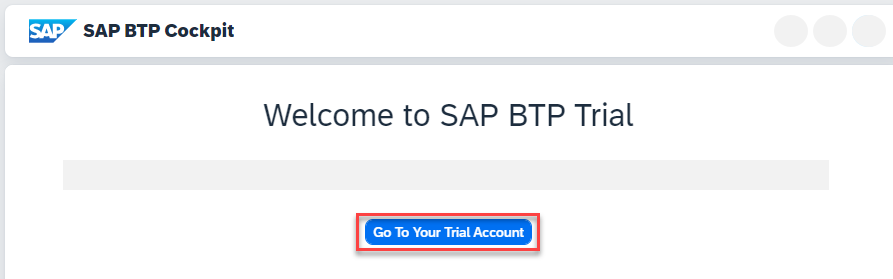
business technology platform cockpit view Navigate to your subaccount by hitting the corresponding tile.

subaccount tile Copy the Cloud Foundry API endpoint value as you will need it in the next step.

CF API endpoint value
In SAP Business Application Studio, open a terminal by choosing Terminal → New Terminal from the main menu.
Run the following command to configure which Cloud Foundry environment you want to connect to in the terminal. Replace
<CF_API_ENDPOINT>with the actual value you obtained in the previous step.Shell/Bashcf api <CF_API_ENDPOINT>Authenticate using your login credentials using the following command in the terminal:
Shell/Bashcf login
SAP provides an application format that respects the single modules and their technologies and keeps those modules in the same lifecycle: Multitarget Application
The MBT Build tool uses the mta.yaml file that has been created using cds add mta before, to build the deployable archive. The MultiApps CF CLI plugin adds the deploy command and orchestrates the deployment steps.
In the root of your project, execute the following command to build the archive.
Shell/Bashmbt build -t gen --mtar mta.mtarFor this you need the MBT Build Tool, which SAP Business Application Studio has already installed.
The
-toption defines the target folder of the build result as thegenfolder of your project. As part of this build implicitlycds build --productionis executed. This implicit build uses then all the configuration you’ve added in the step 1.2 when using--for production.Deploy the archive using
cf deploy.Shell/Bashcf deploy gen/mta.mtarFor this you need the MultiApps CF CLI plugin, which SAP Business Application Studio has already installed.
During deployment all needed service instances are created and the applications as well as database artifacts are deployed.
This process takes some minutes. In this one step the archive is uploaded to Cloud Foundry, service instances are created, the applications are staged, and then deployed to their target runtimes.
If your deployment fails during deploy of
bookstore-db-deployer, make sure that your IP address is configured for connections to SAP HANA Cloud. Or allow connections to all IP addresses at your own risk. We recommend to revert that setting after you’ve completed the tutorial.In the deploy log, find the application URL of
bookstore:Shell/BashApplication "bookstore" started and available at "[org]-[space]-bookstore.cfapps.[region].hana.ondemand.com"This is the URL of the AppRouter, which enforces the authentication flow.
Open this URL in the browser and try out the provided links, for example,
odata/v4/BooksService/Books. Application data is fetched from SAP HANA.Observe that your application is now secured by requiring authentication on service and entity endpoints. In the following tutorials you will learn how to configure authentication and authorization in the cloud.
Resources
Discussion
Share feedback on this tutorial or join the conversation in SAP Community.