
Overview
You will learn
- How to access and consume the SAP Document AI APIs via Swagger UI
- How to use the Configuration API to activate the instant learning feature, see the list of all configurations already created and their scope, and delete configurations


Steps
Intro
Before using the instant learning feature, you need to activate it. This tutorial shows you how to do that. For more information on how to use the instant learning feature, see Instant Learning (Premium Edition) and Instant Learning (Premium Edition): Best Practices.
To use a trial account to perform this tutorial, first follow the steps described in Use Trial to Create a Service Instance for SAP Document AI.
To perform this tutorial using the Free (free) service plan or one of the service plans intended for productive use – either Premium Edition (premium_edition) or Base Edition (blocks_of_100) –, first follow the steps described in Use Free Tier to Create a Service Instance for SAP Document AI. For more information on the service plans available for SAP Document AI, see Service Plans.
Next, perform the steps described in Get OAuth Access Token for SAP Document AI via Web Browser.
Finally, you need to access and authorize the SAP Document AI Swagger UI as described below. You’ll use Swagger UI to call the SAP Document AI APIs via any web browser. Swagger UI allows developers to effortlessly interact and try out every single operation an API exposes for easy consumption. For more information, see Swagger UI.
To access and authorize the SAP Document AI Swagger UI, you’ll need the following entries from the service key that you created for SAP Document AI in the tutorials Use Trial to Create a Service Instance for SAP Document AI or Use Free Tier to Create a Service Instance for SAP Document AI:
tenantuiurlswagger
You’ll find both of these entries outside the
uaasection of the service key. (See the image below.)
To access the SAP Document AI Swagger UI, copy the
tenantuiurlvalue and paste it into a text editor. Then, copy theswaggervalue/document-information-extraction/v1/and paste it onto the end of thetenantuiurlvalue. Finally, copy the entire string, paste it into the address bar of your web browser, and press Enter.
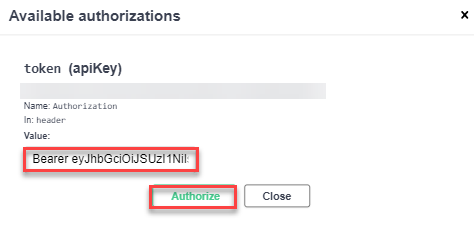
DOX To be able to use the Swagger UI endpoints, you need to authorize yourself. In the top-right corner, click Authorize.

DOX Copy the
access_tokenvalue created in the tutorial Get OAuth Access Token for SAP Document AI Using Any Web Browser and paste it into a text editor. Move your cursor to the start of the line containing the value and enter Bearer followed by a space. Finally, copy the entire string, and paste it into the Value field.CodeBearer <access_token>Click Authorize, and then click Close.
DOX 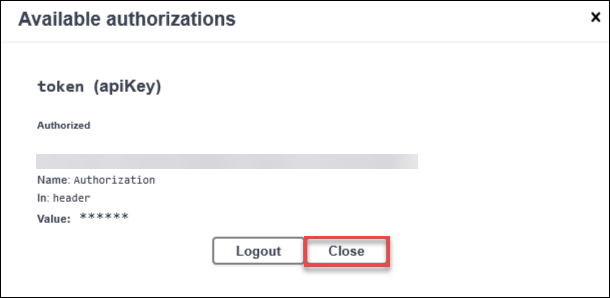
DOX
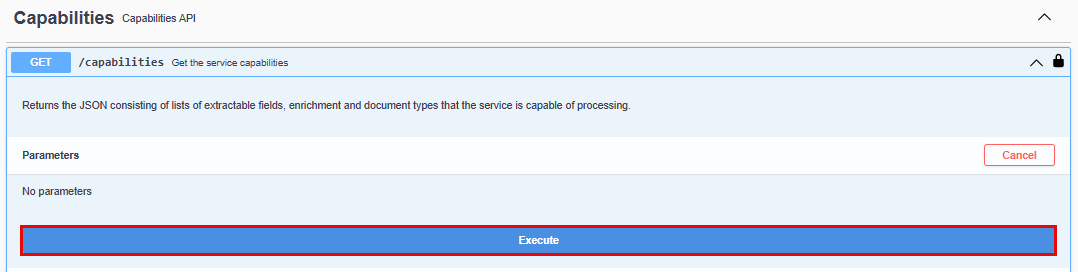
Use the GET /capabilities endpoint to check if you now have access to the SAP Document AI APIs via Swagger UI.
Click the endpoint name to expand it, click Try it out, and then Execute.

You should receive a response like the following:

If you get an error response code 401 (Unauthorized), your token is probably incorrect. Check whether you’ve added the word
Bearer, followed by a space, before the token and whether the token value is complete and has been copied properly from theaccess_tokenvalue in your service key.
Activate the instant learning feature using the enableInstantLearning configuration key.
Expand the POST /configuration endpoint.
Click Try it out.
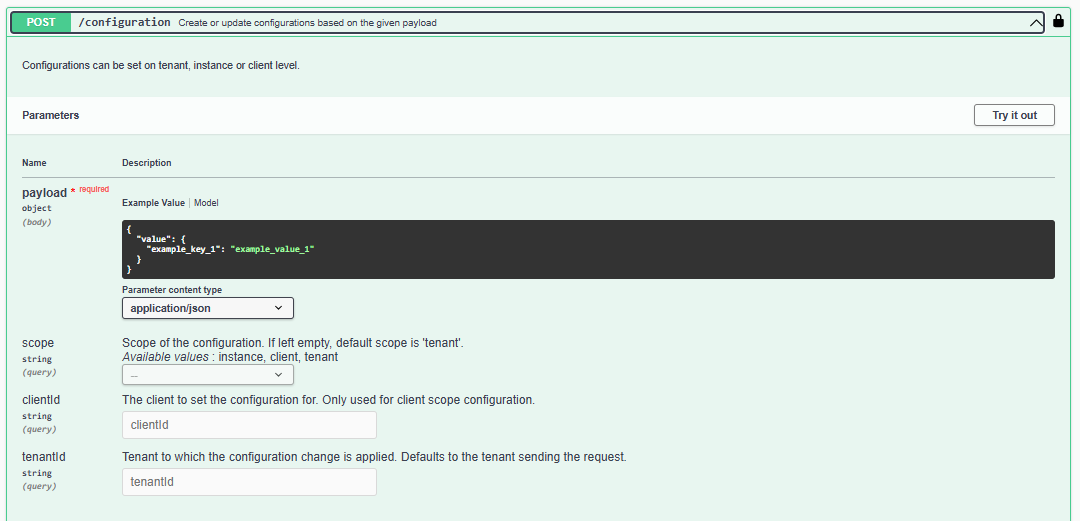
DOX Enter the following in the
payloadfield:JSON{ "value": { "enableInstantLearning":"true" } }You can also make the following optional entries:
- Choose the scope of the configuration. If you leave this parameter empty, the tenant scope is used.

- Specify the ID of the client you want to set the configuration for.

- Enter the ID of the tenant that you want to set the configuration for. If you leave this parameter empty, the tenantId sending the request is used.
For more information, see Create Configuration.
Click Execute.

DOX
You should receive a response like the following:
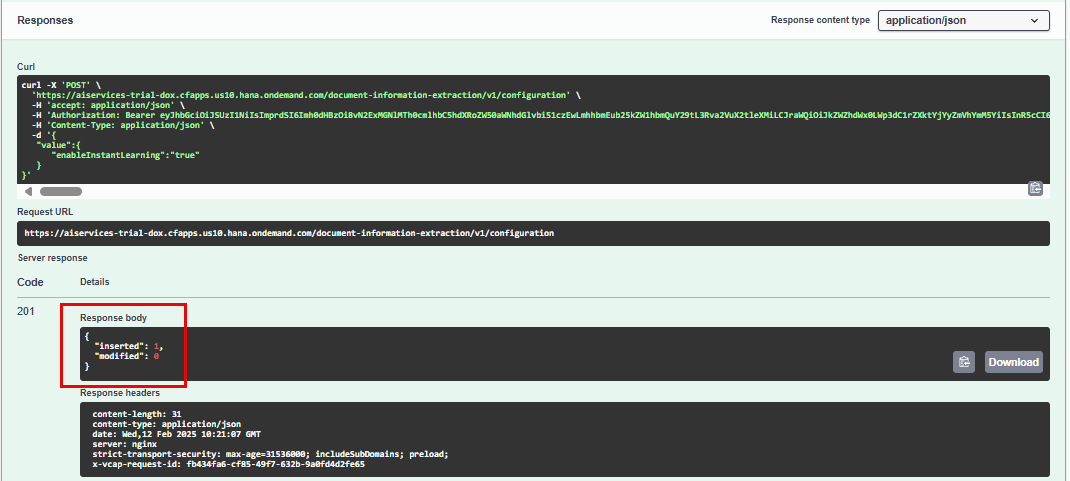
You’ve activated the instant learning feature, and you’re now all set to start using it as detailed in Instant Learning (Premium Edition).
Steps 4 and 5 are optional. If you wish, you can complete this tutorial by simply setting them to Done.
See the list of all configurations already created and their scope, including the enableInstantLearning configuration you’ve just created.
Expand the Get /configuration endpoint.
Click Try it out.

DOX Click Execute.

DOX
You should receive a response like the following:
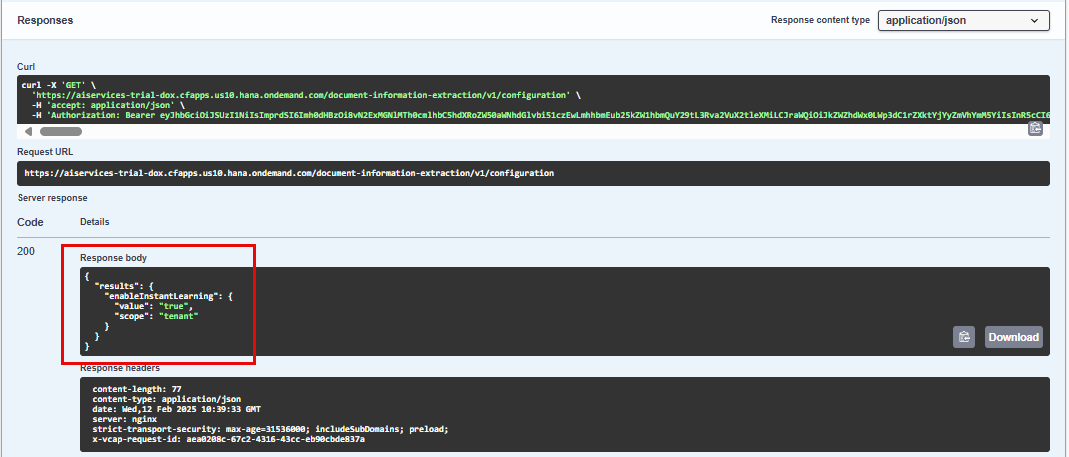
Do the following to delete the enableInstantLearning configuration:
Expand the DELETE /configuration endpoint.
Click Try it out.

DOX Enter the following in the
payloadfield:JSON{ "value": [ "enableInstantLearning" ] }Click Execute.

DOX
You should receive a response like the following:

Congratulations, you’ve completed this tutorial.
Resources
Discussion
Share feedback on this tutorial or join the conversation in SAP Community.