
Overview
You will learn
- How to set up your system to start creating business applications in SAP Build Code.


Prerequisites
- You have an SAP BTP Trial account in the US10 region (Get a Free Account on SAP BTP Trial)
Steps
The trial version of SAP Build Code is currently only available in the US10 region.
Perform these preparatory steps to set up your system for creating your business applications in SAP Build Code.
This tutorial assumes that you are using an SAP BTP Trial account. If you are using a different account, some steps might be different.
Access your global account and click Go To Your Trial Account.

Open Trial account Unsubscribe from SAP Business Application Studio.
Important: Any project created in SAP Business Application Studio will be lost. Make sure to backup your projects before you unsubscribe.
In the navigation pane, click Boosters.

Boosters Search for SAP Build Code.

Get Started with SAP Build Code Booster There is a booster for each of the SAP Build Code service plans. Make sure to select the one relevant to the plan you want to work in.
Open the booster to see the overview, components, and additional resources, and click Start.

Booster Information The booster checks for required authorizations, compatible providers, and regions, as prerequisites for successful execution.
After running the booster, in the popup window, click Navigate to Subaccount.

Navigate to Subaccount
From the navigation pane, select Services > Instances and Subscriptions.

Instances and Subscriptions Make sure you are subscribed to SAP Business Application Studio and to SAP Build Code.

Service Plan Click SAP Build Code.
The SAP Build lobby opens.
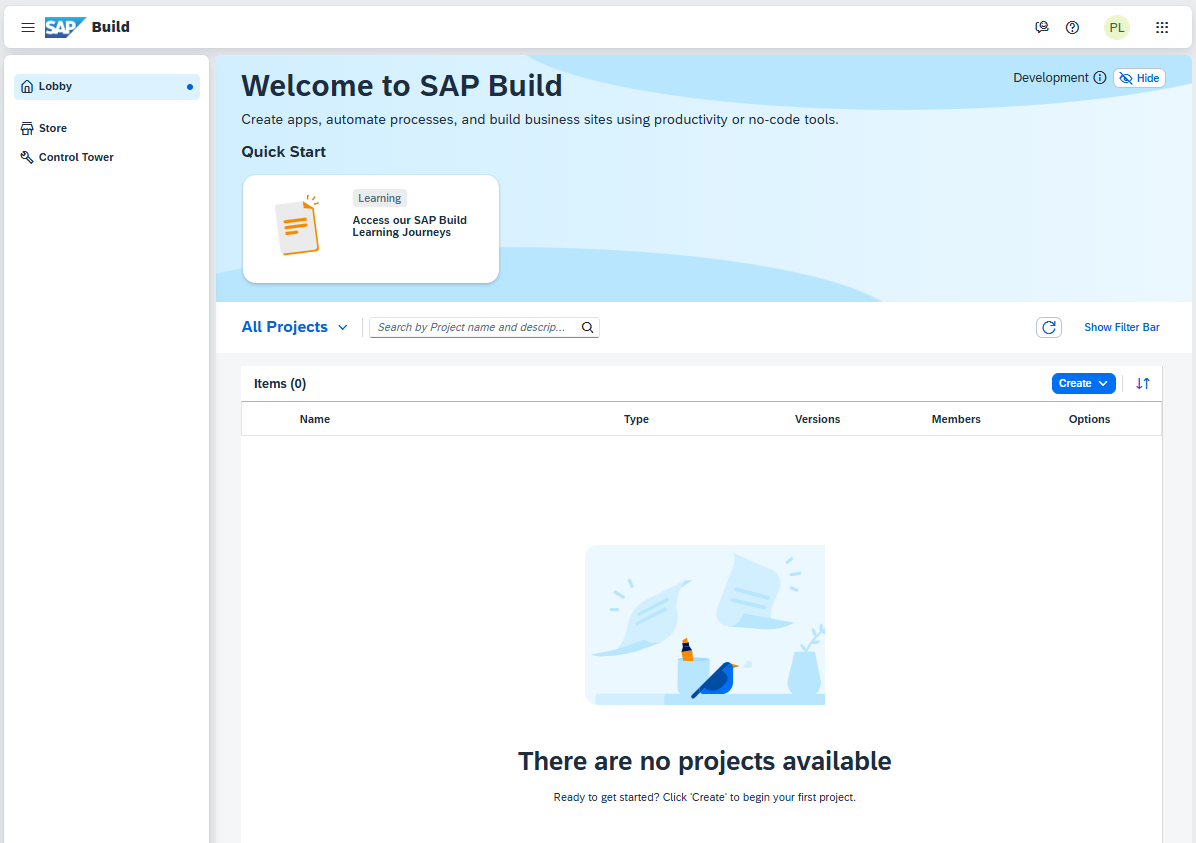
SAP Build Lobby
IMPORTANT: When you run the booster, the needed roles are added to your user in the default IDP. But if you are also using a custom IDP, for example because you also installed SAP Build Apps, you may need to also add the roles Build Code Administrator and Build Code Developer.
Resources
Discussion
Share feedback on this tutorial or join the conversation in SAP Community.