
Overview
You will learn
- How to set up SAP Integration Suite in the source subaccount (subscribe to SAP Integration Suite, activate its capabilities, and assign roles required for SAP Integration Suite, as well as create a service instance and key for SAP Process Integration Runtime)
- How to create a service instance and a service key to access the APIs of SAP Content Agent in the source subaccount
- How to create the destinations required for the transport scenario in the source subaccount


Prerequisites
- You’ve completed the prerequisite steps of tutorial Transport Integration Content Using SAP Cloud Transport Management Service and SAP Content Agent Service.
Steps
Scenario Overview
In addition to the Central Services subaccount that provides the SAP Cloud Transport Management instance, the trial subaccount is available as the SAP Integration Suite source subaccount. Use it to subscribe to SAP Integration Suite, and to create service instances for SAP Content Agent service and SAP Process Integration Runtime to get API access to these services. Create service keys for the instances to get the credentials that you’ll need for the SAP Content Agent destination ContentAssemblyService and the SAP Cloud Integration destination CloudIntegration.

This step assumes that you’re running the tutorial in an SAP BTP Trial account. If you have an enterprise account, open SAP BTP Cockpit in your enterprise account.
To access SAP BTP Cockpit of your trial account, go to your SAP BTP Trial landing page and choose Go To Your Trial Account. (The name of the button may vary.)
In your global trial account, you have the Central Services subaccount where SAP Cloud Transport Management service runs, if you’ve followed the Get Started with SAP Cloud Transport Management tutorial.
You will use the default trial subaccount to set up SAP Integration Suite.

Create trial 0
Set up an SAP Integration Suite trial as described in the tutorial Set Up Integration Suite Trial.
Keep these points in mind:
Subscribe to SAP Integration Suite in the trial subaccount.
Make sure that you assign the
Integration_Provisionerrole to your user as mentioned in Step 2: Subscribe to the service of that tutorial.Make sure you activate the capabilities of SAP Integration Suite.
If you use the Enable Integration Suite booster to assign roles and create service instances for SAP Process Integration Runtime, you’ll only need to update the
apiinstance in step 6 of the current tutorial, and you can skip step 7 since the service key was automatically created.If you don’t use the Enable Integration Suite booster to assign roles and create service instances, additionally assign the
PI_Read_Only,PI_Integration_Developer, andPI_Administratorrole collections to your user. You’ll need them towards the end of the tutorial group to enable the transport in SAP Integration Suite and to run the test transport.
For the transport scenario, API access to SAP Content Agent is required. To enable API access, create a service instance.
In the SAP Integration Suite source subaccount trial, choose Services > Service Marketplace from the navigation on the left (1). In the search field, filter for Content Agent Service (2). On the Content Agent Service tile, select the three dots …, and choose Create (3).

Create Instance 2 Select the standard plan from the Plan dropdown menu of Content Agent Service (1). You can leave the values for Runtime Environment and Space unchanged. Enter an Instance Name, for example
cpi_dev(2). Choose Create (3).
Create Instance 3 On the dialog box, choose View Instance to monitor the creation progress.

Create Instance 5 The progress bar indicates that the instance creation takes some time.

Create Instance 6 When the instance creation is completed, the instance gets the status Created.

Create Instance 7
See also on SAP Help Portal: Create Instance
The details of the service key of the SAP Content Agent instance are required for the configuration of the SAP Content Agent destination. The destination is required for the communication of SAP Integration Suite with SAP Content Agent.
To create a service key for the SAP Content Agent instance, in the service instance row, select the three dots …, and choose Create Service Key.

Create Service Key 1 Enter a name for the service key (1), here
cas-on-cpi-dev, and choose Create (2):
Create Service Key 2 The service key was created.

Create Service Key 3
See also on SAP Help Portal: Create Service Key
The destination to SAP Content Agent defines which SAP Content Agent the SAP Integration Suite communicates with. The destination has the fixed name ContentAssemblyService. In the Destination editor, you can create it using the Service Key option. This approach eliminates the need to manually copy values from the service key to the destination.
In the SAP BTP Cockpit of your SAP Integration Suite source subaccount, choose Connectivity > Destinations (1), and choose Create (2).

Create CAS Destination 1 In the Create New Destination dialog, choose Service Instance (1), and Create (2).

Create CAS Destination 2 In the Choose Service Instance step, all service instances that exist in the subaccount are displayed. Here, the cpi_dev instance is the only one available. Select it (1), and choose Next (2).

Create CAS Destination 3 In the Choose Service Key step, you can leave the Choose existing service key option selected. Select the cas-on-cpi-dev service key from the dropdown menu (1), and choose Next (2).

Create CAS Destination 4 In the Destination Details step, enter the values for the following fields (1-2), and then scroll down (3):
Keep the values of fields not mentioned in the table unchanged.
Field Value Name ContentAssemblyServiceDescription For example: Destination to SAP Content Agent Service
Create CAS Destination 5 The other values relevant for the destination were already taken over from the service key of the instance. Choose Next.

Create CAS Destination 6 In the Review step, verify all values of the destination, and choose Create to create it.

Create CAS Destination 7 The destination was created. Click anywhere in the row to display the details.

Create CAS Destination 8 In the details, choose Check Connection to test the connection.

Create CAS Destination 9 The result should display HTTP request (without authentication) to ContentAssemblyService destination succeeded.

Create CAS Destination 10 This result means that the URL specified in the destination can be reached. However, such a successful check doesn’t guarantee successful deployment. We recommend that you run a test transport after completing the entire configuration of the transport scenario to know whether you actually have all necessary authorizations.
See also on SAP Help Portal: Create SAP Content Agent Service Destination
For the transport scenario, API access to SAP Process Integration Runtime is required. To enable API access, create a service instance.
Creating a new instance is only required, if you haven’t used the Enable Integration Suite booster to assign roles and create service instances. If you’ve used the booster, update the
apiinstance that was created as part of the booster with theWorkspacePackagesTransport,WorkspacePackagesRead, andWorkspacePackagesEditroles.
Make sure your user has the
Integration_Provisionerrole collection assigned as mentioned in Step 2: Set Up SAP Integration Suite.To check this, in the trial subaccount, choose Security > Users from the navigation on the left (1). To display the details of your user, click on it (2), and find the
Integration_Provisionerrole collection on the Roles Collections tab (3).
Check Role To create an instance for SAP Process Integration Runtime, choose Services > Service Marketplace from the navigation on the left (1). Filter for Process Integration in the search field (2). On the SAP Process Integration Runtime tile, select the three dots …, and choose Create (3).

Create Instance 1 Select the api plan from the Plan dropdown menu of the SAP Process Integration Runtime service (1). You can leave the values for Runtime Environment and Space unchanged. Enter an Instance Name, for example
pi-dev(2), and choose Next (3).
Create Instance 4 The following roles are required for the instance:
WorkspacePackagesTransport,WorkspacePackagesRead, andWorkspacePackagesEdit. Select them from the Roles dropdown menu (1), and choose Create (2).
Create Instance 6 The SAP Process Integration Runtime instance was created.

Create Instance 8
See also on SAP Help Portal: Creating Service Instance and Service Key for Inbound Authentication
The details of the service key of the SAP Process Integration Runtime instance are required for the configuration of the SAP Cloud Integration destination. This destination is required for the communication of SAP Content Agent with SAP Process Integration Runtime.
If you’ve used the Enable Integration Suite booster to assign roles and create service instances, you can skip this step. A service key for the SAP Process Integration Runtime instance was already created.
To create a service key for the SAP Process Integration Runtime instance, in the service instance row, select the three dots …, and choose Create Service Key.

Create Service Key 1 Enter a name for the service key, here
pi-on-cpi-dev(1), leave the other values unchanged, and choose Create (2).
Create Service Key 2 The service key was created. Select the three dots … in the service key row, and choose View.

Create Service Key 3 The service key looks as follows. Leave the service key open so that you copy the required values in the next step, or note down the values of
url,clientid,clientsecret, andtokenurl.
Create Service Key 4 You’ll need them in the next step when you create the SAP Cloud Integration destination. Unlike the SAP Content Agent destination, you must create the SAP Cloud Integration destination from scratch.
The SAP Cloud Integration destination serves as the endpoint where SAP Content Agent collects the content to be packed into an MTA and exported to SAP Cloud Transport Management service. The destination has the fixed name CloudIntegration.
In the SAP Integration Suite source subaccount, choose Connectivity > Destinations (1). The destination to SAP Content Agent is displayed. To create a new one, choose Create (2).

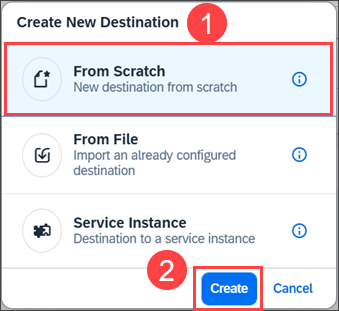
Create Cloud Integration Destination 1 In the Create New Destination dialog, choose From Scratch (1), and Create (2).
Create Cloud Integration Destination 2 In the Destination Configuration window, enter details for the following fields (1), and then scroll down (2):
Keep the values of fields not mentioned in the table unchanged.
Field Value Name CloudIntegrationDescription For example: Destination to SAP Cloud IntegrationURL Enter the value of the urlfrom the details of the service key of the SAP Process Integration Runtime instance that you created in the previous step, and append/api/1.0/transportmodule/Transportto the URL. For example:https://12345678trial.it-cpitrial00.cfapps.us10-001.hana.ondemand.com/api/1.0/transportmodule/TransportAuthentication Select OAuth2ClientCredentials. Client ID Enter the value of clientidfrom the service key details.Client Secret Enter the value of the clientsecretfrom the service key details.Token Service URL Enter the value of tokenurlfrom the service key details. For example:https://12345678trial.authentication.us10.hana.ondemand.com/oauth/token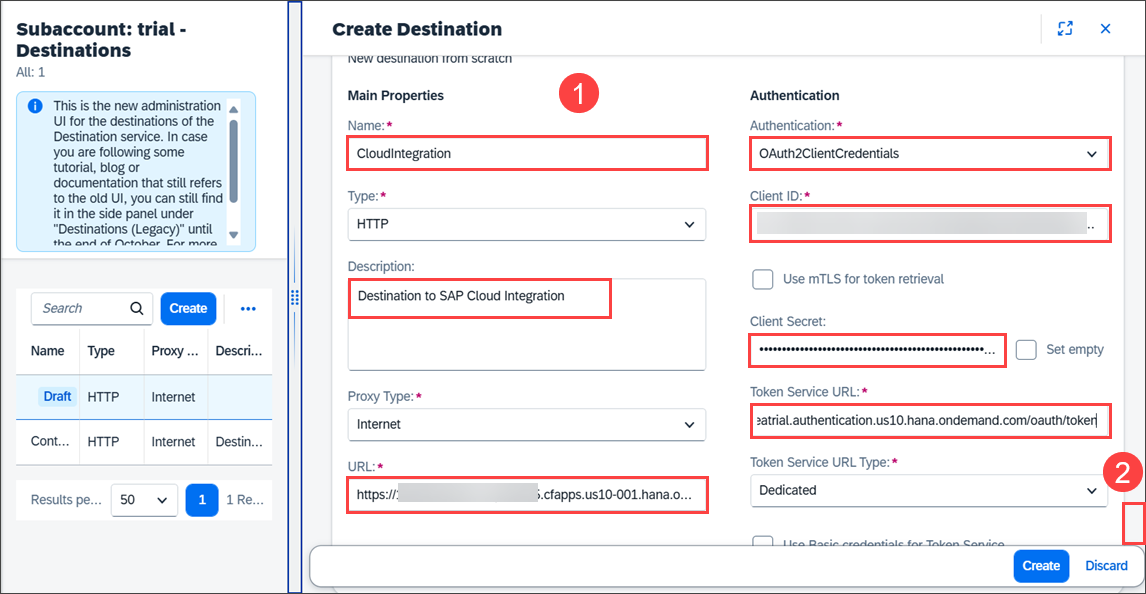
Create Cloud Integration Destination 3 Leave the Use default client trust store checkbox selected, and choose Create.
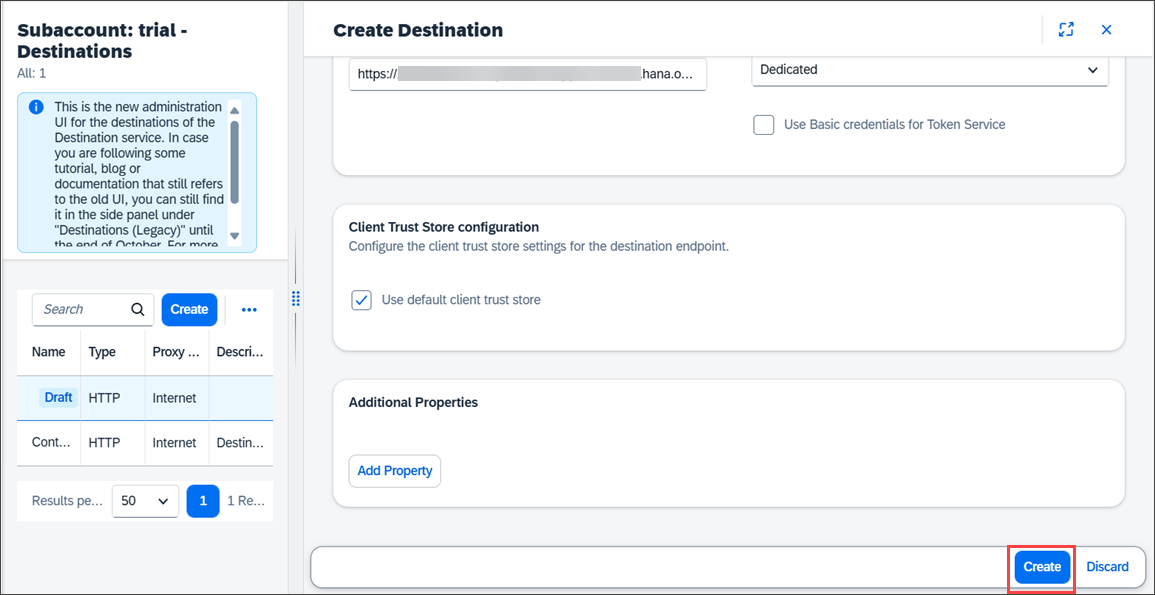
Create Cloud Integration Destination 4 The SAP Cloud Integration destination was created.

Create Cloud Integration Destination 5 You can also perform a connection check to verify that the destination URL is reachable. This process is similar to the one described earlier for the SAP Content Agent destination.
See also on SAP Help Portal: Create SAP Cloud Integration Destination
Resources
Discussion
Share feedback on this tutorial or join the conversation in SAP Community.