
Overview
You will learn
- How to configure trust between SAP S/4HANA Cloud, public edition and SAP BTP system.
- How to manage trust configurations between SAP S/4HANA Cloud, public edition and SAP BTP.


Prerequisites
- You’ve access to the SAP BTP subaccount and have necessary admin privileges.
- You’ve access to the SAP S/4HANA Cloud, public edition system.
- You’ve access to the Google Workspace Account. For more information, see Configure Service Account in Google Cloud Platform.
Steps
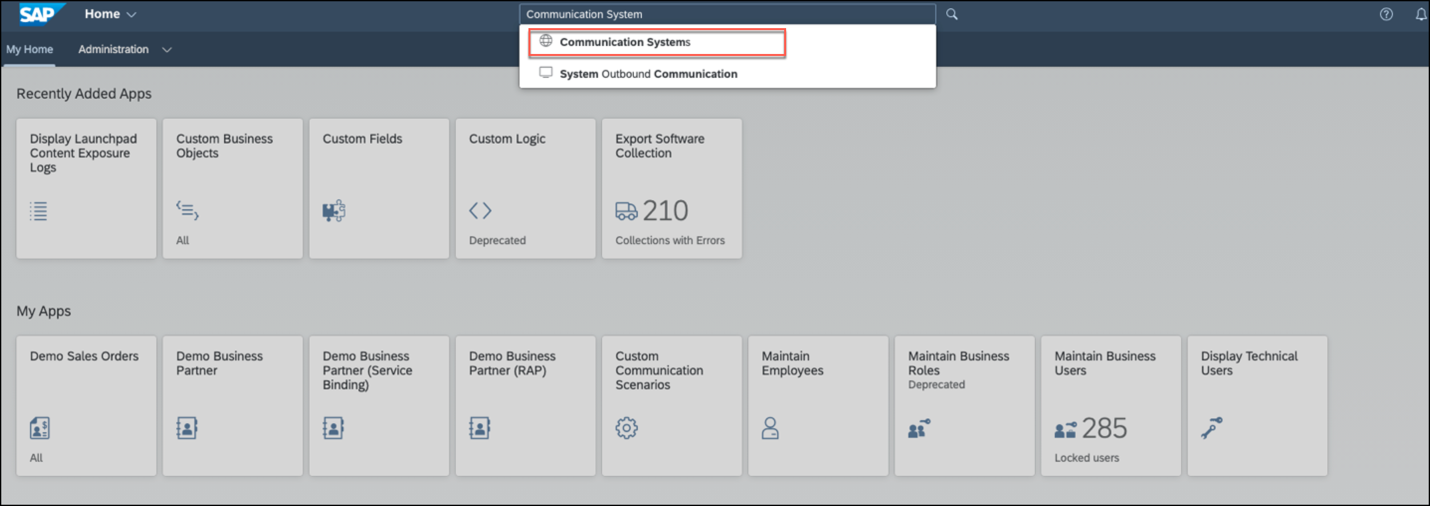
Log in to SAP S/4HANA Cloud, public edition with the required admin privileges. Search for Communication Systems.
!
Find the Communication System by using the filter Own SAP Cloud System = Yes. You can see the list of Communication Systems and choose the relevant one.
!

OwnSAPCloudSystemYes Once you open the details of Communication System, Click on Download SAML2.0 Metadata. An
*.xmlfile gets downloaded to your local system.!

Download XML file

Log on to your BTP Subaccount and navigate to the Trust Configuration option in the left side menu and click New Trust Configuration.
!

NewTrustConfiguration In the New Trust Configuration window that opens, upload the
SAML2.Metadata.xmlthat you downloaded in the previous step (Reference:Step 1.3), and enter the name of your choice. Click on Parse and Save.!

SAML_Metadata Verify the trust configuration by clicking on the recently created trust configuration in the above step (Reference:
Step 2.2).Important: Verify that the SAP backend system’s host name is correctly specified in the trust configuration. Double-check the selected
Origin Keyfor accuracy and ensure that the protocol is set toSAML.!

ShowDetailsIssuer Click on Show Details and ensure that the Subject and Issuer provided are correct.
!

ShowDetailsIssuer2 !

ShowDetailsIssuer3
Navigate back to the SAP BTP Cockpit home screen and go to the Security > Users tab. Click Create.
In the Create User dialog, enter the Username, select the newly created Identity Provider, add the email address of the user, and click Create.
!

NewUser IMPORTANT: The e-mail address of the user must be identical to the one used in the SAP S/4HANA system. The email address can be identified using the
Maintain Business UserorManage Workforceoption. It’s important to note that the email IDs are identical. For example, if your SAP system user email ID is demo.user@myexample.com then the SAP BTP Cockpit user email ID is the as same your SAP system user email ID, and it should also be maintained as : demo.user@myexample.com.Select the newly created user from the list and click on Assign Role Collection.
!

AssignRoleCollections Assign the user role collection of the SAP Document Management Service, Integration Option (For example,
SDM_rolesor the role collection that you created) which is defined in the subaccount. For more information, see the 3rd step in this tutorial Create a Service Instance and then a Service Key of SAP Document Management Service, Integration Option.!

SDM_RoleCollections
In the same subaccount, navigate to the Trust Configuration and click SAML Metadata. A metadata file gets downloaded to your local system.
!

SAML_Metadata_download Go to the file in your explorer and right-click on the downloaded file in your local system from the previous step. Open it with any editor (like Notepad, Notepad++, Code, Sublime Text, etc.) scroll down to the bottom of the file to get the token endpoint and copy the URL that is located at the string:
JSON<md:AssertionConsumerService Binding="urn:oasis:names:tc:SAML:2.0:bindings:URI" Location="https://example.com"index="1"/>!

AssertionConsumerService
Resources
Discussion
Share feedback on this tutorial or join the conversation in SAP Community.