
Overview
You will learn
- How to use the existing communication scenario
SAP_COM_0190 - How to add details from the service key generated from SAP BTP to SAP S/4HANA cloud, public edition
- How to add the details that are captured from SAP BTP in SAP S/4HANA Cloud, public edition


Prerequisites
- You’ve access to SAP S/4HANA Cloud, public edition with admin privileges.
- You’ve created a service instance and service key of Document Management Service, Integration Option. For more information, see Create a Service Instance and then a Service Key of SAP Document Management Service, Integration Option.
- From the generated service key, you copied the
ecmserviceURL. YourecmserviceURL would look something likehttps://api-xyz-dm-gw.cfapps.sap.hana.ondemand.com/. - You’ve copied the
clientid,clientsecret, andtokenurlparameters generated in the same subaccount of Cloud Foundry environment where Document Management Service, Integration Option instance is created.
Steps
You will learn
- How to use the existing communication scenario
SAP_COM_0190 - How to add details from the service key generated from SAP BTP to SAP S/4HANA cloud, public edition
- How to add the details that are captured from SAP BTP in SAP S/4HANA Cloud, public edition
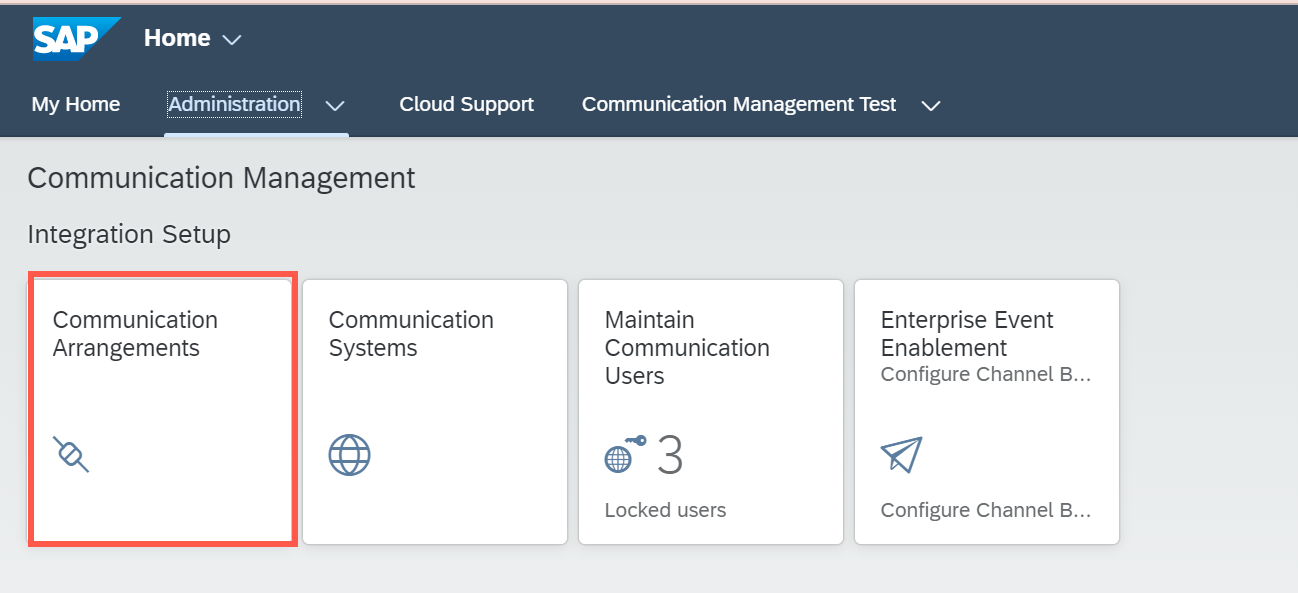
Log on to the SAP S/4HANA Cloud, public edition and search for the Communication Arrangements app.
!
Choose New.
!

Choose New Communication Arrangements App Select the communication scenario
SAP_COM_0190.!

Search for SAP_COM_0190 Enter a name as
Z_TEST_SAP_COM_0190for the arrangement in Arrangement Name and choose Create.!

CreateNewComApp
Results: Communication Arrangement has been created, and you’re directed to the communication arrangement page to configure further settings. Stay on the same page and proceed to the next step.
In the Communication Arrangement page that you created in the previous step, choose New and create a New Communication System.
!

Creating New Comm System Enter the System ID as
Z_TEST_SAP_COM_0190and choose Create.!

EnterSystemID Upon creating the communication system, stay at the same page and navigate to the Technical Data > General.
You have already copied the service key from your SAP BTP Subaccount, in the generated service key. Your
ecmserviceURL would look like thishttps://api-xyz-gh-gw.cfapps.sap.hana.ondemand.com. Ensure that you copy the URL without the prefixhttps://.!

ECMServiceURL_Copy Paste it in the Host Name.
!

Enter Technical Data in General Tab Enter the Authorization and Token Endpoints under OAuth 2.0 Settings.
To enter Authorization Endpoint, copy the authentication URL listed under
uaaof your service key. Deletehttps://from the URL and add/oauth/ authorizeas suffix to the URL. For example,<subaccountname>.authentication.sap.hana.ondemand.com/oauth/authorize.!

OAuth2 Enter Token Endpoint, This is the URL that you copied while establishing trust configuration between SAP S/4HANA Cloud, public edition and SAP BTP (You can check Step 4 in Trust Configuration between SAP S/4HANA Cloud, public edition and SAP BTP Subaccount).Ensure that you remove the prefix
https://before pasting it in the field.!

Entering TokenEndPoint In the Audience field, copy the authentication URL with
https://listed underuaaof your service key. For example,https://<subaccountname>.authentication.sap.hana.ondemand.com. Check Step 2.5 in Create a Service Instance and then a Service Key of SAP Document Management Service, Integration Option.!

Audience Field Scroll down to the section User for Outbound Communication and choose + Add (plus button) to create new outbound user.
!

AddOutboundUser In the New Outbound User dialog, select
OAuth 2.0in Authentication Method field.Enter
client IDthat you copied from the service key in the OAuth 2.0 Client ID field. Enterclientsecretthat you copied from the service key in the Client Secret field.!

NewOutboundUserCreation Choose Create.
Save the Communication System.
!

SavetheCommsystem
In the Communication Arrangement you created, in the
Additional Propertiessection, maintain the following details:Property Name Property Value File Share ID ZTESTFile Share Type 2Repository ID MyTutONBRepo. Ensure that you’ve added theexternalIDas repo ID that you onboarded while executing the tutorial Create a Repository Using the Onboarding API for Google Drive. Refer to the Step2.4.Description For tutorial purposes!

AdditionalProperties_comm In Outbound Services section, maintain the following details:
Field Name Value Path /browserPort 443!

OutboundServices_path Choose Save.
Resources
Discussion
Share feedback on this tutorial or join the conversation in SAP Community.