
Overview
You will learn
- How to create a new business role
- How to maintain restrictions


Prerequisites
- You’ve access to SAP S/4HANA Cloud, public edition with admin privileges.
Steps
You will learn
- How to create a new business role
- How to maintain restrictions
Logon to your SAP S/4HANA Cloud, public edition. Search for Maintain Business Roles app.
!

Selecting App Click on New at the bottom of the screen.
!

Create New Role In the New Business Role window, enter the following details:
Field Name Value Business Role ID FOR_TUTORIALBusiness Role Description For tutorial purposes!

Enter_Business_Role_Details Choose Create.
Navigate to Assigned Business Catalogs tab and select Add.
!

Assigned_Business_Catalog Search for
file management, selectFile Management - My Filesand click Apply and OK.!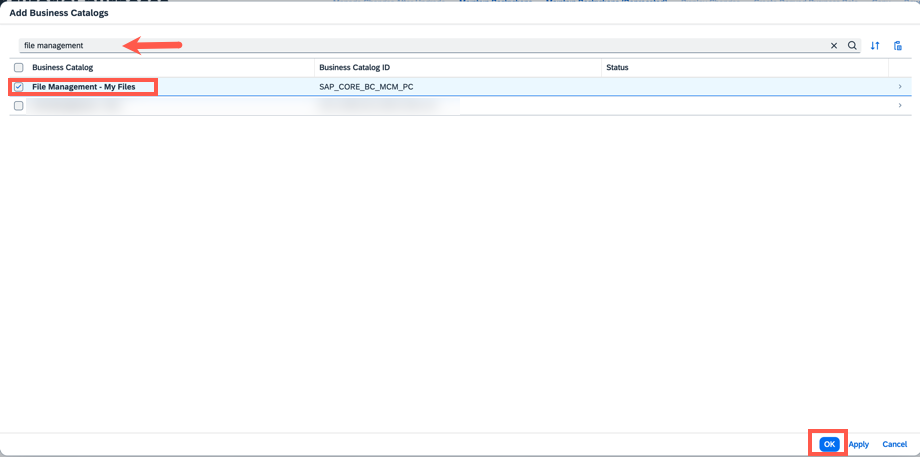
In the same business role, select Maintain Restrictions.
!
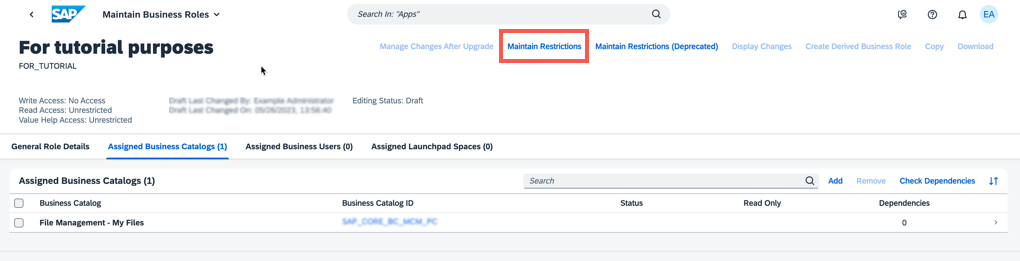
Maintain_Restrictions Select Access Categories from the left-side navigation menu and maintain the following values:
Field Name Value Write, Read, Value Help RestrictedRead, Value Help Restricted!

Accessing Categories from left side menu Select Assigned Restriction Types and choose
File Share Content.!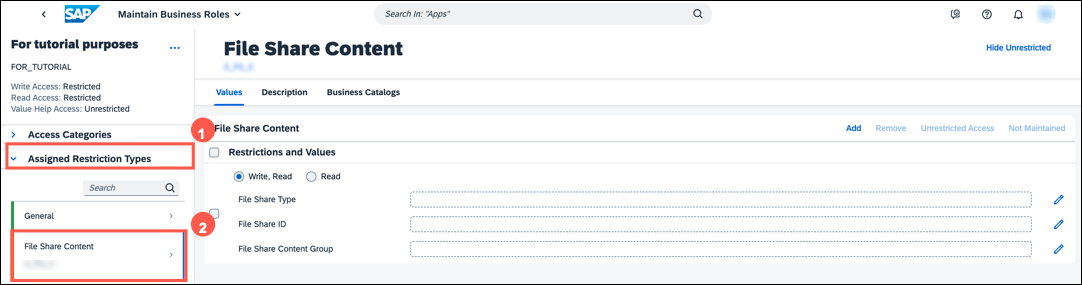
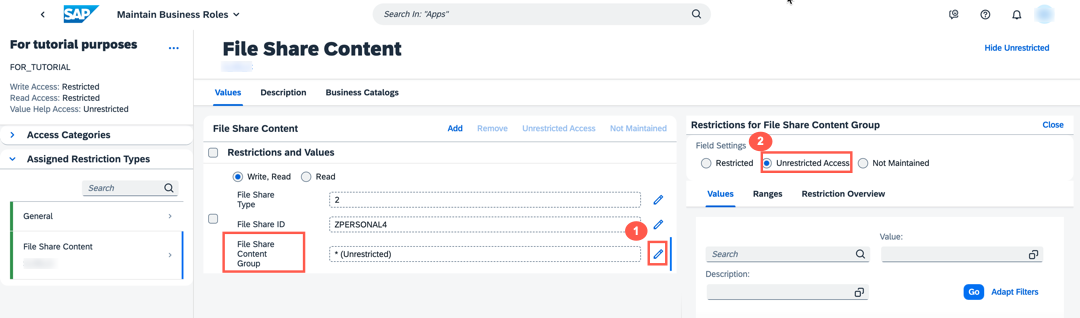
In the Restrictions and Values section, enter the following details.
Field Name Value File Share Type 2File Share ID ZTESTFile Share Content Group Unrestricted AccessRemember: During the process of creating a communication system, you maintained File Share ID value. Please make sure the same File Share ID is being used.
File Share Type
!
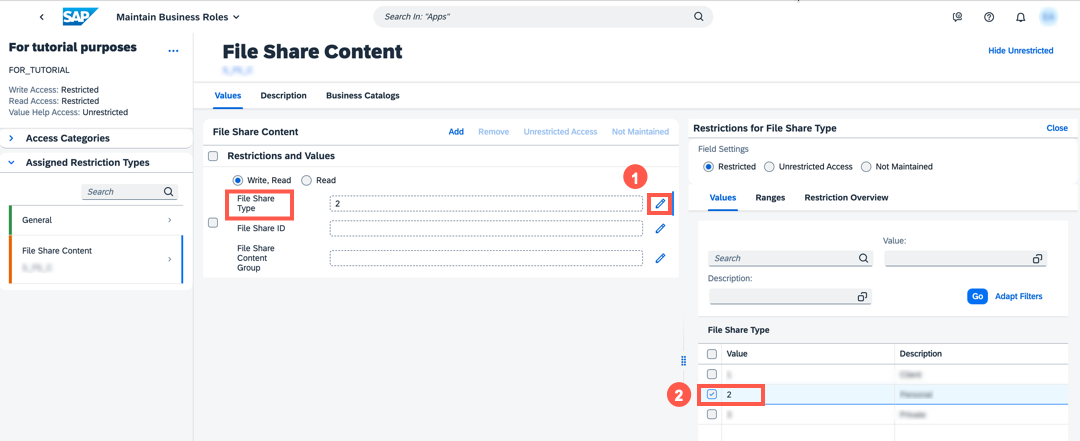
File_Share_Type File Share ID
!

File_Share_ID File Share Content Group
!
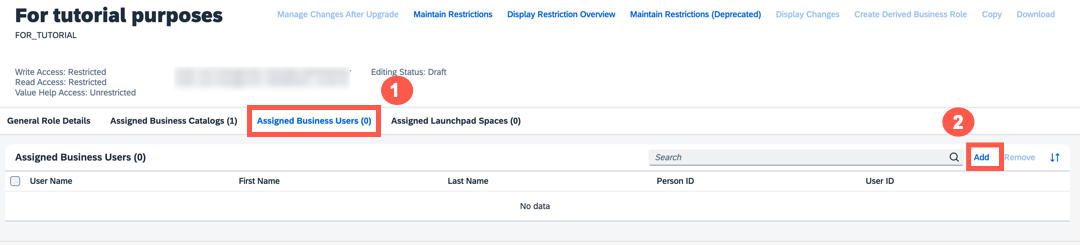
Select Assigned Business Users and click Add.
!
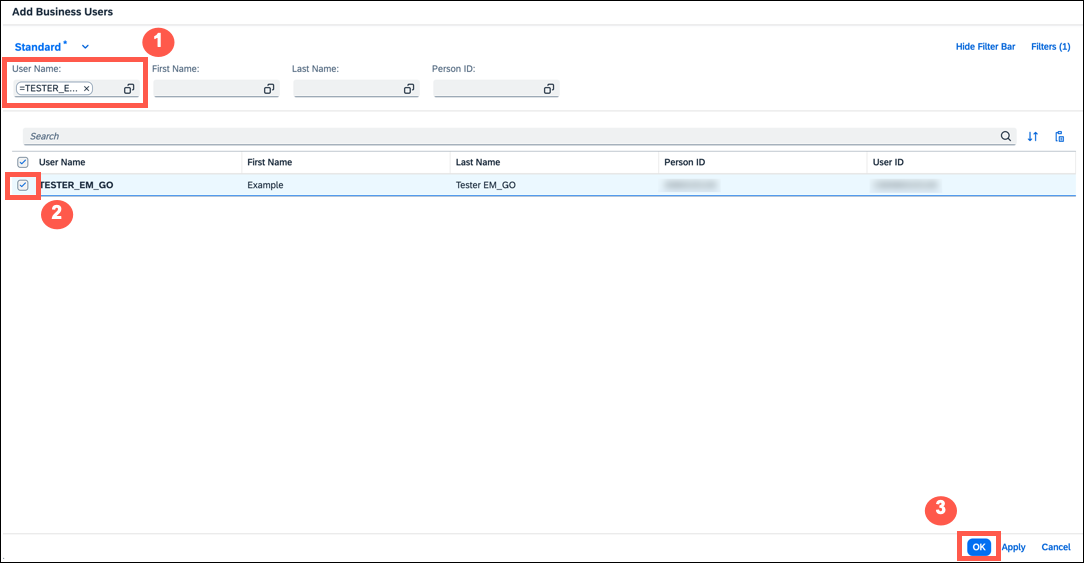
Search for your User Name, select it and click Apply and OK.
A username that you have maintained. Please select the valid username you have used in both SAP BTP and S/4HANA Cloud, public edition.
!
Choose Save.
!
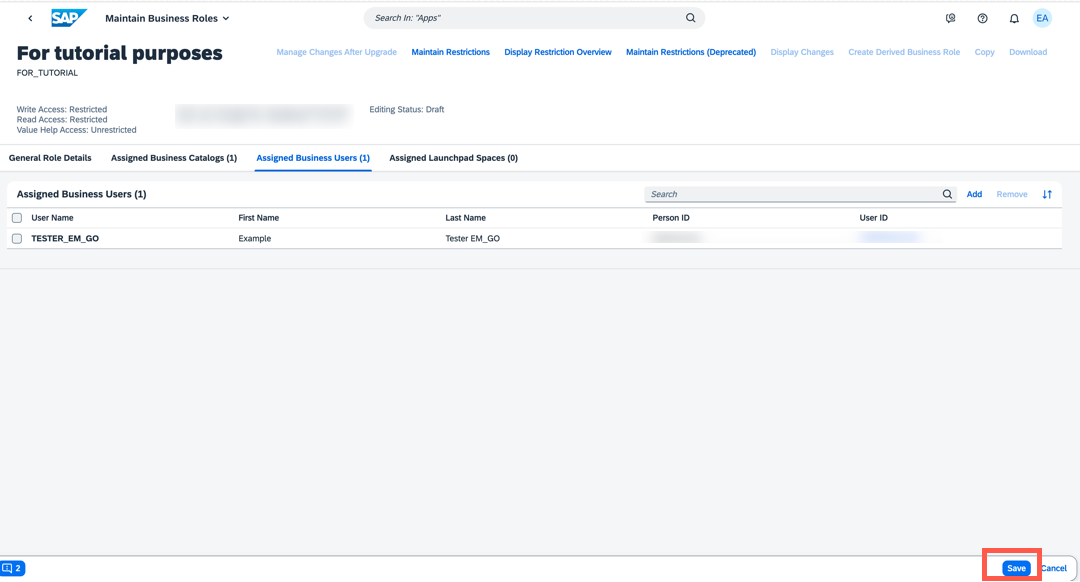
Save
Resources
Discussion
Share feedback on this tutorial or join the conversation in SAP Community.