---
title: Publish Service Group
description: To integrate the processing service, you need to publish the service group in the backend system.
auto_validation: true
time: 10
tags: [ tutorial>beginner, software-product>sap-s-4hana, software-product>sap-document-management-service]
primary_tag: software-product>sap-business-technology-platform
author_name: Vikram Kulkarni
author_profile: https://github.com/Vikramkulkarni01
slug: btp-sdm-gwi-odata-publish-servicegroup
canonical_url: https://developers.sap.com/tutorials/btp-sdm-gwi-odata-publish-servicegroup
---
## Prerequisites
- You've access to the S/4HANA Cloud, public edition backend system
- You've required authorizations. For more information, see [SAP Gateway Administrator Role](https://help.sap.com/docs/ABAP_PLATFORM_NEW/68bf513362174d54b58cddec28794093/24f82651c294256ee10000000a445394.html?version=202210.002).
- You've noted down the **System Alias** of your customer system landscape. System aliases must be assigned to a service group to define communication between the **SAP Gateway Foundation** hub system and the backend system.
### You will learn
- How to publish a service group
> Remember:
>
- You can skip this step if you have already published a service group. Services assigned in the backend system to an existing and already published service group are automatically addressable by consumers.
>
- System aliases for OData V4 service groups must be manually created.
The steps followed in this tutorial completely depend on your system landscape.
---
[ACCORDION-BEGIN [Step 1: ](Run the transaction "/IWFND/V4_ADMIN")]
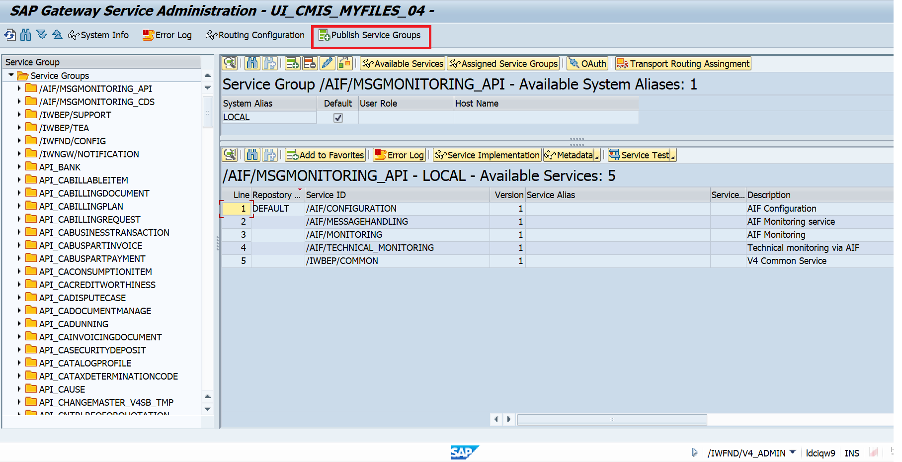
Navigate to **SAP Gateway Service Administration** via transaction `/IWFND/V4_ADMIN` on the SAP Gateway Foundation Hub and click **Publish Service Groups**.
!
[DONE]
[ACCORDION-END]
[ACCORDION-BEGIN [Step 2: ](Select system alias)]
On the **SAP Gateway Service Publishing** window, enter the **System Alias** in the respective field.
> **Note:** It is recommended that a System Alias must be used based on your landscape.
!
[DONE]
[ACCORDION-END]
[ACCORDION-BEGIN [Step 3: ](Get service groups)]
1. Click on **Get Service Groups**. The first service group ID should appear in the list.
>**Note:** If the group was already published, a message is displayed "Selected service group not found or already published".
!
2. Find **Service Group ID** as **`UI_CMIS_MYFILES_04`** and select it.
!
3. Choose **Publish Service Group**.
!
4. Choose **OK**.
!
!
[DONE]
[ACCORDION-END]
[ACCORDION-BEGIN [Step 4: ](Test yourself)]
[VALIDATE_6]
[DONE]
[ACCORDION-END]
---