
Overview
You will learn
- How to consume SAP BTP services in sap Kyma-runtime
- How to deploy applications into Kyma-runtime
- How to use SAP BTP APIs, Service Manager and Service Operator to consume services from other environments
- How to create service instances using sap-btp-service-operator Working with SAP BTP Service Operator. In this tutorial, we use the simple
fiorisample application to learn some best practices to setting up your Kyma-runtime And communicate with SAP BTP so you can use the Destination and the SAP Authorization & Trust Management services.


Prerequisites
- Get an Account on SAP BTP to Try Out Free Tier Service Plans.Get an Account on SAP BTP
- You have a Kyma-runtime environment on SAP Business Technology Platform (BTP) Enable SAP BTP, Kyma-Runtime.
- You have installed Docker.
- You have Docker Hub account.
- You have installed Kubernetes command-line tool.
- You’ve installed
kubectl CLI, including the pluginkubectl oidc-loginfor authentication. See Installing the Kubernetes Command Line Tool. - In addition, we recommend
krewto install and use thekubectlplugin forKubernetes OpenID Connect (OIDC)authentication, also known askubectl oidcplugin. - You have an account on the SAP Gateway Demo System (ES5) created
- You have connected SAP BTP to your SAP Gateway Demo System (ES5) account.
Steps
The kubectl tool relies on a configuration file called the kubeconfig, to configure access to the cluster. This step details how this can be obtained from both the BTP Cockpit and the Console UI.
To obtain the kubeconfig from the SAP BTP Cockpit:
Within your BTP account, navigate to the sub-account where the Kyma-runtime is enabled.
Choose the menu option Overview
Scroll down to the Kyma-Environment details
Choose the link next to
KubeconfigURLto download thekubeconfig
kubeconfig
To obtain the kubeconfig from the Console UI:
Navigate to the Console UI of your Kyma-runtime.
Log onto the Kyma-runtime.
At the top-left of the Kyma-runtime window you will find a drop down which displays the name of the currently connected runtime.
Select the drop down and choose the option Clusters Overview

cluster-overviews Choose the
Download Kubeconfigoption to download the file.
kubeconfig
To configure the access to your Kyma-runtime cluster, you have to set the kubeconfig environment variable to point to the location of the kubeconfigfile downloaded from your Kyma-runtime cluster.
In the fioriapp sample application, the Destination and the SAP Authorization & Trust Management services will be consumed in Kyma-runtime. To use these SAP BTP services you have to create the respective service instances and service bindings. Use the createservice.yaml file which will create the destination service instance with plan lite and the xsuaa service instance with plan application.
The applications can be found in the [btp-hyperscaler-extension] (https://github.com/SAP-samples/btp-hyperscaler-extension) repository. Within the repo you can find each of their Deployment files within the respective folder.
Download the code by choosing the green Code button and then choosing one of the options to download the code locally.
You can instead run the following command within your CLI at your desired folder location:
Shell/Bashgit clone https://github.com/SAP-samples/btp-hyperscaler-extensionCreate your own
sapfiorinamespace in yourKyma cluster.Shell/Bashkubectl create namespace sapfioriNote: Incase of login fails run command “kubectl krew install oidc-login”.
Replace the
<Custom-Domain>in<Folder path>/btp-hyperscaler-extension/kyma/createservice.yamlfile.Find your Cluster-domain and replace in the Createservice.yaml, run the below command and copy the
Kubernetes control paneURLShell/Bashkubectl cluster-infoShell/BashExample: https://api.xxx.kyma.ondemand.comAnd your
Cluster Domainwill bexxx.kyma.ondemand.comcreate the
destinationservice instance with plan lite and thexsuaaservice instance with plan application by running the below command.Shell/Bashkubectl apply -n sapfiori -f <Folder Path>/btp-hyperscaler-extension/kyma/createservice.yamlReplace your folder path in above command. The create service file is represented as declarative YAML object which describes what you want to run inside your namespace. You can find the file at
/btp-hyperscaler-extension/master/kyma/createservice.yaml.Check that the status of the service instance in your cluster by using the following command:
Shell/Bashkubectl get serviceinstances -n sapfioriThis should return the status of created service instances.
NAME CLASS PLAN STATUS AGE destination-instance-fioriClusterServiceClass/destinationliteReady##xsuaa-instance-fioriClusterServiceClass/xsuaaapplicationReady##To know more about consuming services using SAP BTP service operator Working with SAP BTP Service Operator.
To build and deploy the fioriapp sample application in your cluster, you have to create a pod, which encapsulates the container and ensures that a specified quorum of running instances is fulfilled. To do that, use the deployment.yaml.
Build the docker image of the
fioriapp.Shell/Bashcd `btp-hyperscaler-extension/basicfioriapp` docker build . -t `<docker-username>/fioriapp` -f DockerfileReplace
<docker-username>with your usernamePush the docker image of the
fioriappto your Container Image Library.Shell/Bashdocker push `<docker-username>/fioriapp`Replace
<docker-username>with your usernameUpdate the docker image in the
<Folder path>/btp-hyperscaler-extension/kyma/deployment.yamlfile.- Replace
<docker-username>with your username
- Replace
Execute the below command to deploy the application into kyma-cluster.
Shell/Bashkubectl apply -n sapfiori -f <Folder path>/btp-hyperscaler-extension/kyma/deployment.yamlReplace your folder path in above command. The deployment file is represented as declarative YAML object which describes what you want to run inside your namespace. You can find the file at
/btp-hyperscaler-extension/master/kyma/deployment.yaml.Execute the following command to check the deployed application pod status
Shell/Bashkubectl get pods -n sapfioriThis should return the status of deployed application.
NAME READY STATUS RESTART AGE fioriapp-##-##2/2Running####
kind Service is an abstract way to expose an application running on a set of Pods as a network service. Now we have the Deployment of fioriapp, let’s deploy the Kubernetes Service to allow other Kubernetes resources to communicate with your microservice.
Create APIRule to defines the API endpoint which exposes the application to the Internet.
Execute the below command to Create the Service and Expose the microservice.
Replace the
<Custom-Domain>in<Folder path>/btp-hyperscaler-extension/kyma/service.yamlfile.Shell/Bashkubectl apply -n sapfiori -f <Folder path>/btp-hyperscaler-extension/kyma/service.yamlReplace your folder path in above command. The deployment file is represented as declarative YAML object which describes what you want to run inside your namespace. You can find the file at
/btp-hyperscaler-extension/master/kyma/service.yaml.
To access the API we can use the APIRule we created in the previous step.
Open the kyma-runtime console
From the menu, choose Namespaces
Choose the
sapfioriNamespace.From the menu, choose Discovery and Network >
API Rules.Choose the Host entry for the
fioriappAPIRuleto open the application in the browser. Application should return the list of business partnershttps://fioriapp.<cluster>.kyma.ondemand.com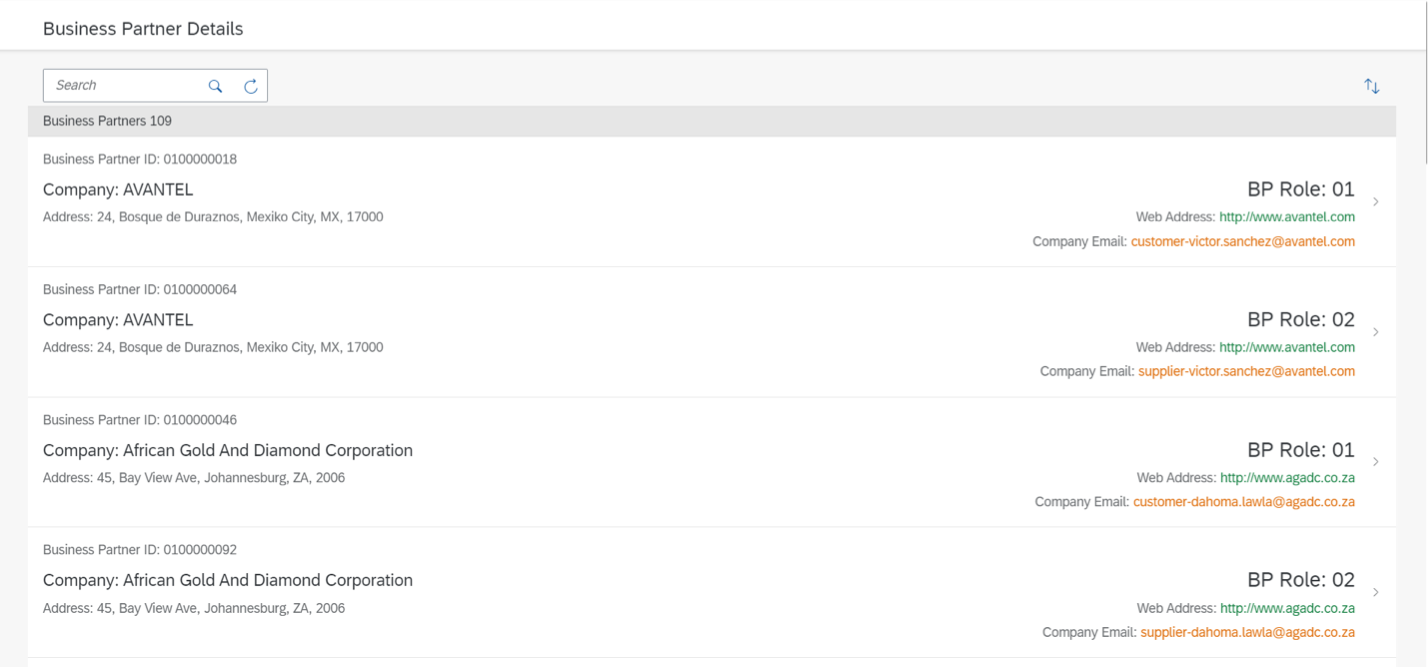
finaloutput
Congratulations! You have successfully completed the tutorial.
Resources
Discussion
Share feedback on this tutorial or join the conversation in SAP Community.