
Overview
You will learn
- What a user-provided environment variable is
- How to create a user-provided environment variable
- How to delete a user-provided environment variable


Prerequisites
Note: This tutorial is part of a learning journey.
- Make sure you’ve fulfilled all prerequisites in Getting Started with Cloud Foundry Environment and SAP BTP Cockpit.
- You have either the Space Developer or Space Supporter role.
Steps
User-provided variables are your custom environment variables, created as key-value pairs. You define them manually to pass data such as:
- API tokens
- Feature flags
- Configuration values
- External URLs
Caution: Avoid using user-provided environment variables for security-sensitive information like credentials. They might unintentionally appear in cf CLI output and Cloud Controller logs.
Example
Our sample applications are implemented to expect the variable DARK_MODE. This variable allows you to customize the UI theme of an app. Here’s a snippet from the source code of the sample Node.js app:
const DARK_MODE = process.env.DARK_MODE === 'true';Let’s create an environment variable that switches the theme of the sample app from the default to a dark theme. This is how our sample app looks like by default:

Go to the Cloud Foundry > Spaces in the left navigation menu.
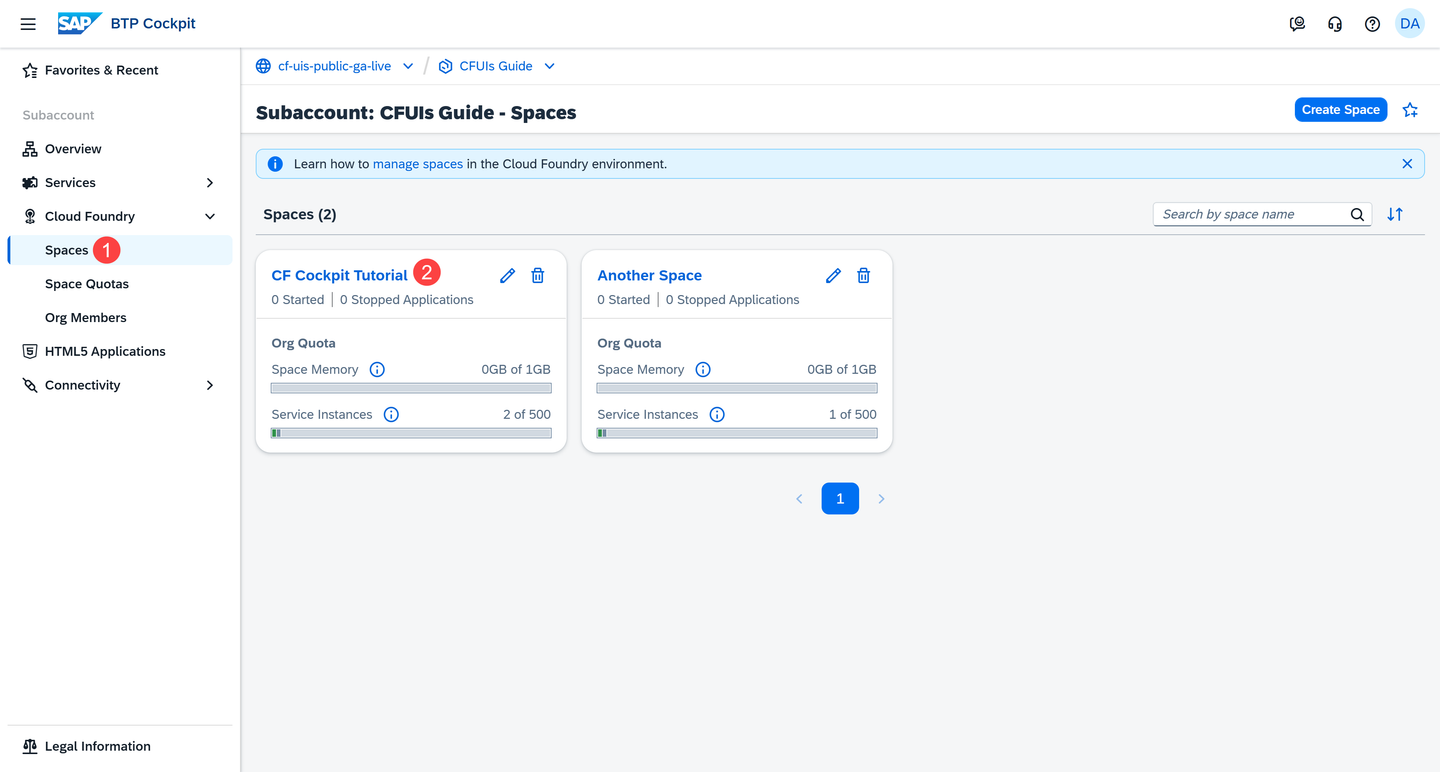
Go to Spaces Go to a space. This opens the Applications page.
Click the name of the application which you want to customize with your own variable.

Go to Application Overview Go to User-Provided Variables in the left navigation menu.

Go to User-Provided Variables Choose Create Variable.

Choose Create Variable Provide a Key and a Value. These values are case-sensitive.

Enter Key and Value Choose Create.
The user-provided variable is now created.

User-Provided Variable Created To apply the change, you need to restart your application.
Go to the Overview page of your application.

Go to Application Overview Choose Restart.

Choose Restart Click the URL of the application.
As you can see, the interface of the app has switched to the dark theme.

Dark Theme of the Sample Application
When you no longer need the variable and the customization it brings, delete it:
On the User-Provided Variables page, choose the Delete button in the Actions column.

Choose Delete Choose Delete to confirm the action.

Deleting a Variable
After you delete the variable, restart the application as described in steps 8-10 of Create a user-provided environment variable or restage it. Otherwise, the change won’t take effect.
Resources
Discussion
Share feedback on this tutorial or join the conversation in SAP Community.