
Overview
You will learn
- What a space member is
- How to add space members
- How to edit the roles of a space member
- How to delete a space member
- How to add space members with custom identity provider
- Our recommendations


Prerequisites
Note: This tutorial is part of a learning journey.
- Make sure you’ve fulfilled all prerequisites in Getting Started with Cloud Foundry Environment and SAP BTP Cockpit.
- You have either the Org Manager or the Space Manager role.
Steps
Space member is a user who is granted space-scoped roles and permissions. The purpose of space roles is to maintain security and support collaboration.
There are currently four space roles that you can assign to users. These roles determine which features users can view and access, and which actions they can peform in the corresponding space.
Here’s the list of all space roles and their permissions in the SAP BTP cockpit:
| Role | Description |
|---|---|
| Space Manager | Manages a space within an org by adding space members (only if they already have the Org User role) and managing their space roles. |
| Space Developer | Deploys and manages applications, and binds them to services within a space. |
| Space Auditor | Provides read-only access to a space. |
| Space Supporter | Checks application events and logs, and manages applications and service bindings in a space. |
In this tutorial, there is a software developer named John Doe. He has the task to deploy applications in your space, and he needs the Space Developer role to do that.
Go to Cloud Foundry > Spaces in the left navigation menu.
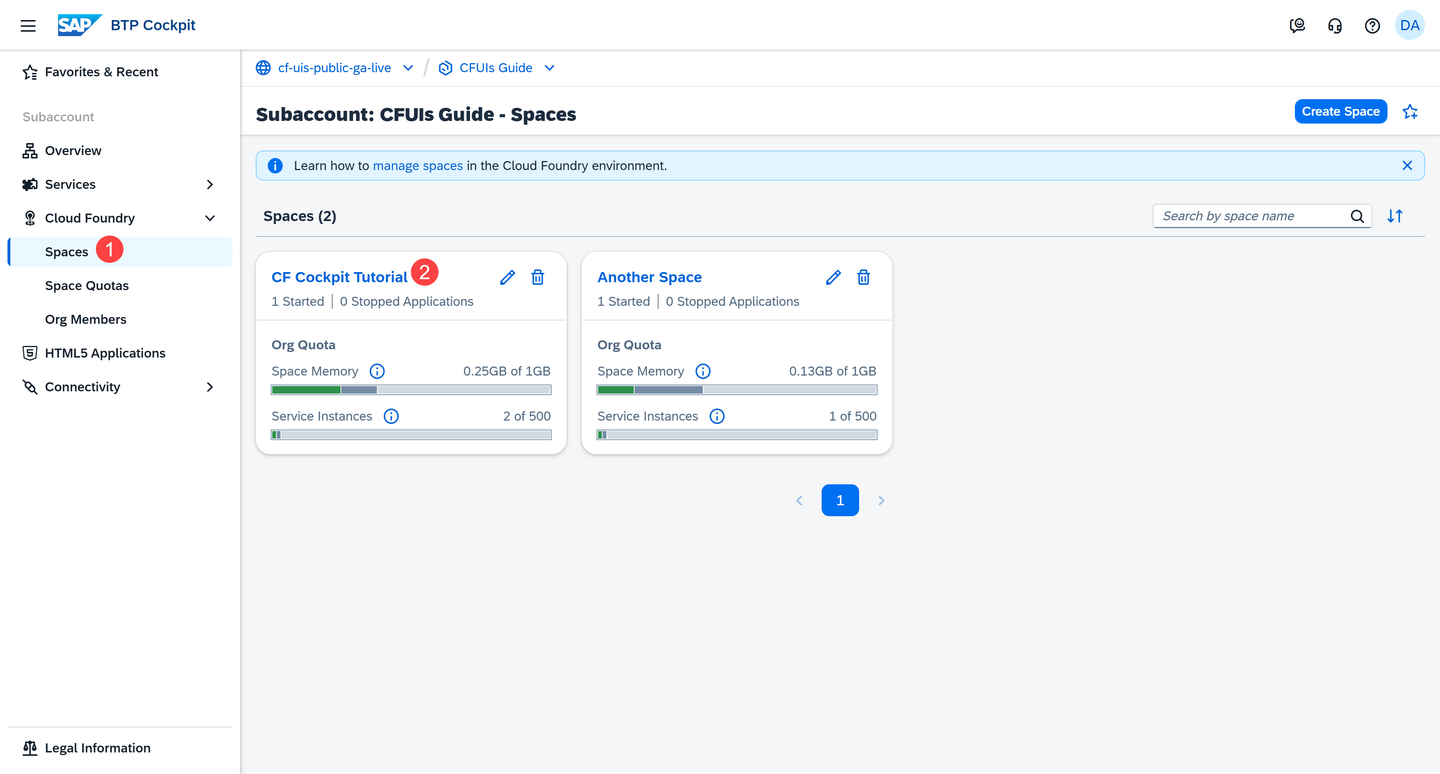
Go to Spaces and Enter a Space Go to the space where you want to make John a Space Developer.
Note: If you don’t have any space roles assigned, you have read-only access to the space. For example, you can’t deploy applications without the Space Developer role, which is why you don’t see the Deploy Application button:

Deploy Application Button Is Missing Go to Space Members in the left navigation menu.

Go to Space Members Choose Add Members.

Choose Add Members Enter John’s e-mail adddress.

Adding a Space Member Note: You can add multiple space members at the same time by listing their e-mail addresses with a comma.
Select the space role you want to assign. In this case, select the Space Developer role.
Choose Add.
John now has the Space Developer role.

Note: When you have the Org Manager role and you add new space members in an org they aren’t part of yet, they automatically receive the Org User role. This is in addition to the space roles you’ve assigned.
You can change the space roles of users to reflect a shift in their responsibilities. You can also remove space roles when users no longer need to perform the corresponding actions.
Choose the Edit button in the Actions column.
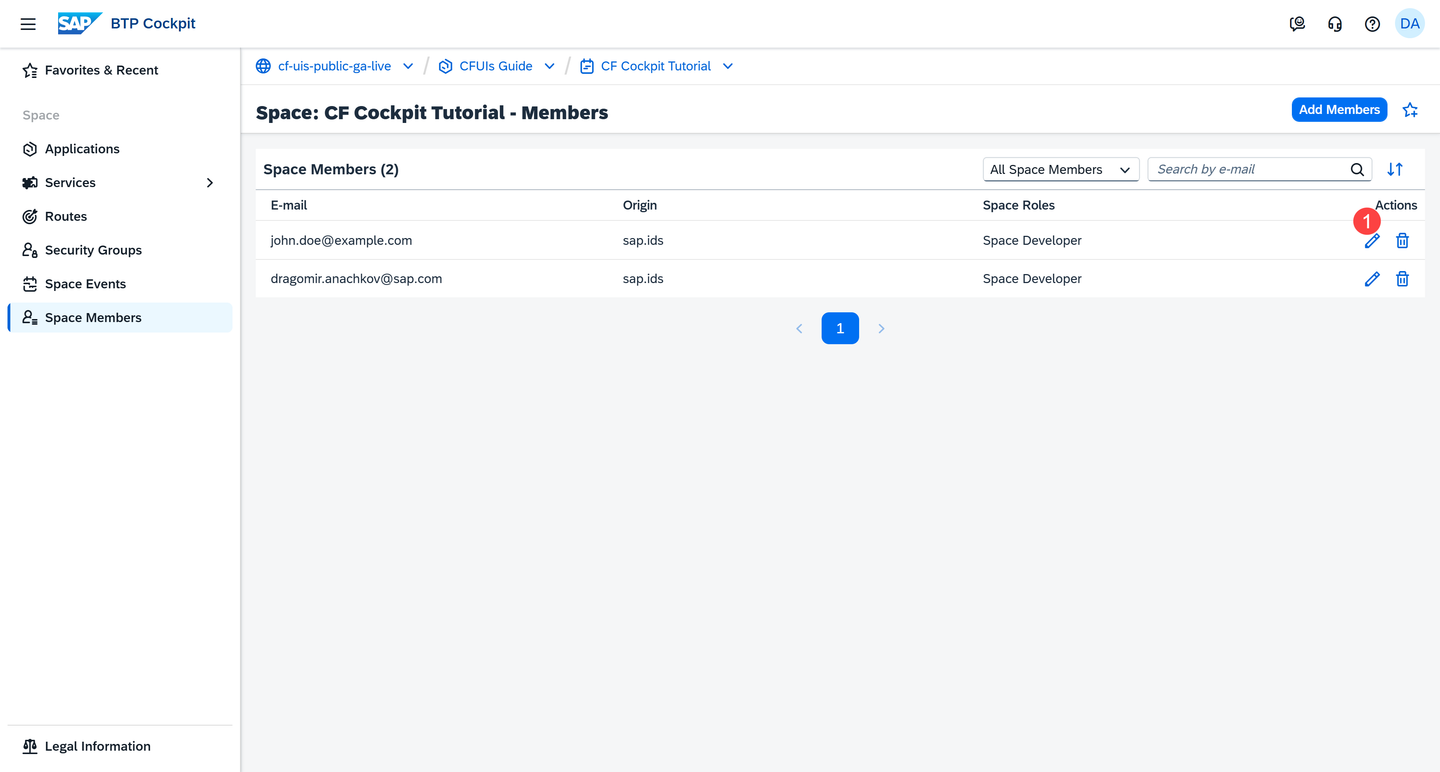
Edit a Space Member Update the space roles.
In this case, let’s assume John’s expertise makes him the right person to manage this space and give him the Space Manager role.

Editing the Roles of a Space Member Choose Save.
Note: This example shows you how to delete a space member for demonstration purposes. Make sure you have a space member because you need it in the next tutorials.
You can remove access to the space of a user who is no longer part of your development team.
Choose the Delete button in the Actions column.

Delete a Space Member Choose Delete to confirm the action.
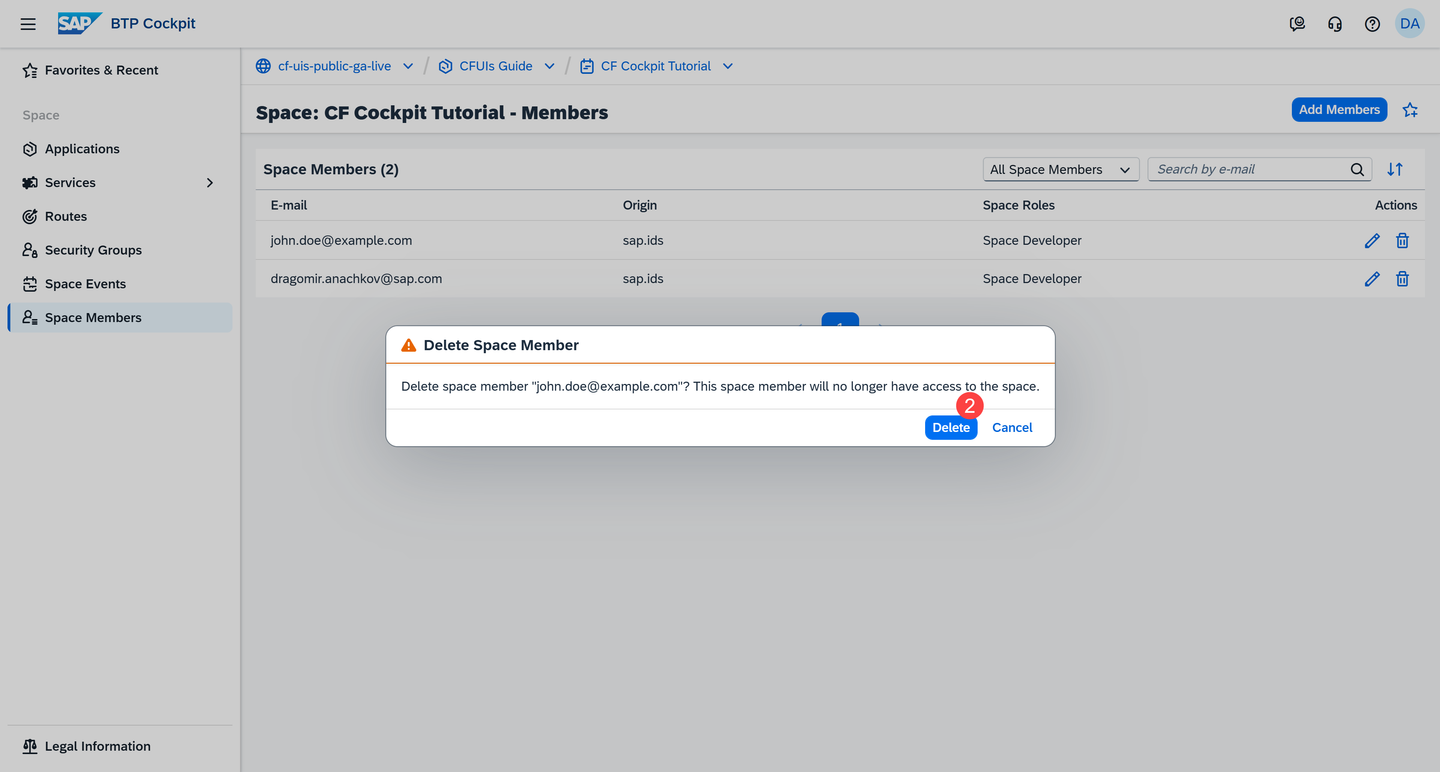
Deleting a Space Member
Note: This action removes the member from the current space while retaining their org roles and space roles in other spaces.
You can learn what a custom identity provider is in our previous tutorial Managing Org Members.
If you’ve established trust with a custom identity provider, the Add Space Members dialog gives you the additional option to select an identity provider from a dropdown menu:
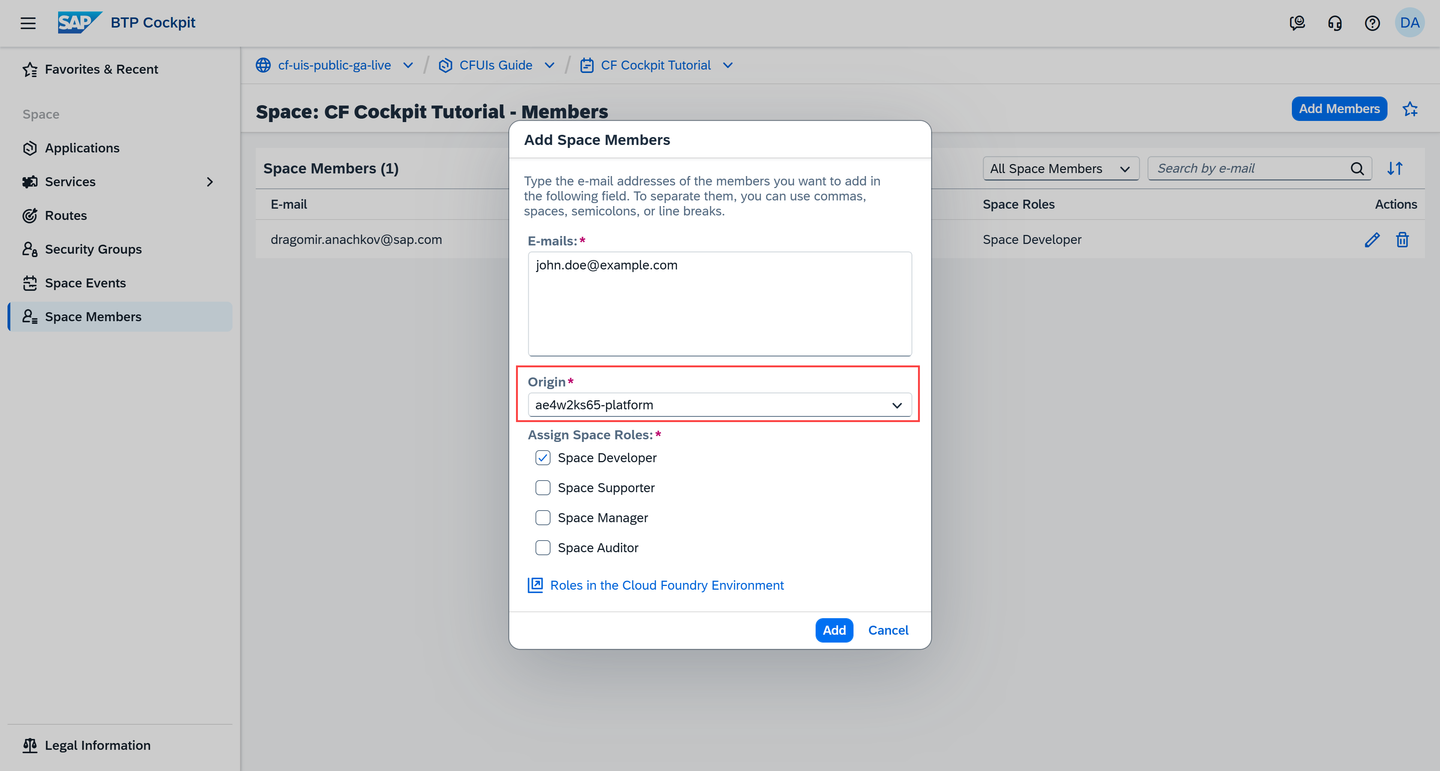
For more information, see Establish Trust and Federation of Custom Identity Providers for Platform Users | SAP Help Portal.
Note: When you edit or delete space members, the change applies only to the space member stored in the corresponding identity provider.
For example, suppose you have two space members with the e-mail address john.doe@example.com. One space member uses the default sap.ids identity provider, and the other uses your custom identity provider - ae4w2ks65-platform. If you edit the roles of the space member with sap.ids, only that space member’s permissions change.
Assign only the required roles
Give each user only the permissions they need to perform their tasks. This ensures better security and transparency within the space.
Example: Assign the Space Developer thoughtfully. Give it only to software developers who will actively deploy or manage applications in your space.
Clean up access regularly
Maintain a clean space by removing users who are no longer part of the team or project. This prevents unnecessary access to resources, and ensures that roles and permissions reflect the current state of your team.
Resources
Discussion
Share feedback on this tutorial or join the conversation in SAP Community.