
Overview
You will learn
- How to enhance an IDoc interface in SAP Application Interface Framework using the preprocessing capability
- How to implement mappings in SAP Application Interface Framework


Prerequisites
- You’ve set up SAP Application Interface Framework
- SAP S/4HANA 2022 FPS02 or later; for lower releases, apply SAP note 3274990
- You’ve completed the tutorial Create a Simple IDoc Interface
Steps
Intro
In this tutorial, you will learn how to enhance a simple IDoc interface in SAP Application Interface Framework by enabling the preprocessing capability. The preprocessing capability allows you to not only monitor your IDoc interface but also to implement additional mappings, data checks, business logic, and so on, without changing your existing IDoc configuration, that is, without the need to change the existing partner profile.
Go to Customizing for SAP Application Interface Framework (transaction code
/AIF/CUST) and navigate to Interface Development > Define Interfaces. In the upcoming dialog, enter your previously created namespaceDEMO_1, and continue.Enable Change mode. Double-click the existing interface
FCUSTOMERto open it. Deselect the Move Corresponding Structures flag and select the Pre-Processing flag.
Define Interfaces Save your changes.
While in Customizing (transaction code
/AIF/CUST), navigate to Interface Development > Define Structure Mappings.In the upcoming dialog, enter your previously created namespace
DEMO_1, interface nameFCUSTOMER, and interface version1. Choose Continue.Choose New Entries and enter the root node of your interface structure, here
ZDEMO_1_FLCUSTOMER_CREATEFROMD.
Create New Source Structure Select the new entry and double-click Assign Destination Structure in the menu on the left.
Choose New Entries and enter the Number of Structure Mapping
10. As Destination Structure, enter the same root node of your interface structure,ZDEMO_1_FLCUSTOMER_CREATEFROMD. Finally, select the Move Corresponding Fields flag.
Assign Destination Structures Save your changes.
We would like to set a fixed discount when creating a new customer.
While in Define Structure Mappings, with your destination structure
ZDEMO_1_FLCUSTOMER_CREATEFROMDselected, double-click the node Define Fix Values in the menu on the left. In Change mode, choose New Entries to add a new fixed value, and enter or select the following details:Field Value Field Name E1SCU_CRE-E1BPSCUNEW-DISCOUNTNamespace DEMO_1Name of Fix Value FCUST_DISCOUNTPress Enter. Because the fix value doesn’t exist yet, you are asked to create the new fix value.
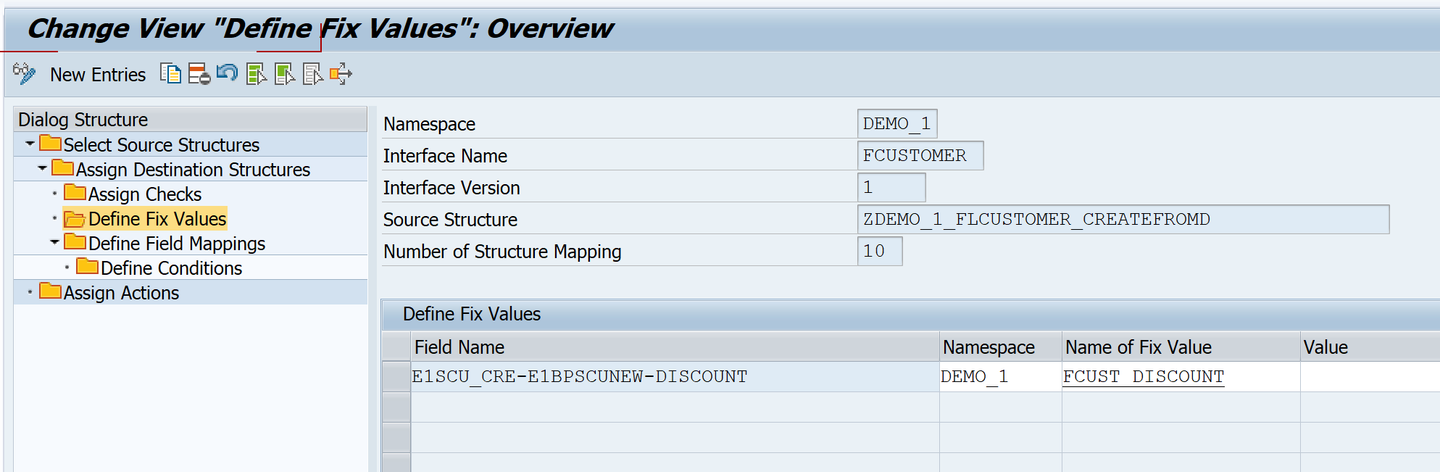
Add New Fix Value Save the new entry.
Double-click the new fix value to further define it. A new window opens in which you can enter the following information:
Field Value Fix Value Description Enter a meaningful description, for example Flight customer discount.Value 10
Define Fix Value Save your changes and close the new window.
While in Define Structure Mappings, with your destination structure
ZDEMO_1_FLCUSTOMER_CREATEFROMDselected, double-click the node Define Field Mappings. Create a new entry by choosing New Entry and define the field mapping as follows:Field Value Field in Destination Structure E1SCU_CRE-E1BPSCUNEW-CUSTTYPEField Name 1 E1SCU_CRE-E1BPSCUNEW-CUSTTYPENamespace DEMO_1Value Mapping VM_CUSTTYPESince the value mapping doesn’t exist yet, you are asked to create it. Confirm the dialog.
Navigate to the reusable value mapping by double-clicking
VM_CUSTTYPEand define it with the following information:Field Value Value mapping description Map customer typeData Element for INT S_CUSTTYPENumber of External Values 1Single or Multiple Value Mapping SingleCustomizing or Master Data Master Data
Define Value Mapping Save the value mapping and navigate back to Define Field Mappings. Your field mapping should look like this:

Define Field Mappings Save your changes.
In the mapping, you created a value mapping for the customer type. Before you run the scenario, maintain the value mapping table entries.
In Maintenance of value mappings (transaction code
/AIF/VMAP), enter namespaceDEMO_1and your value mapping nameVM_CUSTTYPE. Press Enter and choose Execute.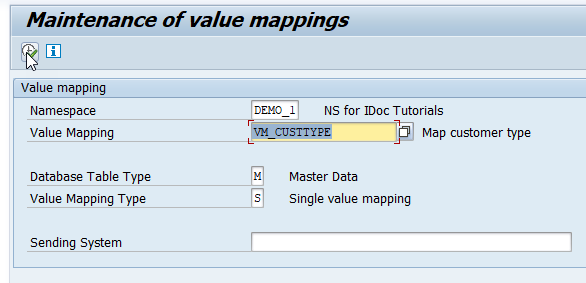
Maintain Value Mappings Choose Append and add the following two new entries:
Index External Value B/P customer 11P22BSave your changes.
Go to Customizing for SAP Application Interface Framework (transaction code
/AIF/CUST) and navigate to Interface Development > Additional Interface Properties > Assign IDoc Types. In the upcoming dialog, enter your previously created namespaceDEMO_1, and continue.Double-click the existing interface
FCUSTOMERto open it and select the Preprocessing (IDoc Runtime) flag.
Assign IDoc Type Save your changes.
After the setup is complete, test your settings and verify that the IDoc monitoring is working as planned.
Send in new test IDocs, for example using the Test Tool for IDoc Processing (transaction code
WE19).In the test tool, maintain basic type
FLCUSTOMER_CREATEFROMDATA01.Maintain the control record fields corresponding to your partner profile and the port created beforehand as follows:
Field name Value Receiver Port SAP<SID>(<SID>being your system ID)Receiver Partner Number The partner number as specified in the partner profile Receiver Type LSSender Port The port as specified before Sender Partner Number The partner number as specified in the partner profile Sender Type LSMessage Type FLCUSTOMER_CREATEFROMDATAMaintain sample data record by entering at least customer name, form, street, postcode, city, country and customer type. As customer type, choose either
1or2.Then, choose Standard Inbound. A dialog pops up informing you that the IDoc was passed to the application.
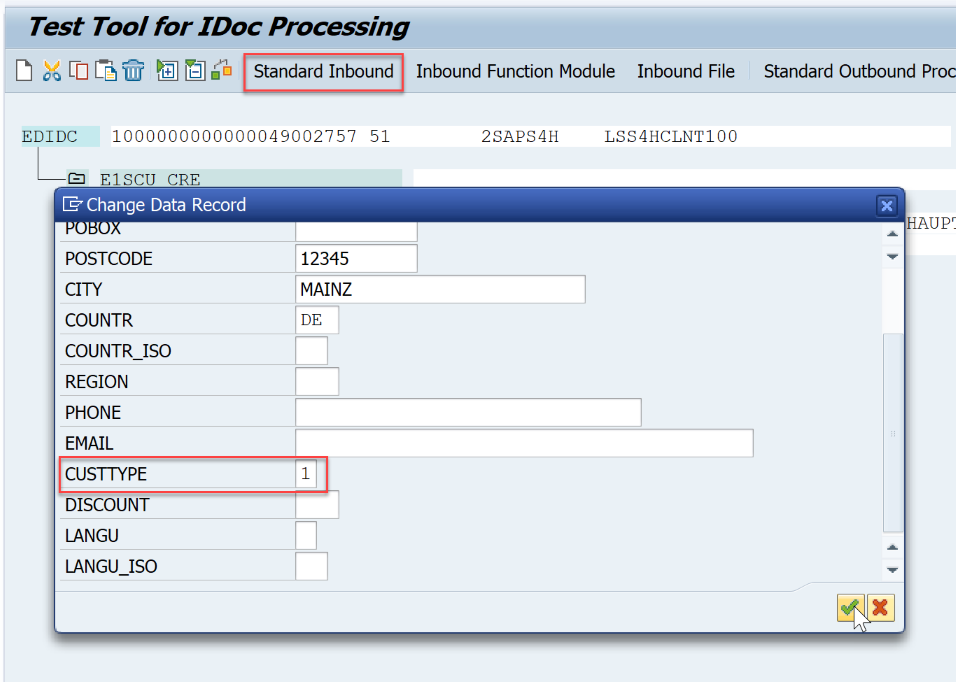
Maintain data record Check the results of your test in the Interface Monitor (transaction code
/AIF/IFMON). When you select the summary line for your interface, you’re forwarded to Monitoring and Error Handling, where you can see your selected test message(s).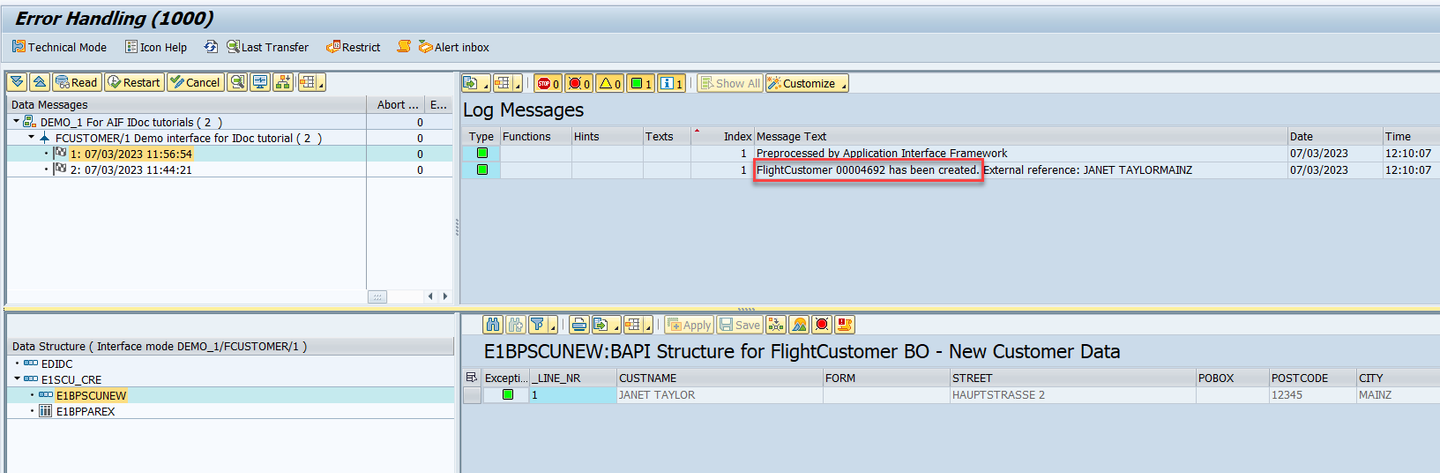
Error Handling As you can see, the flight customer has been successfully created. Note down the generated customer ID provided in the log message. You need it in the next step.
To check that the mappings worked as expected, open the SCUSTOM record display (transaction code
BC_GLOBAL_SCUST_DISP), and enter the beforehand copied customer ID into the filter, then choose Display.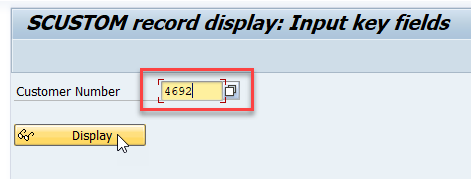
Interface Monitor Web In the data record, you can see that the customer type and the discount have been successfully mapped.
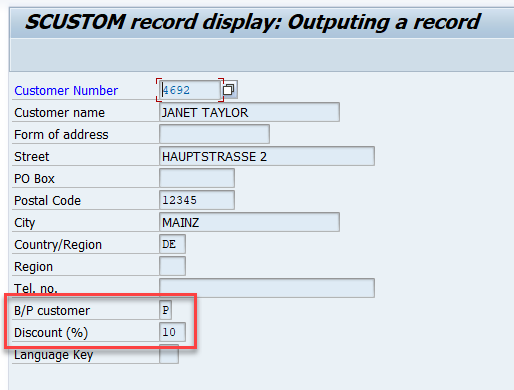
Message Dashboard Error Handling
Congratulations! You have enhanced an IDoc interface with preprocessing in SAP Application Interface Framework.
Resources
Discussion
Share feedback on this tutorial or join the conversation in SAP Community.