
Overview
You will learn
- How to create a semantic object
- How to create a technical catalog
- How to create a launchpad app descriptor item
- How to create SAP Fiori business catalog
- How to create a space and page
- How to create a business role and assign to business user
- How to run an app from FLP


Prerequisites
- This tutorial can be used in both SAP S/4HANA Cloud, private edition system and SAP S/4HANA on-premise system with release 2022 FPS01. We suggest using a Fully-Activated Appliance in SAP Cloud Appliance Library for an easy start without the need for system setup.
- The steps for fully-qualified Domain Name & SSL Certificates can be found here.
- For SAP S/4HANA on-premise, create developer user with full development authorization
- Initial setup of the Launchpad
- You user has assigned following roles
SAP_FLP_USERSAP_FLP_ADMINFind here the documentation.
- You finished Create a SAP Fiori Shopping Cart App and Deploy it tutorial.
- Pages and Space should be activated.
Steps
Intro
In this tutorial, wherever ### appears, use a number (e.g. 000). This tutorial is done with the placeholder 000.
Open SAP Logon and log into your system. Execute following transaction to create a semantic object
/ui2/semobj. You also need to add/nbefore your transaction.
object Click Edit and select the check mark.

object Click New Entries.

object Add your semantic object:
- Semantic Object:
z_purchase_req_tier3_### - Semantic Object Name:
z_purchase_req_tier3_### - Semantic Object Description: Shopping Cart ###
Click Save.

object - Semantic Object:
Select and confirm your transport request.

object
Find here the documentation on Best Practices for Managing Catalogs.
In this step, you will create a technical catalog. The technical catalog will be created only one and it references business catalogs. On top of this technical catalog, multiple business catalogs can be created. The technical catalog is client-independent, so it part of the configuration.
Execute following transaction to create a technical catalog
/ui2/flpam. You also need to add/nbefore your transaction.
catalog Select the Allow button. You can also remember your decision.

catalog Log into SAP NetWeaver.

catalog Select New Standard Catalog.

catalog Create a new technical catalog:
- Technical Catalog ID:
Z_TC_SHOPCART_### - Language: English
- Technical Catalog Title: Shopping Cart ###
- Package:
$Z_PURCHASE_REQ_TIER3_###

catalog Click Save.
- Technical Catalog ID:
Hint: The technical catalog has the naming convention
TC.
Now the SAP Fiori Launchpad Application Manager opens.
The technical catalog contains the launchpad app descriptor item, which will be added in the next step.
In the SAP Fiori Launchpad Application Manager click Add App and select SAPUI5 Fiori App.

catalog Hint: The launchpad app descriptor item can be for e.g. an SAPUI5 Fiori app.
Fill in the target application fields:
- App Type: SAPUI5 Fiori App
- Semantic Object:
z_purchase_req_tier3_### - Action: display
- SAPUI5 Component ID:
zpurchasereqtier3###

catalog You can search for the SAPUI5 Component ID. To make sure you selected the right one, you can go to SAP Business Application Studio. In the Application Information overview you will find it as the application identifier.

catalog Click Save.
Open your package in Eclipse and refresh your package if needed. You will now see the FLP technical catalog and launchpad app descriptor item listed.

catalog
Find here the documentation on Best Practices for Managing Catalogs.
In this step, you will create a business catalog. The SAP Fiori business catalog is client-dependent, so it is part of the customizing.
Execute following transaction to create a business catalog
/ui2/flpcm_cust. You also need to add/nbefore your transaction.
item Search for technical catalog
Z_TC_SHOPCART_###and press Go to check the existing content.
item Now you can see the existing content of your technical catalog. Click Create to create a new business catalog.

item Create a new catalog:
- New ID:
z_bc_shopcart_### - New Title: Business Catalog - Shopping Cart ###

item Select your transport request and description. Select the check mark.
- New ID:
Hint: The technical catalog has the naming convention
BC.
Click Add Tiles/Target Mappings and select
Add Tiles/TMs to Selected Catalog.
item Search for
Z_PURCHASE_REQ_TIER3_###, press Go, select your entry and click Add Tile/TM Reference.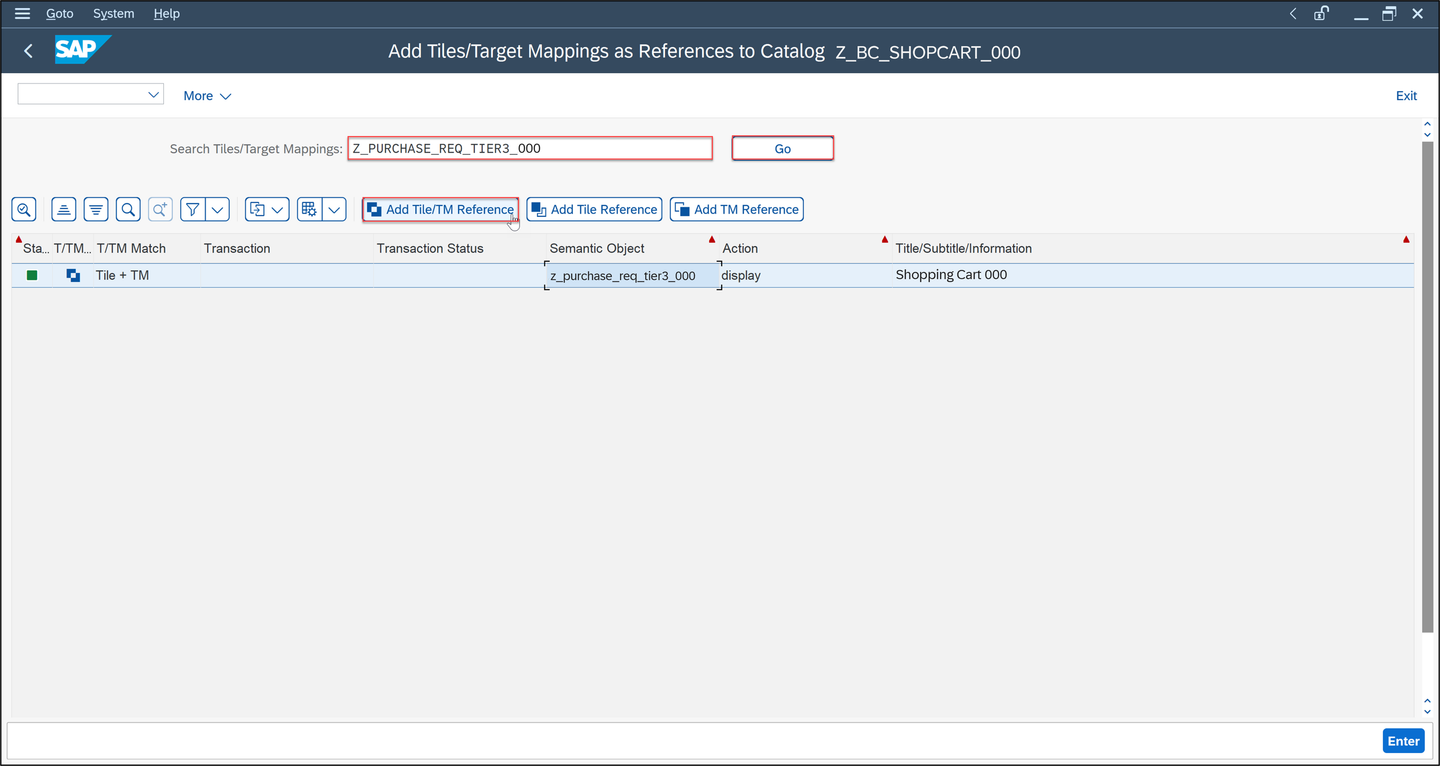
item Check your result.

item
Execute following transaction to create a business role and assign it to your user
pfcg.
user Enter
Z_BR_SHOPCART_###as Role and click Single Role.
user Enter a description and click Save.

user Navigate to Menu and select Transaction > SAP Fiori Launchpad > Launchpad Catalog.

user Enter
Z_BC_SHOPCART_###as Catalog ID, select the check mark and click save.
user Navigate to Authorization and select the edit icon for Change Authorization Data.
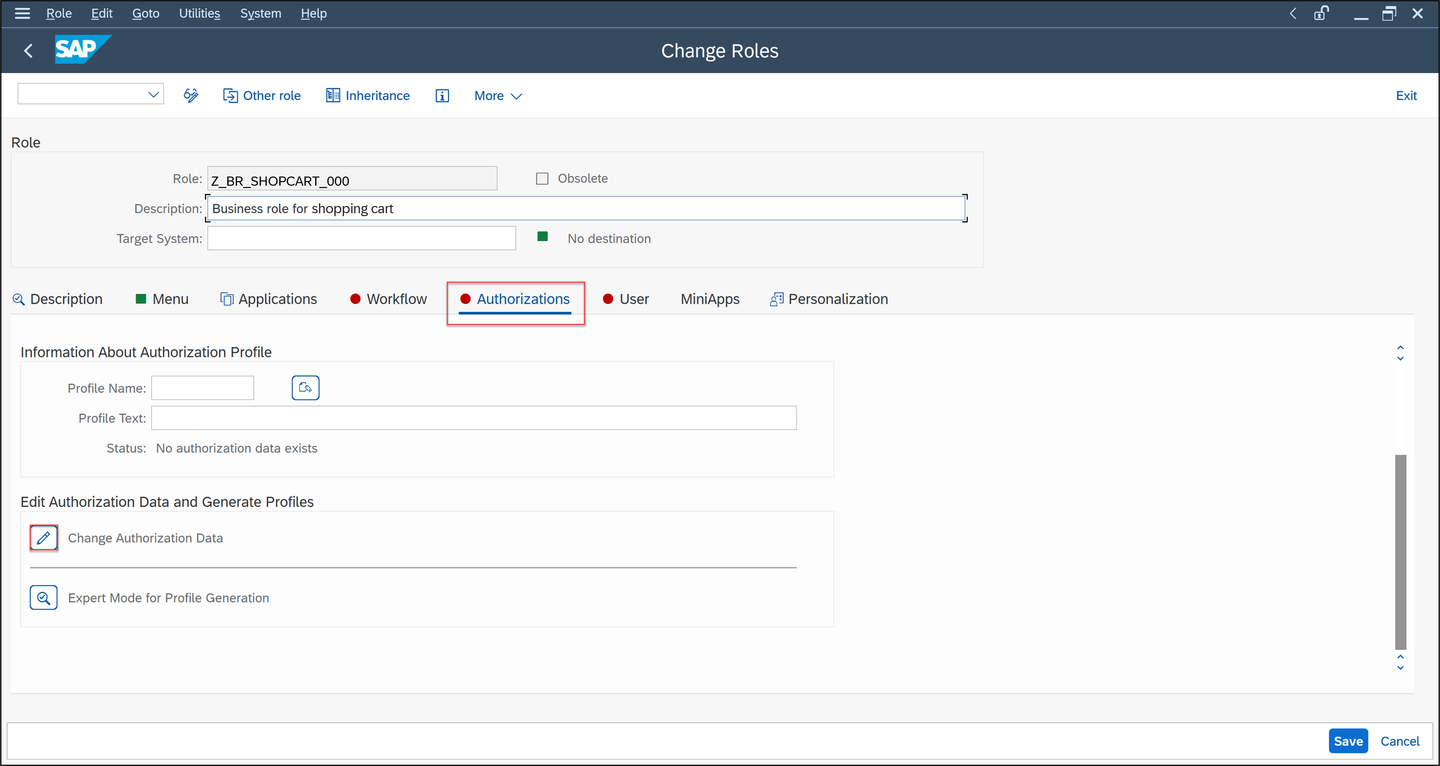
user Click the icon.

user Select the check mark.

user Go back.

user Navigate to User, enter your user and click Save.
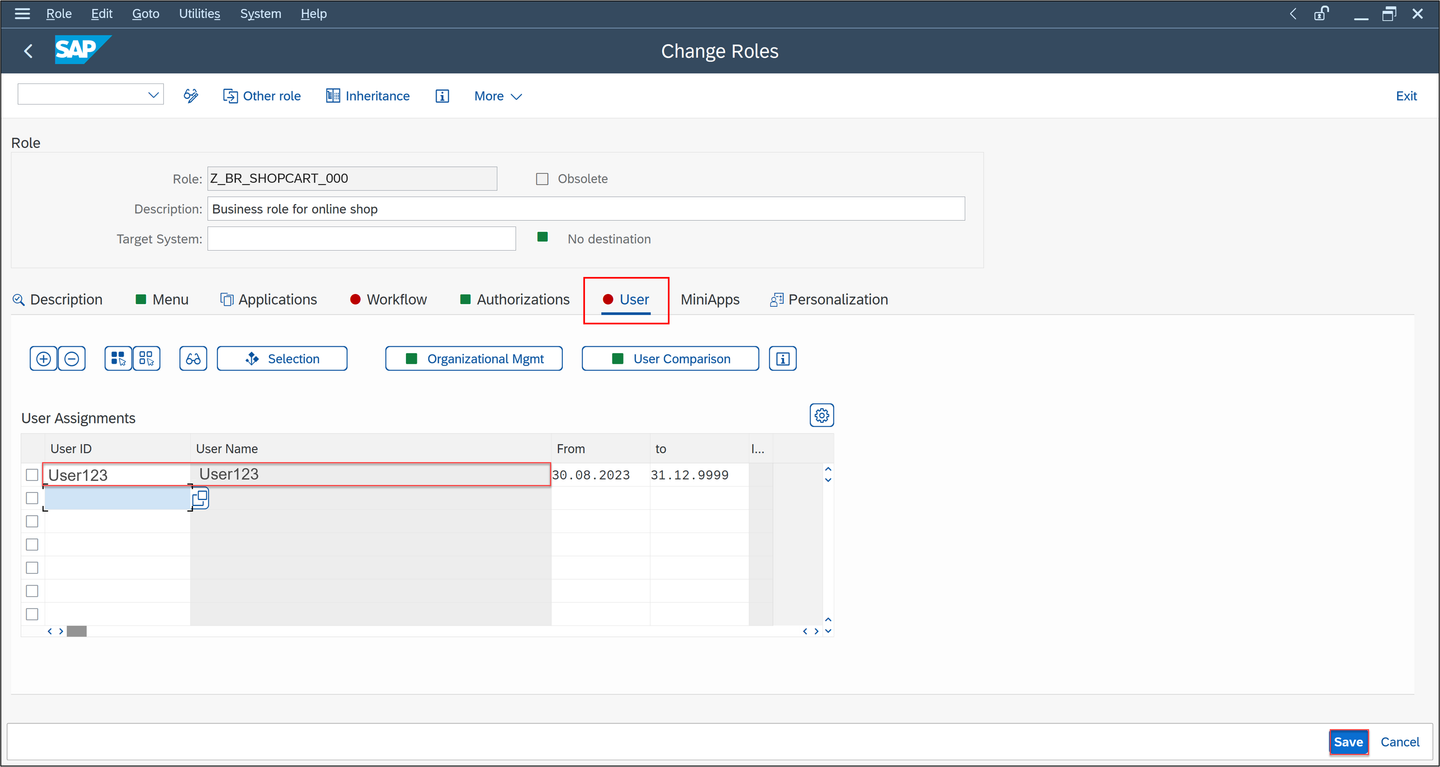
user
Execute following transaction to run an app from SAP Fiori Launchpad
/ui2/flp. You also need to add/nbefore your transaction.
flp Log in with the user you assigned the business role
Z_BR_SHOPCART_###to.
flp Click your user on the top right corner and select App Finder.

flp Search for Shopping Cart ### and press the + symbol.

flp Select My Home to add your application to the my home page.

flp Go to your home page and now you can see your application. Click your application and check your result.
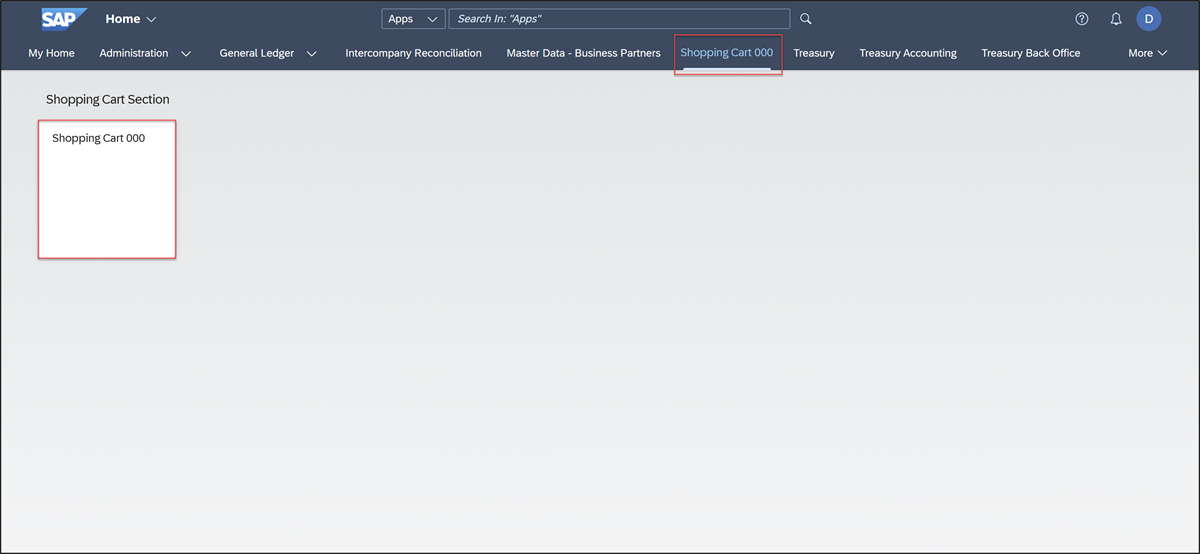
flp
Execute following transaction to create spaces and pages
/ui2/flp. You also need to add/nbefore your transaction.
space Click Home and select SAP Fiori Launchpad: All Apps > Manage Launchpad Spaces.

space Click Create.

space Create a new space and page:
- Space ID:
z_purchase_req_### - Space Description: Space for Shopping Cart ###
- Space Title: Shopping Cart ###
- Check mark Also create a page
- Page ID:
z_purchase_req_### - Page Description: Page for Shopping Cart ###
- Page Title: Shopping Cart ###
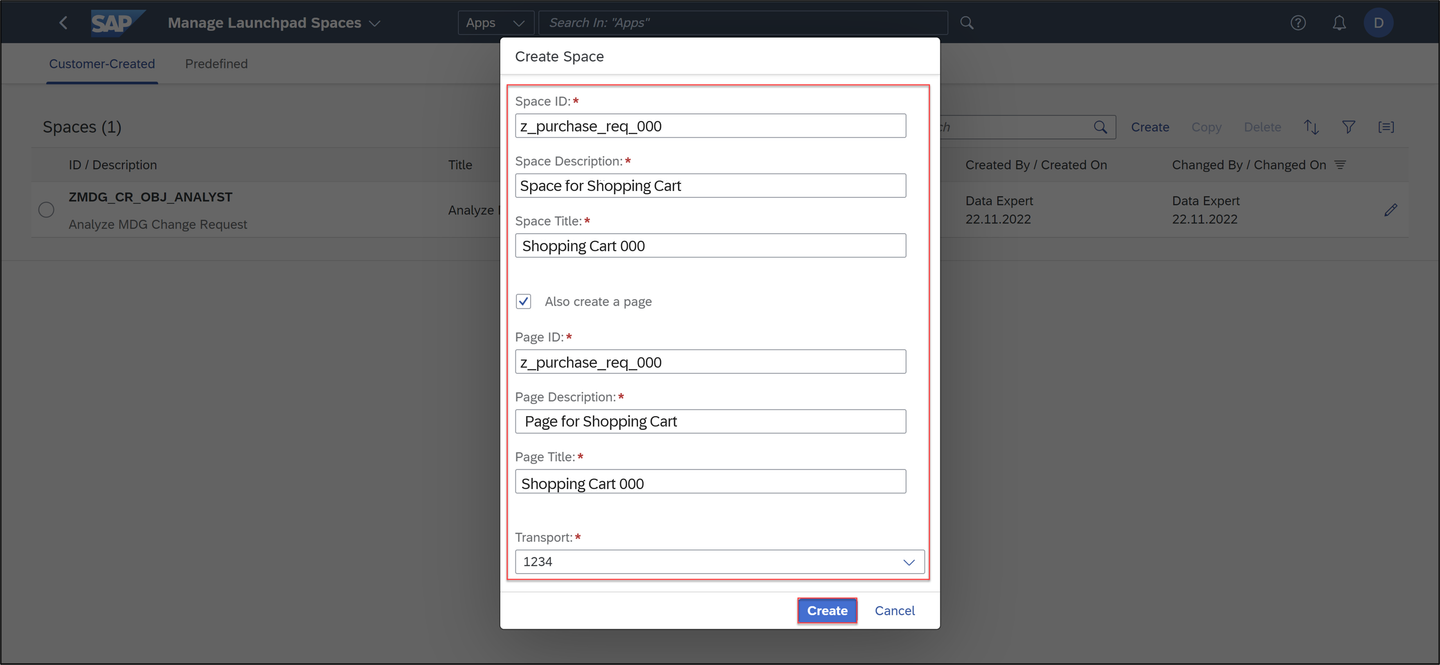
space Select your transport request and click Create and assign your transport request.
- Space ID:
Click Save.

space Navigate to your page
Z_PURCHASE_REQ_###.
space Inside your page
Z_PURCHASE_REQ_###click Edit to add your page content.
space Select the menu and click Catalogs.

space Search for your catalog
z_bc_shopcart_###, select it and click Select.
space Select your business catalog
z_bc_shopcart_###and click Add.
space Enter the section title: Shopping Cart Section and click Save.

space
Execute following transaction
pfcgto open your business role and add the newly created space and page to it.user Enter
Z_BR_SHOPCART_###as Role and click the edit symbol.
user Go back and navigate to Menu again. Select the arrow > SAP Fiori Launchpad > Launchpad Space.

user Enter
Z_PURCHASE_REQ_###as Space ID and select the check mark.
user Add a description and click Save.

user
Execute following transaction to run an app from SAP Fiori Launchpad
/ui2/flp. You also need to add/nbefore your transaction.flp Navigate to Shopping Cart ### and select your tile to check your result.

flp
Find here the documentation on SAP Fiori Launchpad.
Resources
Discussion
Share feedback on this tutorial or join the conversation in SAP Community.