
Overview
You will learn
- SAP Build Process Automation Integration with SAP BTP ABAP environment
- Creation of a Communication Arrangement for SAP Build Process Automation Workflows
- Creation of callback destination from SAP Build Process Automation to SAP BTP ABAP environment
- Properties to be used in the callback destination to enable it for SAP Build Process Automation
- Adding the callback destination in SAP Build Process Automation


Prerequisites
- You have a licensed version of SAP BTP ABAP environment
- SAP BTP ABAP environment instance with the Administrator role
- SAP BTP tenant with SAP Build Process Automation subscription Instance and service key must be created for SAP Build Process Automation. You can use the Booster for subscription as described here
Steps
Scenario
Basic Travel Application will be created in SAP BTP ABAP Environment. On Creating a Travel entry, a workflow will trigger in SAP Build Process Automation and the status of the Travel entry will be set to “Awaiting Approval”.
This workflow process in SAP Build Process Automation will create a task in the approver’s Inbox, which can be accessed from “My Inbox” Application integrated in SAP Build Process Automation.
Once the Approver actions the task i.e. (Accepts/ Rejects) a callback will be made to SAP BTP ABAP Environment notifying the Outcome of workflow completion. BTP ABAP Environment will use the Notification to further set the status of Travel to Accepted/ Rejected in the Travel Application.

To integrate SAP BTP ABAP environment with External Systems or Services like SAP Build Process Automation you create a Communication Arrangement.
A Communication Arrangement describes which communication partners communicate with each other in the scenario, and how they communicate. Communication Arrangement is formed by combining the below artifacts.
Communication Scenario: Communication Scenario is a design time description of how two communication partners communicate with each other. It consists of technical information like inbound and/or outbound services example OData or SOAP as well as supported authentication methods. There are various standard communication scenarios provided by SAP which are ready to use, like in this tutorial we would be using
SAP_COM_0863.Communication System: The communication system represents the communication partner within a communication e.g., SAP Build Process Automation in this case.
Communication User: Communication users are used by Communication Systems to authenticate themselves to be able to connect to your system in BTP ABAP Environment.
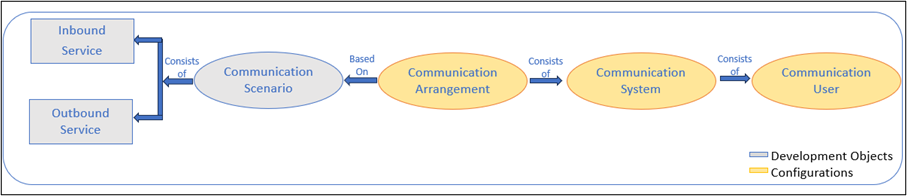
You will now create a communication arrangement in the ABAP system on BTP ABAP Environment using service key of SAP Build Process Automation Instance.
Communication Arrangement is not transported between systems but created locally by the system administrator.
Get SAP Build Process Automation Service Key.
- In the BTP Cockpit navigate to your development subaccount.

BTP Cockpit - Click Services and Instances.

Services And Instances - Click Instances.

Instances - Click the name of your SAP Build Process Automation instance.

SBPA Instance - From the navigation pane choose, Service keys.

Service Keys - Select one entry and copy the service key.

Copy Service Key Open the Communication Arrangement app in your SAP BTP ABAP Environment.
- Click on the BTP ABAP environment instance in your BTP sub account to navigate to the Fiori launchpad.

Fiori Launchpad - In the Fiori launchpad Open Communication Arrangement.

Communication Arrangement Click on New to create communication arrangement.

New Communication Arrangement Communication Scenario
SAP_COM_0863.Communication Scenario
SAP_COM_0863is a ready-to-use communication scenario provided by SAP for integration with SAP Build Process Automation.
Ready to use Comm Scenario Set Additional Properties.
Once the scenario is selected pop-up window extends with pre-filled Communication Arrangement name and option to set additional properties, enter, or create Communication User and to enter service key.
Click on Additional Properties, set given value, and click Close.
Consumer Type (Workflow) -
DEFAULT
Additional Properties The consumer type is used to identify the default communication arrangement i.e., if the SAP Build Process Automation Communication Arrangement has Consumer Type (Workflow) set to
DEFAULTthen the system will try to trigger all workflows in SBPA by default. Therefore, default assignment can be done only on one Communication arrangement for a Consumer Type.Create a New Communication User.
Select a Communication User (of which you know the password) or create a new one to use for inbound communication (from SAP Build Process Automation to your BTP ABAP environment).
- Click New to create a communication user.

New Communication User Clicking on new navigates to the Create Communication User App. Enter the below info and click on Create.
User Name:
ZTEST_USER_SBPADescription:SBPA UserPassword: Click on Propose Password (Save the password for later use)

Create Communication User Save the proposed password and user name as that would be required during creation of callback destination.
In the field Service key paste the SAP BUild Process Automation instance service key that we retrieved as part of ‘Get SAP Build Process Automation Service Key’ and click Create.

Create SBPA Instance Communication Arrangement is saved.
Save the highlighted API-URL for later use while creating callback destination.

Saved Communication Arrangement
Create a destination in the SAP BTP subaccount, to enable the inbound communication to the BTP ABAP environment. In addition, the destination must be enabled for use in SAP Build Process Automation.
The destination will be used for the callback to the SAP BTP ABAP environment from SAP Build Process Automation. The callback is triggered on the completion of workflow process on SAP Build Process Automation.
In the BTP Cockpit navigate to your development subaccount.

Development Subaccount Choose Connectivity>Destination>Create Destination.

Create Destination Choose Blank Template and enter the following data and click on Save.
Name:
abap-cloud-dev-steampunk-canary(Any Name)Type: HTTP
Description: SBPA to ABAP Callback Destination
URL: Enter the
API-URLsaved during Communication Arrangement creation. If not saved access the communication arrangement and copy the API URL displayed under Common Data >API-URL. It is the API URL for BTP ABAP Environment instance.Proxy Type: Internet
Authentication:
BasicAuthenticationUser: Enter the Inbound Communication User created during Communication Arrangement creation.
Password: Enter the Password of the (inbound) communication user in the Communication Arrangement.
Additional Properties: Click on New Properties and add Additional Properties.
sap.applicationdevelopment.actions.enabled→ true.sap.processautomation.enabled→ true
Additional Properties The addition of Additional Properties
sap.applicationdevelopment.actions.enabledandsap.processdevelopment.enabledenables the destination for use in SAP Build Process Automation.
Open the SAP Build Process automation from your subaccount.
Subaccount > Instances and Subscriptions > Subscriptions > SAP Build Process Automation.
- Click on SAP Build Process Automation to open the Application.
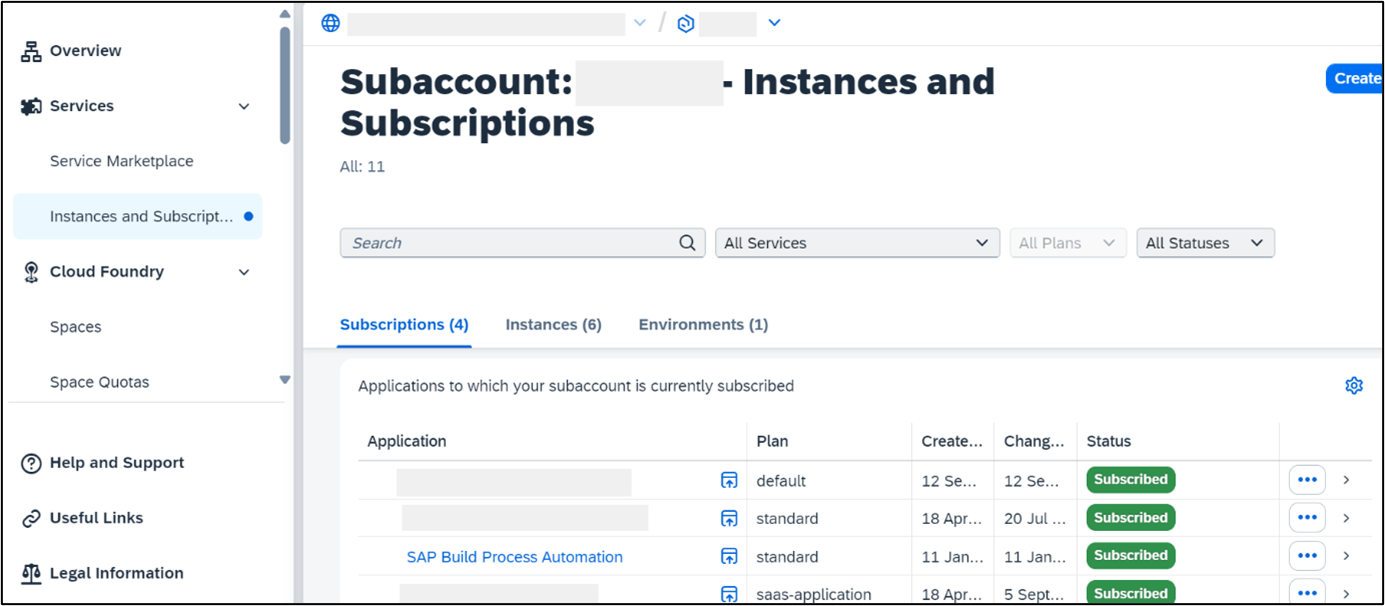
SBPA Subsciptions
- Click on SAP Build Process Automation to open the Application.
Navigate to Control Tower > Destinations.

Control Tower Choose Destinations > New Destination.

Control Tower Destination Select the destination that you have created in SAP BTP cockpit and click Add.

Add Destination
Resources
Discussion
Share feedback on this tutorial or join the conversation in SAP Community.